
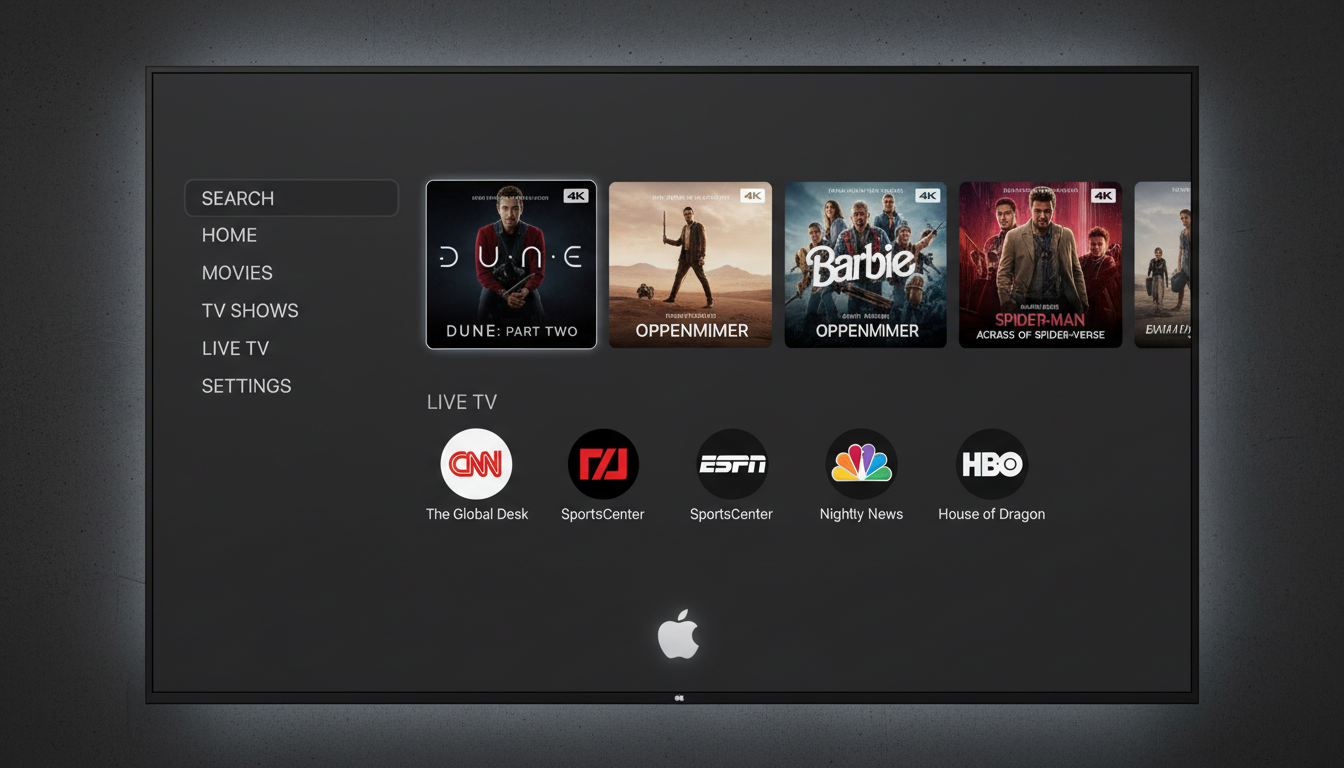
Last updated August 21, 2026 · Editorially reviewed by CanzarTV

Choosing the right IPTV app for Apple TV in 2026 means balancing compatibility, performance, privacy, and—most importantly—legal access to the channels and streams you want to watch. Apple TV’s tvOS ecosystem has matured: native apps are faster and more reliable than AirPlay workarounds, and there are several approaches to deliver live TV and recorded content. Below I outline practical options, setup steps, selection criteria, performance tips, privacy considerations, and legal cautions to help you get the best experience.
Best IPTV Apps for Apple TV in 2026
1. Plex (with Live TV & DVR)
Plex is a widely used media server and client that supports live TV and DVR when paired with a compatible tuner and an antenna or network feed. On Apple TV, Plex provides a clean tvOS interface, remote-friendly navigation, and server-based transcoding when needed. Use Plex if you want one app that unifies local media, streaming channels, and recorded broadcasts. Confirm current features and hardware compatibility on Plex’s documentation before purchasing a tuner or subscription.
2. VLC for Apple TV
VLC remains a strong choice when you need a robust, standards-focused player that can handle a wide variety of codecs and network streams. If you have M3U playlists or direct HTTP(s)/RTSP streams, VLC can often play them without additional server software. VLC is a good fit for troubleshooting streams or using a simple playlist approach—check the App Store listing for current playlist and EPG support.
3. Infuse
Infuse is a polished media playback app that supports many formats, network shares, and streaming sources. It focuses on excellent playback quality, subtitle support, and a refined tvOS interface. Infuse is particularly useful if your IPTV provider exposes streams via network shares or standard URLs and you also want strong local video library management. Verify current playlist and live-TV features in the developer documentation.
4. Jellyfin (tvOS clients)
Jellyfin is an open-source media server that can serve live TV and recorded content with the right plugins and configuration. Community and third-party tvOS clients exist; if you prefer a self-hosted solution for privacy and control, Jellyfin is worth considering. Because configurations and client apps evolve, consult Jellyfin’s documentation for the up-to-date setup process for Apple TV.
5. Dedicated IPTV Players (tvOS apps)
There are tvOS apps designed specifically for IPTV playlists (M3U/XSPF) and EPG integration. These dedicated players often focus on live playlists, channel lists, EPG grids, and sometimes DVR. Availability and feature sets change, so search the App Store for “IPTV,” read recent reviews, and verify that the app supports your playlist format and EPG source.
How to set up IPTV on Apple TV
- Install the chosen tvOS app from the App Store on your Apple TV.
- Obtain the playlist or stream URLs from your content provider. Use only sources you are authorized to access.
- If needed, set up a media server (Plex, Jellyfin, or a transcoding server) on a local machine to handle incompatible codecs or to provide DVR features.
- Configure the app with your playlist URL, upload an M3U, or connect to your server following the app’s instructions. Add an XMLTV or other EPG source if you want program guides.
- Test playback, check direct-play vs transcoding, and adjust server settings for hardware acceleration if available.
Selection criteria: what to look for
- Native tvOS app: native apps deliver the best UI and remote control experience.
- Playlist and EPG support: M3U and XMLTV compatibility is essential for standard IPTV workflows.
- DVR and recording options: if you want to record live TV, verify whether the app or server supports scheduled recordings and storage management.
- Codec and container support: ensure the app or server can play or transcode the codecs used by your streams (check current documentation for codec lists).
- Active development and support: prefer apps with recent updates and responsive support channels.
Performance considerations
Network and device performance are the biggest determinants of smooth IPTV playback. Whenever possible, use wired Ethernet for Apple TV or a high-quality Wi‑Fi 6/6E connection with a clear channel. High-bitrate 4K streams demand both bandwidth and the ability to direct-play the codec on tvOS; otherwise, a server must transcode, which requires CPU/GPU resources. If you run a server, enable hardware transcoding on a compatible NAS or PC and monitor CPU usage during peak viewing. Also plan storage for DVR recordings and check whether your app supports efficient file management.
Privacy and VPNs
Consider privacy implications: IPTV apps and servers often log usage and metadata. Review app privacy policies and server configuration options. Apple TV does not natively support most VPN apps—if you need a VPN for privacy, use a router-level VPN or a VPN-capable gateway so all traffic from the Apple TV is routed through the service. Always check your VPN provider’s compatibility guides and the laws in your jurisdiction.
Legal and licensing cautions
Not all IPTV streams are lawful. This article does not endorse or encourage accessing unlicensed content. Only use channels, playlists, and DVR capabilities for content you are legally entitled to access—this means official subscriptions, licensed streams, or your own over-the-air captures. Check the terms of service of any app or content provider and confirm the rules and regulations that apply in your country.
A practical checklist
- Pick a native tvOS app with the playlist/EPG features you need and confirm current App Store availability.
- Use wired Ethernet or strong Wi‑Fi and verify direct-play (avoid unnecessary transcoding).
- Set up a server (Plex/Jellyfin) only if you need DVR, transcoding, or unified media access.
- Review app privacy policies and consider router-level VPNs if required by your privacy needs.
- Confirm you have legal access to the streams you plan to watch and check local regulations.
If you’d like help choosing between options or need step-by-step assistance, review CanzarTV’s subscription options and documentation. Our support team is available to answer setup questions—contact us anytime for guidance.

Canzar
Ready to stream? Pick your plan
Live TV, movies, sports and 10,000+ channels on any device — Firestick, Android TV, Smart TV, phone.
View Subscription Plans Compare Pricing
Moderation: Comments are reviewed before publishing. Be respectful and on-topic.
Guidelines: Share streaming tips, device help, or content recommendations. No spam, no promotions, no off-topic links.