
Last updated August 25, 2026 · Editorially reviewed by CanzarTV
Setting Up a Backup Viewing Path: What to Do When a Primary Streamer Fails
Live games, big TV premieres, or important work presentations reward preparation. When your primary streamer or set‑top box fails at a crucial moment, a simple backup viewing path can save the day. This guide explains practical, model-agnostic approaches to creating a resilient streaming setup so you can switch quickly and stay watching.
Introduction
A backup viewing path doesn’t need to be complex or expensive. The goal is to reduce downtime and the stress of troubleshooting under pressure. This article covers how to assess risk, pick backup hardware and network options, wire and configure fallbacks, and test the whole system. It will also show quick‑switch techniques and offer a short checklist you can use before any live event.
Note: settings and compatibility can differ by TV, device, operating system, region, and firmware version. Always verify details with your device’s manufacturer documentation.
Why you need a backup viewing path
Even with modern devices, failures can happen: a streaming stick might freeze, a smart TV app may crash, network congestion can block a live feed, or a firmware update can start at the worst moment. A planned backup path gives you options:
- Minimize downtime during live broadcasts or streaming events.
- Avoid frantic troubleshooting in front of guests.
- Maintain professional continuity for remote presentations.
This is about redundancy and graceful failover—keeping a second path available that you can switch to quickly with minimal loss of viewing.
Types of backup viewing paths (high level)
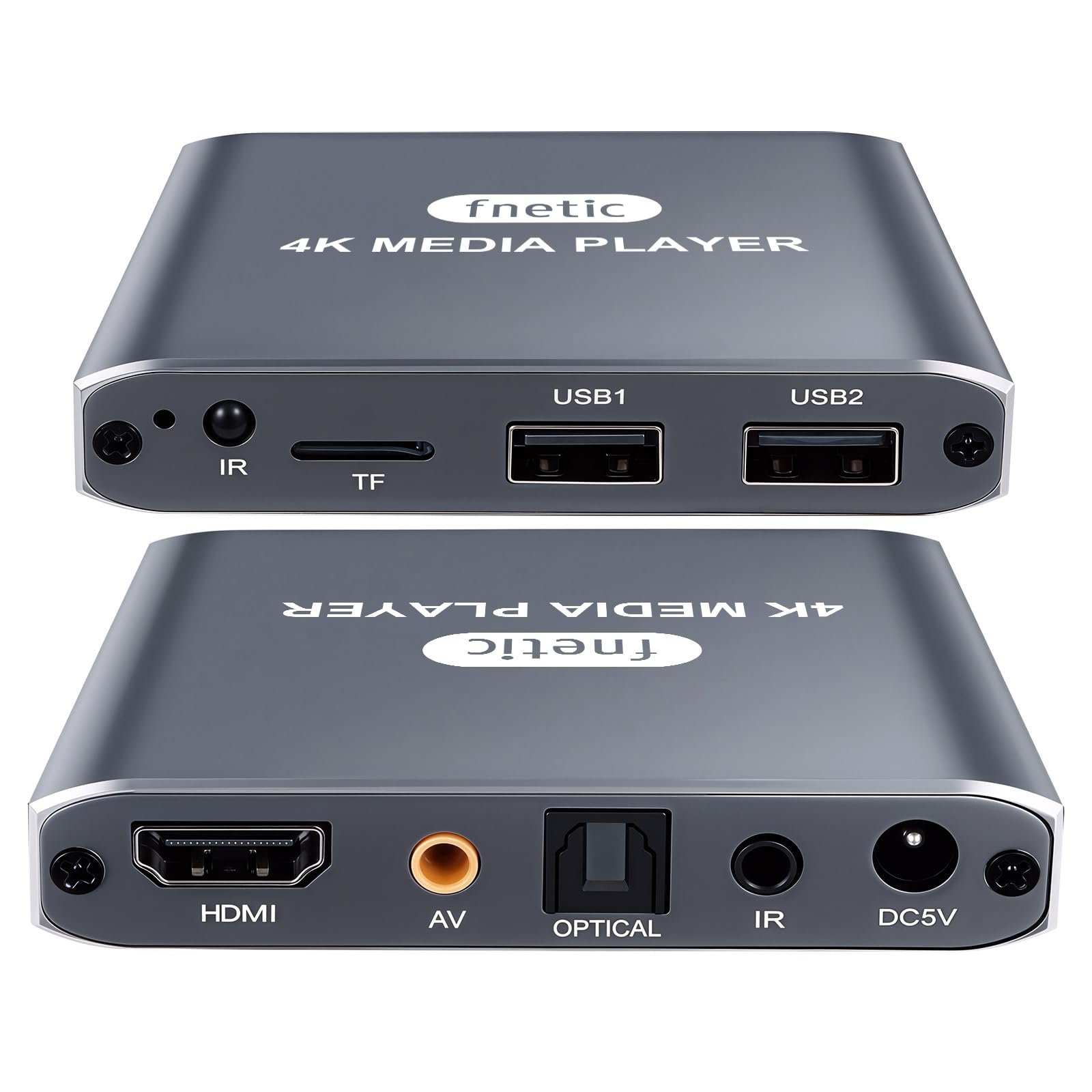
- Secondary streaming device: a second streaming stick, set-top box, or spare smart TV app.
- Alternate input on the same TV: a cable/satellite box, Blu‑ray player, or a laptop connected by HDMI.
- Mobile fallback: cast or mirror from a phone/tablet, or use a mobile hotspot for a second internet path.
- Router/network failover: a dual-WAN or automatic failover router to switch from primary internet to cellular or a different broadband connection.
Choosing one or more of these depends on how critical the event is, your budget, and how much setup/automation you want.
Quick comparison: common backup options
| Backup option | Ease of setup | Speed of switching | Typical cost | Best for |
|---|---|---|---|---|
| Second streaming stick / box | Very easy | < 30s | Low | Casual viewers wanting a simple backup |
| Smart TV built-in app | Very easy (if available) | < 30s | None (already on TV) | Quick recovery if app keeps working |
| HDMI input from laptop/tablet | Moderate | 10–60s | Low–medium | Presentations or websites, when you can use a laptop |
| HDMI auto-switcher / AV receiver | Moderate | Instant to a few seconds | Medium | Seamless hardware switching between inputs |
| Mobile hotspot / phone mirror | Easy | 30–90s | Depends on data plan | If broadband fails or for remote viewing |
| Dual‑WAN router or cellular failover | Complex | Automatic (~seconds) | Medium–high | Continuous streams and reliability-focused setups |
This table is illustrative; actual switching times and ease vary by models and configuration.
Step-by-step: Plan your backup viewing path
1) Identify failure scenarios
List the things that would cause you to lose the primary stream: device crash, network outage, authentication issues (app requires sign-in), HDMI cable failure, power cut. For each scenario, decide which backup option addresses it.
Example mapping:
– Device crash -> second streaming stick or TV app
– Network outage -> mobile hotspot or dual‑WAN failover
– Authentication issues -> alternate app on another device (may need to re‑login)
– HDMI or TV input failure -> use other inputs or an AV receiver
2) Choose your backups (keep it simple)
For many households one or two simple backups are sufficient:
– A second streaming stick or cheap spare box pre‑configured and logged in.
– A laptop with HDMI cable ready as a fallback for casting or direct playback.
– A charged phone capable of sharing a hotspot.
If you need more reliability (small studio, event space), add a dual‑WAN router configured to fail over to cellular service.
3) Prepare hardware and inputs
- Plug the secondary device into a different HDMI port than your primary device. Label the input on the TV and the remote.
- Consider an HDMI auto‑switcher or modern AV receiver: an auto‑sensing switch can flip to an active source without needing the TV remote. If you use a manual switch, make sure it’s easy to access.
- Keep spare HDMI and power cables in a known spot.
Tip: the combination of clear labeling and a single remote macro (or a physical button on a switch) can shave valuable seconds off a switch.
4) Configure networks and authentication
- Pre‑log into the streaming apps you rely on on the backup device where allowed by service terms. Note that some services limit simultaneous streams or devices; check each provider’s rules before relying on the backup.
- If you use a mobile hotspot frequently for failover, configure it and test data speeds and limits in the location where you’ll be watching.
- For critical setups, configure a router with WAN failover to switch automatically from primary broadband to a secondary connection (e.g., cellular gateway). Follow your router vendor’s instructions—implementation varies by model and firmware.
5) Automate the switch where possible
- HDMI auto‑switchers with priority settings or AV receivers with input priorities can switch automatically when the primary device becomes inactive.
- Smart‑home remotes and macros (e.g., Harmony-like systems or programmable universal remotes) can change inputs and launch apps at the push of one button.
- For broadcast or streaming in a professional context, dedicated failover hardware and software exist; follow vendor guidance and test in advance.
6) Test and rehearse
- Simulate failures: unplug the primary device, throttle the network, or force-close the app to ensure your backup path works and is fast enough.
- Time how long the switch takes and adjust: label buttons, move equipment for easier access, or change switcher settings.
- Rehearse with others who might need to do the switching so everyone knows the steps.
Practical examples (common scenarios)
Scenario A: Watching a major live sports event at home
Recommended backup stack:
– Primary: smart TV app or primary streaming stick.
– Secondary: a second streaming stick connected to a spare HDMI port and logged into the same service where allowed.
– Network backup: phone set up as a hotspot ready to use if the home broadband goes down.
– Quick‑switch hardware: HDMI auto‑switcher or AV receiver.
Steps when primary fails:
1. Use the TV remote or the switcher button to change to the secondary HDMI input.
2. If the home internet is down, enable the phone hotspot and connect the secondary device.
3. If the secondary device requires re‑authentication, use a phone to receive two‑factor codes and complete login.
Scenario B: Presenting remotely to a meeting where a streamer is part of the workflow
Recommended backup stack:
– Primary: laptop using the default conference app.
– Secondary: a spare laptop or tablet with HDMI ready to plug into the room’s display.
– Network: backup mobile hotspot and an Ethernet cable pre‑run to the presenter station.
Steps when primary fails:
1. Plug the spare laptop into the display via HDMI and join the meeting.
2. Enable hotspot or plug in Ethernet to minimize wireless issues.
3. If camera or mic from the original device are required, have external webcam/mic ready to connect to the spare device.
Quick‑switch tips and tricks
- Label every HDMI port on your TV and any physical switch buttons. A simple sticker with “Primary” and “Backup” saves time.
- Use CEC (Consumer Electronics Control) only if you understand how it interacts with your devices—it can simplify switching but on some TVs it behaves unpredictably across brands.
- Keep a universal remote or a programmable macro that toggles power and inputs in a single command.
- Keep power strips accessible and clearly labeled so you can power cycle a frozen device quickly.
Maintenance and policies
- Update devices during non-critical times. Avoid auto‑upgrades before major live events.
- Check app logins and subscription status on backup devices before relying on them—different services have different device and simultaneous-stream limits. See your provider’s terms.
- Replace or recharge batteries in remotes and portable backups on a regular cadence.
Short checklist to run before any big event
- [ ] Secondary device plugged into a different HDMI port and labeled
- [ ] Backup network option available (hotspot or secondary internet)
- [ ] HDMI and power cables spare and accessible
- [ ] Quick switch method tested (auto switcher/AV receiver or remote macro)
- [ ] Backup device logged into necessary apps where allowed
- [ ] Test run completed within the last 48 hours
FAQ
Q: How fast can I realistically switch to a backup device?
A: With an HDMI auto‑switcher or AV receiver and pre‑configured devices, switching can be near‑instant or take a few seconds. Manual switching using a remote may take 15–60 seconds. Times vary by equipment and whether you need to reconnect to a network or re‑authenticate.
Q: Will switching to a backup device require re‑logging into streaming services?
A: Often yes—some services allow multiple devices to stay logged in, others may require signing in again or verifying via two‑factor authentication. Check each service’s device policies ahead of time.
Q: Can I use a phone as a hotspot without blowing through data caps?
A: Using a phone hotspot for short-term failover is common, but streaming live HD video consumes significant data. Verify your data plan and consider lowering streaming quality for hotspot fallback.
Q: Are there legal or service limitations to using backup devices?
A: Do not use backups to access content in ways that violate service terms (no credential sharing beyond what the service permits, and no bypass of regional restrictions). Always follow your provider’s rules.
Q: Do smart TVs and devices support automatic failover?
A: Some environments (especially professional AV) support automatic failover, but consumer devices and smart TVs have limited or inconsistent automatic failover behavior. Implement automated solutions (switchers, failover routers) with an understanding of model-specific behavior and test thoroughly.
When to invest in a higher‑grade solution
If you regularly host live events, run a small venue, or depend on uninterrupted streams for work, consider:
– A managed dual‑WAN router with automatic failover.
– Professional AV switchers that include redundancy and signal monitoring.
– A full backup stack with duplicate sources (e.g., two independent service feeds) if you need near‑100% uptime.
These solutions are more complex and usually require professional installation and testing. They may also require licensing or coordination with service providers.
Useful internal resources
For more setup inspiration and how‑tos, see our practical guides:
– Streaming Guides
– Devices & Setup
– Sports & Live TV
– Blog
Conclusion
Creating a backup viewing path is mostly about deciding which failure scenarios matter to you, choosing simple, rehearsable fallbacks, and testing them before they’re needed. For most people, a pre‑configured spare device and a mobile hotspot are enough. For higher reliability, add hardware switchers or network failover. Labeling, rehearsal, and a short checklist do more to reduce downtime than buying the most expensive gear.
A little planning and a few practice runs will let you enjoy events—and handle surprises—with far less stress.
Disclosure: settings and compatibility can differ by TV, device, operating system, region, and firmware version. Always verify with your device’s manufacturer or service provider documentation before relying on a specific configuration.

Canzar
Ready to stream? Pick your plan
Live TV, movies, sports and 10,000+ channels on any device — Firestick, Android TV, Smart TV, phone.
View Subscription Plans Compare Pricing
Moderation: Comments are reviewed before publishing. Be respectful and on-topic.
Guidelines: Share streaming tips, device help, or content recommendations. No spam, no promotions, no off-topic links.