
Last updated August 26, 2026 · Editorially reviewed by CanzarTV
Home Network Diagrams for Small Apartments to Maximize Streaming Reliability
Streaming video smoothly in a small apartment doesn’t require a lab of networking gear, but it does benefit from a clear plan. This article walks through practical home network diagram options tailored to space-constrained homes, shows where to place devices, compares wired and wireless choices, and provides configuration steps and testing tips so you get the most reliable playback from TVs, streaming sticks, consoles, and smart devices.
Note: settings and compatibility can differ by TV, device, operating system, region, and firmware version. Always verify details with manufacturer documentation.
Why a simple diagram matters in an apartment
Small apartments limit where you can run cables and position gear, but they also reduce the scale of the design problem: fewer rooms and shorter runs make it easier to create a robust network. A thoughtful diagram helps you:
- Identify sensible locations for the router and client devices
- Decide whether to run a short Ethernet, use Wi‑Fi only, or deploy a compact mesh or powerline solution
- Prioritize wired connections for high-bandwidth devices like 4K TVs or game consoles
- Avoid interference and Wi‑Fi dead spots that cause buffering and drops
Below are several apartment-friendly network diagrams and the situations where each shines.
Typical apartment network diagram types (visuals described)
Each diagram below assumes a single internet service entry point (ISP modem or gateway). Replace “modem” with your ISP gateway if the device combines modem and router functions.
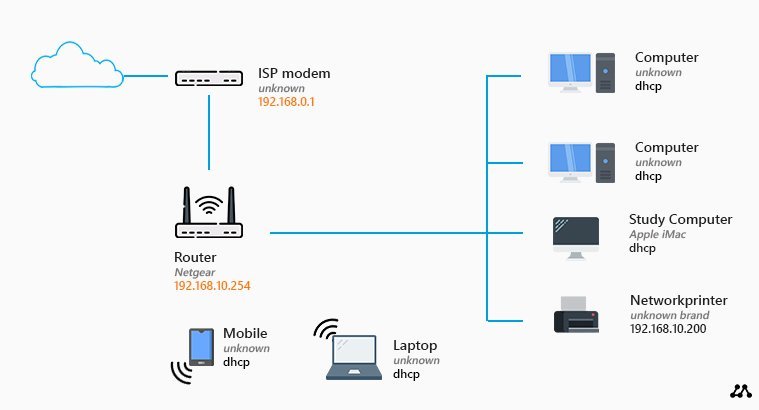
1) Single-router, combined Wi‑Fi + wired hub (best for studios/efficiency)
Diagram (simple ASCII):
Modem → Router (central) → Ethernet switch (optional)
From the router:
– Wired Ethernet → Smart TV or streaming box in living area
– Wi‑Fi → Phones, tablets, laptops, smart speakers
Why use it: Small footprint and minimal gear. If the TV or streaming device is near the router, a direct Ethernet run gives the best streaming stability.
When to use it: Studio or compact one-bed, with the TV within 10–15 meters of the router and no major obstructions.
2) Router + short wired backhaul to secondary AP/mesh node (best when TV is separated)
Modem → Router (entry point) ──(Ethernet)── Secondary AP / Mesh node (near TV)
- Use Router for general devices, the secondary node to serve the living room TV and console with either wired Ethernet or strong local Wi‑Fi.
Why use it: A short Ethernet backhaul to a node near the TV preserves bandwidth for streaming without relying on wireless hops.
When to use it: One-bedroom apartments where the router sits in a bedroom or hallway and the living room is an obstruction away.
3) Mesh Wi‑Fi with wireless backhaul (for minimal cabling)
Modem → Mesh main node (entry) → Mesh satellite (living room)
- All devices connect via mesh Wi‑Fi. Place the satellite within good range of the main node.
Why use it: Cleaner look, no new cable runs. Modern mesh systems can perform well in apartments with moderate interference.
When to use it: When running Ethernet is impractical and the apartment layout allows strong line-of-sight or only a single wall between nodes.
4) Powerline (Ethernet over power) or MoCA (coax) option (for no-cable runs)
Modem → Router → Powerline adapter in router room; Powerline adapter near TV → Ethernet to TV
Or, if building has coax: Modem → Router + MoCA adapter → Coax to TV room → MoCA adapter → Ethernet to TV.
Why use it: Provides a near-wired feel without running new cables. Performance depends on building wiring and electrical noise.
When to use it: If walls prevent clean Wi‑Fi coverage and running Ethernet or drilling isn’t allowed.
Comparing connection options (quick pros/cons)
| Option | Pros | Cons | Best for |
|---|---|---|---|
| Wired Ethernet | Lowest latency, highest reliability | Requires cable runs | Main TV, game console, streaming devices near router |
| Mesh Wi‑Fi (wired backhaul) | Great coverage, scalable | Adds cost, needs one wired link for best performance | Apartment with router in different room |
| Mesh Wi‑Fi (wireless backhaul) | Minimal cabling, tidy | Performance depends on placement & interference | Small apartment with good node placement |
| Powerline (PLC) | No new cabling, easy setup | Varies by wiring quality; possible interference | Rentals where drilling is disallowed |
| MoCA (coax) | Very stable where coax present | Requires MoCA adapters and coax availability | Older buildings with coax wiring |
Note: actual throughput and latency vary by model, wiring, and environment—check manufacturer specifications.
Practical step-by-step: plan, diagram, and implement
Survey your apartment and devices
– Note the ISP entry point (modem/gateway location).
– List streaming devices: TV(s), streaming sticks, consoles, set-top boxes.
– Measure approximate distances and note walls, metal objects, or mirrors between router and devices.Pick the simplest viable diagram
– If your TV is within a short distance of the modem/router, choose a single-router wired diagram.
– If the router is far from the living room, prioritize a short Ethernet run to a secondary AP or use powerline/MoCA.
– Use mesh wireless only if you can place nodes to keep the number of wireless hops low.Choose hardware with streaming reliability in mind
– Prefer a router or mesh node that supports dual-band or tri-band Wi‑Fi and common features like Quality of Service (QoS), band steering, and guest networks.
– For wired runs, use at least Cat5e or Cat6 for gigabit capability. Many apartment needs are satisfied with Cat5e, but Cat6 is more future-proof.
– If using powerline, select adapters from reputable manufacturers and verify they support the speeds you expect (real-world speeds typically lower than peak spec).Placement tips
– Centralize the router or main node where possible, elevated on a shelf rather than hidden in a cabinet.
– Keep routers away from microwaves, cordless phone bases, large metal objects, and aquariums.
– For mesh satellites, place them where they get a good signal from the main node and are close to the TV for local coverage.Run short Ethernet when possible
– Even a single short Ethernet run (10–15 meters) to the living room can transform streaming reliability.
– Use flat Ethernet cables or discrete routing along baseboards if running a cable is a concern.Configure the network for media priority
– Assign static IPs or DHCP reservations for streaming devices where convenient; this makes port forwarding and QoS easier.
– Use QoS to prioritize video streaming and gaming traffic if the router supports application or device prioritization.
– Prefer 5 GHz Wi‑Fi for the TV and streaming devices when in range to reduce congestion; keep 2.4 GHz for IoT devices that need it.Optimize Wi‑Fi channels and bands
– Use a Wi‑Fi analyzer (apps exist for phones and computers) to identify crowded channels; choose less congested channels or let the router auto-select.
– If near many neighboring networks, consider using wider channels on 5 GHz and narrower on 2.4 GHz for stability.Test and iterate
– Run streaming at times you normally use the service and monitor for buffering, dropouts, or bitrate changes.
– Use an ethernet-connected laptop to test ISP speed at the modem, then compare to throughput at the TV location.
– Adjust node placement, channels, or switch to a wired backhaul if wireless results are inconsistent.
Example apartment diagrams with placement notes
Studio with modem in living area: Put the router next to the modem and run a short Ethernet from router to the TV. Keep mesh unnecessary.
One-bedroom with modem in bedroom: Run an Ethernet from bedroom router to a living room mesh node (or a small switch + AP) to provide a wired or very strong Wi‑Fi connection to the TV.
Long rectangular apartment where router is at one end: Use MoCA or powerline adapters to reach the other end reliably, or run an in-wall/along-baseboard cable if allowed.
Small checklist before streaming a 4K/HDR stream
- Is the streaming device connected via Ethernet? If yes, you likely have the best chance of uninterrupted playback.
- If on Wi‑Fi, is the device on 5 GHz and showing a strong signal? If not, move the router or add a node.
- Is QoS active and prioritizing media devices? If not, enable it with the TV/streaming box as a priority device.
- Are firmware and streaming app updated? Sometimes app-level fixes improve playback.
- Run a speed test near the TV; 4K streams commonly require 15–25 Mbps sustained per device, with extra headroom for unstable networks.
Troubleshooting common apartment streaming issues
- Buffering despite good ISP speeds: Check the local network. A slow Wi‑Fi link or competing devices can cause the bottleneck.
- Intermittent drops: Look for interference from other networks or appliances; try changing channels or moving nodes.
- App-specific problems: Restart the streaming app and the device; clear app cache if available.
- Poor wireless range: Use a mesh node with wired backhaul or a powerline/MoCA link if nodes cannot be placed to get good signal.
Quick reference: when to wire, when to mesh, and when to use powerline/MoCA
- Wire (Ethernet) whenever practical for TVs and consoles. It’s the most reliable.
- Use mesh with a wired backhaul if you need coverage across rooms and can run one cable.
- Use powerline or MoCA where Ethernet runs are impossible and you need better reliability than wireless alone.
For more setup help and device guides, see our Devices & Setup and practical tips in Streaming Guides. We also cover security considerations for home networks in Tech & Security.
FAQ
Q: My apartment blocks running cables—what gives the best results with no drilling?
A: Start with a mesh system placed strategically and consider powerline or MoCA if wiring exists. Powerline and MoCA convert existing in‑home wiring to wired network links, but performance varies with electrical/coax quality.
Q: Is 5 GHz always better for streaming?
A: 5 GHz gives higher throughput and less interference in many apartments, but it has shorter range and poorer wall penetration than 2.4 GHz. Use 5 GHz when signal strength is strong; otherwise 2.4 GHz may be more stable.
Q: How important is QoS for streaming?
A: QoS helps prioritize real-time traffic if your network is heavily used (multiple concurrent streams, uploads, online gaming). On a lightly used network with sufficient ISP bandwidth, QoS is less critical but still useful.
Q: Can I use a phone hotspot to stream 4K reliably?
A: Mobile hotspots can work for temporary or low-resolution viewing, but they usually have data caps, variable latency, and limited sustained bandwidth—so they’re not ideal for consistent 4K streaming.
Q: How do I test whether my local network is the problem or my ISP connection?
A: Test speeds with a wired laptop at the modem to get baseline ISP bandwidth. Then test speeds at the TV location; if they’re significantly lower, the local network is the issue.
Conclusion
Small apartments need simple, effective network diagrams more than complex setups. Prioritize one wired run to the living room when possible, place the router or a mesh node strategically, and choose powerline or MoCA when wiring is impossible. Use QoS and band selection to prioritize streaming devices for more consistent playback. With a clear diagram and a few small adjustments, you can dramatically reduce buffering and enjoy higher-quality streams throughout your apartment.
For hands-on tutorials and deeper device comparisons, visit our Blog and the Devices & Setup hub.
Disclosure: Settings and compatibility can differ by TV, device, operating system, region, and firmware version. Verify compatibility and instructions with the current manufacturer documentation before making purchases or changes.

Canzar
Ready to stream? Pick your plan
Live TV, movies, sports and 10,000+ channels on any device — Firestick, Android TV, Smart TV, phone.
View Subscription Plans Compare Pricing
Moderation: Comments are reviewed before publishing. Be respectful and on-topic.
Guidelines: Share streaming tips, device help, or content recommendations. No spam, no promotions, no off-topic links.