
Last updated August 27, 2026 · Editorially reviewed by CanzarTV
How Refresh Rate Affects Perceived Sharpness in Streaming Series and Films
A lot of viewers assume “higher refresh rate = sharper picture.” In practice, refresh rate is one of several factors that influence the impression of sharpness, especially for motion in streaming films and TV series. This guide explains what refresh rate actually does, when it helps — and when it doesn’t — and gives practical steps you can take on streaming devices and TVs to get a natural, sharp-looking picture.
Quick introduction
Refresh rate (measured in hertz) describes how many times per second a display updates its image. Frame rate (frames per second) describes how many frames the source content provides. When refresh rate and frame rate interact in different ways — or when TVs apply motion processing — the result can make moving subjects seem sharper or softer. Many of the effects are perceptual: they change how your eyes and brain interpret motion and detail rather than changing the actual pixel resolution of the image.
How refresh rate and frame rate differ (and why that matters)
- Refresh rate (Hz): How many times per second the display redraws its pixels.
- Frame rate (fps): How many unique images per second are encoded in the film or stream (commonly 24 fps for theatrical films; 23.976 fps in many digital masters; 25 fps for some regional content; 30/60 fps for TV and some streaming).
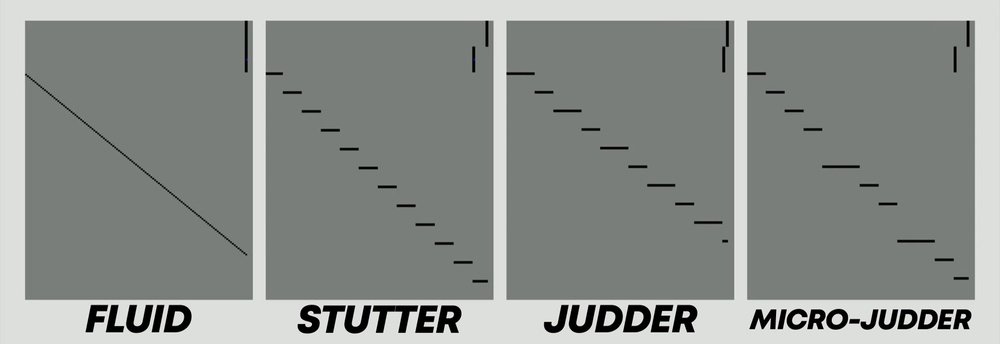
When a 24-fps film is shown on a 60-Hz display without conversion, the same frames must be distributed across the refreshes (a process called pulldown), which can introduce judder. When a display matches the source cadence (for example, a 24p-capable TV running at an integer multiple like 72 Hz or 120 Hz that supports 24p playback), the motion appears smoother and closer to the source intent.
Important caveat: refresh rate does not increase spatial resolution. A 60-Hz 4K TV has the same pixel count as a 120-Hz 4K TV. Perceived sharpness can change with motion handling, but refresh rate alone doesn’t add detail.
Perceived sharpness: motion blur, sample-and-hold, and the eye
Sharpness perception in motion arises from multiple interacting factors:
- Motion blur: On sample-and-hold displays (most modern LCD and OLED TVs), each frame is held steady until replaced. When your eyes track a moving object, the object blurs across the retina during that hold time, reducing perceived sharpness.
- Frame rate vs refresh rate relationship: When a display’s refresh rate is an integer multiple of the content frame rate and the TV presents frames cleanly, temporal artifacts (judder, stutter) are reduced, often improving perceived clarity.
- Motion interpolation and temporal smoothing: TVs can generate intermediate frames to smooth motion. This reduces perceived blur in some cases and can make movement appear clearer, but it also changes film cadence and can create the “soap opera effect.”
- Black Frame Insertion (BFI) or backlight strobing: Some displays insert dark periods or blank frames between frames to reduce motion blur. This can make moving objects appear crisper but may reduce overall brightness and is not available on all TVs.
In short, higher refresh or better matching between refresh and frame rates can reduce temporal artifacts and motion blur, which often improves perceived sharpness during motion — but it depends on how the TV and source interact.
Motion interpolation: sharper motion or “wrong” look?
Motion interpolation (also called motion smoothing) creates new frames between source frames to increase apparent frame rate. Effects:
- Pros: Can reduce blur and judder, making camera pans or quick cuts appear smoother and in some cases crisper to the eye.
- Cons: Alters the original cadence and can make films look overly smooth — a feeling many viewers dislike for cinematic content.
Whether interpolation makes a picture “sharper” is partly subjective. For sports or live broadcasts, many people prefer smoothing because fluid motion helps follow fast action. For scripted drama and most films, preserving the original frame cadence (24p) is usually the goal of cinematographers and many viewers.
How streaming sources and devices handle frame rates
Streaming services deliver content with a certain frame rate based on the master used for that title. Many modern streaming devices and smart TVs can pass through or match that frame rate, but capabilities vary by manufacturer, operating system and app.
Common behaviors you may encounter:
- Native 24p passthrough: Some devices will output 24p to a compatible TV so the display refresh multiples (48/72/120 Hz) can sync without pulldown.
- Automatic pulldown conversion: If passthrough is not available, the device converts 24 fps to the display’s refresh rate using pulldown patterns. Some conversions are better than others; imperfect conversion can introduce judder.
- App- or OS-level controls: Many streaming apps and media players have options like “match content frame rate” or “match dynamic range”. Where present, enabling these options helps preserve the intended cadence.
If you want consistent film-like motion, look for settings named like “Match Frame Rate,” “Match Content,” “24Hz Output,” or similar in both the streaming app and the playback device’s system settings. Confirm with your device and app documentation because labels differ across ecosystems.
(See also our related resources in Streaming Guides and Devices & Setup for step-by-step instructions.)
Practical steps to improve perceived sharpness for films and series
Below are actionable steps to try. Results depend on your TV model, streaming device, and content master. Always try changes with the same clip so you can compare.
- Match content frame rate where available
– On your streaming device or app, enable any option to match the source frame rate or cadence. This generally preserves cinematic motion for 24p content. - Turn off motion smoothing for films
– Disable motion interpolation or “smoothing” for movies and drama. Use a TV picture mode labeled “Filmmaker Mode,” “Movie,” or “Cinema” when available; these modes typically turn off aggressive smoothing and preserve color and cadence. - Try Black Frame Insertion (BFI) or motion blur reduction for fast action
– If your TV or monitor supports BFI or backlight strobing, test it with sports or high-motion scenes to see if perceived sharpness improves. Note BFI can dim the image or introduce flicker; some viewers notice artifacts. - Use a higher refresh-rate display when watching high-frame-rate content
– For native 60 fps or 120 fps content (some live sports, gaming, or experimental streaming), displays with higher refresh rates can show motion more smoothly and may feel sharper. - Keep firmware and app versions updated
– Manufacturers occasionally improve frame rate handling and interpolation on devices through firmware updates. Check your TV and streaming device software and app updates periodically. - Test picture settings with familiar scenes
– Use a camera pan or a tracking shot you know well to evaluate changes. What looks “sharper” for you may depend on how sensitive you are to motion artifacts.
Simple comparison table: common modes and their perceived effect
| Mode / Setting | Typical effect on motion | Perceived sharpness for films | Best for |
|---|---|---|---|
| Native 24p (match content) | Preserves original cadence, minimal judder | Natural, film-like clarity | Most films and scripted TV |
| Motion interpolation On | Very smooth, fewer micro-blurs | Sometimes “sharper” in motion, but may look unnatural | Sports, personal preference |
| Motion interpolation Off (sample-and-hold) | Standard hold display look, more motion blur | Softer on fast motion | Film purists |
| BFI / Backlight strobe | Reduces motion blur, can increase crispness | Can feel sharper in motion; may dim image | Fast camera pans, sports |
| Higher native refresh (60/120 Hz) | Better handling of high-frame-rate sources | Helps high-fps content; limited effect on 24p without matching | High-frame-rate streaming, gaming |
Note: Availability of BFI, smooth motion modes and exact naming depends on TV model and firmware. Verify features in your TV’s manual.
Diagnostic checklist: how to evaluate and tune your setup
- Identify the content’s frame rate if possible (many streaming apps or metadata tools indicate it).
- Set the streaming app and device to “match frame rate” or similar if present.
- On the TV, choose a neutral picture mode (Filmmaker/Movie/Cinema) for films and turn off motion smoothing.
- If watching live sports or fast-paced non-fiction, temporarily enable motion smoothing or a sport picture mode and compare.
- Test BFI or motion blur reduction modes if available; judge brightness trade-offs.
- Keep a consistent test clip to compare before/after changes.
For more device-specific walkthroughs and recommended settings, check our guides in Devices & Setup and Streaming Guides.
When higher refresh rates won’t help
- Static detail: If your video is low resolution or heavily compressed, increasing refresh rate won’t restore fine spatial detail lost in encoding.
- Source cadence mismatch: If the device forces a poor conversion method, a higher refresh display can still show judder unless match-content features are used.
- Perceptual limits: Some viewers are more sensitive to motion blur and smoothing than others; improvements may be subtle.
FAQ
Q: Does a 120 Hz TV make 24 fps movies look sharper?
A: Not automatically. A 120 Hz panel can display 24p content cleanly if the TV supports 24p playback or the source outputs 24p. That proper matching reduces judder and can improve motion clarity. But the TV’s motion processing and how it holds frames still affect perceived sharpness.
Q: Is motion interpolation the same as increasing sharpness?
A: Motion interpolation can make motion appear smoother and sometimes clearer, but it doesn’t add spatial detail. It creates intermediate frames, changing motion characteristics and often making the image look “different” rather than objectively sharper.
Q: Should I enable “Game Mode” to improve sharpness in movies?
A: Game Mode typically reduces processing and input lag and may disable some picture-enhancing features. It isn’t optimized for cinematic cadence and can change color and motion handling; it’s not usually the best choice for films.
Q: What if my streaming device has no “match frame rate” option?
A: Check whether the streaming app itself has a setting, and look for firmware updates for your device or TV. If none are available, test different TV modes and consider a device known to support 24p passthrough if preserving cinematic cadence is important to you.
Q: Will a higher refresh rate improve sports viewing?
A: Often yes. Sports and live broadcasts with high native frame rates benefit from higher refresh-rate displays and motion smoothing because the eye follows fast action and benefits from reduced blur and smoother motion.
Conclusion
Refresh rate is a key part of how motion is rendered on your TV, but it’s not a simple substitute for resolution or productively a universal “sharpen” switch. Perceived sharpness in streaming films and series depends on the interaction between the source frame rate, display refresh rate, motion processing, and personal preference. For faithful, cinematic motion, aim to preserve the source frame cadence (enable match-content options and use film or filmmaker picture modes). For sports or personal preference toward ultra-smooth motion, interpolation and higher refresh can help.
Try small changes one at a time (use the same test scene) so you can tell whether a setting improves or worsens the look for you. For step-by-step help with specific devices and apps, see our related posts in Streaming Guides and Devices & Setup, and for general best practices consult our Blog.
Disclosure: Settings and compatibility vary by TV, streaming device, operating system, app, region, and firmware version. Always check your manufacturer documentation and app support pages for the most current instructions and features.

Canzar
Ready to stream? Pick your plan
Live TV, movies, sports and 10,000+ channels on any device — Firestick, Android TV, Smart TV, phone.
View Subscription Plans Compare Pricing
Moderation: Comments are reviewed before publishing. Be respectful and on-topic.
Guidelines: Share streaming tips, device help, or content recommendations. No spam, no promotions, no off-topic links.