
Last updated August 22, 2026 · Editorially reviewed by CanzarTV
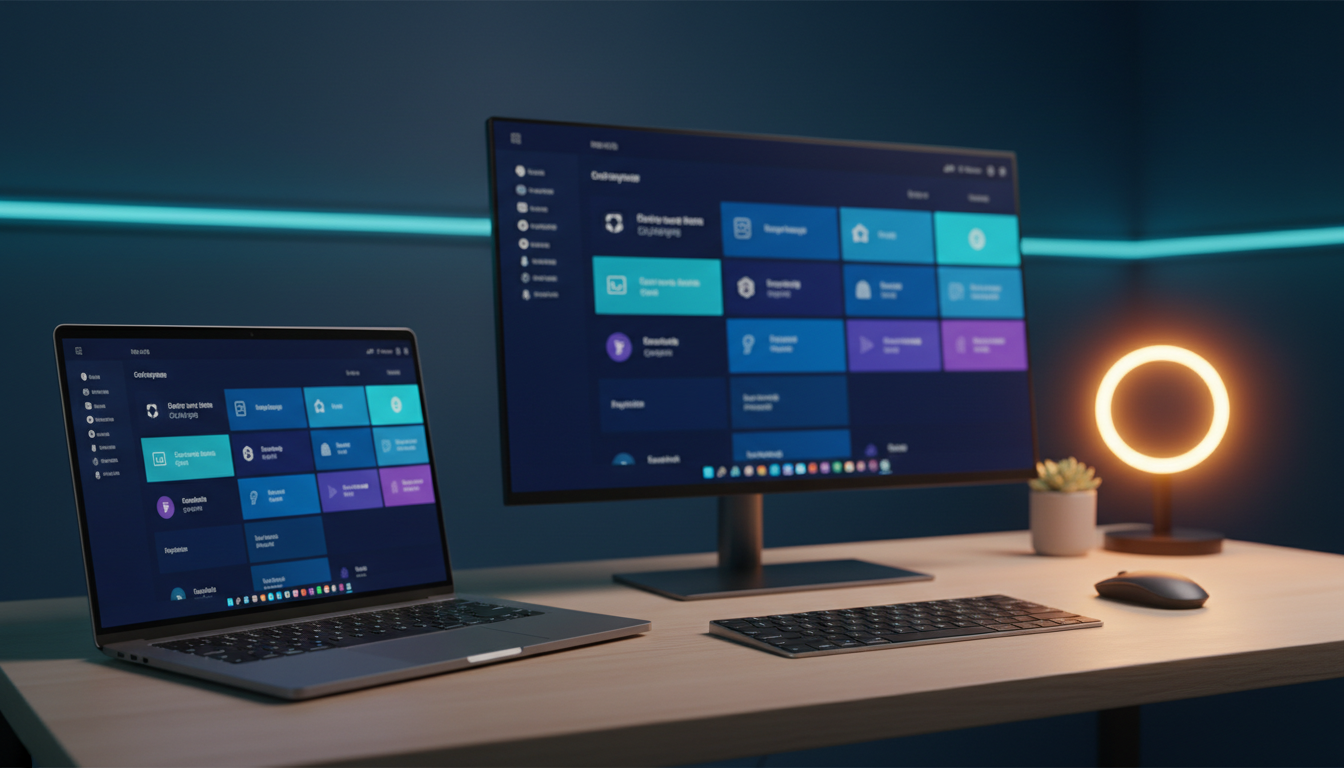
Streaming IPTV on a laptop or desktop is a convenient way to watch live TV, on-demand content, and specialty channels without a set‑top box. This guide explains the concepts, hardware and software choices, setup steps for Windows and macOS, and practical tips to get reliable playback while staying legal and protecting your privacy.
What IPTV means and how it differs from other streaming
IPTV (Internet Protocol Television) delivers television content over IP networks instead of traditional terrestrial, satellite, or cable formats. Unlike generic on‑demand streaming services that serve individual files per request, IPTV systems commonly use channel streams, playlists (for example, M3U-based lists), and electronic program guides (EPG) to present live channels in a TV‑like lineup. IPTV can be delivered by legitimate broadcasters, ISPs, and licensed providers; there are also unlicensed sources—always choose services you are entitled to access and confirm rights in your jurisdiction.
What you’ll need before you begin
Hardware
Most modern laptops and desktops can play IPTV streams, but video resolution and codec complexity matter. For smooth HD or 4K live streams you will want:
- A recent CPU and up‑to‑date GPU drivers if you rely on hardware video decoding.
- A display and video output that match the desired resolution.
- Prefer wired Ethernet for stability; use 5 GHz Wi‑Fi with a strong signal if wired is not possible.
Network considerations
IPTV uses constant streams, so network bandwidth and latency affect performance. Aim for sustained bandwidth above the stream bitrate, and avoid heavy concurrent uploads or downloads on the same network. If you experience buffering, test the connection speed and try a wired link or QoS settings on your router. For corporate or public networks, check whether multicast is used and whether network policies block streaming ports.
Software and players
Choose a reliable IPTV player that supports the playlist formats and streaming protocols used by your provider (HLS, MPEG‑TS, RTMP, etc.). Popular general players commonly used for playback on Windows and macOS include open‑source and commercial options; verify current compatibility in the player’s documentation. Look for features such as EPG support, timeshift, recording, hardware acceleration, and subtitle handling if you need them.
Content sources and authentication
IPTV content typically arrives in two forms: provider‑supplied authenticated accounts (username/password or token) or playlist files/URLs. Always obtain credentials from legitimate providers or use public, licensed streams. If your provider supplies an app or portal, prefer their official method for the best support and legal compliance.
Step‑by‑step setup on Windows and macOS
1. Prepare the system
Install the latest OS updates and graphics drivers. Close unnecessary background apps that might consume bandwidth or CPU. If you plan to use hardware acceleration, ensure drivers from your GPU vendor are current and that the player supports the feature on your OS.
2. Install an IPTV player
Download and install a reputable player supported on your platform. During installation, review permissions and opt out of optional extras you do not need. After installation, open the player and locate the option to add a playlist, M3U URL, or provider credentials.
3. Add the channel source
- Enter the playlist URL or upload the M3U file provided by your service.
- If credentials are required, enter them where the app requests username/password or token.
- Import an EPG file or point the player to the EPG URL if your provider supplies one.
Confirm that channels populate correctly and that the program guide matches the content you expect.
4. Configure playback and performance settings
Enable hardware acceleration if available; test with and without it to determine which yields smoother playback on your machine. Adjust buffer size and cache settings if the player exposes them: larger buffers can prevent short interruptions but add startup delay. If you see stuttering or dropped frames, lower the playback resolution if the player supports adaptive quality, update codecs if prompted, and check CPU/GPU utilization in Task Manager or Activity Monitor.
5. Test and optimize
Play several channels, including live and on‑demand streams, to verify stability. Test during times you normally watch to see how network load affects playback. If streams fail to start, check firewall rules, router port forwarding (only if required and secure), and confirm the provider’s service status. For persistent problems, contact your IPTV provider’s support and reference any error logs the player can export.
Privacy and legal/licensing cautions
Respect copyright and licensing: do not use or promote unlicensed streams. Access only channels and content you are authorized to view. Laws vary by country; confirm local regulations. For privacy, consider using a reputable VPN if you have legitimate reasons to encrypt traffic—be aware that VPNs can increase latency and may violate a provider’s terms of service. Avoid sharing your account credentials or playlist files publicly, and use strong passwords and two‑factor authentication where available.
Performance tips and troubleshooting
- Prefer wired Ethernet for consistent throughput; if using Wi‑Fi, keep the laptop close to the router and use 5 GHz where possible.
- Close streaming‑intensive apps or cloud backups during viewing sessions to preserve bandwidth.
- Monitor CPU/GPU load; high utilization suggests the need for hardware decoding or a lower resolution stream.
- If channels show audio/video sync issues, try different audio output backends in the player settings or update audio drivers.
A practical checklist
- Confirm you have a licensed IPTV subscription or access to authorized streams.
- Use a stable network connection (preferably wired) with sufficient bandwidth.
- Install a compatible player and import the playlist/EPG provided by your service.
- Enable hardware acceleration if available and update GPU drivers.
- Protect account credentials and review privacy/VPN implications.
Streaming IPTV on a laptop or desktop can provide a flexible, TV‑like experience when you choose reputable providers, match your hardware to the stream quality, and follow basic network and security practices. For specific player features, codec support, or provider instructions, consult the latest documentation from the software vendor and your IPTV service. Explore CanzarTV’s subscription options to find plans that fit your needs, and contact our support team if you have questions about setup or troubleshooting—we’re here to help.

Canzar
Ready to stream? Pick your plan
Live TV, movies, sports and 10,000+ channels on any device — Firestick, Android TV, Smart TV, phone.
View Subscription Plans Compare Pricing
Moderation: Comments are reviewed before publishing. Be respectful and on-topic.
Guidelines: Share streaming tips, device help, or content recommendations. No spam, no promotions, no off-topic links.