
Last updated August 25, 2026 · Editorially reviewed by CanzarTV
Playback continuity: how apps resume across devices and what can go wrong
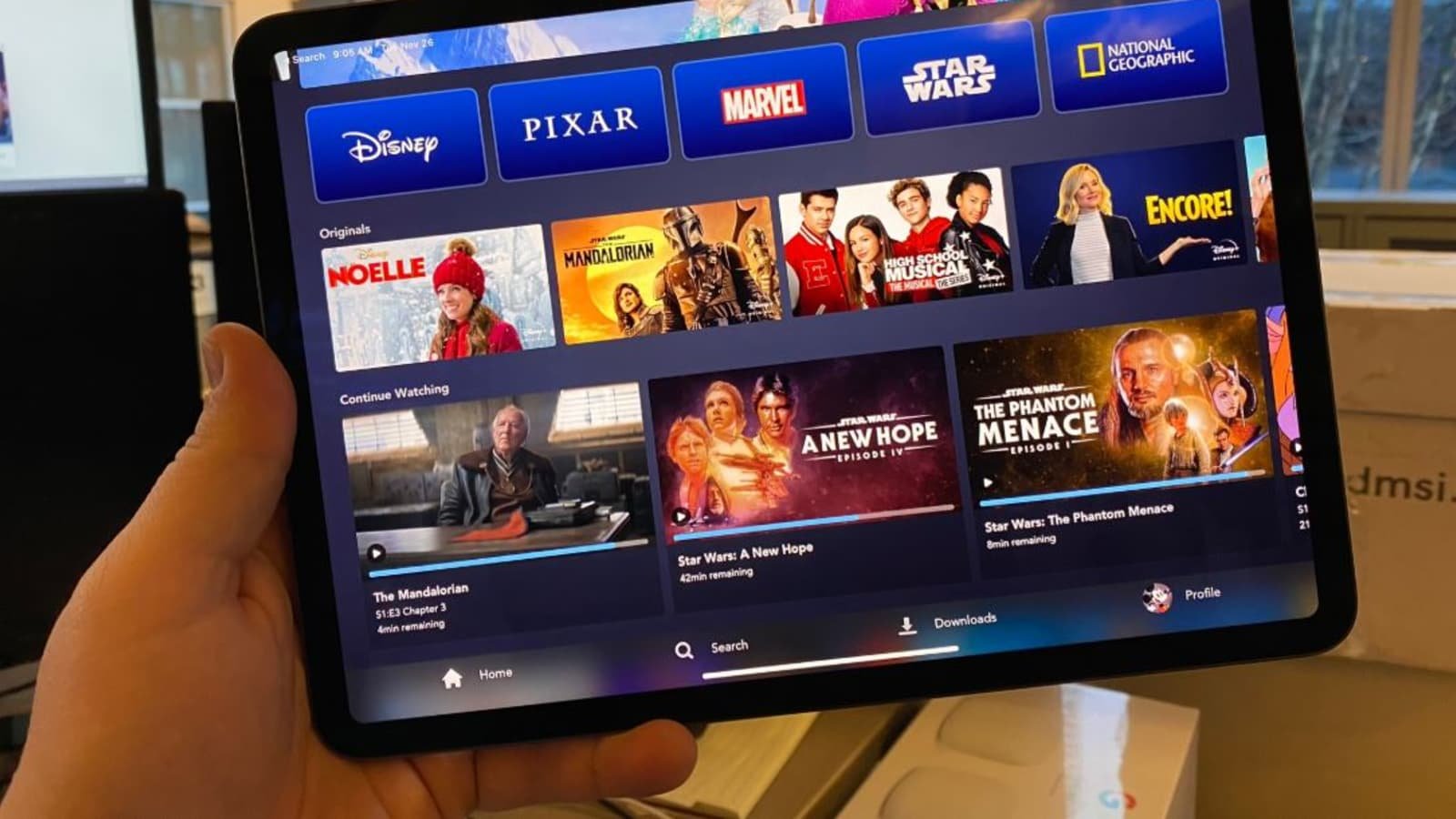
A lot of modern streaming apps promise that you can “pick up where you left off” on any device. That convenience relies on a mix of local app state, cloud storage tied to your account, and the behavior of the rendering device (phone, smart TV, browser, streaming stick). This guide explains playback resume across devices how it works, why positions sometimes differ, and practical steps you can take to fix or avoid synchronization problems.
This article is intended for general audiences in North America and Europe. Settings and compatibility can differ by TV, device, operating system, region, and firmware version—verify specifics with your device or service provider.
How playback resume generally works
At a high level, apps resume playback across devices by storing a small set of playback metadata and making that metadata available to other clients signed into the same account or profile. Typical elements include:
- Account or profile identifier: links the stored position to a particular user.
- Content ID: a canonical identifier for the episode, movie, or clip.
- Playback position: the timestamp (for VOD) or a marker (for live/linear content).
- Additional context: audio track, subtitle choice, and sometimes player state (paused vs playing).
There are two common storage patterns:
- Local-first: the playback position is stored locally on the device (in app storage or on the device filesystem) and only uploaded to the cloud occasionally—often at pause, stop, or when the app is backgrounded.
- Cloud-first: the position is saved to a cloud backend in near-real time and is fetched by other devices at startup or when the user opens the item in the app.
Which pattern an app uses depends on developer choices, privacy considerations, network constraints, and platform capabilities. For web clients, browsers and their storage/permissions model also play a role.
Where things commonly break (and why)
Understanding the failure modes helps when you need to troubleshoot.
- Account or profile mismatch
If you signed in on different profiles or used a different account on another device, the app treats the views as separate and won’t share the position. Many services also keep separate “continue watching” rows per profile.
- Local-only storage on smart TVs or boxes
Some TV apps prefer or are forced to keep resume data locally. That means the position will not appear on other devices unless the app periodically uploads it. This is especially common on older smart TVs and some set-top boxes.
- Offline playback and downloads
When you play a downloaded file offline, the client may not sync the position until it regains a connection. If you watch offline on one device and then open the app on another device before the offline player has synced, you’ll see different positions.
- Short sessions and heuristics
Many services avoid saving very short watches (for example, a few seconds) to prevent cluttering “continue watching” with false positives. If you quickly skim content, the app might not record that timestamp.
- Simultaneous playback and race conditions
If you watch the same item at the same time on two devices, the most recent save usually wins—but race conditions and network delays can lead to the older position overwriting the newer one.
- Ad insertion, dynamic content, and non-linear streams
Ad markers, inserted chapters, or server-side dynamic ad insertion can shift the apparent position. That can make the timestamp saved on one device not match the experience on another.
- Session transfer features and casting
Casting or using AirPlay/Handoff can change who is in control. Some casting flows stream from the sender device and won’t update cloud-backed resume state in the same way as a native app started on a TV. Whether the cloud resume is updated depends on how the app and the casting receiver are implemented.
- App versions and platform differences
Different app versions, or apps running on different OSes (iOS vs Android vs webOS vs Tizen), may use different sync intervals or storage strategies, causing inconsistencies.
- Privacy settings, cleared data, or account limits
Clearing app data, using a private browser window, or account settings that disable history/tracking will prevent resume positions from being saved across devices.
Cloud sync vs local resume: a quick comparison
| Characteristic | Cloud-backed resume | Local-only resume |
|---|---|---|
| Sync across devices | Yes (when signed into same account/profile) | No (unless periodically uploaded) |
| Works after device reset | Yes (if account intact) | No |
| Works offline | Limited (may cache then sync) | Works locally but not across devices |
| Vulnerable to network lag | Yes — needs connectivity | Not dependent on network |
| Typical for | Phones, web, modern TV apps | Older smart TVs, some OEM apps |
Practical troubleshooting steps (step-by-step)
Follow these steps from simplest to more intrusive. Most issues resolve within the first four checks.
- Confirm account/profile and sign-in
- Ensure both devices are signed into the same account and the same profile (many services support multiple profiles per account).
- Update and restart the app
- Close and reopen the app, or sign out and sign in again. This often forces a fresh fetch of resume metadata.
- Wait a few minutes and check your network
- Syncs can take seconds to minutes depending on the service and network. Ensure both devices have an internet connection and avoid low-bandwidth networks while troubleshooting.
- Trigger an explicit save
- On the device with the correct position, pause the video and wait a moment. Some apps upload the timestamp only when paused or when you exit the player.
- Check for downloads/offline mode
- If you used a downloaded file, reconnect to the internet and open the download manager; the app may sync the position only after verifying the download.
- Clear cache as a last resort
- Clear the app cache or storage on the device that’s showing incorrect data (but avoid deleting downloads you need). Sign in again afterwards.
- Review privacy and history settings
- Some apps offer a “Don’t save watch history” or similar setting. If enabled, resume data won’t sync. Turn it off if you want cross-device resume.
- Confirm device-specific behaviors
- Check the service’s help pages or the TV manufacturer’s documentation. Some smart TV apps are known to store resume data locally—verify if cloud sync is supported for your platform.
- Report a bug
- If everything appears correct and positions still do not sync, file a support ticket. Include timestamps, device models, app versions, and account/profile details.
Edge cases and advanced notes
- Live and linear content: “Resume” for live TV often works differently. You may see a time-shifted position on one device but a different offset on another; this is not the same as VOD seeking.
- Multiple audio/subtitle tracks: Some apps do not sync track selections across devices, even if they sync the playtime.
- DRM and protected streams: DRM systems and content licensing can limit how and where a stream can be resumed or transferred between devices.
- Timecode rounding: Apps sometimes round timestamps to the nearest chapter or segment boundary. This behavior varies by app and can make small differences visible.
When casting or AirPlay complicates resume
Casting (Chromecast-style) and AirPlay streams usually involve three actors: sender (phone/tablet), receiver (TV dongle or TV), and the cloud service. The resume behavior varies by implementation:
- Sender-controlled cast: the mobile device sends a command but the receiver streams from the cloud; resume behavior is typically the same as starting on the receiver natively.
- Sender-streaming cast: if the sender streams content and uses the receiver only as a target, some resume metadata might stay with the sender and not be recorded by the receiver.
Because implementations differ, verify the behavior for your service and hardware. If casting doesn’t update your “Continue Watching” list, try starting playback natively on the target device or manually pausing before stopping the cast session.
Quick checklist for reliable cross-device resume
- Use the same account and profile on every device.
- Keep apps updated to the latest stable release.
- Give the app permission to use background data and background refresh where applicable.
- Avoid private/incognito browser windows for web playback.
- Pause or exit playback cleanly instead of force-closing the app.
- Reconnect to the internet after offline viewing so the client can sync.
FAQ
Q: Why does my “Continue Watching” show a different time on my TV than on my phone?
A: Common causes include account/profile differences, local-only storage on the TV, offline viewing that hasn’t yet synced, or ad/chapter insertion that shifts timestamps. Follow the troubleshooting steps above and confirm both devices are online and signed into the same profile.
Q: Will casting to my TV always update my account’s resume position?
A: Not always. Casting implementations vary by app and device. Some cast flows update cloud resume data normally while others may keep the position on the sender device. If the app’s help pages don’t clarify, test by starting playback directly on the TV and compare.
Q: I watched most of an episode but the service starts me from the beginning on a second device—what happened?
A: The app may only save positions past a minimum watch threshold, or it may have failed to sync due to offline viewing or network issues. Try pausing near the spot you want to keep, wait a few seconds, and then open the app on the other device.
Q: My profile shows a different progress than my main account—can I merge these?
A: Most services treat profiles as separate watch histories and don’t merge them. If you accidentally used a different profile, manually move or mark episodes as watched in the history or use the correct profile going forward.
Q: Are there privacy implications to cloud-based resume?
A: Yes. Cloud resume requires storing watch history or timestamps on a server tied to your account. Check privacy and history controls if you prefer not to record viewing activity.
When to contact support
If you’ve tried the checklist and resume still fails or repeatedly rewrites an accurate position with an earlier one, gather the following before contacting support:
- Account/email and profile name.
- The exact titles and timestamps that disagree.
- Device models, OS versions, and app versions.
- Steps you took and whether you were online or offline.
Support teams can inspect server logs and device telemetry that aren’t accessible to consumers.
Further reading and resources
For technical background on browser media features and web playback APIs, developer documentation such as the Media Session API and streaming protocol guidelines are helpful. For service-specific behavior, consult the help pages or support documentation of the service and your device manufacturer.
See also: Apps & Tools, Streaming Guides, Devices & Setup.
Conclusion
Playback synchronization across devices usually works smoothly, but it depends on account consistency, whether an app uses cloud or local storage, and device-specific behavior. When resume fails, methodical checks—confirming accounts, ensuring connectivity, pausing to force a save, and reviewing app settings—resolve most issues. If problems persist, collect diagnostic details and contact the service provider for help.
Disclosure: Settings and compatibility can differ by TV, device, operating system, region, and firmware version. Verify specifics with your streaming service or device manufacturer.

Canzar
Ready to stream? Pick your plan
Live TV, movies, sports and 10,000+ channels on any device — Firestick, Android TV, Smart TV, phone.
View Subscription Plans Compare Pricing
Moderation: Comments are reviewed before publishing. Be respectful and on-topic.
Guidelines: Share streaming tips, device help, or content recommendations. No spam, no promotions, no off-topic links.