
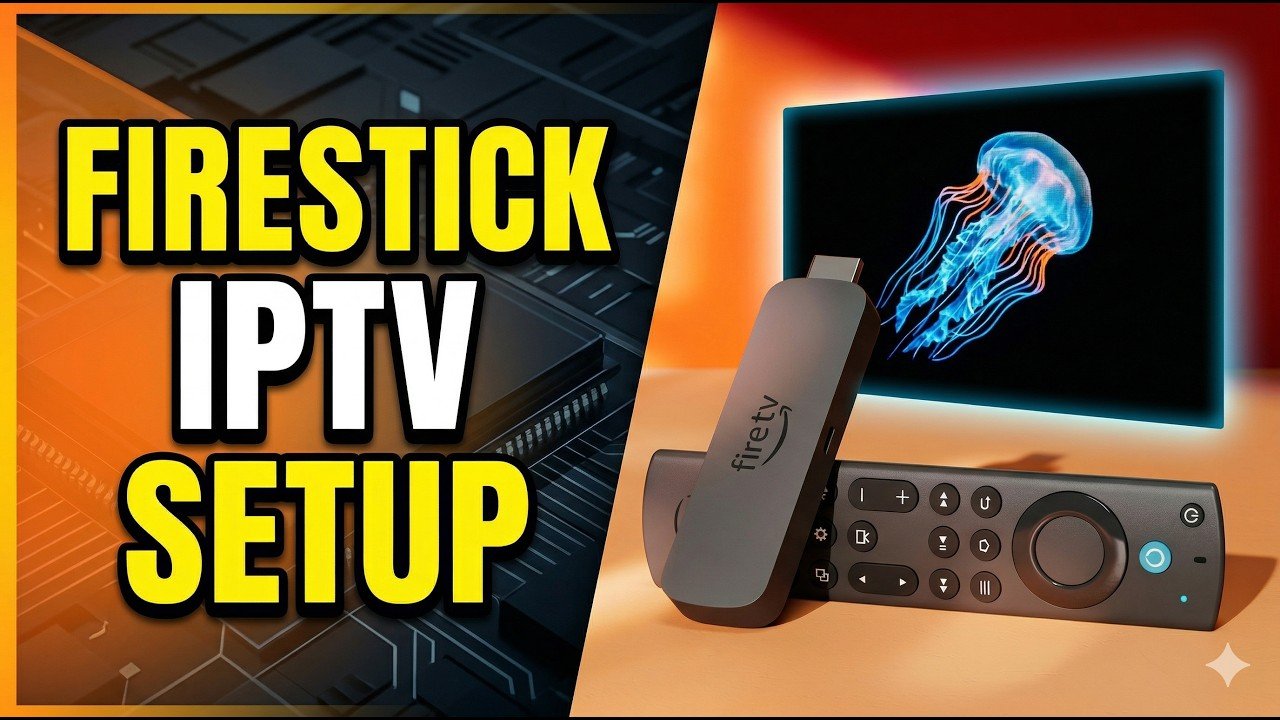
Last updated August 22, 2026 · Editorially reviewed by CanzarTV
How to Set Up an IPTV Box: A Step-by-Step Beginner’s Guide — This article walks you through the practical decisions and actions to get an IPTV box working reliably with your TV, covering device selection, wiring, software setup, performance tuning, privacy, and legal cautions for 2026.
What is an IPTV box and how it differs from other streamers
An IPTV box is a small set‑top device that connects to your television and delivers television channels and media over an IP network rather than through terrestrial, satellite, or cable signals. Unlike generic streaming sticks or smart TVs that focus on mainstream app ecosystems, an IPTV box often prioritizes network protocols, playlist support, DRM compatibility, and video codecs needed for broadcast‑style channels. Implementation and features vary by manufacturer and software, so confirm the current manufacturer or provider documentation for exact capabilities.
How to choose the right IPTV box
Selecting a box should balance performance, compatibility, and long‑term support.
- Operating system: Android TV variants, Linux‑based platforms, and proprietary firmwares are common. Android TV usually offers a broader app selection; check the supported app store.
- Processor & memory: More CPU power and RAM improve multitasking and decoding modern codecs. Exact requirements depend on the streams you plan to watch—consult provider documentation.
- Video and audio support: Verify support for the codecs (HEVC/H.265, AV1, VP9) and HDR formats you want, and confirm HDCP/DRM if you’ll use premium apps.
- Connectivity: Ethernet ports and dual‑band Wi‑Fi (preferably Wi‑Fi 5/6) increase reliability. An Ethernet connection is often recommended for live TV.
- Updates & support: Choose a vendor with clear firmware update procedures and easy access to documentation.
What you need before you start
Gather these items and account details before you begin:
- IPTV box, power adapter, HDMI cable
- TV with an available HDMI input
- Reliable internet connection (router and, if possible, an Ethernet cable)
- Subscription credentials or playlist/portal URL from a legitimate provider
- Optional: USB keyboard, remote app, or a compatible remote with voice for easier input
Step-by-step setup
- Unbox and connect hardware: Plug the IPTV box into power, connect HDMI to your TV, and plug in Ethernet if you prefer wired networking. Power on the TV and select the HDMI input.
- Complete initial setup: Follow on‑screen prompts to set language, configure display resolution, and connect to your network via Ethernet or Wi‑Fi. For best stability with live TV, Ethernet is recommended when available.
- Update system software: Go to Settings and check for firmware or OS updates. Installing the latest updates improves compatibility and security. Always confirm the process with your manufacturer’s documentation.
- Install the IPTV client: Use the device’s official app store where possible. If your provider supplies a dedicated app or a playlist URL (for example, an M3U or portal link), follow their instructions for entering the details. If sideloading an app, be cautious and only install packages from trusted sources; verify checksums with provider guidance if available.
- Enter subscription/login or playlist details: Input the URL, username, and password or portal information exactly as provided. Double‑check for typos; many issues come from incorrect credentials or malformed URLs.
- Adjust playback and display settings: Confirm audio output (analog vs HDMI bitstream), video resolution, and subtitles. If you experience buffering, try lowering the device player buffer settings if the app allows it.
- Test channels and record troubleshooting steps: Play several channels at different times to verify stability. If you encounter problems, reboot the box, test a wired connection, and consult your provider’s troubleshooting guide.
Troubleshooting common setup issues
If you see a black screen, buffering, or frequent stutters, start with network checks: test internet speed, switch to Ethernet, reduce other household streaming, and check for Wi‑Fi interference (distance, walls, other networks). Also verify that the box’s firmware and the IPTV app are up to date and that the provider’s service is operational.
Performance considerations
Live and high‑resolution streams place heavy demands on both the network and device. Factors that affect performance include codec efficiency (newer codecs are more bandwidth‑efficient), simultaneous streams on your network, Wi‑Fi band congestion, and router quality. If you need consistent performance for 4K or multiple concurrent streams, prefer wired connections, modern routers, and a box with up‑to‑date hardware and decoding support.
Privacy and security
Protect your account credentials and the device. Use strong, unique passwords for provider accounts, enable automatic updates, and avoid installing untrusted third‑party apps. If you consider using a VPN, first confirm its legality and whether it violates the IPTV provider’s terms of service in your country. Review device permission requests and disable any services you do not need.
Legal and licensing cautions
IPTV technology is neutral, but how it’s used determines legality. Do not rely on or promote unlicensed sources or distribution. Use services and content you are entitled to access, and check copyright and broadcasting laws in your country. If in doubt, consult your provider or legal resources to ensure compliance.
A practical checklist
- Confirm provider credentials and get the official playlist/portal URL.
- Use Ethernet for live TV when possible; test Wi‑Fi 5/6 if needed.
- Update box firmware and IPTV app before heavy use.
- Secure accounts with strong passwords and enable updates.
- Keep manufacturer and provider documentation handy for troubleshooting.
Ready to get started? Review CanzarTV’s subscription options and documentation to find a provider that fits your needs, and contact our support team if you have setup questions or encounter issues. We’re here to help you enjoy a reliable, legal IPTV experience.

Canzar
Ready to stream? Pick your plan
Live TV, movies, sports and 10,000+ channels on any device — Firestick, Android TV, Smart TV, phone.
View Subscription Plans Compare Pricing
Moderation: Comments are reviewed before publishing. Be respectful and on-topic.
Guidelines: Share streaming tips, device help, or content recommendations. No spam, no promotions, no off-topic links.