
Last updated August 24, 2026 · Editorially reviewed by CanzarTV
Introduction
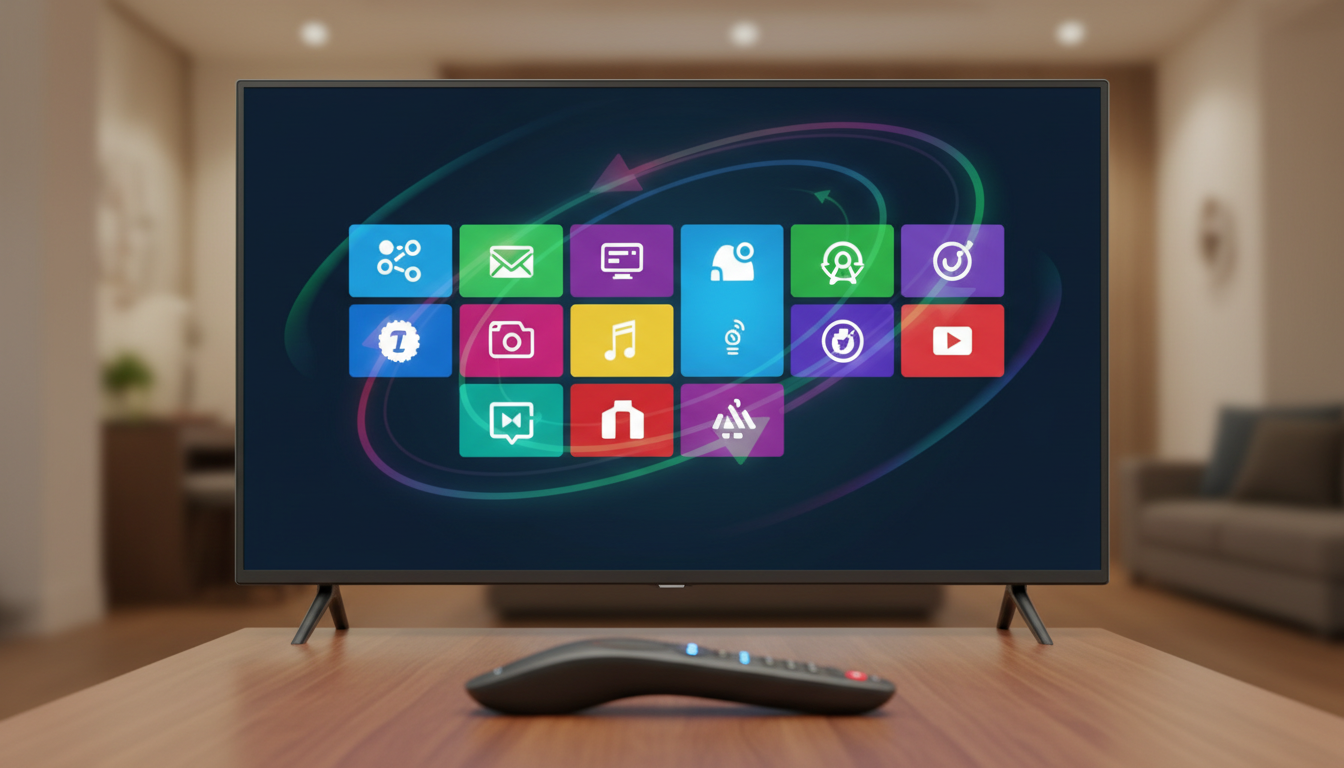
App updates are routine but they can feel risky if you’ve carefully tuned profiles, parental controls, and playback preferences. Whether you use a smart TV, streaming stick, set-top box, or mobile device, the goal is the same: install the update while keeping your TV settings, viewing profiles, saved shows and playback positions intact.
This guide explains how to update streaming apps safely across common devices and platforms, what to check before you update, and what to do if an update changes behavior. It focuses on practical steps, trade-offs and troubleshooting so you can make informed choices and avoid avoidable data loss.
What to know first
- Definitions and scope: “App updates” here means software updates delivered through a device’s app store or the platform’s update mechanism for individual streaming apps. It does not cover full operating system or firmware upgrades, though those can affect apps and are discussed where relevant.
- Types of settings and data at risk: Settings that can be stored locally (device-specific preferences, cached files, playback position stored only on a device) versus cloud-linked data (profiles, watchlists, cross-device playback position if the service supports sync). How an app treats these differs by service and platform.
- Where control lives: Many streaming services keep critical user data (profiles, watch history, purchased content) in their cloud tied to your account. Local device settings (display calibration, audio output, HDMI-CEC, and downloaded files) are often maintained by the device or the app’s local data store. Understanding which is which informs your backup and update choices.
- Regional and platform differences: App behavior and update mechanisms vary by device manufacturer, app store and regional rollout policies. Verify platform-specific details before updating at publication time.
Main guide
Prepare before you update
H3: Check account sync and cloud features
– Sign in and confirm that your streaming account is linked correctly on the device. Look for indicators such as profile lists, sync icons, or a confirmation in the app’s settings that “Continue watching” or “Downloads” are synced to the cloud.
– If a service offers backup, export, or account transfer features (for example, exporting watchlists or linking profiles), use them first. Not every service provides this — verify at the time you update.
H3: Read the release notes and known issues
– Review the update notes shown in the app store or the service’s help pages. Release notes can clarify whether the update affects settings, removes features, or addresses security patches.
– Look for warnings about compatibility with specific devices or minimum OS requirements.
H3: Free up space and create a stable environment
– Ensure the device has enough storage to download and install the update — insufficient storage can cause partial installs and data corruption.
– Update over a stable network (preferably a private, high-bandwidth connection). Avoid installing major updates over metered or unstable cellular connections.
H3: Back up device-level settings
– Note or photograph your critical TV settings (picture mode, color calibration, audio format, HDMI inputs) if your TV or box doesn’t offer a settings export. This helps restore the exact configuration if an update resets them.
– For devices with cloud or account backups (some smart TV systems or streaming devices), trigger a manual backup where available.
Update methods by device
H3: Smart TVs (webOS, Tizen, Android TV/Google TV)
– Use the TV’s system app store to update the streaming app. Some TVs offer automatic app updates; check the TV’s settings to confirm behavior.
– Trade-off: Automatic updates reduce manual effort but may install an update at an inconvenient time. Manual updates give control but require maintenance.
H3: Streaming sticks and set-top boxes (Roku, Fire TV, Chromecast with Google TV, Apple TV)
– Follow the device’s app store or settings menu to update individual apps, or update system software if the app requires a newer OS version.
– Decision criteria: If the app update requires a newer system software version, consider whether you are comfortable updating the system firmware now (system updates have larger effects and may require a power cycle).
H3: Mobile and tablet apps (iOS, Android)
– Use the official app stores to update. Both iOS and Android support automatic updates; you can toggle these per-app.
– Benefit: Mobile apps often sync playback position and downloads if the service supports offline sync; still, confirm before removing the old app.
H3: Game consoles
– Update apps from the console store. Consoles may require a system update before allowing certain app updates.
– Trade-off: Console updates can take longer and sometimes restart the device; plan updates when you can afford downtime.
Preserving settings and data during and after update
H3: Avoid uninstalling unless necessary
– Uninstalling an app often removes local app data, which may include downloads, local settings, and cached profiles. Only uninstall if you are prepared to lose those local items or you have verified that the service preserves them in the cloud.
– If troubleshooting suggests a reinstall, try clearing the app cache or “reset app” option (if available) before uninstalling.
H3: Use the app’s sign-out and sign-in flow carefully
– Signing out might remove locally cached viewing data; sign back in after the update only once the update completes successfully.
– If you have multiple profiles, verify the primary account email and password are available before signing out.
H3: Manage downloads and DRM-protected content
– Offline downloads are frequently tied to a device and to DRM license validity. Some updates can invalidate licenses resulting in re-downloads.
– Decision criteria: If downloads are important and you have limited bandwidth, delay updates until you can re-download content if required.
H3: Retain or restore TV-specific calibrations
– If an app update alters picture presets or introduces new processing options, you may need to reapply your TV calibration. Keep your calibration notes, photos, or manufacturer settings export ready.
Troubleshooting after an update
H3: When playback or settings appear broken
– First step: Restart the app and then the device. A full power cycle often clears temporary issues caused by cached resources.
– Next: Check for a subsequent patch. If the app behaves poorly, developers sometimes release quick follow-up updates.
H3: If a feature is missing or profiles are gone
– Confirm you’re signed into the correct account. If cloud-stored data appears missing across devices, check the service’s account status on an alternate device or the web portal.
– Contact the service’s support if verified cloud data has disappeared. Do not assume device-side fixes will restore cloud-stored profiles.
H3: Safe reinstall flow
– If reinstalling is unavoidable: document local settings; sign out of the app if sign-out preserves cloud data; uninstall; reinstall; sign in and restore settings where possible.
– When reinstalling, avoid skipping necessary system updates that may be required for compatibility.
Common mistakes
- Assuming reinstall never removes data: Many users assume uninstalling an app won’t remove profile data; in reality, local caches, downloads and device-specific settings can be lost.
- Updating without checking storage or power: An interrupted update due to low battery or full storage can corrupt the app. Ensure sufficient battery and free space before starting.
- Ignoring release notes and platform warnings: Release notes sometimes warn about feature deprecations, compatibility changes, or required OS versions.
- Updating system firmware at the same time as app updates: Doing both simultaneously increases troubleshooting complexity if something goes wrong. Stagger updates or update the system first, then apps.
- Not verifying account sync before sign-out: Signing out before confirming cloud sync can leave you unable to recover watchlists or continue-watching progress if those were only stored locally.
FAQ
Will updating a streaming app delete my profiles or watchlist?
Not usually. Most streaming services store profiles and watchlists in the cloud tied to your account, so those remain intact after an app update. However, local caches, downloaded content and device-specific settings can be removed by actions like uninstalling the app or clearing app data. Verify sync status in the app settings before updating.
How can I back up my TV app settings and calibration?
Many TVs do not offer a one-click export for third-party app settings. Practical steps include photographing or noting key settings (picture mode, color temperature, HDR processing, audio output) and using any built-in backup/export feature in your TV or platform if available. For app-level data, check whether the service supports account-level sync or export; if it does, use that feature prior to updating.
What should I do if an update breaks playback or features?
Restart the app and device first. If the problem persists, check for another update or known-issue notices from the app maker. Clear the app cache or data if that option exists (this is less disruptive than uninstalling). If you must uninstall, document settings and be ready to re-enter credentials; contact the service’s support if cloud data like profiles or purchases are missing.
Conclusion
Updating streaming apps safely is mainly about preparation: confirm what is stored in the cloud, document device-level TV settings, ensure adequate storage and a stable network, and read release notes before installing. Use manual updates if you prefer control, or automatic updates for convenience — but keep in mind the trade-offs. If an update causes trouble, restart, check for follow-up patches, and use cautious reinstall or support channels rather than making rushed changes that could cause data loss.
Next action: before the next update, open your streaming app’s settings, confirm account sync and note any critical local settings so you’re ready to update streaming apps safely.

Canzar
Ready to stream? Pick your plan
Live TV, movies, sports and 10,000+ channels on any device — Firestick, Android TV, Smart TV, phone.
View Subscription Plans Compare Pricing
Moderation: Comments are reviewed before publishing. Be respectful and on-topic.
Guidelines: Share streaming tips, device help, or content recommendations. No spam, no promotions, no off-topic links.