
Last updated August 24, 2026 · Editorially reviewed by CanzarTV
Introduction
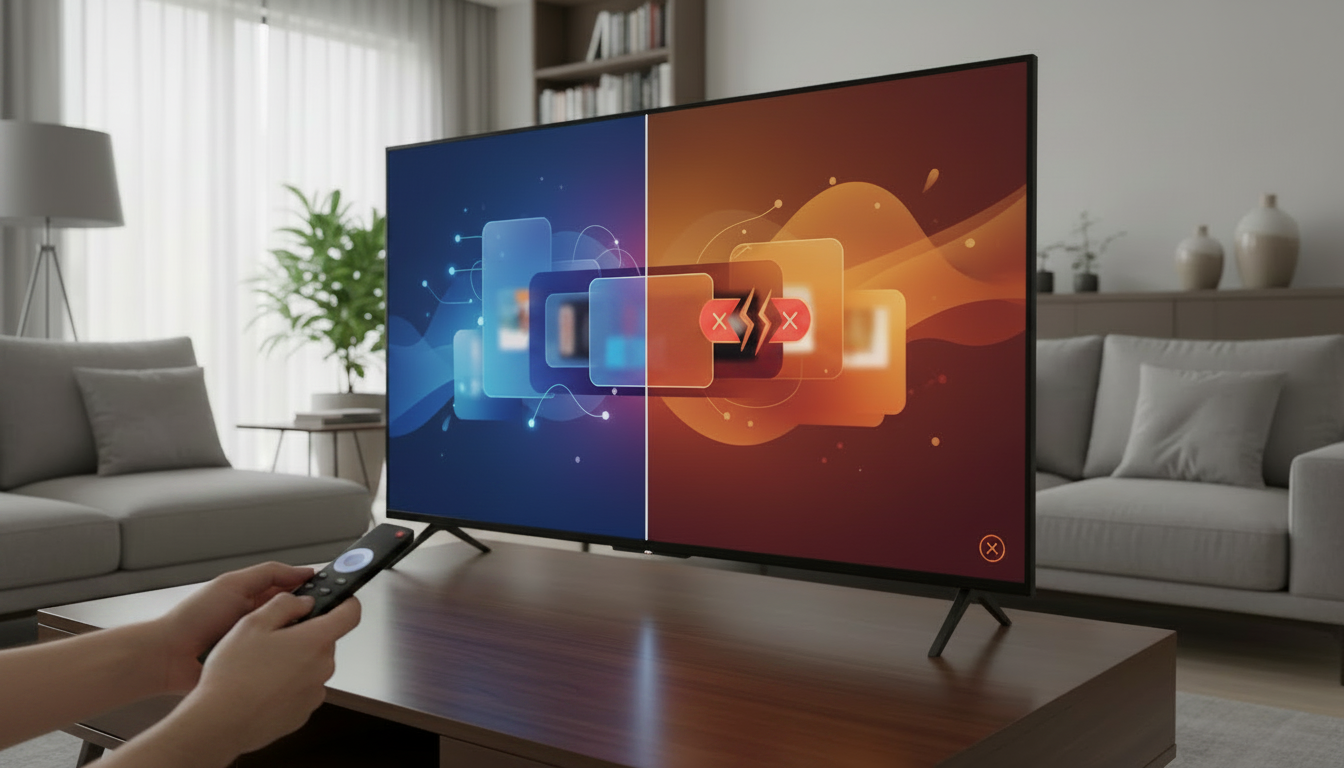
A Fire TV remote not pairing is a common annoyance that can usually be resolved with a few methodical checks. Problems look similar whether the screen shows “Remote not connected” messages, the remote is unresponsive, or pairing repeatedly fails during setup. This guide walks through safe, practical troubleshooting steps you can try at home, without assuming a specific model or offering region-specific claims.
Before you begin, note that pairing behavior and menus can change with software updates. If a step below references a setting name or onscreen wording, verify it on your device at the time you publish or follow the on-screen prompts provided by your Fire TV device.
What to know first
- Definitions and scope: “Pairing” in this article refers to the process that allows the Fire TV remote to connect to the Fire TV device, typically using Bluetooth for voice and navigational remotes. Simple infrared (IR) remotes work differently and do not pair via Bluetooth; they require line-of-sight to control basic functions.
- Remote types: Fire TV remotes vary in features (voice button, power/volume controls, IR vs Bluetooth). If you have a replacement remote or a third-party remote, behavior and available troubleshooting steps may differ.
- Safety and data: Follow steps that do not require sharing personal account credentials. Resetting the Fire TV device to factory settings will remove local settings and app data — consider backing up important information before proceeding.
Main guide
Basic checks (fast wins)
H3: Confirm the remote type and line-of-sight
– Determine whether your remote uses Bluetooth or IR. If it appears to rely on IR (no pairing option on-screen), ensure there’s direct line-of-sight to the TV or the Fire TV box’s IR receiver.
– If your remote supports Bluetooth pairing, it will need an initial wireless connection; line-of-sight is less critical but you must be within a reasonable range (typically a few metres).
H3: Inspect and replace remote batteries
– Remove the battery cover and check orientation and contacts for corrosion or debris.
– Replace the existing batteries with fresh ones of the correct size and type. Using fully charged, new alkaline or recommended batteries reduces one of the most frequent causes of pairing failure.
– Trade-off: Rechargeable batteries may provide lower nominal voltage than alkalines; if pairing fails with rechargeables, try fresh alkaline batteries to rule out voltage-related issues.
H3: Restart the Fire TV device
– Power-cycle the Fire TV device: unplug its power cable (or switch off at the outlet) for 30 seconds, then plug back in. Rebooting clears temporary Bluetooth and software glitches that can block pairing.
Bluetooth pairing and Fire TV remote reset
H3: Standard pairing procedure (general steps)
– On the Fire TV device, open Settings > Controllers & Bluetooth Devices (or similarly named menu) and choose to add a new remote or controller.
– On the remote, press and hold the pairing button sequence indicated for your model (commonly the Home button for several seconds). If your remote has a dedicated pairing button, use that.
– Watch the on-screen prompts; the Fire TV should detect the remote and confirm when pairing is complete.
H3: Fire TV remote reset steps (when pairing repeatedly fails)
– Soft reset the remote: remove the batteries, press every button once to drain residual power, then reinsert fresh batteries and attempt pairing again.
– Hard reset option: some remotes support a specific reset sequence (for example, holding particular buttons for 10–20 seconds). Because exact button combinations differ by model and may change with updates, check the device’s on-screen help or official support documentation for the correct sequence before attempting.
– Trade-offs: A remote reset is safe and non-destructive to the Fire TV device, but it will remove any temporary connection pairing. A factory reset of the Fire TV device is more intrusive and should be a later step.
H3: Interference and Bluetooth environment
– Move other wireless devices away: Wi‑Fi routers, Bluetooth speakers, microwaves, and some wireless peripherals can interfere with pairing. Try pairing with such devices powered down or moved.
– Test distance and obstacles: Try pairing with the remote within 1–2 metres of the Fire TV device to eliminate distance as a factor.
Power, batteries, and physical issues
H3: Battery contacts and corrosion
– Inspect the battery compartment for corrosion or bent springs. Clean any light corrosion with a cotton swab lightly dampened with isopropyl alcohol, dry thoroughly, and try fresh batteries.
H3: Remote damage and hardware failures
– Signs of physical failure include sticky buttons, cracked casing, or unresponsive button presses. If the remote has been dropped or exposed to liquid, internal damage may prevent pairing even when batteries are fresh.
– Decision criteria: If you can confirm the Fire TV responds to an app-based remote or a spare remote but not the suspect remote, the remote hardware is the likely fault.
H3: Using the Fire TV mobile app as a diagnostic
– Install the official Fire TV remote app on a smartphone and pair it to your Fire TV device (if possible). If the app connects and controls the device, that confirms the Fire TV’s Bluetooth stack and system are functioning; the issue is likely the physical remote.
Advanced steps and when to replace or contact support
H3: Reboot and check software updates
– After successful pairing attempts fail, check the Fire TV device for system updates (Settings > My Fire TV > About > Check for Updates). Installing available updates can resolve pairing bugs introduced by firmware differences. Verify the exact menu names on your device at the time of use.
H3: Factory reset the Fire TV device (last resort)
– A factory reset can resolve persistent system-level issues but will remove installed apps, sign-in credentials, and personalized settings. Only use this after backing up or noting important account information and trying all other troubleshooting steps.
– Trade-off: Resetting is time-consuming and disruptive. Use it when you cannot pair any remote and app-based controls fail, indicating a likely device-level software problem.
H3: Replacement and support
– If the remote fails to pair after tests and shows signs of hardware damage, consider replacing the remote. Verify warranty and return options before purchase.
– Contact official support if the Fire TV device itself appears malfunctioning, pairing fails even with known-good remotes, or if you need instructions for steps that vary by hardware revision or software version.
Common mistakes
- Skipping fresh batteries: Trying to pair with partially depleted or incorrectly inserted batteries is the single most common avoidable error. Always test with new batteries first.
- Ignoring interference: Pairing attempts conducted next to a busy router, Bluetooth speaker, or other RF sources can fail unpredictably; move to a quiet environment for testing.
- Repeating only one step: Users often repeat the same single attempt (press Home for 10 seconds) without trying a restart, battery swap, or pairing through Settings. Combine steps methodically.
- Jumping to factory reset: Resetting the Fire TV device erases settings and apps. Exhaust less-invasive steps and check for software updates before factory resetting.
- Not verifying remote type: Treating an IR-only remote as if it pairs via Bluetooth will waste time. Verify whether your remote requires line-of-sight control.
FAQ
How do I tell if my Fire TV remote uses Bluetooth or IR?
Look for pairing options in your Fire TV’s Settings > Controllers & Bluetooth Devices. If the remote requires pairing from within the menu, it likely uses Bluetooth. IR remotes won’t appear for pairing and need line-of-sight to the device. If unsure, consult the device’s user guide or the on-screen help menu.
Will replacing remote batteries fix pairing every time?
Not always, but fresh batteries are a low-cost, high-yield first step. Weak or misoriented batteries can prevent the remote from transmitting properly. If new batteries don’t help, proceed to pairing steps, interference checks, and app diagnostics to narrow the cause.
What should I try before buying a replacement remote?
Try fresh batteries, power-cycle the Fire TV, use the official Fire TV remote app to confirm the device’s Bluetooth is working, and attempt pairing from the Controllers & Bluetooth Devices menu. If app control works but the physical remote does not — and you’ve tested multiple batteries and cleaned contacts — replacement is a reasonable next step.
Conclusion
When a Fire TV remote not pairing disrupts viewing, start with simple checks: fresh batteries, battery contact inspection, and a power-cycle of the Fire TV device. Move on to pairing from Settings, try the official mobile remote app to isolate the problem, and consider device software updates before a factory reset. Replace the remote only after ruling out device-side issues or contact official support if symptoms point to a hardware problem with the Fire TV device itself.

Canzar
Ready to stream? Pick your plan
Live TV, movies, sports and 10,000+ channels on any device — Firestick, Android TV, Smart TV, phone.
View Subscription Plans Compare Pricing
Moderation: Comments are reviewed before publishing. Be respectful and on-topic.
Guidelines: Share streaming tips, device help, or content recommendations. No spam, no promotions, no off-topic links.