
Last updated August 24, 2026 · Editorially reviewed by CanzarTV
Introduction
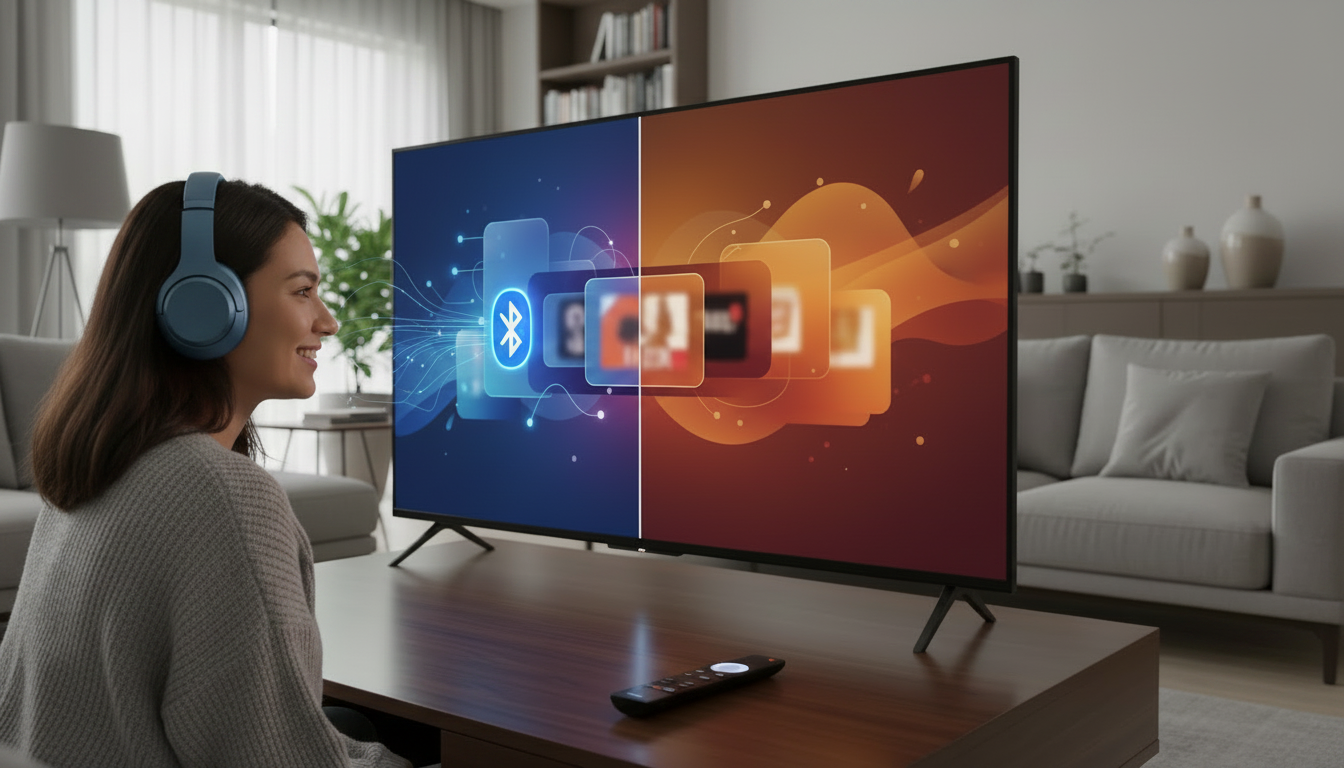
Using a Bluetooth headset with a Smart TV lets you watch late-night shows without disturbing others, improves private listening, and can offer hearing-accessibility benefits. Many modern TVs include built-in Bluetooth audio, but support varies by brand, model and region; sometimes an external adapter is a better fit.
This guide explains how to connect Bluetooth headset to Smart TV, how to choose between built-in and external options, how to adjust audio settings for the best result, and how to troubleshoot common issues such as audio lag and pairing failures. Where features differ across manufacturers, the article offers decision criteria and practical steps to follow on most TVs and wireless headphones.
What to know first
- What “TV Bluetooth audio” usually means: Smart TVs that support Bluetooth audio expose a pairing mode in their settings and implement common Bluetooth audio profiles (for example A2DP for stereo streaming). Support for phone-call profiles, low-latency codecs, or multiple headsets at once varies by device.
- Latency and lip-sync: Bluetooth adds a small delay between picture and sound. Some headsets and transmitters support low-latency codecs (often marketed as “low latency” or by specific codec names) to reduce delay. Verify codec compatibility if tight lip-sync is important.
- Built-in vs external adapters: If your TV does not support Bluetooth audio, or if its Bluetooth implementation lacks desired features (like a low-latency codec or dual-headset support), an external Bluetooth transmitter/adapter that connects to the TV’s audio output can add functionality.
- Check documentation: Before starting, consult your TV’s user manual or on-screen help to confirm whether it supports Bluetooth headsets, what profiles and codecs it uses, and whether there are any special steps or firmware updates required.
Main guide
1) Verify compatibility and choose an approach
- Check the TV’s support:
- Look in the TV’s settings under Network, Sound, or Accessories for “Bluetooth,” “Headphones,” or “Wireless audio.” The manual or the manufacturer’s support site can confirm if the TV supports Bluetooth audio and list any limitations.
- Check the headset:
- Confirm your wireless headphones are set to pairing mode and note whether they advertise low-latency operation or specific codecs if you care about lip-sync.
- Decision criteria:
- Use built-in Bluetooth when the TV explicitly supports Bluetooth audio and you value simplicity.
- Use an external Bluetooth transmitter if the TV lacks Bluetooth audio, if you need a specific codec (low-latency) not supported by the TV, or if you want to use a physical audio output (optical, 3.5mm, RCA, or USB).
- Trade-offs:
- Built-in Bluetooth avoids extra hardware and cables but may lack low-latency codecs or multi-device support.
- External transmitters add costs and cables but often provide more codec support, better signal range, and easier use with multiple headphones.
2) Preparing devices for pairing
- Charge both devices:
- Ensure the TV is on and the headset battery is charged. A low headset battery can prevent or interrupt pairing.
- Reset previous pairings if needed:
- If the headset won’t pair, clear previous pairings on the headset (consult its manual) or remove saved Bluetooth devices from the TV to avoid connection conflicts.
- Place devices nearby:
- Start with the headset within a few feet of the TV/transmitter to improve initial pairing reliability; avoid strong radio interference from other Bluetooth devices or Wi‑Fi routers if possible.
3) Pairing with a TV that has built-in Bluetooth
- Step-by-step pairing (generalized steps — exact menu names vary):
1. On the headset, enter pairing mode (usually a long press of a power/pair button or a specific pairing button). The headset’s LED or voice prompt typically indicates pairing mode.
2. On the TV, open Settings and find “Bluetooth,” “Wireless,” “Accessories,” or “Sound > Speakers.”
3. Choose the option to “Add device,” “Pair new device,” or similar; the TV should scan and list nearby Bluetooth devices.
4. Select your headset from the TV’s list. If a PIN is requested, consult your headset manual; common default codes are rarely required for audio devices.
5. Confirm successful pairing on both the TV and the headset. The TV may show the headset as “Connected” or “Audio output: Headphones.” - Audio routing and volume:
- Once connected, the TV may mute built-in speakers or allow simultaneous output. Adjust TV volume and headset volume to comfortable levels. Look in TV audio settings for an option labeled “Audio Output,” “TV speakers,” or “Headphones” if you need to switch outputs.
4) Using an external Bluetooth transmitter/adapter
- When to use one:
- Your TV lacks built-in Bluetooth audio, supports only limited codecs, or you require a different audio output type (for example, optical out).
- Choosing the adapter:
- Select an adapter that supports the audio outputs your TV has (optical/TOSLINK, 3.5mm, RCA, USB), and, if needed, a low-latency codec. Check the adapter’s instructions for supported headsets and range.
- Typical connection steps:
1. Connect the transmitter to the TV’s audio output (optical, 3.5mm, RCA or USB) following the adapter’s instructions.
2. Power the transmitter if it requires external power (some are bus-powered via USB).
3. Put the transmitter into pairing mode and put your headset into pairing mode.
4. Confirm the transmitter and headset connect; the TV will then send audio to the transmitter as if it were a wired output. - Trade-offs and notes:
- Some transmitters add a small delay; low-latency models aim to minimize this but compatibility with the headset is crucial.
- If your TV uses a digital audio format (e.g., Dolby Digital) on its optical output, the transmitter may require the TV to be set to stereo PCM output — check the TV’s audio settings.
5) Adjusting audio settings and solving common issues
- Audio settings to check:
- Audio Output Mode: Set to Bluetooth or Headphones when available.
- Digital audio format: If using optical and an adapter, set the TV to PCM/stereo if required by the transmitter.
- Lip-sync or audio delay compensation: Some TVs include a “Lip Sync” or “Audio Delay” adjustment to fix out-of-sync audio when using wireless headphones.
- Troubleshooting checklist:
- No sound after pairing: Verify the TV’s audio output is set to the headset and that the headset’s volume is up. Check for mute on TV and headset.
- Intermittent audio/dropouts: Reduce distance and remove obstructions between devices. Verify no heavy Wi‑Fi interference on the same frequency band.
- Multiple devices won’t connect: Many TVs support only one Bluetooth headset at a time; consider a dual-link transmitter if you need two headsets simultaneously.
- Persistent lag: Try a headset or transmitter that supports a low-latency codec, and make sure both ends support the same codec. Also check for a “game” or “low-latency” mode on the headset.
Common mistakes
- Not checking compatibility first: Trying to pair without confirming whether the TV supports Bluetooth audio or which outputs transmitters require leads to wasted time. Always consult the TV manual or support site.
- Forgetting to put the headset in pairing mode: Many pairing failures are simply because the headset was not in pairing mode or was still connected to another device (phone, tablet). Disconnect the headset from other devices first.
- Using the wrong audio output on the TV: When using an adapter, leaving the TV audio format in a surround or encoded mode (e.g., Dolby Digital) can prevent the adapter from receiving audio; switch to stereo/PCM if needed.
- Expecting perfect lip-sync with any Bluetooth setup: Not all headsets and transmitters use low-latency codecs. If lip-sync matters, verify codec support before buying hardware.
- Ignoring firmware updates: Both TVs and wireless headsets occasionally improve Bluetooth performance via firmware updates. Check manufacturer support pages for updates before replacing hardware.
FAQ
Can I connect any Bluetooth headphones to my Smart TV?
Most headphones that support standard Bluetooth A2DP stereo streaming can connect to TVs that provide Bluetooth audio. However, features like call handling, microphone use, low-latency codecs, or simultaneous multi-device connections depend on the TV and headset capabilities. Check both devices’ manuals or specifications for compatibility.
Why is the audio delayed when using wireless headphones?
Bluetooth adds processing time for encoding and decoding audio. If the headset or transmitter does not support a low-latency codec, you may notice noticeable delay (lip-sync issues). Reduce delay by using devices that support the same low-latency codec or by enabling any available lip‑sync or audio delay compensation in the TV’s audio settings.
Can I use two Bluetooth headsets at the same time with my TV?
Some modern TVs support connecting two Bluetooth headsets simultaneously, but many do not. If your TV lacks dual-headset support, you can use an external Bluetooth transmitter that explicitly supports two outputs (dual-link) to connect multiple headsets. Verify dual connection capability with the TV or adapter documentation before relying on this setup.
Conclusion
Connecting a Bluetooth headset to a Smart TV is usually straightforward but requires checking compatibility, choosing between built-in Bluetooth and an external adapter, and adjusting audio settings to minimize delay and ensure reliable sound. Start by confirming your TV’s Bluetooth audio support and your headset’s pairing method, then follow the pairing steps or connect a transmitter if needed. If you run into problems, consult the TV’s audio settings for output format and lip-sync controls, and consider a low-latency adapter if lag is a concern.
Next action: check your TV’s user manual or on-screen settings for Bluetooth or audio output options, then follow the pairing steps above or select a transmitter that matches your TV’s audio outputs.

Canzar
Ready to stream? Pick your plan
Live TV, movies, sports and 10,000+ channels on any device — Firestick, Android TV, Smart TV, phone.
View Subscription Plans Compare Pricing
Moderation: Comments are reviewed before publishing. Be respectful and on-topic.
Guidelines: Share streaming tips, device help, or content recommendations. No spam, no promotions, no off-topic links.