
Last updated August 24, 2026 · Editorially reviewed by CanzarTV
Introduction
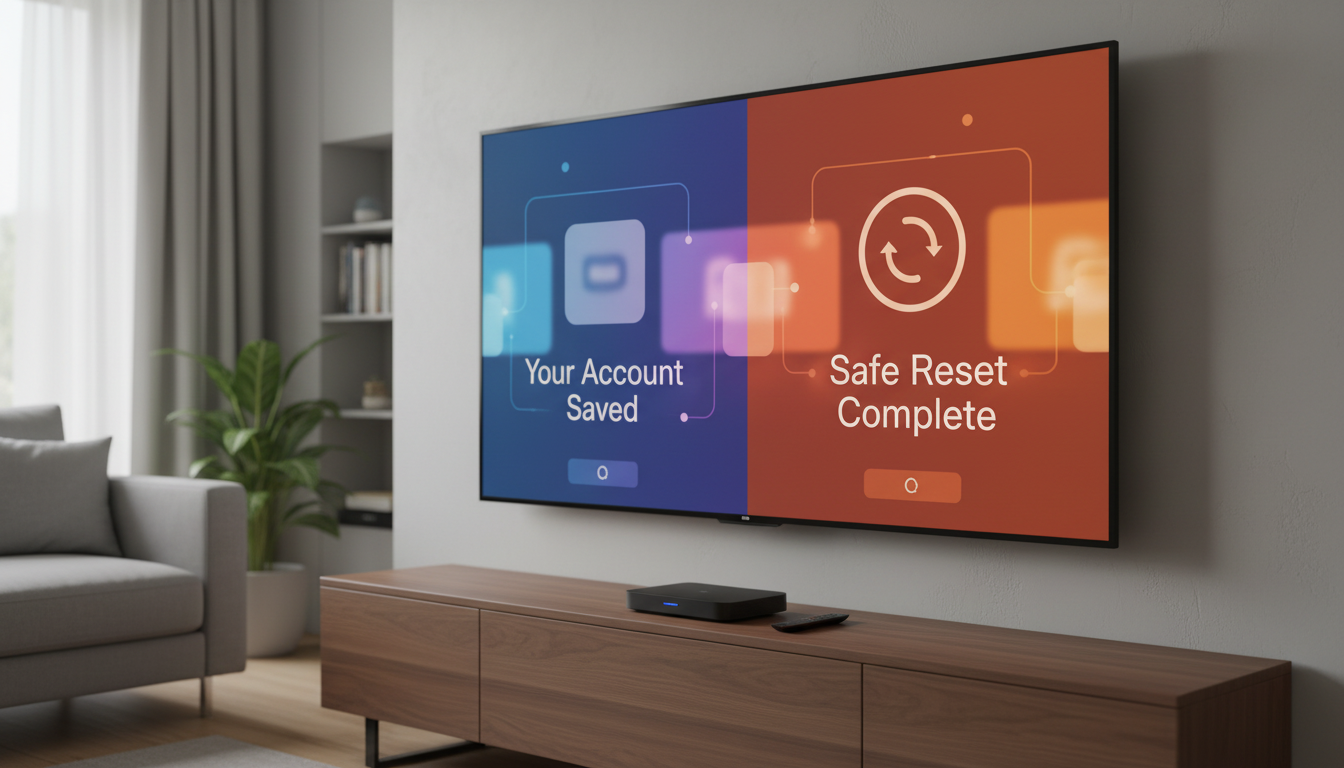
Resetting a streaming device can fix app crashes, network problems, or prepare a device for a new owner. Doing it carefully helps you resolve the issue without losing saved account logins, payment methods, profiles, or personalization that you rely on for fast access to services.
This guide explains safe, practical steps to reset streaming devices—when to choose a soft restart versus a factory reset, how to preserve or re-establish account access, and how to keep account security tight throughout the process. It’s written to apply across common TV dongles, set-top boxes and smart-TV platforms; always verify model-specific steps with the device maker before you begin.
What to know first
- Definitions:
- Soft restart (reboot): Power-cycling the device or using a restart option to resolve temporary glitches. Does not erase your apps or accounts.
- Factory reset (hard reset): Restores the device to out-of-the-box state. It typically removes installed apps, saved Wi‑Fi networks, and local account credentials.
- Account deauthorization / unlinking: Removing a device’s access from a streaming service or platform account, often available from the service’s web account page.
- Key distinctions:
- Many streaming subscriptions, profiles, and watch history are stored in cloud accounts with providers (e.g., streaming services). A factory reset usually removes only the local credentials on the device; it does not cancel subscriptions tied to your provider accounts.
- Some devices and apps offer cloud backup or restore of settings. Whether you can recover settings and apps automatically after a reset varies by device and service.
- Security first:
- If you’re resetting because you suspect unauthorized access, treat account security as part of the reset: change passwords, review active devices, and enable two-factor authentication (2FA) where available before completing any reset that you won’t directly supervise.
Main guide
1. Decide which reset you need
Choose the least destructive option that will likely fix the problem.
- Soft restart (recommended first)
- What it does: Reboots the system, clears temporary caches, and restarts apps.
- When to use: Apps freezing, slow performance, stuttering, or after installing updates.
- Trade-offs: Quick and safe; does not remove apps or settings.
Decision criteria: If problems are transient or began after an app update, try this first.
Factory reset (use when necessary)
- What it does: Erases user data and returns the device to factory settings.
- When to use: Persistent software corruption, repeated crashes after soft restart, preparing device for resale, or when unable to sign out.
- Trade-offs: Removes local credentials, settings, and installed apps; re-setup is required.
Decision criteria: If multiple soft restarts and app reinstalls fail, or you’re transferring ownership, select a factory reset.
Account-only actions (alternative to a reset)
- What it does: Deauthorizes or signs out a specific device from a service without wiping the device.
- When to use: If you lost the device or suspect a compromised app account, or when you want to remove access but not erase the device.
- Trade-offs: Does not fix device software problems; good for security when you cannot access the device physically.
2. Prepare before you reset
Thorough preparation preserves account access and reduces re-setup time.
- Inventory accounts and apps
- Make a list of streaming services, app stores, and device accounts signed into the device.
Note which accounts use profile-based settings that may be stored in the cloud.
Back up and record credentials
- Use a password manager or a secure note to store usernames and passwords you will need after reset.
Verify you can access your email account and any 2FA methods used for streaming or device accounts.
Check for cloud backup & restore
- Verify (via the device’s settings or manufacturer support) whether the platform offers account- or settings-restore features and what is included.
If the device supports cloud backup, ensure your account is linked and recent backups exist.
Deauthorize and remove sensitive info if transferring or selling
- Remove saved payment methods from apps where possible.
- Sign out of each streaming app from the device and, if available, deauthorize the device from the provider’s web account.
Remove saved Wi‑Fi profiles and unlink any paired phones or home automation accounts.
Take quick notes or screenshots
- Record Wi‑Fi name and password, any custom display or audio settings, and remote pairing instructions.
- Screenshots or short notes reduce friction when you set the device up again.
3. How to perform the reset safely
Follow a clear sequence to combine security with minimal disruption.
- Step 1: Try a soft restart
- Use the device’s Settings > System > Restart (or equivalent), or unplug power for 10–30 seconds and plug back in.
Confirm whether the issue persists before moving to a factory reset.
Step 2: Back up and prepare accounts
Confirm account passwords, 2FA access, and cloud backup availability as described above.
Step 3: Deauthorize where needed
- For devices you will keep: sign out of services you don’t use and remove payment info from apps.
For devices you will transfer: sign out of all apps and deauthorize the device from each provider’s web account if available.
Step 4: Perform the factory reset (model-specific)
- Use the device’s Settings > System > Reset or Factory Reset option, following on-screen prompts. If you cannot access the menus, consult the device maker’s support for hardware-button reset procedures.
Important: Verify any prompts that say they will erase data—read them carefully before confirming.
Step 5: After reset—initial setup and account restoration
- Reconnect to Wi‑Fi and install platform updates if offered.
- Sign into the device platform account (if applicable) and then each streaming service.
- Restore settings from cloud backup where supported; otherwise, reapply your recorded settings manually.
- Re-pair remotes and Bluetooth accessories as needed.
4. Account security during and after reset
Take these steps to keep accounts secure before and after the reset.
- If you suspect compromise
- Change passwords for affected accounts before or immediately after the reset.
- Revoke access to unknown devices from service account pages (many providers list active devices).
Enable 2FA on accounts that support it and update recovery information.
When re-signing in
- Use strong, unique passwords (consider a password manager).
- Confirm payment info is correct and re-enter it securely within official apps only.
- Watch for unusual prompts or unknown email notifications from services after re-login; these may indicate account issues.
5. Troubleshooting and trade-offs
What to do if problems persist and what you’ll need to accept.
- If problems continue after factory reset
- Check for firmware updates on the manufacturer’s site and install if available.
- Try different network conditions (e.g., another Wi‑Fi network or Ethernet with an adapter) to isolate connectivity issues.
Contact manufacturer support; if hardware fault is suspected, repairs or replacement might be necessary.
Time and convenience trade-offs
- Factory resets restore performance but require time to reinstall apps and re-enter credentials—plan for this, especially if you rely on multiple subscription services.
- Deauthorizing devices improves security but can be more time-consuming to manage across multiple services.
Common mistakes
- Resetting without recording account credentials or ensuring 2FA access
How to avoid: Store passwords in a password manager and verify 2FA methods beforehand.
Skipping deauthorization when transferring ownership
How to avoid: Sign out of each app and use account portals to remove the device; remove payment methods where possible.
Overlooking cloud backup availability
How to avoid: Check device settings and manufacturer documentation; a supported restore can save time.
Not removing external storage
How to avoid: Remove USB drives or microSD cards before resetting to avoid accidental data loss.
Assuming subscriptions are deleted by resetting
- How to avoid: Understand that subscriptions are tied to provider accounts, not to the device itself—cancel via the provider if you want to stop billing.
FAQ
Will a factory reset cancel my streaming subscriptions?
No. A factory reset removes local account credentials and apps from the device but does not cancel subscriptions tied to your streaming provider accounts. To cancel a subscription, sign in to the service’s account page or use your provider’s billing portal.
Can I restore my app profiles and watch history after a reset?
It depends. Many streaming services store profiles, watch history and personalization in the cloud linked to your account and will restore them when you sign back in. Device-specific settings and locally stored preferences may not be recoverable unless the device provides a documented cloud backup and restore feature. Verify what the manufacturer and each service back up before you reset.
How do I deauthorize a lost or stolen device remotely?
Most streaming services and device platforms allow you to sign out devices from an account or “deauthorize” devices via the web account management page. The exact steps vary by service—check the streaming service’s support pages or your device manufacturer’s account controls to remove unknown or lost devices.
Conclusion
Resetting a streaming device safely is a balance of fixing the problem while preserving account access and protecting your personal data. Start with the least disruptive option—soft restart—and only use a factory reset when necessary. Prepare by recording credentials, confirming 2FA access, and checking for cloud backup options. If you’re transferring a device, deauthorize accounts and remove payment information. After the reset, reconnect, update, and sign back in deliberately to restore service quickly and securely.
Next action: make a checklist of your accounts and passwords, verify 2FA, and check the manufacturer’s support page for the exact reset instructions for your model before you begin.

Canzar
Ready to stream? Pick your plan
Live TV, movies, sports and 10,000+ channels on any device — Firestick, Android TV, Smart TV, phone.
View Subscription Plans Compare Pricing
Moderation: Comments are reviewed before publishing. Be respectful and on-topic.
Guidelines: Share streaming tips, device help, or content recommendations. No spam, no promotions, no off-topic links.