
Last updated August 24, 2026 · Editorially reviewed by CanzarTV
Introduction
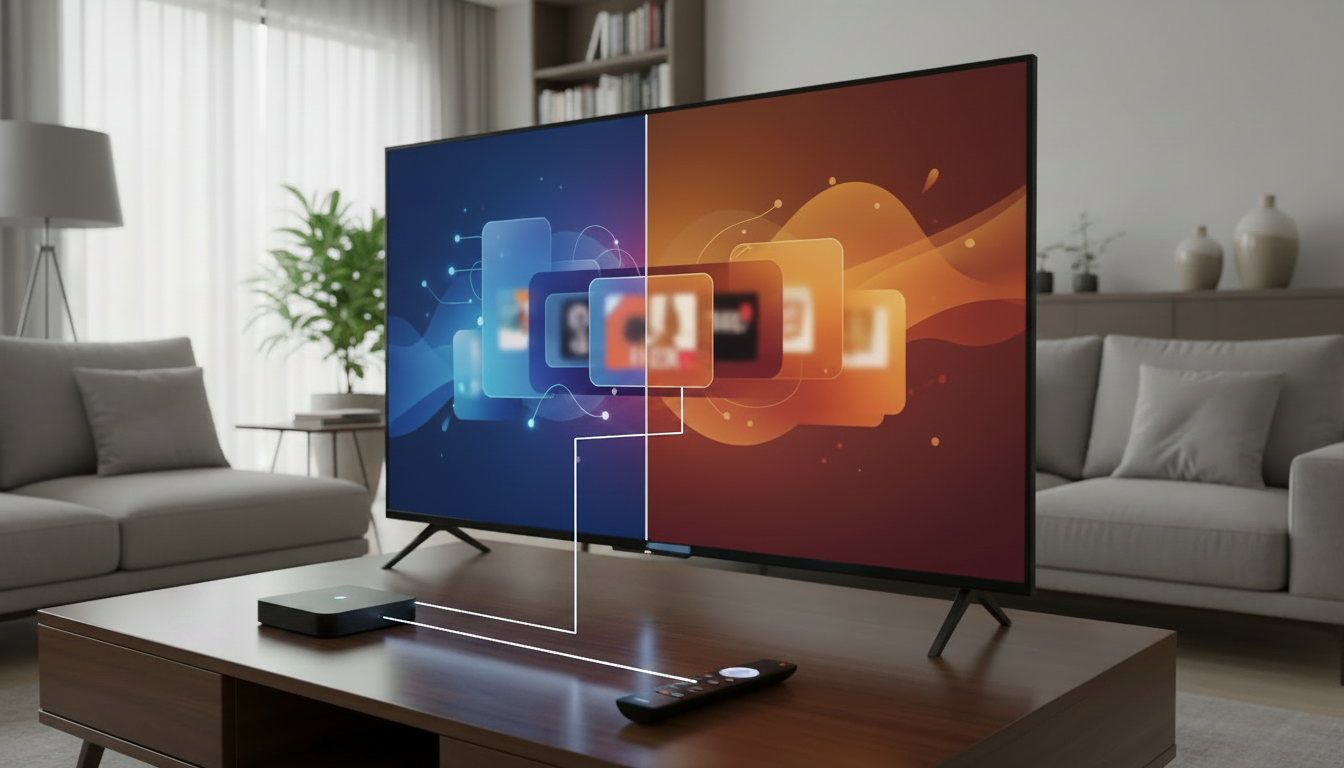
HDMI-CEC (Consumer Electronics Control) is a feature built into the HDMI standard that lets devices connected over HDMI send simple control commands to one another. For many households, enabling HDMI-CEC is the quickest way to achieve “one remote” control: you can power devices on and off together, control volume, and sometimes navigate basic playback functions without switching remotes.
This guide explains what HDMI-CEC does, how to enable it on TVs and common streaming devices, how it interacts with soundbars and AV receivers, and practical troubleshooting tips. Because manufacturers often use different names and update menus over time, verify the exact menu labels and options on your TV and streaming device at the time you set things up.
What to know first
- What HDMI-CEC actually is: HDMI-CEC is a low-bandwidth control channel carried over the HDMI cable. It is intended for basic device control (power, volume, playback commands, input switching) rather than high-bandwidth data or app-level commands.
- Different names for the same feature: Manufacturers often give HDMI-CEC proprietary names. Common examples include Samsung Anynet+, Sony BRAVIA Sync, LG SimpLink, Panasonic VIERA Link, Philips EasyLink, and others. Your TV or device settings may use one of these names.
- Interoperability caveats: While HDMI-CEC is a standard, implementations vary. Two devices may support CEC but expose different commands, or they may interpret shared commands differently. This means some features (like volume control) are reliable, while others (like universal navigation) may be inconsistent.
- Hardware and wiring: CEC signals travel over the HDMI cable’s CEC pin. Most modern HDMI cables support it; special adapters, passive splitters, or some low-cost HDMI switches can break CEC signals. ARC/eARC, used for audio return, can interplay with CEC but is a separate feature.
Main guide
1) Prepare before changing settings
- Check device compatibility and firmware
- Confirm that both your TV and your streaming device support HDMI-CEC. Look for the CEC brand names in their manuals or support pages.
- Verify firmware/software versions at publication time, since menu names and available CEC behavior can change with updates.
- Inspect your HDMI chain
- Connect your streaming device directly to a TV HDMI input if possible for initial setup. If you use a soundbar or AV receiver, be aware these can interpose themselves in the CEC chain.
- Avoid cheap splitters or older adapters that may not pass CEC signals. If you rely on an HDMI switch, verify the switch explicitly lists CEC passthrough.
2) Enable CEC on your TV and streaming device
- On the TV
- Locate the CEC setting: check the TV’s system/connection/input settings for the CEC option (it may carry the manufacturer’s name).
- Turn CEC on. Some TVs have sub-options such as “auto-power,” “device control,” or “input auto-switch” — decide which you want (see trade-offs below).
- Optionally rename CEC devices if your TV allows it; a clear name helps when multiple devices are present.
- On the streaming device
- Open the device’s system or remote control settings and find HDMI/CEC or HDMI control options.
- Enable the options relevant to you, such as allowing the device to turn the TV on/off or to control TV volume through the TV or receiver.
- If your streaming device offers granular choices (power control, volume, input switching), choose the ones that match how you want your setup to behave.
- Typical device notes (verify in manuals)
- Most streaming platforms (Roku, Apple TV, Amazon Fire TV, Google TV/Chromecast) include some form of HDMI-CEC support; menu locations and naming can differ, so consult the device’s support documentation for exact steps.
3) Set up with soundbars and AV receivers
- Understand the role of the intermediary device
- If you route HDMI through a soundbar or AV receiver, that device may handle audio (ARC/eARC) and also be the primary CEC “master.” In many setups the receiver becomes the hub for volume control and on/off commands.
- Practical steps
- Connect streaming device to the receiver or soundbar HDMI input if you want a single CEC chain. Connect the receiver to the TV via the ARC/eARC HDMI port if you use two-way audio return.
- Enable CEC on the receiver/soundbar and configure it to pass CEC commands along. Some receivers offer specific modes for how aggressively they manage power and input switching.
- Trade-offs and decision criteria
- Direct-to-TV connection may simplify CEC behavior but can complicate audio routing if you want surround sound.
- Routing everything through the receiver simplifies audio, but different brands’ CEC implementations can cause misinterpreted commands or power loops. If you experience odd behavior, test alternative wiring (device-to-TV, then TV-to-receiver) to see which gives the best result.
4) Fine-tune behavior and avoid conflicts
- Decide your primary remote and control authority
- Determine whether the TV should drive power/volume for everything or whether the streaming device (or receiver) should be the controller. Some users prefer the TV to be primary for simplicity; others want the streaming device to wake the TV and manage inputs.
- Use per-device options
- If available, disable conflicting functions on devices you don’t want to control. For example, turn off “turn on TV” in a device’s settings if the TV is powering on unexpectedly when another device wakes.
- Test typical workflows
- Try common actions such as powering on the streaming device (e.g., from sleep), starting playback, adjusting volume, and powering off. Note and change any setting that causes undesirable behavior.
5) Troubleshoot common problems
- If nothing happens
- Confirm CEC is enabled on all devices in the chain.
- Try a different HDMI cable or port, and temporarily remove intermediate devices like switches to isolate the problem.
- If power or volume behaves oddly
- Check for multiple devices that can send the same command. Disable power control on one device to prevent loops.
- If volume is controlled by the TV but the audio hardware is external, ensure the receiver is set to accept volume commands or that the TV forwards volume commands over ARC/eARC.
- If navigation commands are unreliable
- Recognize that CEC navigation support varies. If app navigation is poor, you may need to use the streaming device’s native remote or app instead of relying on CEC.
Common mistakes
- Assuming all CEC features will work across brands
- Reality: Basic functions are usually reliable, but advanced or app-level commands may not be implemented or may behave differently between brands. Avoid expecting flawless cross-brand behavior.
- Using the wrong HDMI path for testing
- When you test CEC, plug the streaming device directly into the TV first. Testing through a receiver/soundbar or a switch can hide issues caused by those intermediaries.
- Forgetting to check CEC brand names
- Many users miss the setting because it’s labeled with a proprietary name (Anynet+, SimpLink, etc.). Search your TV’s support pages or manual for CEC brand names.
- Enabling every CEC option at once
- Turning on every available CEC function across all devices can create command conflicts or power loops. Enable only the functions you need and test incrementally.
- Using an HDMI switch or splitter that doesn’t pass CEC
- Not all switches or splitters carry the CEC line. If you rely on a multi-input switch, verify it supports CEC passthrough or connect devices directly.
FAQ
Will HDMI-CEC let me use one remote for everything?
HDMI-CEC can often let you use a single remote for basic tasks like power on/off, input switching, playback control (play/pause/stop), and volume. However, exact capabilities depend on each device’s CEC implementation and brand-specific behavior. For full app navigation or advanced functions, you may still need the streaming device’s native remote or companion app.
Why does my TV turn on when I only want the streaming device to wake?
That happens when multiple devices are configured to send a “power on” command. To fix it, pick which device should be allowed to wake the TV and disable power-on or auto-power options on the others. If your receiver or soundbar is between the TV and streaming device, check its CEC settings too.
My volume control uses the TV instead of the soundbar — how do I change that?
Volume routing depends on which device the streaming device and the TV recognize as the audio endpoint. If you use a soundbar or receiver, ensure it’s connected via the TV’s ARC/eARC HDMI port and that CEC is enabled on all devices. If the TV still controls volume, look for a setting that lets the streaming device control receiver volume or disable TV volume control in the streaming device’s CEC settings. If menu options are unclear, consult the device manuals or support pages for guidance.
Conclusion
HDMI-CEC is a practical, low-friction way to reduce remote clutter and make a streaming device and TV behave as a coordinated system. Start by confirming support and updating firmware, enable CEC on each device one at a time, and test simple workflows—power, input switching, playback, and volume. If you use a receiver or soundbar, be mindful that it can alter command routing. When things go wrong, isolate components and toggle individual CEC options rather than enabling everything at once.
Next action: check your TV and streaming device manuals or support pages for the exact CEC setting names and steps, then try enabling CEC with the streaming device connected directly to the TV to confirm basic functionality.

Canzar
Ready to stream? Pick your plan
Live TV, movies, sports and 10,000+ channels on any device — Firestick, Android TV, Smart TV, phone.
View Subscription Plans Compare Pricing
Moderation: Comments are reviewed before publishing. Be respectful and on-topic.
Guidelines: Share streaming tips, device help, or content recommendations. No spam, no promotions, no off-topic links.