
Last updated August 25, 2026 · Editorially reviewed by CanzarTV
Choosing Between Optical, HDMI, and Analog Audio Connections for Older Receivers
Introduction
If you have an older AV receiver and a newer TV or streaming device, you may be wondering whether to use optical (Toslink), HDMI, or analog connections to get the best sound. Each option has trade-offs around audio formats, convenience, and compatibility. This guide explains how the different connections work, practical scenarios for when to use each, step-by-step setup tips, troubleshooting advice, and an FAQ to help you decide the best approach for your system.
Note: exact behavior can vary by TV, receiver, streaming device, and firmware. Always check current manufacturer documentation for your gear.
How these connections differ (high level)
- HDMI: A digital, high-bandwidth connection that can carry uncompressed multichannel PCM, lossless surround formats (depending on HDMI version and device support), and control signals like ARC/eARC and CEC. HDMI can also transfer video and Ethernet over the same cable when supported.
- Optical (Toslink, S/PDIF): A digital optical link that carries compressed Dolby Digital and DTS, and uncompressed stereo PCM. It has lower bandwidth than HDMI and does not support newer lossless surround formats or object-based audio like Dolby Atmos carried in lossless form.
- Analog (RCA / 3.5mm): A pair (stereo) or multiple RCA inputs connected to an analog preamp/receiver. The receiver receives already-decoded analog signals. Analog is simple and widely compatible but requires the source or TV to decode surround into analog outputs if you want multichannel.
What each connection supports (typical)
- HDMI (recommended when possible)
- Stereo and multichannel PCM, Dolby Digital Plus, Dolby TrueHD, DTS-HD Master Audio, and object-based formats when supported by the chain and device (e.g., Blu-ray player > receiver over HDMI). ARC/eARC on TV and receiver can pass audio from TV apps or connected sources back to the receiver; eARC has higher bandwidth and broader format support.
Control features like HDMI-CEC and advanced lip-sync/latency handling.
Optical (Toslink)
Stereo PCM and compressed surround formats such as Dolby Digital and DTS (standard 5.1). It cannot carry high-bitrate lossless formats and generally won’t carry Dolby TrueHD/DTS-HD MA or eARC-only formats.
Analog (RCA / Tape Out / 3.5 mm)
- Stereo analog signals. For surround, some older receivers have multiple RCA inputs (e.g., 5.1 analog inputs) but most modern TVs and streaming devices do not provide multichannel analog outputs—so analog is usually limited to two-channel unless a source provides multichannel analog outs.
Because of bandwidth differences, you’ll frequently find that HDMI gives the most feature-rich and highest-fidelity path, optical is a good fallback when HDMI isn’t available or when your receiver predates HDMI-ARC, and analog is last-resort or used for specific scenarios (e.g., a vintage receiver or a device that outputs only analog audio).
Comparison table (quick reference)
| Feature | HDMI (ARC/eARC) | Optical (Toslink) | Analog (RCA / 3.5mm) |
|---|---|---|---|
| Stereo audio | Yes | Yes | Yes |
| Multichannel lossless (TrueHD, DTS-HD MA) | eARC/HDMI — possible | No | Only if source outputs many analog channels |
| Compressed surround (Dolby Digital/DTS) | Yes | Yes | Only if TV/source downmixes or provides multichannel analog |
| HDMI-CEC and device control | Yes | No | No |
| TV app audio passthrough | Yes (ARC/eARC) | Often yes (compressed only) | Only if TV has analog output |
| Lip-sync / latency handling | Better (HDMI) | Varies by device | Varies by device |
| Cable length practicality | Generally OK (short to medium) | Sensitive to length/quality | Short lengths best for low noise |
Common real-world scenarios and recommended connections
Modern TV with ARC/eARC and a relatively recent receiver with HDMI ARC
– Use HDMI ARC (or eARC if both TV and receiver support it). ARC passes TV app audio (Netflix, Prime Video, Roku TV, etc.) back to the receiver and usually supports compressed surround; eARC supports higher-bandwidth formats and lossless streams where supported.
– If you need lip-sync control and single-remote simplicity (CEC), HDMI is the clear choice.TV has optical out, receiver has no HDMI ARC
– Optical is the best digital option. It will carry Dolby Digital/DTS from TV apps and most streaming devices when the TV outputs those formats. Note optical will not carry some newer lossless formats.Streaming stick / set-top box directly into an older receiver with only analog inputs
– If the source has an HDMI output only and the receiver has no HDMI inputs, your choices are:- Connect the source to the TV and send audio back to the receiver via optical (if TV has optical out). This can introduce additional TV-dependent downmixing.
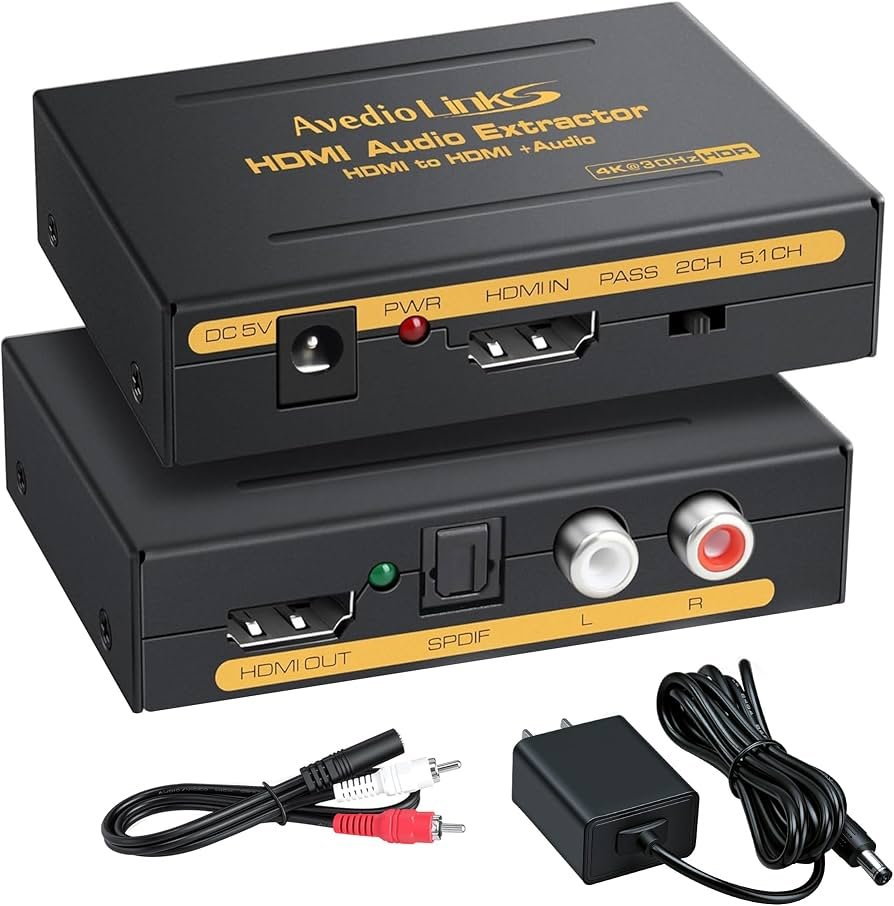
- Use an HDMI audio extractor or HDMI switch with analog outputs to convert to stereo RCA (beware of copy-protection and format limitations). Verify the device supports the formats you need and check regional compatibility.
- If the source has analog outputs (rare with modern streaming sticks), use those directly.
Older stereo receiver and a mix of vintage sources (turntable, cassette) + modern TV
– Use analog RCA for vintage gear (turntable needs a phono preamp if the receiver lacks one). For TV audio, optical to receiver (if it has a digital in) or analog if TV provides line-out.Gaming console and older receiver
– Connect the console to the TV or receiver depending on available ports. For lag-sensitive gaming, a direct HDMI to TV or receiver path that preserves passthrough and low latency is recommended. If you route console HDMI into the TV and back to the receiver via optical, some surround formats and advanced features may be unavailable.
Step-by-step: How to connect TV to receiver in each mode
A. HDMI ARC (recommended where available)
- Use a high-quality HDMI cable from the TV’s HDMI ARC/eARC port to the receiver’s HDMI ARC/eARC port.
- On your TV, enable HDMI ARC or eARC in the audio settings (nomenclature varies). Set TV audio output to PCM or Bitstream depending on whether you want the TV to decode or pass the raw stream.
- On your receiver, enable ARC/eARC and HDMI control (CEC) if you want single-remote operation.
- Test: play TV apps and verify the receiver is receiving and playing the audio. If no sound, check HDMI input selection and that HDMI control is enabled on both devices.
B. Optical/Toslink
- Connect a Toslink cable from the TV’s optical audio out to the receiver’s optical in.
- In the TV’s audio settings, set digital audio output to Bitstream (or the TV equivalent) if you want surround pass-through, or PCM for stereo.
- Ensure the receiver is set to the correct optical input.
- Test with a TV app or external source. If you only get stereo when you expect 5.1, verify the TV’s digital audio output setting and whether the app or broadcaster is sending a compressed surround stream.
C. Analog RCA
- Connect the TV’s analog line-out (often labeled Audio Out) to the receiver’s AUX or Tape input with RCA cables. If the TV has only a headphone jack, use a 3.5 mm to RCA cable.
- Set the TV’s audio output to “External speakers” or turn off TV speakers (nomenclature varies) so audio is routed to the analog out.
- Select the corresponding input on the receiver and test.
- For stereo-only analog, your receiver can’t reconstruct multichannel surround without additional processing (e.g., matrixing) — most downmix to stereo.
Cable tips and practical notes
- Use a good-quality HDMI cable rated for the bandwidth you need (HDMI 2.0 or higher for 4K HDR passthrough; eARC-capable cables/certified HDMI cables for eARC in some setups). Check device manuals for required HDMI capabilities.
- Optical cables can be damaged if bent sharply. For longer runs, consider active optical HDMI alternatives if you need longer digital links.
- For analog RCA, keep cable runs short and away from power cables to avoid hum or interference. If you hear hum, check ground connections and try a different outlet or a ground loop isolator.
- If using an HDMI audio extractor (to convert HDMI to optical/analog), confirm it supports the audio formats you require and that it works with HDCP and your devices. Manufacturer documents are the authoritative source for capabilities.
Troubleshooting common problems
- No audio when switching to TV app: verify TV audio output is set to the external digital/analog output instead of “TV speakers.” Also check HDMI ARC is enabled on both ends.
- Only stereo when expecting 5.1: the TV or app may be downmixing, or the connection (optical) may not support the original format. Check audio output settings and whether the app broadcasts in a supported format.
- Lip sync issues: HDMI typically has better latency/lip-sync management. Many TVs offer an AV sync or lip-sync setting to shift audio timing; enabling receiver or TV lip-sync correction can help.
- Intermittent dropouts: for optical, check for loose connections or a damaged cable. For HDMI, try a different cable and ensure firmware on TV and receiver is up to date.
When to consider upgrading the receiver or adding a device
- If you want lossless Atmos or DTS:X from streaming services via TV apps, eARC-compatible TV and receiver (or an eARC-enabled soundbar/processor) is recommended — otherwise those higher-bitrate formats may be downmixed. If your current receiver lacks HDMI or ARC altogether and you require modern format support, a targeted upgrade or adding a modern HDMI-enabled preamp/processor may be worth considering.
- If you’re content with stereo or compressed surround and prefer not to change receivers, optical or analog solutions can be perfectly fine.
Practical examples (decision flow)
- If your TV and receiver both support ARC/eARC: use HDMI ARC/eARC.
- If TV has optical out and receiver has optical in: use optical when ARC is not available.
- If TV has no digital out and your receiver only has analog: use analog, but expect stereo or TV-downmixed audio.
- If you want the least hassle and broadest format support over time: prioritize a receiver with modern HDMI inputs and ARC/eARC support.
For more on setting up specific streaming sources and devices, see Streaming Guides and our setup category at Devices & Setup.
FAQ
Q: Will optical (Toslink) give me Dolby Atmos?
A: No. Optical/Toslink does not have the bandwidth for lossless or object-based audio like Dolby Atmos in its lossless form. Some TV apps may downmix Atmos content to Dolby Digital Plus or stereo for optical output. Check TV and app settings.
Q: Can I use HDMI ARC with any HDMI cable?
A: For basic ARC features, most HDMI cables will work. For eARC and higher-bandwidth formats, use cables meeting the device recommendations (some setups require high-speed or certified cables). Check the TV and receiver manuals.
Q: My receiver has HDMI inputs but not ARC. Can I still use HDMI?
A: You can send sources directly to the receiver via HDMI inputs if the receiver has HDMI inputs and passes video to the TV. ARC is specifically for sending TV audio back to the receiver when sources are connected to the TV.
Q: Is analog audio “worse” than optical or HDMI?
A: Analog audio quality depends on source decoding and DACs. If the audio has already been processed into high-quality analog by the TV or source, it can sound excellent. However, analog generally lacks the multichannel convenience and format support of HDMI and the clean digital path of optical/HDMI.
Q: What if my TV only has HDMI inputs and no optical or analog outputs?
A: If the TV only has HDMI inputs, it will usually support ARC/eARC on at least one HDMI port. If not, you can connect sources via HDMI to an external HDMI audio extractor or a modern AV receiver with HDMI inputs. Verify compatibility and HDCP behavior before buying hardware.
Conclusion
Choosing between optical, HDMI, and analog connections for older receivers depends on the formats you want, your devices’ ports, and how much convenience and control you need. HDMI ARC/eARC offers the broadest feature set and best future compatibility. Optical/Toslink is a solid fallback for compressed surround and stereo when HDMI ARC isn’t available, and analog works well for vintage gear or stereo-only setups. When in doubt, consult your TV and receiver manuals and test different outputs to see which combination gives the best audio and least hassle for your setup.
For more device-specific tips, check our guides in Devices & Setup and deeper background on streaming audio in our Blog.
Disclosure: Settings and compatibility can differ by TV, device, operating system, region, and firmware version—verify your specific model’s documentation for exact behavior.

Canzar
Ready to stream? Pick your plan
Live TV, movies, sports and 10,000+ channels on any device — Firestick, Android TV, Smart TV, phone.
View Subscription Plans Compare Pricing
Moderation: Comments are reviewed before publishing. Be respectful and on-topic.
Guidelines: Share streaming tips, device help, or content recommendations. No spam, no promotions, no off-topic links.