
Last updated August 25, 2026 · Editorially reviewed by CanzarTV
Accessibility Testing Checklist for Streaming Apps on Smart TVs
Introduction
Smart TVs and streaming apps are increasingly central to how people watch video. Ensuring those apps are accessible to viewers with vision, hearing, mobility, or cognitive disabilities is both a usability win and a legal/ethical consideration in many jurisdictions. This article provides a practical, device-aware checklist you can use to evaluate streaming apps on Smart TVs. It combines manual test steps, suggested automated checks, and guidance for prioritizing fixes. Where behavior varies by TV model, platform, or region, the checklist tells you what to verify and how to note differences.
Why accessibility matters on Smart TVs
Smart TVs are used in shared living spaces and by people of many ages and abilities. Accessibility improvements—such as reliable captions, well-structured navigation, and audio descriptions—help users enjoy content independently. Good accessibility also reduces support calls and broadens your audience.
Note: Smart TV platforms (tizen, webOS, Android TV/Google TV, tvOS, Roku) and manufacturers differ in how they expose accessibility APIs, remote input, voice control, and subtitle rendering. Always verify current manufacturer documentation when testing platform-specific behavior.
High-level checklist (quick view)
- Captions / Subtitles: present, synced, readable, customizable
- Audio Description: supported and selectable when available
- Navigation: logical focus order, visible focus indicator, remote control friendly
- Voice & Assistants: works with platform voice navigation (if supported)
- Screen Reader / TalkBack / VoiceOver: content labels and roles exposed
- Contrast & Text Size: meets contrast guidance and responds to system font scaling
- Controls & Seek: keyboard/remote shortcuts and accessible player controls
- Error States & Loading: announcements and accessible retry options
- Settings & Help: accessible settings UI, accessibility help/documentation
- Localization & Language tagging: correct language attributes for captions and audio
Detailed checklist and practical test steps
Below are actionable checks grouped by capability. For each test, record the TV make/model, OS version, app version, and any observed differences.
1) Captions and subtitles
- Verify captions can be enabled and disabled from both the player UI and the platform-level subtitle toggle (if present).
- Test different caption files (burned-in vs. selectable text captions): selectable captions should be toggleable without reloading the video.
- Confirm captions are synchronized with audio under normal playback, seeking, and during live streams.
- Check styling options: font size, color, background color or window, and edge style. If the platform enforces styling, note which options are platform-controlled.
- Test legibility at typical viewing distances: confirm caption font size and contrast are readable from across a living room.
- Verify multiple language tracks and proper language labels so screen readers and platform controls can identify them.
Practical steps:
– Play a short clip with both dialogue and ambient sound, toggle captions on/off while playing and while paused.
– Seek forward/back to test sync.
– Switch caption formats (if available) and change font size and color options.
2) Audio description support
- Confirm audio description (AD) is selectable when the content provides it.
- Check the behavior when both AD and captions are active—ensure audio mixes correctly and captions don’t obscure information that AD provides.
- Verify platform-level AD toggles (some platforms allow enabling AD across apps) and how the app responds.
Practical steps:
– Play content with AD, switch to the AD audio track, and listen for descriptive narration during visual-only sequences.
– Toggle captions while AD is active.
3) Navigation and remote control accessibility
- Focus order: Navigate the app using only the remote (directional pad, OK/select, back, home). The focus flag should move predictably and never become hidden off-screen without visible fallback.
- Focus indicator: Visible focus outline or change in element styling should be easy to see against different backgrounds.
- Navigation loops and traps: Ensure you can always reach a global back or home; avoid focus traps inside overlays.
- Remote shortcuts: Test common remote keys (play/pause, fast-forward, rewind, exit) and confirm the app handles them consistently.
Practical steps:
– Start on the home screen of the app and navigate into categories, content detail pages, and the player using only the remote.
– Open modal dialogs and test returning to the previous screen using both remote back and on-screen controls.
4) Screen readers and voice control
- Screen reader labeling: All interactive elements (buttons, inputs, lists, player controls) must expose accessible names and roles.
- Dynamic content announcements: When content changes (loading, item added to watchlist), ensure appropriate announcements are made.
- Voice assistant support: Test the app with the platform assistant (e.g., assistant on Android TV, Siri on tvOS) for basic navigation commands if the platform supports app integration.
Practical steps:
– Enable the platform screen reader (TalkBack, VoiceOver, Smart TV screen reader) and navigate the app, listening for useful labels and options.
– Try voice queries if the platform supports app-level voice intents (note: platform support varies; check vendor docs).
5) Contrast, typography, and scaling
- Contrast: Check static UI elements and overlaid text (captions, descriptions) meet a conservative contrast threshold. If you rely on default platform styles, note that contrast can vary by theme or user setting.
- Text scaling: Test the app with larger system font sizes and verify layouts adapt without truncation or overlap.
Practical steps:
– Increase the TV’s font or accessibility size settings and confirm the app remains usable.
– View items with dark text on light backgrounds and vice versa to confirm contrast.
6) Player controls, seeking, and playback states
- Keyboard/remote accessibility: All player controls must be reachable and operable via the remote. Controls should be labeled for screen readers.
- Media state announcements: Play, pause, buffering, and playback errors should be exposed through accessible labels or platform announcements.
- Seek behavior: Test precise seek (frame/second stepping if available) and large jumps. Confirm focus remains on player controls after seek.
Practical steps:
– Use remote shortcuts to play/pause and seek; verify that the on-screen control state and announcements reflect changes.
7) Error handling, loading, and timeouts
- Loading states: Loading indicators should be programmatically exposed and not rely solely on color or motion.
- Retry paths: If playback fails, present clear retry options and accessible error messages.
- Timeouts: For long-running operations, offer a cancel/stop action accessible via remote.
8) Settings, accessibility documentation, and help
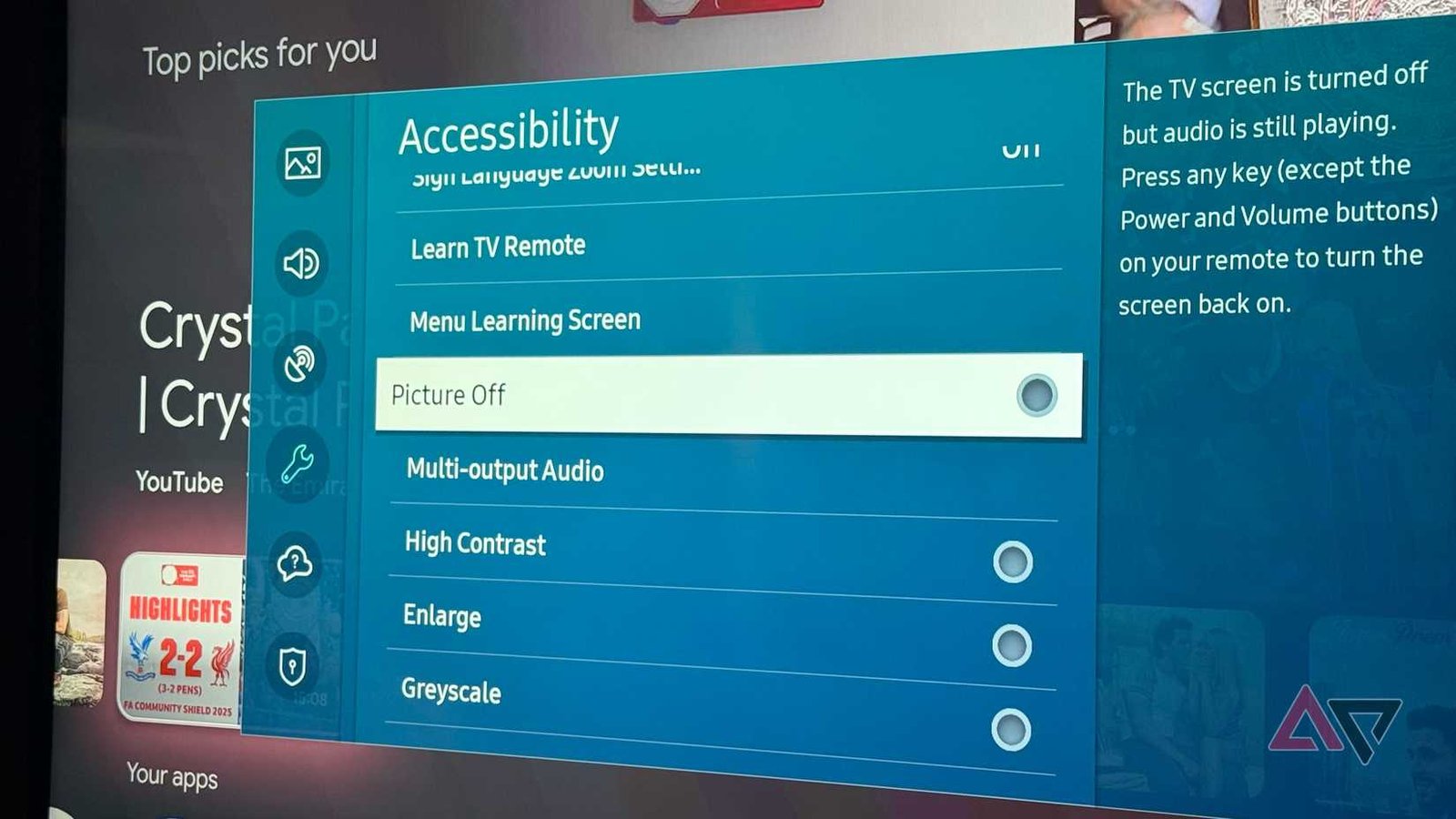
- Settings discoverability: Accessibility settings (caption styling, audio description) should be in a prominent settings area and accessible via navigation.
- In-app help: Provide a short, accessible help page describing accessibility features and how to enable them. Link to platform accessibility resources when appropriate.
9) Localization and language tagging
- Ensure caption tracks and audio tracks carry correct language metadata.
- Screen reader language: When a caption or audio track uses a different language, make sure that voice synthesis and screen reader language tagging is correct so pronunciations are appropriate.
Automated vs. manual testing (quick comparison)
| Test type | Strengths | Limits |
|---|---|---|
| Automated accessibility checks | Fast, repeatable, catches common ARIA/semantics issues | Cannot check caption quality, audio descriptions, or legibility at a distance |
| Manual testing on real devices | Validates captions, AD, focus behavior, and remote input | Slower, requires many devices and platform versions |
Use automated tools early, but always validate key flows on physical TVs or official emulators.
Recommended testing matrix
- Platforms: test on each target platform (Android TV/Google TV, tvOS, webOS, Tizen, Roku) if you publish there.
- Devices: test at least one major brand per platform; behavior can differ by manufacturer firmware.
- Modes: test Live streams, VOD with multiple audio/subtitle tracks, and downloaded content if supported.
- Input types: remote, voice, and external keyboard (if supported).
Tools and resources
- W3C Web Content Accessibility Guidelines (WCAG) — general principles (use as a baseline for UI text and interaction)
- Platform docs: consult platform accessibility documentation (tvOS Accessibility, Android TV Accessibility, platform vendor docs).
- Captions validation tools: tools that check subtitle file formats (SRT, WebVTT) for timestamp errors and formatting issues.
- Screen reader testing: use platform screen readers (TalkBack, VoiceOver) on device or emulator.
Include links to your team’s accessibility reporting workflow and bug templates so issues are captured consistently.
Prioritizing issues
- Anything that prevents access (no captions for deaf users, inaccessible player controls) — highest priority.
- Misleading or missing labels for navigation or playback controls.
- Styling/contrast and text scaling problems that make content hard to read from typical viewing distances.
- Non-critical polish items (caption styling options, minor focus styling).
Record fixes with severity, steps to reproduce, device/OS, and suggested remediation referencing platform APIs or WCAG principles.
FAQ
Q: How many TV models should I test on?
A: Test on at least one device per platform you publish to (Android TV, tvOS, webOS, Tizen, Roku). If resources allow, expand to models representing different manufacturers and screen sizes because rendering and remote behavior can vary.
Q: Can automated accessibility tools find caption sync problems?
A: No. Automated tools can flag format and structural issues in subtitle files, but caption sync, readability at distance, and audio description quality require manual checks on device.
Q: Should captions be burned in or selectable?
A: Selectable (text-based) captions are recommended because they allow users to adjust styling and are better for search and translation workflows. Some platform or content workflows will use burned-in captions, so note differences and test both.
Q: How should I test for users with motor impairments?
A: Verify remote-only operation, test with slow or repeated presses, and test with alternative input devices (external keyboard or voice) if the platform supports them. Ensure controls are reachable without precise gestures.
Q: Do I need to support system-level accessibility features?
A: Yes. Where the platform provides system-level accessibility (captions, audio description, screen reader), your app should respond gracefully and expose content through platform APIs so users can rely on those features.
Q: Are there legal requirements I should know about?
A: Accessibility laws vary by country and region. This checklist is practical guidance, not legal advice. Consult legal counsel or local regulations for compliance obligations.
Conclusion
Accessibility testing for streaming apps on Smart TVs requires both automated checks and thorough manual validation on real devices. Focus first on captions, audio description, remote navigation, and screen reader compatibility—these have the biggest impact on users’ ability to consume content. Maintain a clear testing matrix, document device-specific differences, and include accessibility checks in every release cycle.
For deeper platform details, consult each vendor’s accessibility documentation and the W3C accessibility guidelines. If you manage multiple apps, create shared templates for test results and prioritize fixes that unlock the most viewers.
Disclosure: Settings, accessibility APIs, and compatibility vary by TV model, device, operating system, region, and firmware version. Always verify current manufacturer and platform documentation when testing.
Useful internal resources:

Canzar
Ready to stream? Pick your plan
Live TV, movies, sports and 10,000+ channels on any device — Firestick, Android TV, Smart TV, phone.
View Subscription Plans Compare Pricing
Moderation: Comments are reviewed before publishing. Be respectful and on-topic.
Guidelines: Share streaming tips, device help, or content recommendations. No spam, no promotions, no off-topic links.