
Last updated August 26, 2026 · Editorially reviewed by CanzarTV
Test Your Home Network’s Upload Stability for Streaming and Video Calls
A reliable upload path matters as much as download speed when you stream live, host video calls, or upload large files. Many problems that look like “slow internet” are actually short-term upload instability — jitter, packet loss, or bursts of congestion that disrupt interactive or live services. This guide shows you how to test upload stability on your home network, which tools to use, how to interpret results, and practical fixes you can try before contacting your ISP.
Why upload stability matters
Most casual speed checks focus on download throughput. But interactive services—Zoom, Microsoft Teams, live game streaming, cloud backups—depend on consistent upload performance:
- Latency spikes and jitter cause audio dropouts and video freezes.
- Packet loss forces retransmits or lower quality encoding in video calls.
- Short-lived throughput collapses can drop your outbound stream even when average upload speed looks fine.
Testing upload stability helps you know whether problems come from your router, Wi‑Fi, local devices, or the ISP network.
Key metrics: what to measure and why
- Upload throughput: the raw bytes-per-second your connection can sustain. Useful baseline but not the whole story.
- Latency (one-way or round-trip): the time a packet takes to reach a server and back. Higher latency increases delay.
- Jitter: variability in packet arrival times. High jitter causes choppy audio and stuttering video.
- Packet loss: percentage of packets not reaching the destination. Even small loss (1–3%) can harm video calls.
- Bufferbloat: excessive buffering in network equipment causing large latency increases under load.
Measuring all these together gives a fuller picture of upload stability than a single speed number.
Tools and what they measure
Below is a brief comparison of common tools. Pick a few so you see consistent behaviors across tests.
| Tool | What it measures | Pros | Cons |
|---|---|---|---|
| Speedtest (web/mobile) | Upload/download throughput, ping | Easy, widely available | Single-shot; not continuous; server choice matters |
| Fast.com | Upload/download, latency | Simple; Netflix-focused | Fewer diagnostics |
| iperf3 | Throughput, jitter, packet loss (with UDP) | Precise, sustained tests | Requires a remote iperf3 server or a second device |
| ping / traceroute / mtr | Latency, packet loss over time, path issues | Quick, continuous samples, helps locate hops with loss | Basic; doesn’t measure sustained throughput |
| Wireshark / packet capture | Detailed packet timings, retransmits | Deep diagnostics | Technical and data-heavy |
| Online bufferbloat tests | Latency under load | Reveals bufferbloat | Fewer public servers; test variability |
Useful links for these tools are in the references at the end.
A step-by-step upload stability test plan
This plan moves from quick checks to deeper tests you can run at home.
1) Prepare the test environment
- Use a device with a direct wired Ethernet connection to your router whenever possible — this eliminates Wi‑Fi as a variable.
- Close background uploads: cloud sync, backup clients, P2P apps, updates.
- Note the time of day: congestion is often worse during peak hours.
- Reboot your modem and router if they haven’t been restarted in a while.
2) Run a baseline speed test
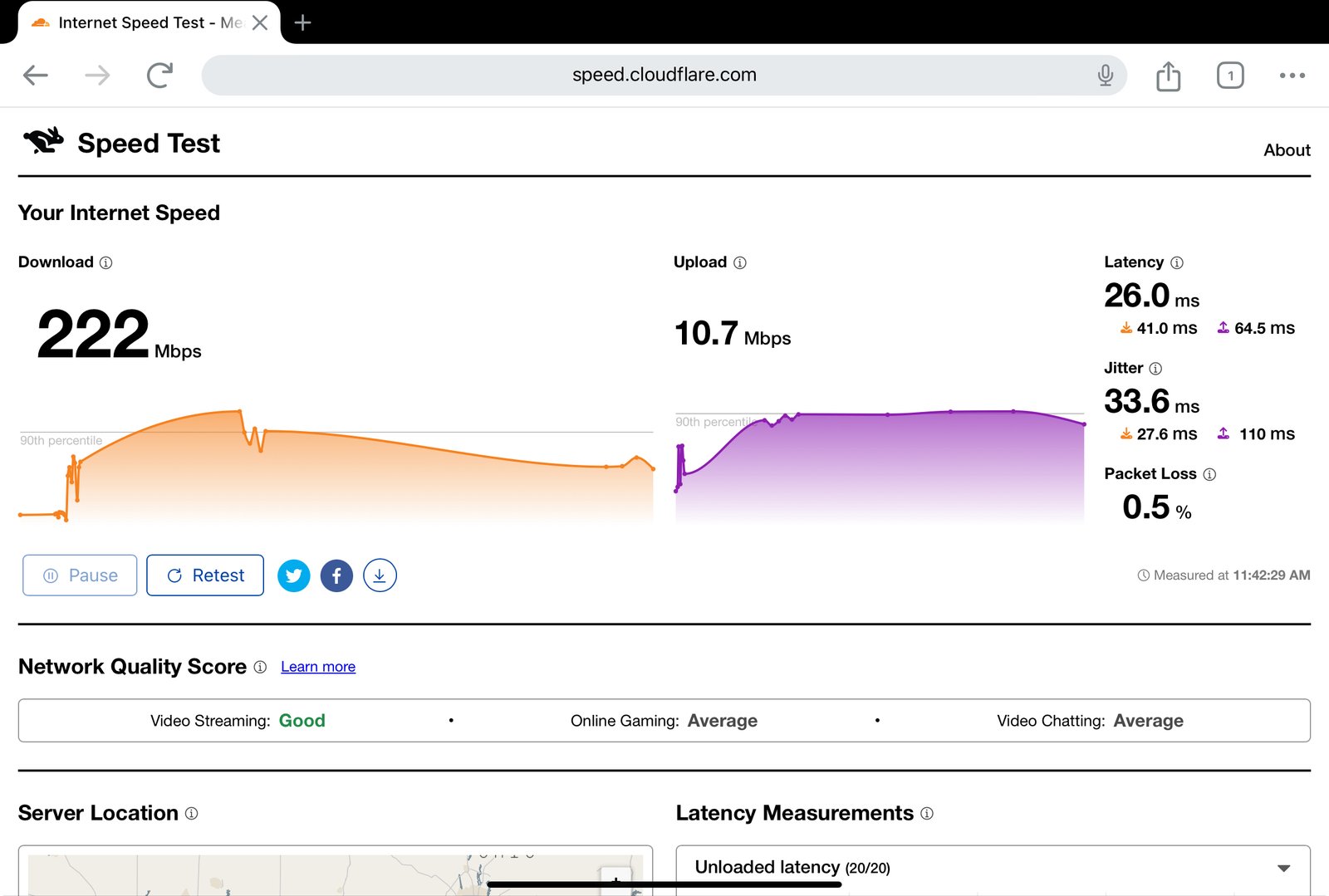
- Use a reputable speed test (for example Speedtest or Fast.com) to get a baseline upload number. Repeat the test several times over 10–15 minutes and at different times of day.
What to look for: If upload throughput swings widely between tests (for example, 10x variations or repeated drops to near zero), that’s a sign of instability beyond a single slow measurement.
3) Measure jitter and packet loss with ping and MTR
- Windows: ping -n 100
- macOS/Linux: ping -c 100
Use a nearby well-known server (your speed test server or a reliable public DNS like 1.1.1.1 / 8.8.8.8 for diagnostic pings — note that ICMP behavior can differ from UDP/TCP used by apps).
Run MTR (or WinMTR) against the same server and observe packet loss across hops and latency variation. MTR helps locate where packets are being dropped in the path.
What to look for: sustained latency variance (jitter) or recurring packet loss above ~1–2% suggests a problem. If loss appears only on final hop and not intermediate ones, it may be endpoint rate-limiting rather than home link problems.
4) Run a sustained upload test with iperf3
iperf3 is useful for testing sustained upload capacity and jitter under a controlled load. You need an iperf3 server to test against.
- On a test server (or second local device acting as server): iperf3 -s
- From your test device as client, to send upload traffic: iperf3 -c
-t 60
For UDP tests that measure jitter and packet loss:
- iperf3 -c
-u -b 10M -t 60
(Replace 10M with an appropriate target close to your expected upload speed.)
What to look for: if throughput evenly reaches your expected upload target with low jitter and no packet loss, your upload path is capable. If throughput drops or jitter/loss increase under sustained load, this indicates instability under real-world outbound traffic.
Note: public iperf servers may have limits; if you’re unsure, run a local iperf server on a second machine inside your network to validate router/modem behavior first.
5) Real‑world test with a video call or streaming app
Use the app you normally rely on (Zoom, Teams, OBS + streaming service) to do a real test. Many apps include diagnostic or statistics panels that report outgoing bitrate, packet loss, and dropped frames.
- Create a private test call or a private stream to a test channel.
- Monitor the app’s stats while performing uploads and while other devices are active on the network.
What to look for: If the app reports frequent frame drops, retransmits, or forced quality reductions while iperf3 shows good numbers, the app or local device CPU might be the bottleneck.
6) Test Wi‑Fi vs wired
Repeat your tests over Wi‑Fi (2.4 GHz and 5 GHz if available) then over Ethernet.
If wired tests are stable but Wi‑Fi tests show jitter or loss, focus on Wi‑Fi: channel congestion, distance, interference, and client radio drivers.
7) Monitor over time
If the problem is intermittent, run a continuous ping or use a network monitoring tool for several hours or days to capture periods of instability. That evidence is useful when you contact your ISP.
Interpreting results: common patterns and likely causes
- Consistent low upload throughput but low jitter and loss: a capacity issue — your plan’s upload speed may be too low for the task.
- High jitter or intermittent packet loss during sustained uploads: likely congestion, bufferbloat, or faulty hardware/router.
- Loss or latency spikes on multiple hops in MTR: an ISP or upstream network issue.
- Stable wired connection but poor Wi‑Fi: client radio, interference, distance, or AP configuration.
- Good iperf results but real app struggles: CPU limits, app configuration, or TLS/encoding overhead on the client.
Troubleshooting checklist (quick wins)
- Switch to Ethernet for critical streams.
- Reboot modem and router; update firmware (verify with manufacturer docs before updating).
- Reduce simultaneous uploads: pause cloud sync or backups during calls/streams.
- Move closer to the Wi‑Fi access point or use 5 GHz where possible.
- Change Wi‑Fi channel to a less congested one (use a Wi‑Fi analyzer APP to check local congestion).
- Check for QoS settings on your router: enabling simple QoS or prioritizing video-calling devices can reduce issues.
- Replace old or damaged Ethernet cables (use at least Cat5e for typical home speeds).
- If bufferbloat appears to be a problem, some routers support Smart Queue Management (SQM) or fq_codel — check whether your router supports these features.
If you don’t control your gateway (ISP-supplied modem/router), many of these settings may be unavailable. Document your test results before contacting your ISP.
When to contact your ISP
If you see consistent packet loss or latency spikes that begin after the first hop to your ISP (MTR/tracepoint shows loss on ISP equipment), or repeated upload throughput collapses that can’t be explained by local devices, gather test logs (speedtest results, iperf logs, ping/MTR traces) and contact your ISP. Share exact times and sample logs to help them reproduce the issue. ISPs can run line tests and check upstream congestion.
Sample iperf3 and ping commands (copy/paste)
- Windows ping 100 samples: ping -n 100 1.1.1.1
- macOS/Linux ping 100 samples: ping -c 100 1.1.1.1
- Start an iperf3 server on a local machine: iperf3 -s
- Run a 60-second upload test to that server: iperf3 -c 192.168.1.50 -t 60
- UDP test for jitter (example ~10 Mbps): iperf3 -c 192.168.1.50 -u -b 10M -t 60
Note: IP addresses, flags, and available options vary by platform and iperf version. If you plan to use public iperf servers, verify their availability and usage rules.
Tools and services to consider for continuous monitoring
- Lightweight ping monitoring (UptimeRobot or a self-hosted script) for long-term packet loss/latency trends.
- Router-based logging: some advanced firmware (OpenWrt, Tomato, advanced stock UI) can show per-device traffic graphs and QoS.
- Desktop tools: MTR, WinMTR, or similar for path diagnostics.
For more device and setup tips, see our Devices & Setup and Apps & Tools sections.
Streaming Guides | Devices & Setup | Apps & Tools | Tech & Security
Frequently asked questions
Q: What upload speed do I need for a 1080p live stream?
A: Required upload speed depends on encoder settings (bitrate, codec), scene complexity, and whether you also use a backup upload or other devices on the network. As a general rule, a dedicated stable uplink at or above the encoder bitrate + 20–30% headroom is recommended. Don’t rely only on a single spot-speed result — test sustained uploads under real encoding conditions.
Q: Is jitter worse on Wi‑Fi than Ethernet?
A: Wi‑Fi is more susceptible to interference and retransmissions, which can increase jitter and packet loss. Wired Ethernet typically provides lower jitter, so testing both helps isolate the problem.
Q: How much packet loss is acceptable for video calls?
A: Acceptable loss is low—often under 1%. Even small, intermittent losses can degrade call quality. If you consistently see several percent loss, that’s a problem worth fixing.
Q: Can my router firmware or QoS settings fix upload instability?
A: Sometimes. Up-to-date firmware can resolve bugs; QoS or traffic shaping can reduce excessive bufferbloat. However, these features vary by router model — check the manufacturer documentation for specifics.
Q: I have fibre/Cable with high advertised upload speeds but still get instability. Why?
A: Advertised speeds are peak or typical throughput; transient congestion, overloaded local loops, or misconfigured equipment can cause instability. Testing and capturing evidence helps narrow down whether the issue is local or upstream.
Conclusion
Testing upload stability gives you a clearer, actionable view of why streaming or video calls stutter. Combine quick tests (speedtests, ping) with sustained tests (iperf3, real call diagnostics) and run wired vs wireless comparisons. Capture logs and repeat tests at different times to spot recurring patterns. Many issues are solvable with a router reboot, firmware update, or simple configuration changes, but documented test results are invaluable when you need your ISP to investigate.
Disclosure: Settings and compatibility can differ by TV, device, operating system, region, and firmware version. Always verify current manufacturer documentation and follow vendor guidance when changing firmware or advanced settings.

Canzar
Ready to stream? Pick your plan
Live TV, movies, sports and 10,000+ channels on any device — Firestick, Android TV, Smart TV, phone.
View Subscription Plans Compare Pricing
Moderation: Comments are reviewed before publishing. Be respectful and on-topic.
Guidelines: Share streaming tips, device help, or content recommendations. No spam, no promotions, no off-topic links.