
Last updated August 27, 2026 · Editorially reviewed by CanzarTV
Practical Tests to See If Your TV Is Downscaling a 4K HDR Stream
If a show or movie that should look sharp and vibrant at 4K HDR appears soft, washed out, or missing expected detail, your TV or the equipment between it and the streaming source may be downscaling the signal. This guide walks through practical, model-neutral steps you can use to detect whether a 4K HDR stream is being downscaled — and where to look to fix it.
Note: settings, menus, and feature names vary by TV, receiver, streaming device and app. Always verify steps with your manufacturer documentation where necessary.
Quick primer: what “downscaling” means here
Downscaling means the source output (for example, a streaming device or app) is 3840×2160 (4K) with HDR metadata, but something in the chain outputs a lower-resolution or SDR/limited-HDR signal to the TV. Common culprits are HDMI bandwidth limits, AVR/receiver processing, cable issues, device or app settings, or the TV’s own input settings.
Why test? Downscaling can reduce fine detail, change colors, or strip HDR dynamic range — and some causes are easy to fix (change a single setting) while others require hardware upgrades.
What you need before testing
- Your TV and the streaming device or player that normally supplies 4K HDR content.
- If you use an AVR/receiver between the source and TV, access to bypass or connect the source directly to the TV.
- A reliable HDMI cable rated for the resolution/refresh (see your device manuals) or the cable that came with your equipment.
- One or more 4K HDR test sources: a known 4K HDR stream (official demo clip), a local 4K HDR clip on USB, or a test pattern file. Where possible use official/demo materials from device makers, streaming services, or HDR standards groups.
If you don’t have a USB test file, many device manufacturers, Dolby, and streaming services provide official test materials or demos. Confirm sources and compatibility for your region and device before downloading.
Quick checks — the fastest way to spot downscaling
Check the TV’s input or signal info overlay.
– Most modern TVs can display the active input’s resolution and HDR status (often via an “Info” or “Signal Format” on-screen display). Play a piece of confirmed 4K HDR content and open the TV’s Input Info. If it reports 3840×2160 and HDR10/HLG/Dolby Vision, the TV is receiving a native 4K HDR signal.Inspect the streaming app or device indicator.
– Many streaming apps and devices show an on-screen label (e.g., “4K HDR”) while playing. This indicates the app believes it’s streaming at that quality. Some devices show the output resolution in their settings or video output menu.Try bypassing an AVR/receiver.
– If you normally route your streaming device through an AVR, temporarily connect the streaming device directly to the TV’s HDMI port. If the input info changes from 1080p/SDR to 2160p/HDR, the AVR was likely downscaling.
If the above checks all indicate 4K HDR but the image still looks wrong, continue with the deeper tests below.
Step-by-step tests (from simplest to most conclusive)
1) Use the TV’s built-in information overlay while playing a confirmed 4K HDR clip
- Play an official 4K HDR demo (or a verified 4K HDR title in an app that explicitly lists HDR/4K). Pause on a scene with fine detail.
- Open the TV’s input/signal information (the menu label varies: “Signal Format”, “Input Info”, “Source Info”).
- Expected: it should show 3840×2160 (or 2160p) and list HDR type (HDR10, HLG, Dolby Vision, etc.).
- If it shows 1080p or does not show HDR, something upstream is downscaling or stripping HDR metadata.
Why this helps: it directly reports what the TV is receiving. However, not all TVs report precise metadata; absence of 4K/HDR doesn’t guarantee downscaling (some devices expose misleading info), so use additional tests.
2) Bypass components and simplify the chain
- Connect the streaming device directly to the TV with a known-good HDMI cable. Turn off any intermediate processing (AVR, soundbars with HDMI pass-through).
- Repeat the input info test.
- If direct connection restores a 4K HDR signal, the intermediate device is the likely cause.
Why this helps: AVRs often downmix or re-output at lower resolutions if their HDMI bandwidth is limited or if their “HDMI processing” setting is enabled.
3) Test with a local 4K HDR file on USB or a media player (if available)
- Download a publicly available 4K HDR test clip from an official source or use a manufacturer demo file and play it from a USB stick or local server.
- Local playback bypasses streaming app limitations (content provider transcodes, app limits or network throttling).
- If local playback shows true 4K HDR but streaming doesn’t, the issue may be your streaming device app, your network bandwidth, or the streaming service.
Caveat: some TVs or players may not support all HDR wrappers or codecs from USB. Check manufacturer compatibility if a file won’t play.
4) Use a resolution/pixel grid test pattern
- Play a 4K pixel-grid or high-frequency detail pattern (available from test discs, pro demo materials, or some online sources) and inspect for expected fine detail.
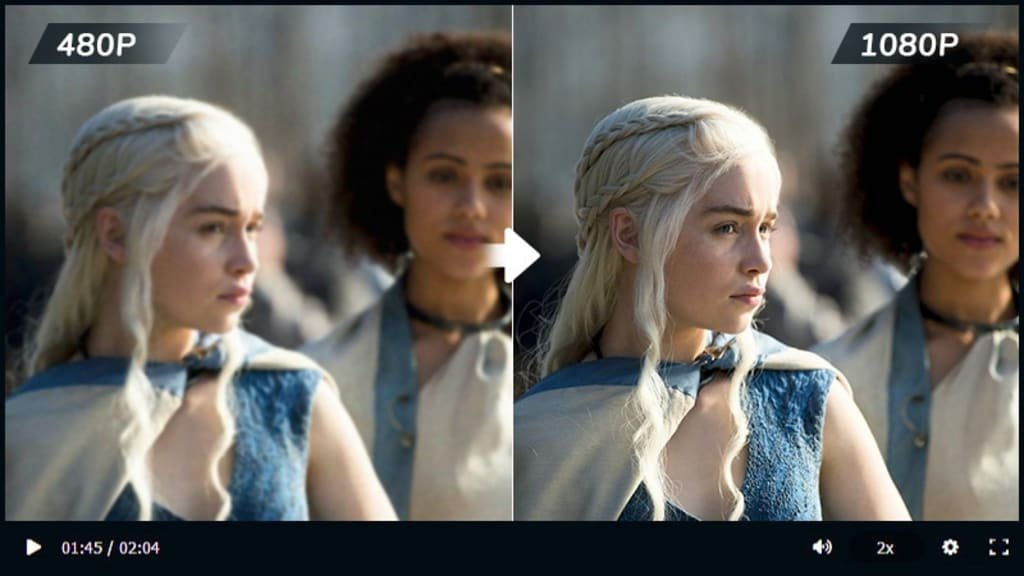
- A downscaled 1080p image upscaled to 4K by the TV will show softer edges and fewer visible grid lines than native 4K.
What to look for: the sharpness of tiny text or thin lines — native 4K retains more distinct edges. If the lines blur or some lines merge, the source may be 1080p being scaled up.
5) Check for chroma subsampling related signs (color fringing around high-contrast edges)
- Some downscaling or lower-bandwidth outputs use higher chroma subsampling (4:2:0) which can cause color fringing around high-contrast edges in test patterns.
- Play a high-contrast color checker or sharp text and look for subtle color bleeding at edges. It’s not definitive by itself, but combined with resolution tests it can indicate the output is not full chroma 4:4:4.
6) Confirm HDR metadata presence and dynamic range
- HDR content includes metadata that tells the TV how to map brightness and color. If HDR metadata is stripped or the TV shows an “SDR” label, dynamic range will be reduced.
- Compare a known HDR scene side-by-side (or switch between HDR and SDR versions if available). HDR should show brighter highlights and deeper detail in bright parts without crushing shadows.
- If both versions are identical, HDR metadata may be lost in transit.
7) Use the streaming device’s diagnostics (if available)
- Many streaming devices and smart TVs expose a diagnostics screen showing output resolution, HDR status, color depth, and refresh rate. Consult the device menu or developer settings.
- If the device reports 2160p/10-bit/HDR but the TV shows something different, the handoff (HDMI cable, AVR, TV input) is the problem.
8) Confirm app/streaming service indicators and bitrate
- Streaming services often display quality badges (4K, HDR) in-app or in the playback overlay. Check that the title you’re testing is actually being served in 4K HDR for your region and subscription tier.
- Some services adapt bitrate to network conditions. If your network can’t sustain high bitrates, the service may deliver a lower-resolution stream. Test using a wired Ethernet connection, or a known-good broadband speed well above the service’s recommended bitrates.
Comparison quick-reference table
| Check | What it tells you | Expected sign of downscaling | Troubleshooting next step |
|---|---|---|---|
| TV input info | What the TV is receiving | Shows <2160p or no HDR | Bypass AVR, try different HDMI port/cable |
| Direct connect test | Whether AVR/cable is the issue | Direct->TV shows 4K HDR, AVR path doesn’t | Update AVR firmware, change HDMI settings or cables |
| Local USB 4K HDR file | Eliminates streaming/server constraints | Local file is 4K HDR, streaming is not | Check app/device, bandwidth, account tier |
| Pixel-grid pattern | Detects native resolution | Blurred/merged lines consistent with 1080p | Use higher-bandwidth cable or change device output |
| Device diagnostics | Source output vs TV input | Device reports 4K but TV does not | Check HDMI handshake, enable passthrough/4K mode |
| App badges & bitrate | Confirms service delivery | App not showing 4K/HDR badge | Verify subscription, network speed, app settings |
Troubleshooting checklist (concise)
- Try a different HDMI cable (use cable packaging or specs to confirm it supports 4K HDR at the expected refresh rate).
- Use a direct connection to the TV to isolate AVRs or soundbars.
- In AVR settings, set HDMI pass-through or disable post-processing and set the AVR HDMI to allow 4K/60Hz (or higher) passthrough.
- In the streaming device’s display settings, set output to 4K/60Hz and enable HDR output or auto HDR where applicable.
- Confirm the streaming service title is available in 4K/HDR in your region and under your account plan.
- Test via wired Ethernet to rule out bandwidth throttling or Wi‑Fi issues.
- Check for firmware updates for TV, AVR, or streaming device; verify change logs and manufacturer docs before updating.
When to suspect hardware limitations
- If the AVR or older TV port only supports lower HDMI bandwidth (older HDMI versions), it may never pass native 4K HDR. Check the AVR and TV HDMI specs in the manuals (or manufacturer sites). If an intermediate device lacks sufficient HDMI bandwidth, replacing or bypassing it is often necessary.
Always confirm compatibility details with your device documentation — features and HDMI behaviors can vary by model and firmware.
Example real-world scenarios (model-neutral)
- Scenario A: You stream a 4K HDR movie, and the TV input shows 1080p. Bypassing the AVR immediately shows 4K HDR. Likely cause: AVR HDMI settings or hardware limitation.
- Scenario B: Local USB 4K HDR plays fine, but the app streams at 1080p. Likely cause: app/device settings, streaming service bitrate, or network.
These scenarios illustrate why step-by-step isolation is the most reliable way to find the cause.
FAQ
Q: My TV menu doesn’t show an input signal format. How else can I tell?
A: Use device diagnostics (many streaming players report output resolution) or play a highly detailed 4K test pattern and compare sharpness. Also try bypassing any intermediate devices and test with a confirmed local 4K HDR file; differences between paths indicate where the problem lies.
Q: Is it safe to change HDMI or display settings while playing content?
A: Yes, but be cautious. Changing settings can momentarily interrupt video or require re-negotiating the HDMI handshake. If you are unsure, pause streaming and make one change at a time.
Q: Can HDMI cables cause downscaling?
A: A cable that cannot carry the required bandwidth can result in the source and TV negotiating a lower-resolution output. Use a cable rated for the resolutions and refresh rates you expect; confirm compatibility in device manuals.
Q: My streaming app shows “4K” but the image looks soft. Is it still downscaled?
A: Possibly. Some TV upscaling algorithms or picture modes can soften images. Verify using the TV input info or a pixel-grid pattern to confirm native resolution. Also check picture processing settings — noise reduction or motion-smoothing can alter perceived sharpness.
Q: Could my internet speed be the reason?
A: Yes. Streaming services dynamically adjust quality based on available bandwidth. If your connection is too slow or fluctuates, the service may deliver a lower-resolution stream. Test with a wired connection and check recommended bitrate requirements for the service you use.
When to contact support or a pro
If you’ve isolated the issue to a specific device (AVR, TV port, or streaming player) and simple fixes (cable swap, firmware update, passthrough setting) don’t help, consult the device manufacturer’s support. Provide them the diagnostics you collected (input info, device output, test file results) — this speeds troubleshooting.
Useful links and further reading
For more on device setup and troubleshooting, see our pieces in Devices & Setup and Streaming Guides. For general tips and background about picture quality testing, our column in the Blog covers related topics.
Disclosure: settings and compatibility can differ by TV, AVR, streaming device, operating system, region, and firmware version. Verify steps with manufacturer documentation for your specific model.
Conclusion
Detecting whether your TV is downscaling a 4K HDR stream is largely a process of isolation: confirm what the source is outputting, confirm what the TV is receiving, and remove or reconfigure intermediate devices until the mismatch is resolved. Use the TV input info, direct-connect tests, local 4K HDR files, and pixel-grid patterns to build evidence. In many cases the fix is a settings tweak, a different HDMI port/cable, or bypassing an older AVR. If you need guided next steps tailored to your exact models and setup, note the results of the quick checks above before contacting support — that information makes diagnosis faster and more accurate.

Canzar
Ready to stream? Pick your plan
Live TV, movies, sports and 10,000+ channels on any device — Firestick, Android TV, Smart TV, phone.
View Subscription Plans Compare Pricing
Moderation: Comments are reviewed before publishing. Be respectful and on-topic.
Guidelines: Share streaming tips, device help, or content recommendations. No spam, no promotions, no off-topic links.