
Last updated August 27, 2026 · Editorially reviewed by CanzarTV
Practical Guide to Choosing a TV’s Preset Picture Mode for Streaming
Watching streamed movies and shows on a modern TV is often a question of content quality and how the TV interprets that content. Manufacturers ship multiple preset picture modes that change brightness, color, sharpness and motion processing. The presets exist because viewers want different looks for different uses — but the defaults vary widely by brand and model.
This guide explains common picture modes, gives practical recommendations for streaming video (SDR and HDR), and walks you through simple checks and adjustments you can make without needing professional calibration tools. It’s aimed at everyday viewers in Canada, the United States, the UK and Europe who want reliable, repeatable results.
Why TV picture presets exist
TV makers include preset picture modes to give instant, visually different results without requiring users to adjust technical settings. Common goals are:
- Catchy, bright images for store displays (Vivid/Dynamic).
- Balanced output for everyday viewing (Standard/Normal).
- Accurate color and film-like presentation for movies and TV shows (Movie/Cinema or Filmmaker Mode).
- Faster response and reduced lag for games (Game Mode).
- Sharper motion handling for sports (Sports).
Each preset tweaks multiple parameters (gamma, color temperature, contrast, local dimming behavior, and motion interpolation). Because manufacturers tune presets differently, the same named mode can look very different across brands and models.
Common picture modes explained (streaming focus)
Movie / Cinema: Tuned for natural colors, warmer color temperature, gentler contrast and less aggressive sharpening. Good starting point for streamed movies and episodic drama.
Filmmaker Mode: Designed to preserve director intent by disabling post-processing like motion smoothing and forced sharpening while keeping native aspect ratios and frame rates. When available, it’s usually an excellent choice for cinema-style streaming.
Standard / Normal: Balanced for mixed content and typical living-room lighting. Often a safe default for general streaming if you don’t want to tweak anything.
Dynamic / Vivid: Brighter image, boosted contrast and oversaturated colors. Intended for bright showrooms; usually too extreme for movie night.
Sports: Emphasizes motion clarity and vibrancy, often adding motion processing and a slightly cooler color balance.
Game: Prioritizes low input lag by turning off processing features that add delay. Good for cloud gaming and consoles, but not typically needed for streamed movies.
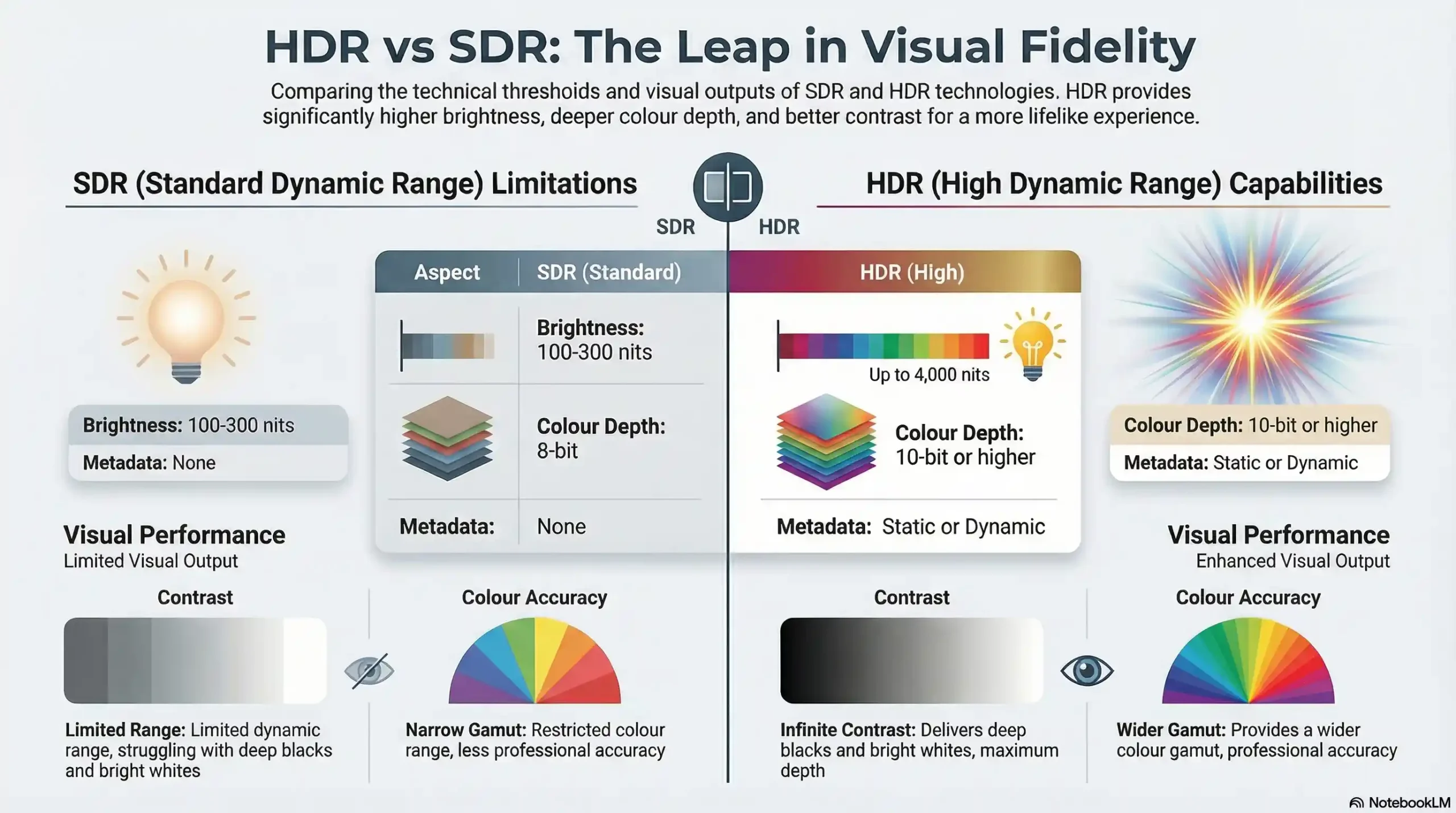
HDR-specific modes: Many TVs switch to a separate HDR preset when they detect an HDR signal (HDR10, Dolby Vision). These can be based on Movie/Standard/Game but may change tone mapping and peak brightness behavior.
Quick comparison table: best presets by streaming content
| Content Type | Typical Best Preset | Why it works |
|---|---|---|
| Movies / Cinematic TV | Filmmaker or Movie/Cinema | Preserves color and contrast, minimizes motion smoothing and artificial sharpening |
| Animated features | Movie or Standard (sometimes Vivid for family rooms) | Animations tolerate punchier color, but Movie keeps accurate skin tones |
| Sports / Live events | Sports or Standard | Emphasizes motion clarity; Sports may add processing for smoother motion |
| General TV / News | Standard / Normal | Balanced for mixed content and bright daytime viewing |
| HDR content (movies/series) | HDR Movie / Filmmaker (if available) | Uses tone-mapping for HDR; aim for modes that respect content grading |
Note: Mode names and exact behavior vary by model and firmware. Verify the mode behavior on your specific TV.
Practical steps to choose and refine a preset for streaming
- Identify the type of content you watch most
- Movies and high-production TV: start with Movie, Cinema or Filmmaker Mode.
- Sports and live TV: try the Sports preset and compare with Standard.
- Animation or kids’ content: Movie for accuracy; some people prefer a livelier Standard/Vivid look in family rooms.
- Check whether your TV automatically switches modes for HDR
- Many TVs will switch to an HDR picture mode when an HDR signal arrives. If you stream HDR content, watch the TV’s on-screen label (it may say HDR, Dolby Vision, etc.) and see which preset the TV selected. If it looks too bright or crushed, try the HDR-equivalent of Movie/Cinema or an HDR-specific “Filmmaker” if offered.
- Turn off obvious “store” or extra processing settings
- Disable excessive motion smoothing (sometimes called MotionFlow, TruMotion, Auto Motion Plus, or similar) for cinema-style viewing. This removes the “soap opera” effect that makes cinematic content look unnaturally smooth.
- Reduce or turn off artificial sharpness and edge enhancement. They can create halos and false detail when streaming compressed video.
- Use the TV’s built-in ambient or adaptive settings with caution
- Adaptive brightness or ambient light sensors can help if your room lighting varies. However, these can also change perceived contrast or color over time. If you prefer consistent image quality for movies, you may want to leave adaptive features off.
- Set color temperature and contrast baseline
- For accurate, cinematic-looking images, choose a Warm/Neutral color temperature rather than Cool. Most Movie/Cinema presets default to a warmer profile.
- Avoid cranking Contrast (or “Picture”) to maximum; extremely high contrast can clip highlights and reduce detail in bright scenes.
- Check motion settings for sports and fast-paced content
- For sports, a moderate level of motion processing can help reduce blur. Test small adjustments and use local dimming/motion smoothing sparingly to avoid artifacts.
- Confirm HDMI and streaming device settings
- Ensure your streaming device or smart TV app is set to the correct output (HDR on when supported, 4K if your plan and TV support it). Some devices offer their own picture or tone-mapping controls—set those to “Auto” or disable additional processing to let the TV manage its picture mode consistently.
- Do a simple verification using familiar content
- Play a well-known movie or show scene you’ve seen before. If skin tones look natural, highlights retain detail (not blown-out), and shadows aren’t crushed, you’re likely in a good place.
- Save a custom preset if available
- If you spend time tuning settings, many TVs let you save your adjustments to a custom preset. Use it for streaming so you can switch back easily if another preset is applied.
HDR streaming — extra considerations
HDR content uses expanded brightness and color; many TVs change more than just a label when HDR is present. Look for mode names like HDR Movie, HDR Cinema, or Dynamic HDR and evaluate how they handle highlights and shadow detail.
Tone mapping varies significantly between TVs. If highlights look crushed or clipped, try an alternate HDR preset (some TVs offer a one-sheet toggle for HDR tone mapping behavior) or reduce Contrast slightly to preserve highlight detail.
Remember that streaming services compress HDR streams; artefacts can appear if the TV applies aggressive processing. Movie/Filmmaker HDR variants tend to introduce less processing.
Minimal calibration steps anyone can do (no pro tools needed)
Use built-in test patterns: Many TVs include basic test patterns in the settings menu (grayscale, contrast, and color bars). Run those first.
Use a known reference scene: Play a high-quality scene with faces and skin tones. Adjust color and tint modestly until skin tones look natural.
Check black levels with a dark scene: If blacks look crushed (no shadow detail), raise Backlight or decrease Contrast slightly.
Verify highlight detail with a bright scene: If highlights like clouds or specular light are blown out, reduce Contrast or Brightness just enough to recover detail.
Disable settings you don’t like: If grain, haloing, or motion artifacts appear, turn off or reduce Noise Reduction, Dynamic Contrast, and Sharpness.
These quick steps won’t produce lab-level accuracy but will greatly improve your everyday streaming experience.
When to consider professional calibration
If you need absolute color accuracy (for professional work or a dedicated home theater), consider hiring an ISF or Calman-trained calibrator. Otherwise, using Filmmaker or Movie as a starting point and applying the minimal steps above will be satisfactory for most viewers.
For more setup advice, check our walkthroughs in Devices & Setup and deep-dive articles in Streaming Guides.
Practical examples and quick presets for different rooms
Bright living room with lots of daylight: Start with Standard, increase Backlight for visibility, but prefer Movie if you can control ambient light during peak viewing.
Dedicated, dim home theater: Filmmaker or Movie with Warm color temperature, lower Backlight, and motion smoothing off.
Family room where kids watch animated shows: Standard or a slightly livelier Movie; consider a saved custom preset that increases Color slightly.
Sports room (bright, active): Sports preset with moderate motion processing and higher Backlight.
Common mistakes to avoid
- Leaving Vivid/Dynamic on for movie nights — it’s designed for store floors and often clips color and detail.
- Assuming the same named preset looks the same on different TVs — mode names aren’t standardized across brands.
- Over-relying on motion smoothing — it can ruin cinematic pacing for films.
- Making extreme adjustments to Sharpness or Contrast — small changes are usually better.
FAQ
Q: Which picture mode is best for streaming movies?
A: Filmmaker Mode or Movie/Cinema is usually the best starting point because those modes prioritize accurate color and minimal post-processing. If your TV doesn’t have Filmmaker Mode, use Movie/Cinema and disable motion smoothing and excessive sharpening.
Q: Is the HDR picture mode always better for streaming HDR content?
A: TVs typically switch to an HDR picture mode when they detect an HDR stream. HDR modes are necessary to access the expanded brightness and color range, but you should choose an HDR variant that preserves highlight and shadow detail (often labeled HDR Movie or HDR Cinema). Behavior varies by model; check your TV’s implementation.
Q: Are Vivid or Dynamic modes ever appropriate?
A: They can work in very bright rooms or for casual daytime viewing, but they tend to over-saturate and clip detail. For most movie and TV streaming, a more conservative preset is preferable.
Q: Can presets damage my TV?
A: Preset modes don’t damage the TV directly. However, running the panel at maximum backlight/brightness for prolonged periods can, over very long timeframes, accelerate panel aging. Moderating brightness helps preserve longevity.
Q: How often should I re-check settings?
A: If your room lighting or streaming device changes, or after a firmware update, quickly re-check presets. A routine check every few months is reasonable for most homes.
Conclusion
Choosing the right TV preset picture mode for streaming comes down to matching the preset’s intent with the content you watch and the lighting in your room. For most movie and high-quality streaming content, Filmmaker Mode or Movie/Cinema presets are a reliable starting point. For sports and live events, Sports or Standard may be better. Always disable excessive processing like motion smoothing and sharpness when you want a faithful, film-like presentation.
If you want more detailed setup guides and device-specific tips, see our related pieces in Streaming Guides and Devices & Setup. For wider reading on picture preference and trends, visit our Blog.
Disclosure: TV picture presets, HDR behavior, and available settings can differ by TV model, streaming device, operating system, region and firmware version. Verify specific behavior and capabilities using your TV’s manufacturer documentation or support resources.

Canzar
Ready to stream? Pick your plan
Live TV, movies, sports and 10,000+ channels on any device — Firestick, Android TV, Smart TV, phone.
View Subscription Plans Compare Pricing
Moderation: Comments are reviewed before publishing. Be respectful and on-topic.
Guidelines: Share streaming tips, device help, or content recommendations. No spam, no promotions, no off-topic links.