
Last updated August 25, 2026 · Editorially reviewed by CanzarTV
Using External Tuners and Antennas with Smart TVs: Setup and Compatibility Notes
Concise introduction
Many cord-cutters want to combine over-the-air (OTA) broadcast channels with streaming apps on the same screen. This guide explains practical ways to connect external tuners and antennas to smart TVs, what to watch for with compatibility, and step-by-step setup and troubleshooting tips. Whether you’re trying to connect external tuner antenna to smart TV directly, use a USB TV tuner with a smart TV, or route an antenna signal through a streamer or network tuner, this article covers the common approaches and their trade-offs.
Disclosure: settings and compatibility can differ by TV model, streaming device, operating system, firmware version, and region. Always verify the latest manufacturer documentation for your devices.
Why use an external tuner or antenna with a smart TV?
- Save money: free local broadcast channels are available over the air in many areas.
- Local news, sports, and emergency alerts: OTA is often the most reliable source for these.
- Combine OTA with streaming: get live local channels alongside apps like Netflix and Disney+ on the same display.
That said, modern smart TVs and streaming players vary in how they accept tuner hardware and drivers. Below are the main practical options, what they require, and how to set them up.
Common setup options (overview)
- Built-in tuner + antenna — simplest if your TV includes a compatible tuner for your region (ATSC, DVB, etc.).
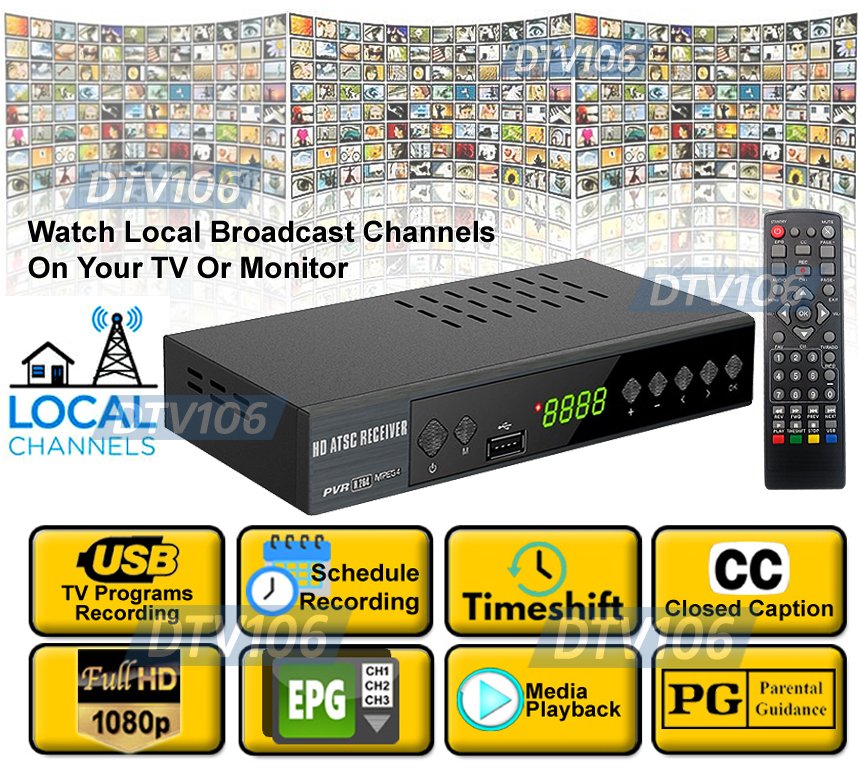
- Dedicated external tuner/box (HDMI) — an OTA set-top tuner or DVR connects by HDMI to the TV.
- Network tuner (IP tuner) — devices like networked tuners receive antenna input and stream channels over your home network to apps on the TV.
- USB TV tuner — small USB dongles that require OS drivers; compatibility with smart TVs is limited.
- Tuner through a streaming device (Roku/Fire TV/Android TV/Apple TV) — either through a dedicated tuner accessory, an app, or network tuner discovery.
Each approach has pros and cons. See the comparison table below.
Quick compatibility note
TV manufacturers use different operating systems (Android TV / Google TV, Samsung Tizen, LG webOS, Roku TV, proprietary platforms). Many smart TVs will not accept generic USB tuner drivers because the OS does not include the required drivers. In those cases, a tuner that outputs HDMI or a network tuner is the safer choice. If you plan to use a specific tuner model, check the manufacturer’s compatibility documentation for your TV and streaming player.
Comparison table: which path to choose?
| Option | Pros | Cons | Best if… |
|---|---|---|---|
| Built-in TV tuner + antenna | Simple, no extra devices | Tuner quality and features vary by TV | Your TV already has the correct regional tuner (ATSC/DVB) |
| External HDMI tuner/box (OTA DVR) | Works with any HDMI TV, rich features (DVR, guide) | Extra device, space, power | You want recording, reliable support, or your TV lacks built-in tuner |
| Network tuner (IP) | Multi-room streaming, works with many apps | Needs network setup, may need paid app | You want to share OTA around the home or use apps on multiple devices |
| USB TV tuner | Compact and cheap | Most smart TVs do not support the drivers; may not work | You are using a PC/compatible device or a TV that explicitly supports the dongle |
| Streamer with tuner support | Integrates into streaming UI if supported | Not all streamers support tuners or apps | Your streamer has an app for the network tuner or maker-provided support |
Setup: connect external tuner antenna to smart TV (step-by-step options)
Below are practical steps for each common configuration. Follow the checklist for safety and best results: power off devices while connecting coax or HDMI, use proper connectors (F-type coax for most antennas), and avoid excessive splitter use without accounting for signal loss.
Option A — Use an external OTA tuner/DVR box (HDMI)
- Hardware: antenna with coax, tuner/DVR box, HDMI cable, TV.
- Connect antenna coax to the tuner/DVR box antenna input.
- Connect the tuner/DVR HDMI output to an HDMI input on your smart TV.
- Power on the tuner and TV. Select the TV’s HDMI input where the tuner is connected.
- Use the tuner’s menu to scan for channels (the tuning standard depends on your region).
- Configure any DVR settings, program guide, and network features per the box’s documentation.
Notes: This method works with almost any TV because the tuner presents video over HDMI. It’s often the most straightforward workaround when the TV won’t accept a USB tuner.
Option B — Network tuner (IP networked tuner)
- Hardware: antenna, network tuner (connects to router via Ethernet or Wi‑Fi), smart TV/streamer.
- Connect antenna to the network tuner’s antenna input.
- Connect the network tuner to your home network (Ethernet is preferred for reliability).
- Install or open the tuner’s partner app on your smart TV or streaming device — many tuners provide apps for Android TV, Fire TV, and other platforms.
- Inside the app, discover the tuner and run a channel scan.
- Stream live channels or integrate with DVR services if available.
Notes: Network tuners are great when you want to use multiple players (TVs, tablets, phones) to watch the same OTA channels without additional coax runs.
Option C — USB TV tuner with a smart TV
Important compatibility warning: Most smart TVs do not include the necessary drivers for generic USB TV tuners. USB tuners more commonly work with computers or some Android TV boxes that explicitly support the tuner model.
If your TV or streaming box officially supports the USB tuner:
- Connect the antenna coax to the tuner dongle.
- Insert the USB tuner into a compatible USB port on the TV/streamer.
- If required, follow on-screen prompts to enable the tuner or run a channel scan.
- If there is no recognition, consult the tuner maker’s compatibility list or use an alternative method (HDMI tuner/DVR or network tuner).
If your smart TV does not support the USB tuner, use a small Android TV box, a PC, or a dedicated HDMI tuner box instead.
Option D — Using an OTA antenna with a streamer (Roku, Fire TV, Apple TV, Android TV)
- Apple TV and many streaming sticks do not accept USB tuners directly. In most cases you’ll pair an antenna with a network tuner or an HDMI-based tuner that can be used alongside your streamer.
- Some Roku models accept tuner hardware only if the manufacturer provides a Roku channel or if the tuner is networked.
General steps:
1. Choose a network tuner or HDMI tuner that works with your streamer. Examples: networked tuners that offer a compatible app, or tuner boxes that output HDMI.
2. If using a network tuner, install the tuner app on the streamer (if available) and follow discovery/scan steps. If using an HDMI tuner box, select the HDMI input on the TV while using your streamer on another input as needed.
Antenna basics and signal tips
- Antenna type matters: indoor antennas and external rooftop antennas have different ranges and directional behavior. Which type you need depends on distance to broadcast towers and local terrain.
- Amplifiers: a preamplifier at the antenna can help long coax runs or weak-signal locations. Inline amplifiers can increase signal strength for some setups but will also amplify noise if the source is poor.
- Splitters and combiners: each split reduces signal strength. Use powered distribution amplifiers for multi-room passive splits if necessary.
- Location and height: antenna placement, orientation, and height are often the biggest factors in reception.
- Scan often: broadcasters sometimes change parameters; run a channel rescan on a regular schedule or after antenna adjustments.
Always confirm which broadcast standard is used in your country (for example, ATSC variants in North America, DVB-T/T2 in Europe, etc.) and choose tuners that explicitly support the standard used where you live.
Troubleshooting checklist
- No channels found: check antenna coax connection, ensure the tuner is set to the correct regional standard, re-scan for channels, and verify the antenna has a clear path to towers.
- Poor or intermittent picture: inspect coax and connectors for damage, remove excessive splitters, try repositioning the antenna, and consider a preamp if the coax run is long.
- USB tuner not recognized: check TV/box compatibility lists and firmware; many smart TVs lack drivers for generic USB tuners.
- App can’t find network tuner: ensure the tuner and TV are on the same network segment, disable guest Wi‑Fi isolation, and prefer Ethernet for the tuner if possible.
- Audio/video sync issues: try a different HDMI input, check TV audio settings, and ensure the tuner’s output resolution is compatible with the TV.
Practical examples of use cases
- Single TV in living room, wants live local channels and recording: consider an OTA DVR or tuner/DVR connected via HDMI.
- Multiple TVs/devices around the house: a network tuner that streams OTA to apps on each TV or device is typically best.
- Small budget and a PC already in the media center: a USB TV tuner on the PC (with appropriate software) can stream to the TV using the PC as a bridge.
FAQ
Q: Can I plug a USB TV tuner directly into any smart TV?
A: Not usually. Many smart TV platforms don’t include the necessary drivers for generic USB TV tuners. Some Android TV devices or specialized smart boxes may support specific tuners; check the manufacturer’s compatibility list before buying.
Q: Will a streaming stick (Roku/Fire TV) accept an OTA antenna?
A: Streaming sticks generally don’t accept antenna input directly. Use a network tuner, an HDMI tuner/DVR, or a compatible app pairing to get OTA channels onto a streamer.
Q: How do I record OTA shows for later?
A: Recording typically requires a DVR function either in a tuner/DVR box or from a network tuner that supports recording to attached storage or cloud services. Some solutions require subscriptions. Confirm recording features with the tuner maker.
Q: Can I split my antenna to feed multiple devices?
A: Yes, but splitting reduces signal to each output. Passive splitters introduce loss; for multiple rooms it’s often better to use a network tuner or a powered distribution amplifier.
Q: Will the same tuner work in different countries?
A: Not necessarily. Broadcast standards differ (for example, ATSC vs DVB). Buy a tuner that supports the standard used in your country and check regional compatibility.
Checklist before you buy
- Identify the broadcast standard in your country/region.
- Review your TV’s and streamer’s supported input types and driver notes.
- Decide if you need recording/DVR or multi-room streaming.
- Check coax cable condition and whether you’ll need masthead preamps or splitters.
- Verify power and space for any extra boxes.
Helpful links and further reading
- See our device setup and compatibility coverage in Devices & Setup for general guidance.
- If you plan to use apps on a smart player, browse Streaming Guides for player-specific tips.
- For antenna placement and signal basics, our Blog includes practical articles.
You may also find relevant technical resources on government and standards organization websites for your region. Always refer to device makers’ official documentation for firmware and compatibility details.
Conclusion
Connecting an external tuner and antenna to your smart TV can be straightforward when you choose the right approach for your setup. If your TV includes a built-in tuner and supports the broadcast standard where you live, an antenna alone may be enough. Where smart TVs don’t support USB tuners, an HDMI tuner/DVR or a networked tuner offers reliable alternatives and additional features like multi-room streaming and DVR. Be cautious about USB tuners on smart TVs — many platforms lack the necessary drivers — and verify compatibility with manufacturer documentation before buying. With the right hardware and careful antenna placement, you can enjoy free local channels alongside your favorite streaming apps.
Short disclosure: settings and compatibility can differ by TV model, streaming device, operating system, region, and firmware version. Verify current manufacturer documentation for your equipment.

Canzar
Ready to stream? Pick your plan
Live TV, movies, sports and 10,000+ channels on any device — Firestick, Android TV, Smart TV, phone.
View Subscription Plans Compare Pricing
Moderation: Comments are reviewed before publishing. Be respectful and on-topic.
Guidelines: Share streaming tips, device help, or content recommendations. No spam, no promotions, no off-topic links.