
Last updated August 24, 2026 · Editorially reviewed by CanzarTV
Troubleshooting Intermittent HDMI Handshake Issues Between TV and Streaming Box
Intermittent HDMI handshake problems—symptoms like brief “No Signal” messages, the TV briefly switching inputs, picture dropouts, or HDCP/DRM errors—are a common frustration when mixing TVs, receivers, and streaming boxes from different generations. These issues are usually caused by negotiation problems between devices (EDID), copy-protection handshakes (HDCP), cable or port faults, or firmware quirks. This guide gives practical, model-agnostic steps to diagnose and fix intermittent handshake failures while explaining what each step addresses.
Note: Settings and compatibility can differ by TV, streaming device, operating system, region, and firmware version. Always verify specifics with the current manufacturer documentation for your equipment.
How HDMI Handshake Works (brief)
When you power a streaming box and a TV (or AVR) connects them, the devices exchange information so they agree on a video format, HDCP (content-protection) level, and other capabilities. Two key parts of this process are:
- EDID (Extended Display Identification Data): the TV tells the source what resolutions and formats it supports.
- HDCP (High-bandwidth Digital Content Protection) negotiation: devices agree on a copy-protection scheme required by some streaming services.
If either negotiation fails or intermittently times out, you’ll see symptoms like “No Signal”, an audio-only output, casting failures, or a temporary black screen.
Common Symptoms and What They Suggest
- Short blackouts or screen flicker: intermittent EDID/format negotiation or a loose cable.
- “No Signal” that returns shortly after: cable, port, or intermittent power/handshake resets.
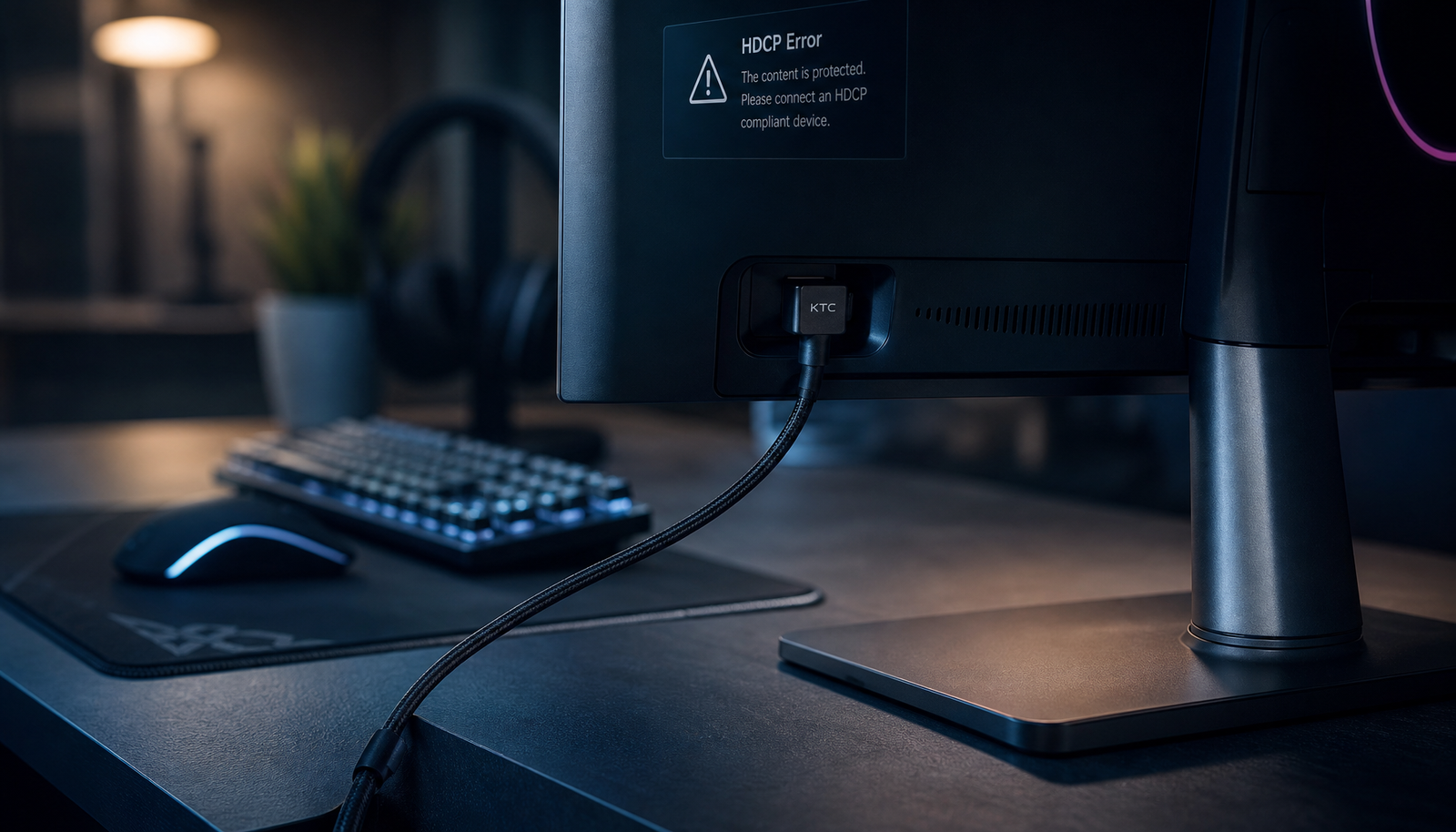
- HDCP/DRM error messages: HDCP negotiation failure between devices.
- Intermittent audio but no picture (or vice versa): partial handshake success or incompatible audio format.
- Works reliably on one HDMI port but not another: port or TV-side hardware/firmware issue.
Quick checklist — Try these first (5–10 minutes)
- Power-cycle both devices. Fully power off the streaming box and the TV, wait 15–30 seconds, then power them on again.
- Reseat the HDMI cable: unplug and firmly reconnect at both ends.
- Try a different HDMI input on the TV.
- If you have a spare HDMI cable, swap it and retest.
- If there’s an AVR or soundbar between the box and TV, connect the streaming box directly to the TV to isolate the chain.
If the problem stops after these steps, it was likely a transient handshake or cable/port issue. If it persists, follow the detailed troubleshooting below.
Detailed Troubleshooting Steps
1. Isolate where the handshake fails
- Connect the streaming box directly to the TV (bypass any receiver, soundbar, or splitter).
- If the issue disappears, the intermediate device (AVR/soundbar/switch) is the likely culprit.
- If the issue continues with a direct connection, the problem is likely the TV, the streaming box, or the HDMI cable.
2. Swap cables and ports
- Use a different HDMI cable — preferably a high-quality, well-shielded cable rated for your required bandwidth (e.g., 18 Gbps or higher for 4K60 HDR). Do not rely only on the cable jacket’s printed version claims; try a known-good cable.
- Try another HDMI input on the TV. Some TVs have ports with different capabilities (e.g., eARC, HDR, or different HDMI versions) and a faulty port can behave intermittently.
Why it helps: Faulty cables or ports cause intermittent physical signal loss that looks like handshake failure.
3. Turn off HDMI-CEC and similar features (temporary test)
HDMI-CEC (different brands use different names) can trigger device wake/sleep events and occasionally contribute to handshakes failing when devices go into low-power states.
- Disable HDMI-CEC on both the TV and the streaming box and test for stability.
- If stability improves, consider leaving CEC off or checking for firmware updates that address CEC bugs.
4. Check resolution, refresh rate, and HDR settings
- Set the streaming box to a moderate resolution and refresh rate (for example, 1080p or 4K 30Hz) and disable advanced features like HDR or variable refresh rate. If that helps, progressively re-enable features to find the culprit.
- Some TVs misreport supported modes or struggle with specific combinations (e.g., certain HDR+high refresh rate modes). If behavior varies by mode, adjust the streaming device’s output settings.
Note: Available settings vary by model and OS. Consult the device’s support documentation for exact steps.
5. Update firmware on both devices and any AV receiver
- Check for and install firmware/software updates for the TV, streaming box, and any inline AV device. Many handshake bugs are fixed in firmware.
Caution: Firmware updates can change behavior. If an update introduces a new issue, contact the manufacturer.
6. Look for HDCP/DRM issues
- Certain apps will refuse playback when HDCP negotiation fails. Try playing different types of content (public-domain video vs. DRM-protected stream) to identify DRM-related failures.
- If HDCP is the problem, updating firmware, replacing faulty intermediate devices (splitters, older AVRs that support older HDCP versions), or using a direct connection often resolves it.
Warning: Do not seek or use ways to bypass HDCP; that can violate terms of service and local laws.
7. Check intermediate components: splitters, switches, and AVRs
- HDMI splitters/switches can cause intermittent handshake problems, particularly if they’re low-cost or not rated for the required HDCP/HDMI spec.
- If you must use an AVR or switch, choose devices explicitly rated for the video formats and HDCP versions you need and test connecting the streaming box directly to the TV to confirm.
8. Power sequencing
- Some setups require a consistent power-on sequence to ensure reliable EDID/HDCP negotiation: power on the TV first, wait until it finishes booting, then power on the streaming box.
- If you use a remote or universal control that turns devices on in a different order, try manual sequencing during troubleshooting.
9. Factory reset as last resort
- If other steps fail, consider factory-resetting the streaming box and/or TV—but back up settings first. Test between resets to find whether a particular setting is at fault.
Comparison: Common Causes vs Symptoms vs Quick Fix
| Cause | Typical Symptom | Quick Fix to Try First |
|---|---|---|
| Faulty/low-quality HDMI cable | Flicker, brief “No Signal” | Swap cable for a known-good cable |
| Bad HDMI port on TV/AVR | Works on one port, not another | Use a different HDMI input; service the port if needed |
| EDID mismatch or bad EDID in chain | Resolution/format drops or black screen | Direct connect to TV; power-cycle; reset devices |
| HDCP negotiation issue | App shows DRM error or video won’t play intermittently | Update firmware; direct connect; avoid unsupported splitters |
| Intermediate device (AVR/switch) incompatibility | Works when bypassing AVR | Test direct connection; update AVR firmware or replace |
| HDMI-CEC or power-state quirks | Device wakes/sleeps causing loss | Disable CEC for testing; power-sequence devices |
When to Replace Hardware
- Replace the HDMI cable first if swapping to a known-good cable fixes the issue.
- If direct connection to the TV fixes the problem but you need an AVR/soundbar for audio, try updating the AVR firmware or using a different HDMI port for passthrough. Replace the AVR if it cannot reliably pass through the signal and updates don’t help.
- If a specific HDMI input on the TV behaves badly despite testing multiple cables and devices, the TV input hardware may be failing and require service or replacement.
Practical examples of tests to run (ordered)
- Connect the streaming box directly to the TV with a known-good cable. Reboot both devices. Test with multiple apps and content types.
- If stable, reconnect the AVR or switch and test again. If instability returns, the AVR/switch is suspect.
- Toggle advanced features (HDR, 4K60, HDR10+, variable refresh) to identify problematic modes.
- Disable HDMI-CEC and test for improved stability.
- Update firmware on TV, streaming box, and AVR.
- If still intermittent, try powering devices in a fixed sequence (TV on → box on → AVR on) and repeat.
Tools and accessories that can help (buy only as needed)
- High-quality certified HDMI cable (appropriate bandwidth rating) — useful if your existing cable is old or visibly damaged.
- HDMI detector or EDID emulator (for advanced users) — these devices help read or preserve EDID across complicated chains.
- Powered HDMI switch/splitter from a reputable brand — if you must use a splitter, choose one rated for your resolution and HDCP needs.
Note: Don’t buy expensive tools until you’ve confirmed the problem is not a simple cable, port, or firmware issue.
FAQ
Q: What exactly is an HDMI handshake and why does it fail sometimes?
A: The handshake is the exchange of EDID (capabilities) and HDCP (copy-protection) data when devices connect. Failures can come from bad cables, worn ports, incompatible or buggy firmware, or intermediate devices that don’t properly forward EDID/HDCP.
Q: Is a cheap HDMI cable likely to cause intermittent problems?
A: Yes. Poor shielding, bent conductors, or marginal connectors can produce intermittent signal loss that appears as handshake failures. Try a known-good cable before further troubleshooting.
Q: My streaming box works with one TV but not another. Which device is to blame?
A: It could be any of the devices in the chain. Use direct-connection tests and swap cables and ports to isolate whether the issue follows the streaming box, the TV, or an AV receiver.
Q: Can software updates fix handshake issues?
A: Yes. Firmware and OS updates for TVs, streaming boxes, and AVRs often address EDID/HDCP bugs. Always check for updates and review release notes if possible.
Q: Will disabling HDR or forcing a lower resolution help?
A: For testing, yes. Some TVs or receivers struggle with particular format combinations (e.g., certain HDR modes combined with high refresh rate). If lower settings eliminate the issue, you can identify which feature triggers the failure.
Q: Are HDMI splitters or switchers always a problem?
A: Not always. Many high-quality splitters/switchers work fine, but lower-end models may mishandle EDID/HDCP handshakes. When possible, test without them.
Q: When should I contact the manufacturer or a technician?
A: Contact support if you’ve ruled out cables and intermediate devices, tried firmware updates, and still see intermittent failures—especially if a single HDMI port on the TV appears unreliable. If the TV is under warranty, manufacturer support can advise service options.
Conclusion
Intermittent HDMI handshake issues almost always have a practical root cause: cable or port faults, EDID/HDCP negotiation mismatches, intermediate device incompatibilities, or firmware bugs. A methodical approach—start with power cycling and cable swaps, then isolate components, adjust output settings, and update firmware—often identifies and resolves the problem. Replace hardware only after confirming it’s the source, and avoid attempting HDCP bypasses.
For more setup tips and deeper guides on streaming equipment and home theater hardware, see our related resources: Devices & Setup, Tech & Security, and Blog.
Disclosure: Settings, supported formats, and compatibility vary by TV model, streaming device, operating system, firmware version, and region. Verify details with your device manufacturers and service providers.

Canzar
Ready to stream? Pick your plan
Live TV, movies, sports and 10,000+ channels on any device — Firestick, Android TV, Smart TV, phone.
View Subscription Plans Compare Pricing
Moderation: Comments are reviewed before publishing. Be respectful and on-topic.
Guidelines: Share streaming tips, device help, or content recommendations. No spam, no promotions, no off-topic links.