
Last updated August 25, 2026 · Editorially reviewed by CanzarTV
Managing storage for subtitle and language packs on limited-storage devices
Introduction
Subtitle files, downloaded language packs, and subtitle caches are small on their own but can add up quickly on entry-level streaming devices and smart TVs with limited internal storage. This guide explains why language-related files use space, how to find what’s consuming storage, and practical ways to reclaim and manage space without losing the subtitle functionality you need. Steps vary by platform and firmware, so check your device documentation when in doubt.
Why subtitle and language packs consume space
- Subtitle files and closed-caption tracks themselves are generally small (kilobytes to low megabytes per title), but some apps store subtitle caches, translation assets, or multiple language packs for offline use that grow over time.
- Offline downloads (movies, series) often include multiple audio tracks and subtitle files; storing several titles for offline playback multiplies the storage use.
- Some systems ship optional language modules for voice recognition, on-device translation, or accessibility features. Those modules can be sizeable and may be installed automatically with an OS update or an app installation.
Because behavior varies by manufacturer and app, always verify on your specific device whether a setting controls which subtitle or language data are cached or downloaded.
Quick checklist: What to try first
- Check total and per-app storage usage in Settings.
- Clear app caches for streaming apps that offer a cache-clear option.
- Remove or disable unused language packs and offline subtitle files where the OS/app allows it.
- Delete offline videos or re-download with fewer audio/subtitle tracks.
- Move or store user media (videos, subtitle files) on an external drive or network share if supported.
How to check what is using storage
- Open your device Settings and look for a Storage, Device, or System section. Many devices show how much space is used and which apps or categories (apps, media, system) use the most.
- In streaming apps (Netflix, Prime Video, Disney+, Plex, VLC, etc.), check the app’s Settings or Downloads section for offline content and downloadable language packs.
- Some smart TVs and set-top boxes list per-app storage usage; others only provide total-used storage. If a device lacks granular reporting, start by clearing caches for large apps and removing offline downloads.
Note: The exact path and labels in Settings vary widely by OS (Android TV, Google TV, Roku OS, Fire OS, tvOS, Tizen, webOS). Refer to your device’s support site if you don’t see storage details.
Device-specific approaches (generalized guidance)
Below are common approaches grouped by system type. These are general steps — the exact menu names or availability may differ by model or firmware.
Android TV / Google TV
- Storage view: Settings > Device Preferences > Storage (or Settings > Storage & reset on some models).
- Per-app management: Settings > Apps > See all apps > select an app > Clear cache / Clear storage / Uninstall. Some apps offer a “Delete downloads” option in their own Settings.
- Move apps or media: Some Android TV devices support moving apps or media to microSD/USB storage. If offered, move large media files or app data to external storage. Formatting and supported file systems (FAT32, exFAT) vary by device.
Amazon Fire TV
- Storage view: Settings > My Fire TV > About > Storage (or Settings > Applications > Manage Installed Applications for per-app view).
- App options: Settings > Applications > Manage Installed Applications > select an app > Clear cache / Clear data. Remove offline downloads from the app itself.
- External storage: Newer Fire TV devices may accept USB OTG drives for media; check Amazon’s support pages for specific instructions.
Roku
- Storage is limited on most Roku models. Settings show available memory but options to move or expand storage are usually restricted.
- Clear unwanted channels (apps) by highlighting and pressing * on the remote > Remove channel. Delete local recordings or offline content if you use a DVR channel.
- Roku devices typically don’t allow moving app data to external drives; if you need more space, consider uninstalling lesser-used channels or using a different streaming device for heavy offline storage.
Apple TV (tvOS)
- Storage view and app removal: Settings > General > Manage Storage to see apps and delete them.
- App-level downloads: Open the streaming app (if it supports downloads) and delete offline content. tvOS generally does not expose subtitle caches to users.
Smart TVs (Tizen, webOS, others)
- Smart TV platforms often hide low-level storage details. Look for Settings > Support or Settings > Storage to find available space and app lists.
- Uninstall unused apps and clear downloads from within individual apps. For Samsung or LG TVs, check Accessibility and Language settings for any optional language packs you can remove.
Important: The availability of moving apps to external storage, deleting language packs, or clearing subtitle caches differs by device. If a menu item isn’t available, consult the manufacturer support page.
Practical steps to free up space now
Follow these prioritized actions to recover significant space quickly:
Delete offline videos and podcasts you no longer need
– Offline downloads are the most common space hog. Check each app’s Downloads or Offline section and remove items you’ve already watched.Clear app caches (when available)
– Many streaming apps let you clear the cache without touching your account or settings. This removes temporary subtitle and metadata files that can grow over time.Remove unused language packs or speech models
– If your device or an app provides a list of installed languages or speech recognition models, uninstall the ones you don’t use. On some devices, this is in Settings > Language & Input or the app’s Accessibility/Language menu.Re-download with fewer tracks
– When an app lets you choose audio and subtitle tracks for offline downloads, select only the tracks you need. Avoid downloading multiple audio tracks or many subtitle languages for every title.Use external storage or network shares where supported
– If your device accepts USB drives or microSD cards, move personal media there. For apps that support storing downloads externally, configure the external drive as the download location.Uninstall and reinstall heavy apps
– A clean reinstall removes accumulated cache and data. If an app is unusually large and clearing cache doesn’t help, uninstall and reinstall it.Limit automatic downloads and language updates
– Turn off automatic downloads or background updates for apps that download language packs or large metadata sets. Check app settings and system update options.Factory reset as a last resort
– If storage reporting seems incorrect or the device still runs out of memory after cleanup, back up necessary settings and perform a factory reset. This should be a final step as it removes all apps and local data.
Comparison: Likely availability of storage-management features
| Action | Android TV / Google TV | Fire TV | Roku | Apple TV | Smart TVs (Tizen/webOS) |
|---|---|---|---|---|---|
| Per-app storage view | Likely | Likely | Limited | Yes | Varies |
| Clear app cache | Often | Often | Rare | Rare | Varies |
| Move apps to external storage | Sometimes | Sometimes | No | No | Rare |
| Remove language packs | Sometimes | Sometimes | Rare | Rare | Sometimes |
| Manage offline downloads in-app | Yes | Yes | Varies | Varies | Varies |
This table is a general guide. Exact capabilities depend on model, firmware, and app.
Preventative habits to keep storage under control
- Periodically review Downloads in streaming apps and delete watched content.
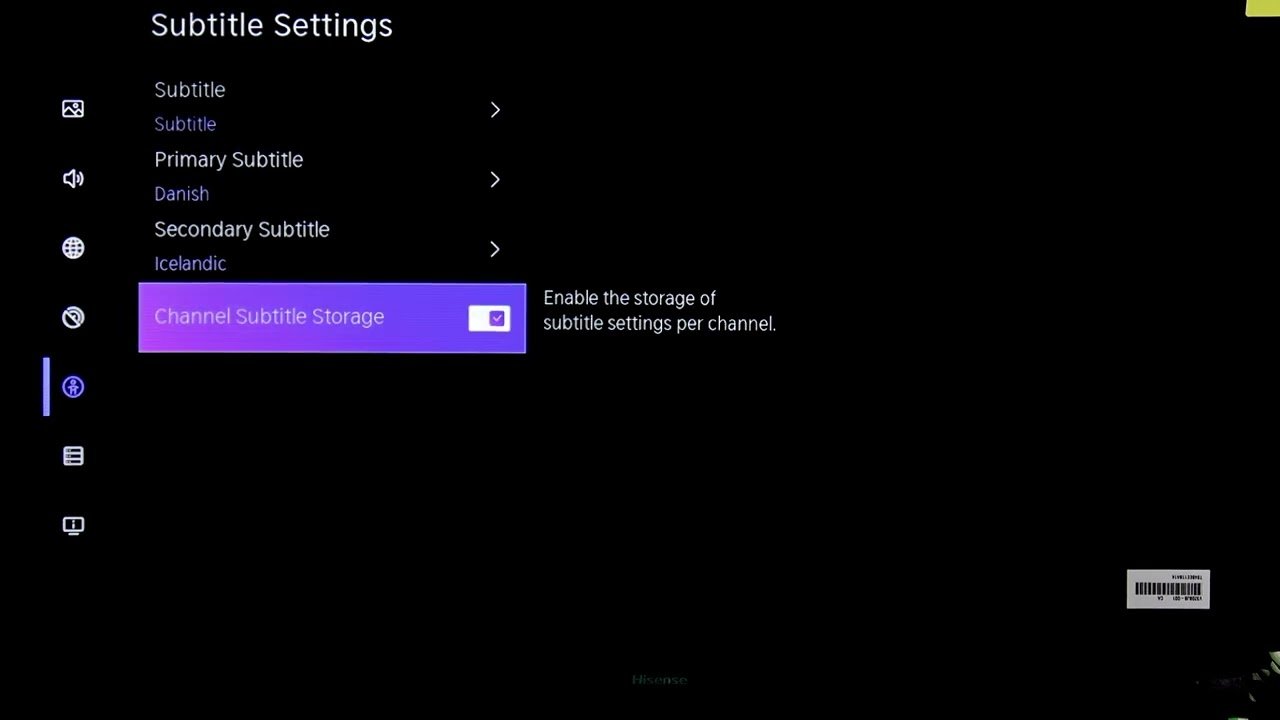
- Choose a primary subtitle or audio language in app settings to avoid storing multiple languages by default.
- Disable automatic offline downloads or limit the maximum number/size of downloads.
- Use a secondary device with more storage (or a networked media server) to store large media libraries and offload content from the low-storage device.
Practical examples (safe, non-technical)
Example 1: Netflix and offline subtitles
– Netflix stores subtitle files with downloaded titles. If you download entire seasons in multiple languages, storage usage multiplies. Delete episodes after watching or download with only the audio/subtitle you need.
Example 2: Speech recognition models
– Some devices let you download offline voice-recognition language packs to enable voice commands without a network. If you don’t use that language locally, uninstall it to recover space.
Example 3: App cache buildup
– A general-purpose media player or aggregation app can cache metadata, thumbnails, and temporary subtitle files. Clearing the app cache or reinstalling the app removes these temporary files.
FAQ
Q: Do subtitle files take a lot of space?
A: A single subtitle file is usually small, but caches and multiple offline language tracks across many downloads can add up. The bigger space users see is typically from offline video files and additional audio tracks rather than individual .srt files.
Q: Can I move language packs or subtitles to a USB drive?
A: Sometimes. Some Android TV and Fire TV devices allow moving app data or storing downloads on an external drive. Many set-top boxes and smart TVs do not support moving system or app language modules. Always check your device support documentation before attempting to reformat or move storage.
Q: Will deleting language packs break my TV’s menus or accessibility features?
A: If a language pack is part of the system’s required UI language or essential accessibility function, removing it may affect those features. Only remove optional or additional language modules that you’re sure you don’t need.
Q: I cleared cache but storage didn’t improve. What now?
A: Check for offline downloads in each app. Some apps store a separate offline folder that clearing cache won’t remove. If necessary, uninstall and reinstall the offending app after confirming you can re-login and restore account settings.
Q: How often should I perform these cleanups?
A: For low-storage devices, a monthly review of downloads and caches is a good habit. If you frequently download content for offline viewing, review more often.
Useful next steps and resources
- Check your streaming apps for a Downloads/Offline section and remove watched titles.
- If your device supports external storage, consider using a suitably fast USB or microSD card and confirm the supported file systems in the device manual.
- If you need more advanced storage options (network storage, media server), look into setting up a NAS or using a home computer as a media server so the streaming device only accesses content dynamically.
For related setup and maintenance tips, see Devices & Setup, and for app-specific troubleshooting check Apps & Tools. Our Blog also covers device maintenance and best practices for streaming devices.
Conclusion
Managing subtitle and language-pack storage on small-storage streaming devices is mostly about identifying large items (offline video, audio tracks, and language modules) and removing or relocating them. Regular maintenance — clearing caches, deleting watched downloads, and avoiding unnecessary language packs — will keep devices responsive without sacrificing accessibility. Because features and menu paths vary by device, always verify steps against your manufacturer’s support documentation.
Disclosure: Settings, menu names, available options and compatibility can differ by TV or streaming device model, operating system, region, and firmware version. Check your device or app support pages before changing system-level options.

Canzar
Ready to stream? Pick your plan
Live TV, movies, sports and 10,000+ channels on any device — Firestick, Android TV, Smart TV, phone.
View Subscription Plans Compare Pricing
Moderation: Comments are reviewed before publishing. Be respectful and on-topic.
Guidelines: Share streaming tips, device help, or content recommendations. No spam, no promotions, no off-topic links.