
Last updated August 25, 2026 · Editorially reviewed by CanzarTV
Practical Tips for Using Screen Mirroring with Minimal Delay for Presentations and Video
Screen mirroring is a convenient way to show slides, demo apps, or stream videos from a laptop or phone to a TV or projector. But nothing kills a live demo faster than lag between your device and the big screen. This guide walks through practical, device-agnostic steps to achieve screen mirroring with minimal delay, explains trade-offs between common methods (Wi‑Fi Direct, AirPlay/Chromecast, HDMI), suggests apps and settings to try, and gives troubleshooting tips so your next presentation or watch party runs smoothly.
How latency happens in screen mirroring
Mirroring delay comes from several sources:
- Wireless transmission time (network hops, interference, signal strength)
- Encoding and decoding (software vs hardware accelerated codecs)
- The receiving device’s processing (OS layer, refresh rate, scaling)
- Buffering designed to prevent stutter or rebuffering
Because these factors vary by device, OS, router, and distance, there’s no one-size-fits-all latency number. The goal of the steps below is to reduce the main controllable contributors so the experience feels responsive for presentations and acceptable for video playback.
Quick checklist: fast wins to reduce mirroring lag
- Use a wired connection when possible (HDMI or USB-C alt mode).
- Move the sender and receiver onto the same 5 GHz Wi‑Fi band (or an isolated SSID).
- Close unnecessary apps and background uploads on the sending device.
- Lower the resolution or frame rate for the mirrored stream when latency matters.
- Update firmware and drivers on your TV, streaming dongle, and router.
- Prefer device-native protocols where available (AirPlay on Apple devices, Chromecast on Android/ChromeOS) as they often use hardware acceleration.
Each of these is explained in more detail below.
Wired vs wireless: clear trade-offs
| Method | Typical strength | Typical weakness | Best use case |
|---|---|---|---|
| HDMI (or USB-C with DisplayPort/HDMI alt mode) | Lowest latency, reliable | Requires cable and physical access | Presentations, live demos, gaming on big screen |
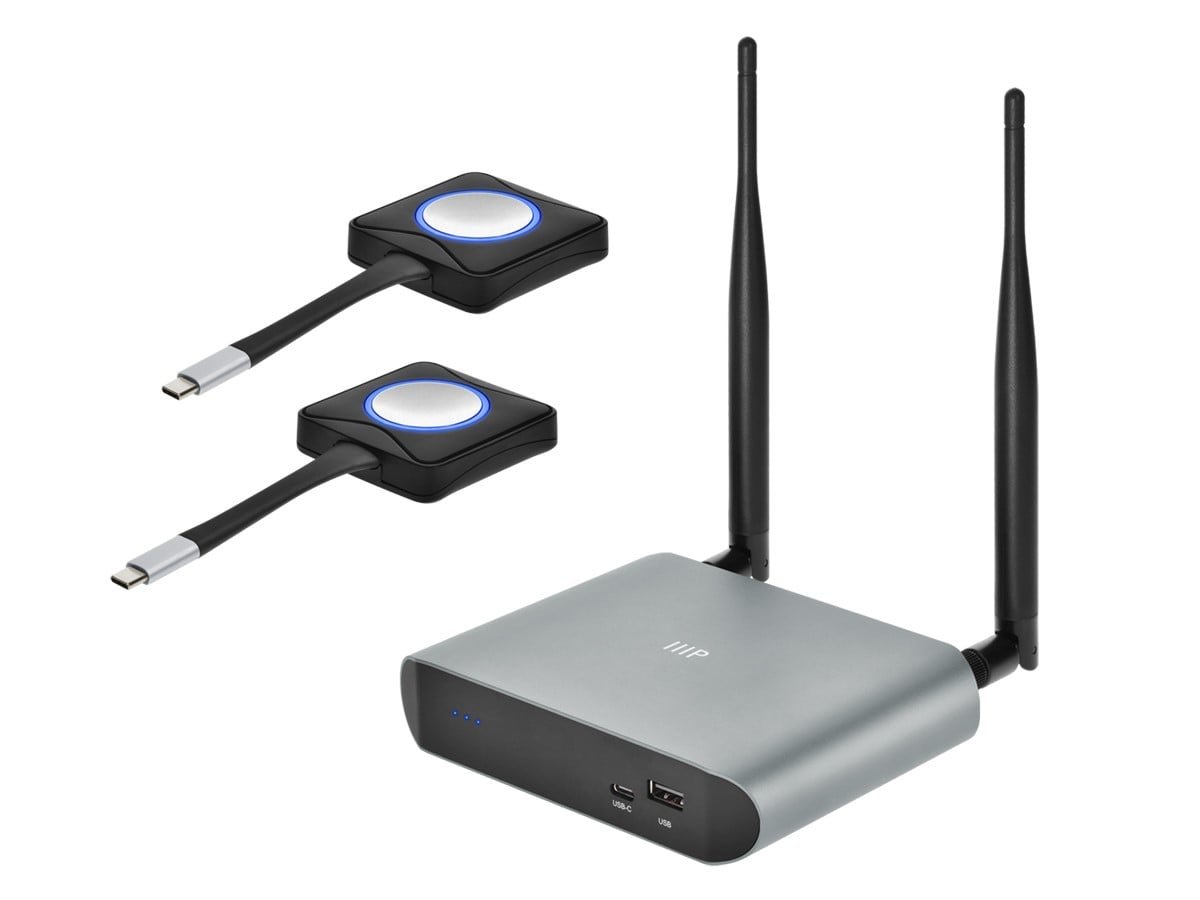
| Wi‑Fi Direct / Miracast | Decent latency, peer-to-peer | Device compatibility varies; may need drivers | Quick local mirroring without router |
| AirPlay / Chromecast (local network) | Good balance; convenient | Depends on network health and device implementations | Video streaming, remote meetings, multi-device casting |
| Third-party apps (varying) | Flexible features | Latency varies widely; depends on app and network | Remote support or cross-platform needs |
If you can run a cable, wired connections are still the most reliable and consistent way to minimize delay. If a cable is not practical, wireless methods can be tuned to perform well.
Wi‑Fi settings and network best practices
- Put sender and receiver on the same subnet and the same Wi‑Fi band (preferably 5 GHz). Many devices default to the band that gives them the strongest signal, which could put them on different channels and increase delay.
- Reduce interference by moving away from microwaves, cordless phones, and dense Wi‑Fi environments. Try changing your router’s channel to a less congested one.
- If your router supports QoS (Quality of Service), prioritize the traffic or device used for mirroring.
- For multi-device environments (classrooms, offices), consider a dedicated wireless access point or guest SSID for mirroring to keep traffic separate.
Note: exact steps differ by router model—check your router documentation for instructions.
Protocol and app choices: what to try
- AirPlay (Apple devices): Built into iOS, iPadOS, and macOS. Often benefits from hardware-accelerated encoding on Apple devices and optimized pathways on Apple TVs.
- Chromecast / Cast (Android and Chrome): Many apps and ChromeOS support casting to Chromecast-enabled devices; implementations vary by device and app.
- Miracast / Wi‑Fi Direct: A peer-to-peer wireless option supported by many Windows devices and some Android TVs; compatibility varies by manufacturer.
- Third-party apps (e.g., screen-sharing apps, VNC variants): Useful when cross-platform support is needed but test latency before relying on them for live events.
Avoid relying on cloud-based remote desktop services when low latency is required; the extra network hops typically add noticeable lag.
Practical steps to minimize delay for presentations
- Prefer wired connections when possible: a short HDMI or USB-C cable to the projector or TV will reduce latency and avoid Wi‑Fi variables.
- If wireless is necessary, use native mirroring (AirPlay or Cast) rather than screen recording apps: they often have lower overhead.
- Reduce the mirrored resolution: set your laptop or phone to mirror at 720p instead of 4K when responsiveness is more important than pixel-perfect clarity.
- Disable auto-play or high-bandwidth background services (cloud backups, sync apps, OS updates) before your event.
- Turn off energy-saving or power-saving modes that throttle CPU/GPU performance on the sending device.
- Run a quick rehearsal at the venue to confirm responsiveness and audio sync.
For slideshow presentations, enabling presenter mode and keeping slides simple (fewer embedded videos or heavy animations) further reduces chances of lag.
Practical steps to minimize delay for video and media
- Use playback apps that support local casting rather than streaming from a web browser where possible.
- If audio sync is critical, consider sending audio directly to the TV or receiver via HDMI; wireless mirroring can sometimes introduce small lip-sync delays.
- Lower stream bitrate or resolution if buffering or stutter occurs; many media apps offer adaptive quality settings.
- For group viewing, consider using a media device (smart TV app, dedicated streaming dongle) to play content directly rather than mirroring from the phone—this eliminates an extra network hop.
Tuning settings on the receiver and sender
- On smart TVs and dongles, look for settings named “Game Mode,” “Low Latency Mode,” or similar. These reduce processing and motion smoothing to lower input delay—useful for mirrored content.
- On some devices, you can enable hardware encoding or reduce mirrored framerate; check the device settings or app preferences.
- Update both sender and receiver firmware, and update drivers on laptops. Manufacturers sometimes release performance improvements in firmware updates.
Always verify settings through manufacturer documentation, as names and options vary by model.
Popular apps and tools to try (latency varies)
- Native AirPlay and Chromecast support are often the most seamless; use them first if your devices are compatible.
- Miracast can work well for Windows-to-TV mirroring, but compatibility may require updated drivers.
- Third-party options such as remote-control or mirroring apps exist, but latency performance varies by app and network; test any app you plan to use in advance.
Search for updated reviews and community feedback for your exact device pairing, since performance can change with firmware or OS updates.
Debugging slow mirroring: a step-by-step approach
- Confirm both devices are on the same network and same band (2.4 GHz vs 5 GHz).
- Check Wi‑Fi signal strength and try moving devices closer.
- Temporarily disable nearby devices that might be using high bandwidth (cloud backups, video streams).
- Try an alternate playback method (e.g., HDMI or another app) to isolate whether the problem is the network or a specific app.
- Reboot the sender, receiver, and router to clear transient issues.
- If using a dongle (Chromecast/Fire TV/etc.), unplug and replug the dongle; sometimes internal buffers cause persistent latency until reset.
Mirroring: Wi‑Fi Direct vs HDMI — a compact comparison
- Wi‑Fi Direct (including Miracast): No router required; creates a peer-to-peer link. Useful where no network is available. Performance depends on device implementations and can be good for presentations. Compatibility can be a challenge between different brands.
- HDMI (wired): Reliable, lowest latency, and simple audio/video synchronization. Requires a physical cable and appropriate adapters for phones or modern laptops.
Recommendation: For predictable low latency, use HDMI whenever practical. Use Wi‑Fi Direct or native casting protocols when convenience or cable access is the priority.
FAQ
Q: Can I achieve zero latency mirroring?
A: Zero latency is not realistic for consumer devices; even wired connections have minimal propagation and processing delay. Aim for “unnoticeable” latency for presentations (i.e., responsive enough that mouse movement and slide advances feel immediate) rather than absolute zero.
Q: Will upgrading my router reduce mirroring lag?
A: A better router can help if your current router is overloaded, uses congested channels, or lacks dual-band support. Improvements depend on your specific bottleneck—sometimes updating device firmware or using HDMI is more effective.
Q: Are some TVs better for low-latency mirroring?
A: Yes—some TVs and streaming dongles expose low-latency or game modes and have better hardware acceleration for casting. Check manufacturer documentation for latency or “game mode” features; model-to-model variance is common.
Q: Which apps have the lowest latency?
A: Native casting protocols (AirPlay, Chromecast) typically perform well because they’re integrated into the OS and may use hardware codecs. Third-party app latency varies; always test before a live event.
Q: Can using a 5 GHz Wi‑Fi band help?
A: Yes—5 GHz typically offers more capacity and less interference than 2.4 GHz, which helps reduce delays. Coverage is shorter, so ensure devices are within range.
Conclusion
Reducing mirroring lag is usually about identifying and removing the largest bottleneck—physical cabling, network congestion, device processing, or app-level buffering. For the most predictable low-latency experience use a wired HDMI or USB‑C connection; when wireless is required, prefer native cast protocols, run devices on the same 5 GHz network, minimize background load, and enable any low-latency modes on the display.
Do a rehearsal under real conditions whenever possible. Small adjustments—changing Wi‑Fi channel, using a shorter cable, or lowering mirrored resolution—often deliver the biggest improvements.
Short disclosure: Settings and compatibility can differ by TV, device, operating system, region, and firmware version—verify current manufacturer documentation for details and exact menu names.
For more device setup tips and app suggestions, see our Devices & Setup and Apps & Tools collections, and check general security considerations in Tech & Security. For updates and broader streaming advice visit our Blog.

Canzar
Ready to stream? Pick your plan
Live TV, movies, sports and 10,000+ channels on any device — Firestick, Android TV, Smart TV, phone.
View Subscription Plans Compare Pricing
Moderation: Comments are reviewed before publishing. Be respectful and on-topic.
Guidelines: Share streaming tips, device help, or content recommendations. No spam, no promotions, no off-topic links.