
Last updated August 26, 2026 · Editorially reviewed by CanzarTV
Troubleshoot Buffering When Using VPNs for International Streaming
Streaming shows and live events from another country is a common use for virtual private networks (VPNs), but routing traffic through a VPN can introduce lag and buffering. This guide explains why that happens, how to diagnose whether the VPN is the cause, and practical, day‑to‑day fixes you can try on TVs, streaming devices, computers and phones.
Whether you want smoother live sports or fewer rebuffering pauses on a movie night, the steps below help you find and fix VPN‑related performance issues without speculation about specific products. Always verify the current documentation for your device or VPN provider because settings, firmware and compatibility vary.
Why VPNs can cause buffering during international streaming
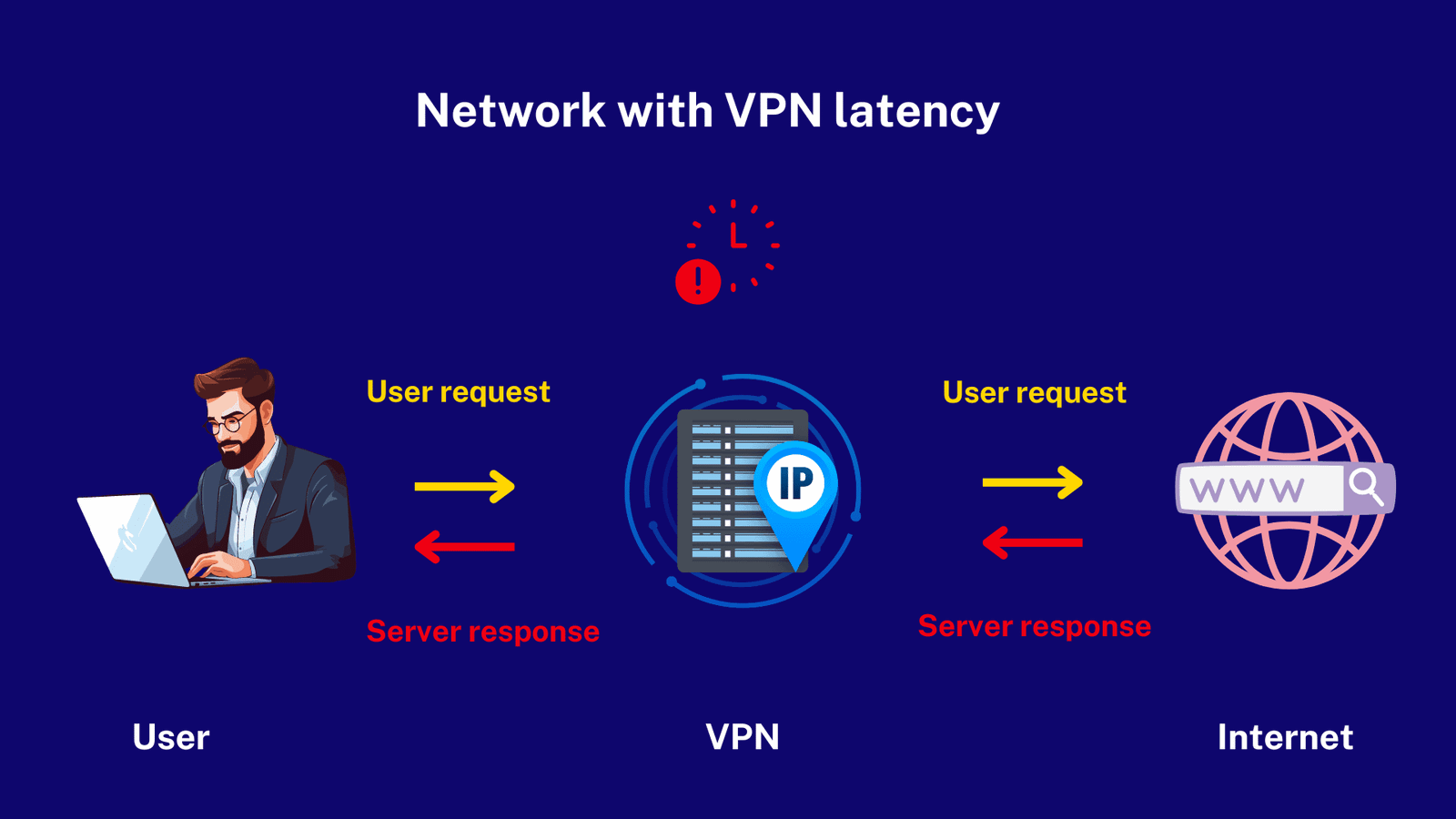
A VPN encrypts and re‑routes your internet traffic through a remote server. That provides privacy and can unlock geo‑restricted catalogs, but it also changes how your traffic travels:
- Longer routes: Traffic may travel farther to reach the VPN server, adding latency.
- Server load: VPN servers have varying capacity. An overloaded server increases delays and packet loss.
- Encryption overhead: Encryption adds a small CPU and latency overhead, especially on older devices.
- Protocol and port differences: Some VPN protocols are faster or more efficient than others in real networks.
- ISP and peering paths: Your ISP’s route to the VPN server matters; poor peering can add jitter.
The result can be slower throughput, higher latency and intermittent buffering — especially on live or high‑bitrate streams.
Quick checklist to try first (5 minutes)
- Test the same stream with the VPN off. If buffering disappears, the VPN is implicated.
- Use a wired Ethernet connection where possible — Wi‑Fi can add variability.
- Switch to a nearby VPN server (same country or region) to reduce route distance.
- Lower the stream quality temporarily (720p or adaptive) and see if playback stabilizes.
- Restart the VPN client, streaming device and router.
If these quick steps help, try the more detailed troubleshooting below to find the root cause and a lasting fix.
Diagnose the problem: Is the VPN causing buffering?
Follow these diagnostic steps to isolate the issue.
1) Baseline internet test (VPN off)
- Run a speed test with the VPN off using a reputable tool such as Speedtest by Ookla or Fast.com.
- Note download and upload speeds plus latency.
- On a single‑device household, avoid other heavy uses (large uploads, other streams).
If your baseline speed is below the streaming service’s recommended bandwidth for the quality you want, buffering may be unrelated to the VPN.
2) Test with the VPN on (same server)
- Connect to the VPN server you normally use and repeat the speed test.
- Compare download/upload and latency numbers to the baseline.
A significant drop in download throughput or a large latency increase points to the VPN as the cause.
3) Try a nearby VPN server and an alternate country
- Connect to a geographically closer VPN server (or one in the same country) and test again.
- If nearby servers are much faster, long routing is likely the issue. If all servers are slow, it may be VPN server load or client issues.
4) Measure latency and packet loss
- Use ping to check latency to the streaming endpoint (if the service allows) or to the VPN server.
- Use traceroute to see routing; long detours or hops with high latency reveal problematic paths.
- Packet loss (seen as dropped pings or in traceroute) is often a stronger predictor of buffering than raw speed.
5) Test without encryption (if your VPN client allows) or try another protocol
Some clients let you switch between protocols (OpenVPN, WireGuard, IKEv2). Switching can change performance significantly. If available, test a faster protocol like WireGuard and compare.
6) Try a different device and different network
- Test the same VPN and streaming combination on a phone or laptop using the same Wi‑Fi network.
- Try the VPN on a different network (mobile hotspot) to see if the issue is your home ISP or router.
If the VPN only causes problems on one device, the device or its client may need updates or configuration changes.
Practical fixes and when to use them
Below are practical steps you can take, grouped by how often they help and how invasive they are.
A. Immediate, low‑effort fixes
- Change VPN server: Swap to a server closer to your location or closer to the streaming service’s region.
- Restart devices: Reboot the streaming device, router and modem.
- Switch Wi‑Fi bands: Move from crowded 2.4 GHz to 5 GHz, or use Ethernet.
- Lower streaming quality: Temporarily reduce bitrate; many services auto‑adjust but a manual setting helps.
When to use: Quick troubleshooting, urgent streams, or if the streaming service’s bitrate exceeds your available bandwidth through the VPN.
B. Medium effort, often effective
- Switch VPN protocol: Try WireGuard or IKEv2 if supported; they often offer lower latency and better throughput than older OpenVPN TCP.
- Enable split tunneling: Route only the streaming app or device traffic through the VPN, letting other devices use the direct connection.
- Use a streaming‑optimized server: Some VPN providers label servers as “streaming” or “media.” Their performance may be better for popular services.
When to use: When you want to keep the VPN on for privacy but reduce the load or route only necessary apps through it.
C. Router and network changes
- Use a more powerful router: VPN encryption can be CPU‑intensive. Some routers have hardware‑accelerated VPN support.
- Set QoS (Quality of Service): Prioritize streaming device traffic in your router to reduce buffering under congested conditions.
- Use VPN at the device level (app) rather than router level: Running the VPN client on the streaming device avoids encrypting all home traffic and can improve speeds.
When to use: If you frequently use a VPN for multiple devices or for streaming on TVs and set‑top boxes.
D. Advanced troubleshooting
- Change VPN port or protocol settings to bypass ISP throttling or bad peering.
- Disable IPv6 on devices and router if the VPN or ISP handles IPv6 poorly — misconfigured IPv6 can leak or cause route inefficiencies.
- Test DNS resolution: Use a reliable DNS (device or router level) or the VPN’s recommended DNS if name resolution is slow.
- Check for MTU issues: Incorrect MTU can cause fragmentation and retransmits. Changing MTU is advanced and varies by device.
When to use: If you’re comfortable with networking tools or after consulting provider support.
Quick comparison: common VPN protocols (general guidance)
| Protocol | Typical pros | Typical cons |
|---|---|---|
| WireGuard | Lightweight, low latency, good throughput on modern devices | Newer; some providers implement differently; configuration choices matter |
| IKEv2 | Fast reconnection on mobile, efficient | Implementation quality varies by vendor |
| OpenVPN (UDP) | Widespread support, reliable | Can be slower on older devices or CPUs; performance varies |
| OpenVPN (TCP) | Reliable traversal of restrictive networks | Higher latency due to TCP over TCP issues |
Note: Actual performance depends on the VPN provider’s implementation and the device you use. Test protocols available in your VPN app rather than relying on blanket claims.
Smart TV and streaming device notes
- Many smart TVs and streaming sticks don’t run full VPN clients. You can either run a VPN on your router or use a VPN‑capable router or a tethered device (like a laptop acting as a hotspot).
- Router‑level VPNs protect all home devices but can introduce a consistent slowdown if the router’s CPU is weak.
- Some streaming devices support split tunneling via apps or OS features; check device documentation.
See our device setup guides for tips on balancing router VPNs and device‑level VPNs: Devices & Setup.
A reproducible troubleshooting flow (step‑by‑step)
- Test stream without VPN. If OK, proceed. If not OK, address general network issues first.
- Test VPN on a nearby server. If OK, choose nearby servers for streaming.
- If still buffering, switch protocol in the VPN client and retest.
- Try split tunneling or route only the streaming device through VPN.
- If router VPN is used and slow, test by running VPN on a single device instead.
- If problems persist, capture traceroute and speed tests and contact your VPN’s support team.
Collecting this data (speed test results, traceroute outputs, device models) speeds up support responses.
What to tell support if you contact your VPN or ISP
- Exact device and OS model.
- VPN app version and server(s) you tested.
- Speed test results with and without VPN (include timestamps).
- Traceroute or ping results to the VPN server and the streaming service if allowed.
- Whether other devices on the network are affected.
Support can check server load, known routing issues, or provider maintenance.
FAQs
Q: Will a VPN always slow down my streaming?
A: Not always. A high‑quality VPN server close to you and a fast protocol (with a capable device) may not noticeably affect streaming. However, VPNs add routing and encryption overhead that can reduce throughput or increase latency in some setups.
Q: Is it legal to use a VPN for streaming?
A: Using a VPN is legal in most jurisdictions, but you must not use it to access copyrighted content in ways that violate terms of service or local law. Avoid advice or tools that promote unauthorized access.
Q: Can I use split tunneling on a smart TV?
A: Many smart TVs don’t support split tunneling natively. Split tunneling is usually configured in the VPN app on computers or phones or in advanced router firmware. Check your device and VPN documentation.
Q: Are free VPNs safe for streaming?
A: Free VPNs may impose strict bandwidth limits, run overloaded servers, or use monetization strategies that affect privacy and speed. For consistent streaming performance, paid and reputable services typically perform better.
Q: My ISP throttles streaming — will a VPN fix that?
A: In some cases, a VPN can bypass ISP throttling targeted at specific traffic types. However, if your connection is congested or the VPN adds significant overhead, the net result may still be poor performance.
Q: How can I test whether route selection is the issue?
A: Use traceroute (tracert on Windows) to the VPN server and, if possible, to the streaming endpoint. Long detours or a hop with high latency or packet loss indicate routing problems.
When to consider alternatives
- If you consistently need ultra‑low latency (competitive live events), consider services and feeds hosted near you or alternatives that provide local ingest.
- If a VPN consistently underperforms for streaming on your hardware, switching to a different, better‑supported VPN provider or using a dedicated streaming box with native apps may be simpler.
For background on secure streaming and privacy tradeoffs, see our coverage in Tech & Security and practical tips in Streaming Guides.
Conclusion
VPNs are useful for privacy and international access, but the routing, server load and protocol choices that make them work can also cause buffering. Start with quick checks — test without the VPN, try a nearby server, use Ethernet — then move to protocol changes, split tunneling or router adjustments if needed. Collect speed tests and traceroutes before contacting support to help identify routing or server issues.
Being methodical will usually find the bottleneck: a distant server, overloaded endpoint, poor Wi‑Fi, or a protocol mismatch. With the right combination of server choice, protocol and network setup, you can reduce or eliminate buffering while keeping the benefits of a VPN.
Disclosure: Settings and compatibility can differ by TV, streaming device, operating system, router, region and firmware version. Verify the current documentation for your device, network equipment and VPN provider.
If you want step‑by‑step router or device setup instructions for common streaming devices, check our practical articles on Devices & Setup and our broader advice on the Blog.

Canzar
Ready to stream? Pick your plan
Live TV, movies, sports and 10,000+ channels on any device — Firestick, Android TV, Smart TV, phone.
View Subscription Plans Compare Pricing
Moderation: Comments are reviewed before publishing. Be respectful and on-topic.
Guidelines: Share streaming tips, device help, or content recommendations. No spam, no promotions, no off-topic links.