
Last updated August 16, 2026 · Editorially reviewed by CanzarTV
Streaming Setup Guide: From Unboxing to First Show in 20 Minutes
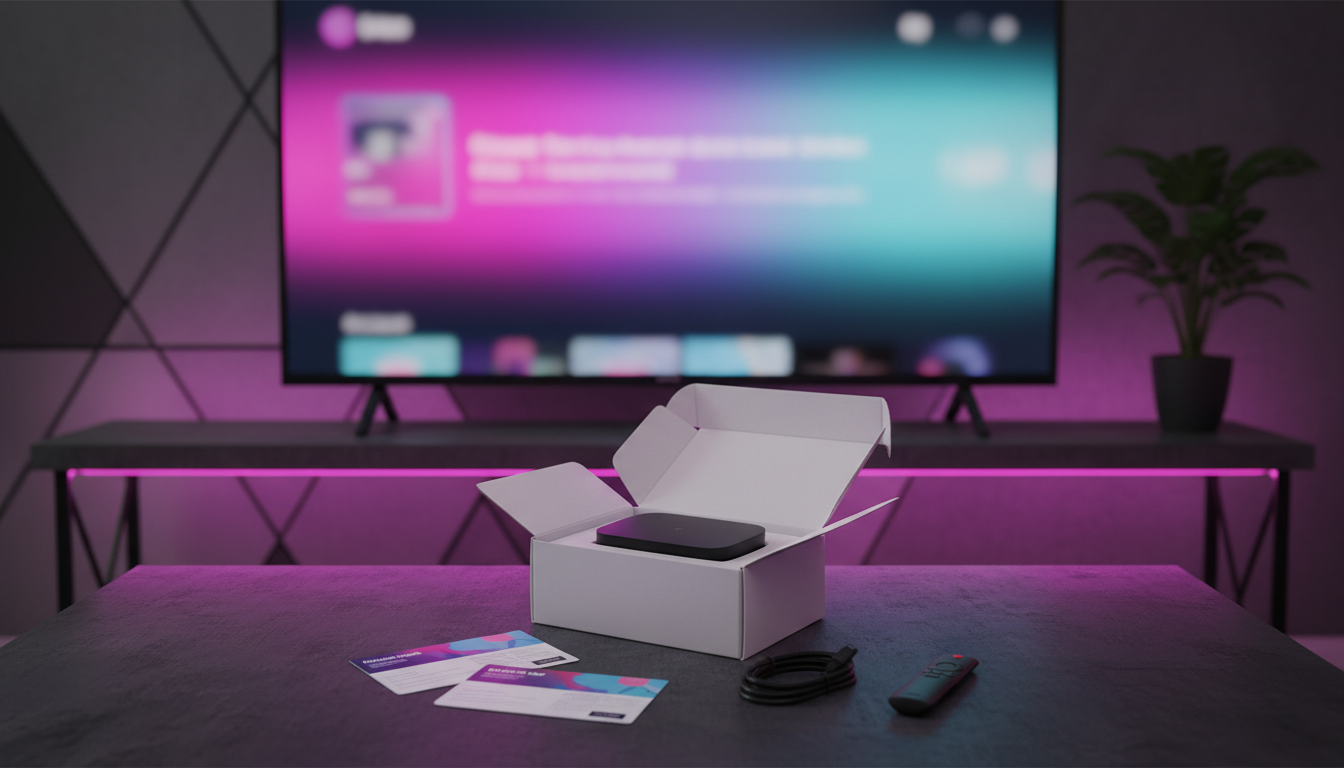
A clean setup saves years of frustration. This step-by-step guide takes any TV and streamer from the box to a great first watch, with the settings that actually matter.
Setup is 80% cables and 20% settings. Get the physical connection right, then tweak a handful of options for quality and ease.
What you need
| Item | Note |
|---|---|
| TV with HDMI | Any age works |
| Streamer or smart TV | See Streaming Devices Comparison |
| HDMI cable | High-Speed for 4K |
| Wi-Fi or Ethernet | 5 GHz or wired for main TV |
| Account | Email + password |
Step-by-step
- Plug the streamer into HDMI and power.
- Select that HDMI input on the TV.
- Connect to Wi-Fi (or Ethernet).
- Sign in to your accounts.
- Pin your top 3 apps.
- Set picture mode to ‘Movie’ or ‘Cinema’.
- Set app Quality to Auto.
Default ‘Vivid’ mode looks loud in a store but unnatural at home. Cinema mode is closer to what creators intended.
Picture and sound
Match the TV’s HDMI port to the streamer’s capabilities (4K port for 4K). For sound, let the app auto-detect your soundbar; switch off passthrough if audio drops.
- 20-minute first setup
- Settings persist
- Works on any TV
- Older TVs need a stick
- Some apps need updates
Common mistakes
It oversaturates colors; switch the TV to Cinema or Movie mode.
Expert tips
Rename HDMI 1 to ‘Streamer’ so anyone can switch without asking.
- Enable automatic app updates.
- Set the sleep timer for bedrooms.
- Test a 4K title before inviting friends over.
Device compatibility
Steps are similar on Fire TV, Google TV, Apple TV, Roku, and Smart TVs – device guides: Android TV, Fire TV, Apple TV, Google TV, Smart TV, Roku.
Troubleshooting
- No signal: wrong HDMI input.
- No sound: TV audio output set to the soundbar, not TV speakers.
- App missing: update firmware, reinstall.
- No 4K option: confirm the HDMI port and cable are 4K-capable.
Add your plan
Once set up, a CanzarTV subscription runs in the app on the device. Compare tiers on the pricing page and channels on the TV Channels page.
Recommendation
Take 20 minutes once: right input, Cinema mode, Auto quality, top apps pinned. Everything after is just watching.
Bandwidth and data usage
Streaming uses real data. As a rule of thumb: one hour of SD uses about 0.7 GB, 1080p about 1.5-3 GB, and 4K about 7-10 GB. A household with several evening streams can burn 100-300 GB a month. If you have a data cap, set apps to 1080p and download on Wi-Fi rather than cellular.
| Quality | Per hour | Per month (3h/day) |
|---|---|---|
| SD | ~0.7 GB | ~60 GB |
| 1080p | ~2 GB | ~180 GB |
| 4K | ~8 GB | ~720 GB |
Lower quality one step and you can halve data use with little visible loss on a 1080p TV.
If you tether from a phone, streaming will eat the plan fast – prefer home Wi-Fi or downloads.
Accessibility and parental controls
Most apps and devices support profiles, PIN locks, and kid rows. Turn them on once and they apply across the account.
- Create a kids profile so recommendations stay age-appropriate.
- Set a profile PIN so little ones can’t wander into adult rows.
- Use subtitles – they help in noisy rooms and second-language viewing.
- Enable audio descriptions where the app offers them.
Parental controls live in your account, so setting them on the TV also protects the tablet.
Quick glossary
- Bitrate: how much video data flows per second; higher is usually cleaner.
- Codec: the compression method (H.264, H.265/HEVC, AV1); newer codecs look better at lower bitrate.
- Buffer: a small video reserve; if it empties, playback pauses to refill.
- Concurrent streams: how many devices can watch at once on one plan.
- DVR / cloud DVR: recording saved online, not on a box.
- FAST: free, ad-supported streaming TV.
More troubleshooting
- App frozen on logo: force-stop it in Settings > Apps, then reopen.
- Only stereo on a surround system: the app is set to stereo; switch to Auto or Passthrough.
- Remote volume mismatch: re-pair the remote’s TV control in settings.
- Chronic evening buffering: neighbours share the line; schedule big downloads earlier or use Ethernet.
- Wrong profile loads: set a profile PIN so the last-used profile isn’t always the kids’.
First-night checklist
- Play a familiar title to confirm sound.
- Set sleep timer if in a bedroom.
- Pin the three apps you’ll use most.
- Confirm the remote controls TV power and volume.
Myths worth dropping
- More Mbps always means better picture. Speed prevents buffering; picture quality comes from the app bitrate and your TV, not the number on the plan.
- You need the newest box. A two-year-old mid-range streamer handles 4K fine; only tinkerers need the latest chip.
- Free apps are low quality. Legitimate free ad-supported apps carry real channels and films; the trade-off is ads, not trash.
- Cable is always better for live. Live apps now carry news, sports, and locals; the gap is specific regional channels, not live TV as a concept.
Ignore marketing numbers that do not change what you watch. Resolution you can see and steady playback you can feel matter more than a bigger CPU.
Sound: the half of the experience people skip
Picture gets the attention; sound makes it stick. You do not need a cinema, but a few defaults help.
| Setup | Result | Good for |
|---|---|---|
| TV speakers | Thin, directional | Casual viewing |
| Soundbar | Fuller, clearer dialogue | Most living rooms |
| Soundbar plus sub | Bass for films | Movie nights |
| AV receiver plus speakers | True surround | Enthusiasts |
Most streamers pass Dolby Digital or Atmos to a soundbar automatically. If you get stereo only, set the app audio to Auto or Passthrough. For late-night watching, turn on night mode (compressed dynamic range) so explosions do not wake the house.
Most complaints about bad sound are really cannot hear the voices. A soundbar fixes that more than a bigger TV.
Watching away from home
Streaming travels better than cable ever did. A few habits keep it smooth on the road.
- Download on Wi-Fi: save films and series to a phone or tablet before a flight or trip; no roaming data, no hotel Wi-Fi lottery.
- Hotel TVs: bring your streamer; most have an HDMI port and a hotel mode that skips the welcome screen. Sign in once and your profiles appear.
- Mobile data: set the app to 480p or 720p on cellular to stretch a data plan; 1080p burns it fast.
- Region locks: some live channels are regional; a title available at home may be blocked abroad. That is licensing, not a fault.
On shared networks, a VPN adds a privacy layer. At home you rarely need one.
One home, many screens
A good setup scales across the house without becoming a second job.
- Name devices by room (Living Room, Bedroom, Kitchen) so casting to the TV is obvious.
- Share one plan across TVs within the concurrent-stream limit; check that limit before a fourth screen.
- Repeat the Wi-Fi rule: 5 GHz near the main TV, Ethernet for anything that stutters.
- Mirror settings: set Cinema mode and Auto quality on each TV once; they do not copy across.
Your plan allows a fixed number of simultaneous viewers. Add screens past that and the newest one gets bumped; plan for movie night.
How to decide (quick frame)
If you only take one thing from this guide: start small and add only what you miss. The most common mistake is buying the biggest bundle or the newest box before knowing what you will actually open. List your top 10 things to watch, match them to one live source plus one on-demand library, keep one free app for variety, and revisit in a month.
A 10-minute monthly maintenance routine
- Open the device app list, sort by last used, uninstall anything untouched for 60 days.
- Check each paid app next renewal date; cancel what you have not opened.
- Re-run a speed test at the main TV; move the streamer or switch to Ethernet if it dropped.
- Confirm app auto-update is on so you are not running a year-old build.
- Re-favourite your top channels so the guide opens on what you watch.
Ten minutes a month keeps the bill honest and the picture steady. Most why is it slow calls are stale updates or a forgotten trial.
A 5-minute performance check
If something feels off, run this before blaming the internet:
- Confirm the HDMI port matches the streamer (4K port for a 4K box).
- Open the app Quality setting; Auto is usually right, but if it sits at 720p on a 4K TV, the link is the limit.
- Run a speed test at the TV, not the router; 25 Mbps at the TV is what 4K needs.
- Toggle passthrough off if audio drops, on if you have a surround bar.
- Restart the streamer once a month; it clears cached gremlins.
Nine times in ten the weak link is the Wi-Fi near the TV, not the streamer or the plan.
Worked example: fixing a shaky evening
A real pattern: film starts, buffers at the quiet parts, audio drifts. The fix is rarely one big change:
- Lower Quality one step (4K to 1080p) so the link is not the bottleneck.
- Switch the TV audio output to the soundbar instead of TV speakers, then set the app to Auto.
- Move the streamer from a 2.4 GHz band to 5 GHz, or run a short Ethernet cable.
- Close the other two streams in the house during the film.
Each step removes one variable. Do them in order and most evenings go from annoying to smooth without buying anything new.
The first-night checklist
- Confirm the TV input matches the streamer HDMI port.
- Set picture mode to Cinema or Movie, not Vivid.
- Connect to 5 GHz Wi-Fi or run an Ethernet cable.
- Sign in to your apps and pin the three you will use most.
- Play something familiar to check sound and subtitles.
That is the whole job. Everything else – extra apps, voice assistants, ambient modes – is optional and can wait. A setup is done when the thing you wanted to watch plays clearly; resist the urge to keep tweaking.
Frequently asked questions
How long does setup take?
About 20 minutes: plug in, connect Wi-Fi, sign in, pin apps, set Cinema mode and Auto quality.
Why does my picture look off?
Default Vivid mode oversaturates; switch the TV to Cinema or Movie mode.
Do I need an HDMI 2.1 cable for 4K?
A standard High-Speed HDMI cable handles 4K; you need HDMI 2.1 only for 4K at 120 Hz gaming.
Can I move the streamer to another TV?
Yes – unplug and plug into any HDMI TV, then sign in again.
How do I get the best sound?
Let the app auto-detect the soundbar; switch off passthrough only if audio drops or stutters.

Ready to stream? Pick your plan
Live TV, movies, sports and 10,000+ channels on any device — Firestick, Android TV, Smart TV, phone.
View Subscription Plans Compare Pricing
Moderation: Comments are reviewed before publishing. Be respectful and on-topic.
Guidelines: Share streaming tips, device help, or content recommendations. No spam, no promotions, no off-topic links.