
Last updated August 25, 2026 · Editorially reviewed by CanzarTV
Accessibility-first media players: features to look for beyond subtitles
Introduction
Subtitles and closed captions are essential—but they are only part of an accessible viewing experience. As accessibility expectations rise among viewers and regulators, streaming services, device makers, and content creators need media players designed from the ground up to serve people with a wide range of disabilities. This guide explains the features to look for when choosing or building an “accessibility-first” media player, how to test key behaviors, and practical next steps for buyers and product teams.
Why accessibility-first players matter
An accessibility-first player benefits more than only viewers who rely on assistive technology. It improves discoverability, user satisfaction, and usability for older adults, people with situational disabilities (e.g., noisy environments or bright sunlight), and anyone who prefers customized controls. Because implementations and legal requirements can vary by region and platform, vendors and operators should verify current rules and documentation for their markets.
H2: Core accessibility features beyond subtitles
Below are practical feature areas to evaluate. For each, I explain why it matters and what to verify during evaluation.
H3: 1) Audio description support (narration tracks)
Why it matters: Audio description provides spoken narration of visual elements and is essential for blind and low-vision viewers. A player should be able to present an alternate audio track for description alongside—or instead of—the default audio.
What to verify:
– Support for additional audio tracks and easy user selection.
– Clear labeling in the UI (e.g., “Audio Description”).
– Seamless switching without breaking sync or DRM protections.
– Controls exposed to assistive technology and remote controls.
H3: 2) Customizable captions, transcripts, and multi-language support
Why it matters: People need flexibility—larger text, color contrast, different fonts, and placement can make captions usable across needs.
What to verify:
– Font size, color, background, opacity, and edge style adjustments.
– Caption profile saving and per-user defaults.
– Full downloadable transcripts and multi-language subtitle selection.
– Accurate caption semantics (speaker labels, sound descriptions) when available.
H3: 3) Keyboard navigation, focus management, and remote control accessibility
Why it matters: Many users rely on keyboard navigation, remote navigation, or switch devices rather than touch. Predictable focus order and visible focus indicators are key.
What to verify:
– Complete keyboard support for play/pause, seek, audio track selection, and settings.
– Logical focus order and visible focus outlines when navigating with keys.
– Remote control command mapping and compatibility with common TV remotes.
– Support for accessible key remapping or assistive switches where possible.
H3: 4) High-contrast UI, scalable fonts, and large targets
Why it matters: Low-vision users need readable, scannable UI elements. High contrast and large touch/selection targets reduce errors.
What to verify:
– Built-in high-contrast themes and scalable interface text.
– Minimum target sizes for buttons and controls.
– Support for system-level high-contrast modes on major platforms.
H3: 5) Screen reader compatibility and ARIA semantics
Why it matters: Screen readers must be able to announce player state, control labels, and live feedback (e.g., “10 seconds skipped”).
What to verify:
– Proper ARIA roles, labels, and live-region announcements for state changes.
– Screen reader testing across major platforms (VoiceOver, TalkBack, NVDA, JAWS) as applicable to the device.
– Clear, non-cryptic text for control names and error states.
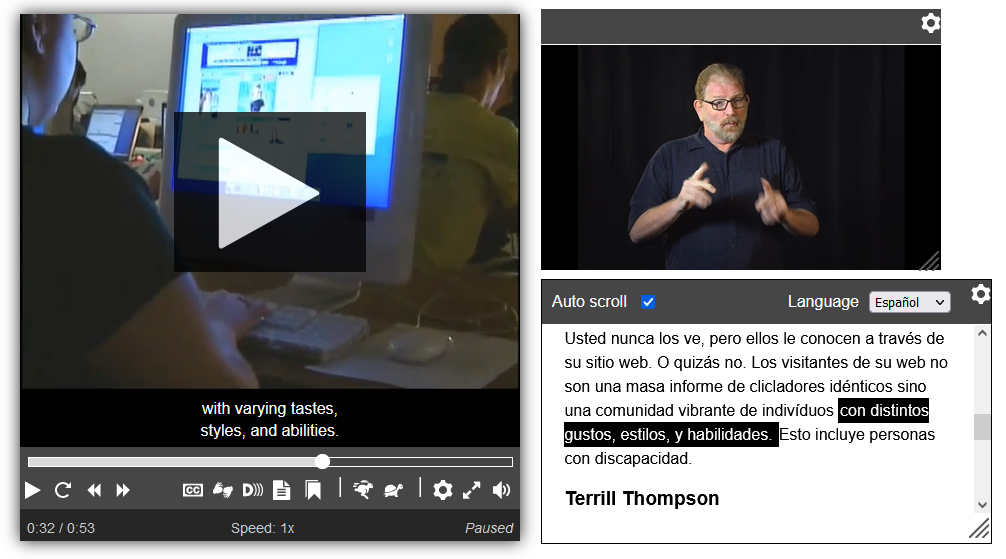
H3: 6) Sign language and visual-access features
Why it matters: For viewers who use sign language, having a picture-in-picture sign-language track or dedicated sign-language window can be critical.
What to verify:
– Support for additional video tracks or overlays dedicated to sign language.
– Resizable sign-window and repositioning so it doesn’t overlap captions.
H3: 7) Playback controls that respect accessibility needs
Why it matters: Precise seeking, adjustable playback speed, skip-forward/back with customizable intervals, and chapter navigation help users manage content at their own pace.
What to verify:
– Adjustable skip interval settings.
– Chapter markers with accessible navigation and labels.
– Consistent keyboard and remote shortcuts for playback speed.
H3: 8) Low-cognitive-load UI and simple mode
Why it matters: People with cognitive disabilities often prefer simplified interfaces with fewer choices and clearer language.
What to verify:
– Option for a simplified mode with essential controls only.
– Plain-language labels and in-line help that is accessible to screen readers.
H3: 9) Persistent user preferences and profiles
Why it matters: A viewer shouldn’t have to reconfigure caption size or audio description every session.
What to verify:
– Per-account or per-device save-and-apply of accessibility preferences.
– Syncing across devices where accounts are available (verify privacy and regional support).
H3: 10) Accessible authentication, DRM flows and error handling
Why it matters: Login, entitlement checks, and DRM-related errors must be navigable and understandable for accessibility tool users.
What to verify:
– Keyboard- and screen-reader-accessible login screens and 2FA flows.
– Accessibility-friendly error messages and recovery steps.
– Alternatives for inaccessible DRM dialogs where possible.
H2: Practical checklist for choosing an accessibility-first player
Use this checklist when evaluating players or vendors. Test on the actual target devices (smart TV, set-top box, mobile, web) because implementation can differ.
Evaluation checklist
- General
- Does the player provide a documented accessibility statement or conformance notes?
Is there a known route for accessibility feedback and bug reporting?
Captions & Transcripts
- Subtitle style customization and per-user defaults
Full, downloadable transcripts
Audio
- Easy selection of audio-description tracks
Multi-track support and clear naming
Navigation
- Full keyboard control and visible focus indicators
Remote control mapping and accessibility
UI
- High-contrast theme and scalable fonts
Large tap/selection targets
Assistive Tech
- Screen reader compatibility and ARIA usage
Live-region announcements for state changes
Advanced
- Sign-language overlay support
- Chapter markers and accessible seeking
- Persistent user preferences and account sync
H2: How to test a player (quick test scenarios)
Do these lightweight checks during a demo or evaluation. They don’t replace in-depth usability testing with users who have disabilities, which you should plan for if you operate a service.
Simple test scenarios
1) Keyboard/Remote traversal
– Connect a keyboard or use a TV remote only. Navigate through the player controls, open settings, change audio track, and adjust captions. Watch for visible focus outline and predictable order.
2) Screen reader run-through
– Enable a screen reader on the device and repeat the above. Confirm that control names announce meaningfully (e.g., “Captions menu, closed captions on, English”) and that play/pause toggles are clear.
3) Audio description switch
– If available, switch to an audio-description track and confirm narration is audible and synchronized.
4) Caption customization
– Increase caption font size, change background opacity, and check readability with different background content.
5) Simulate low vision
– Use system zoom or a high-contrast mode and verify the UI remains operable and readable.
6) Authentication and DRM flow
– Walk through sign-in and playback with account verification. Check announcements for errors and keyboard accessibility.
H2: A simple feature comparison table (what to ask vendors)
| Feature | Why it matters | What to verify |
|---|---|---|
| Audio description support | Enables blind users to follow visual content | Can user select an audio-description track; labeled clearly; stays in sync |
| Caption styling | Improves readability across needs | Adjustable size, color, background; saveable preferences |
| Keyboard/remote navigation | Many users cannot use touchscreens | Logical focus order; visible focus; keyboard shortcuts |
| Screen reader compatibility | Essential for blind users | ARIA roles, live regions, testing across platforms |
| Sign language tracks | Supports sign-language users | Secondary video tracks or overlays; reposition and resize |
| Persistent preferences | Reduces repeated configuration | Per-account or per-device save; verify cross-device behavior |
H2: Implementation and operations tips for teams
- Prioritize device parity: Behavior often varies between web, mobile apps, and smart TVs. Keep feature parity realistic and document gaps.
- Include people with disabilities in user testing: Real-world testing uncovers issues automated checks miss.
- Expose accessibility APIs: Let system-level accessibility settings (e.g., font size, high-contrast mode) flow into the player.
- Provide documentation and tutorials: Accessible onboarding and help that works with screen readers improves adoption.
- Monitor analytics thoughtfully: Track feature usage (e.g., captions enabled) without compromising privacy.
H2: Frequently asked questions
Q: Are subtitles and captions the same as audio description?
A: No. Subtitles and captions provide text for spoken dialog and often include descriptions of key sounds; audio description is an audio track that narrates visual elements for blind or low-vision viewers. Both are important and serve different needs.
Q: Do all players support audio description and sign-language tracks?
A: Support varies by player, platform, content rights, and region. Always verify current documentation and test on the target device.
Q: Will accessibility features slow down my app or increase bandwidth?
A: Accessibility features themselves (like UI themes or ARIA markup) have minimal performance cost. Additional audio or video tracks (e.g., audio description or sign-language overlays) do use bandwidth when streamed; plan for this in encoding and CDN strategies.
Q: How should I prioritize features if I have limited development resources?
A: Start with keyboard/remote navigation, caption customization, and audio-description selection—these deliver broad value. Then add screen-reader polish, high-contrast themes, and persistent profiles.
Q: Can accessibility features be automated or tested programmatically?
A: Some checks (like ARIA presence, focusable elements, or caption track availability) can be automated. Usability testing with real users is still required to validate the experience.
H2: Next steps for buyers and teams
- For buyers: Use the checklist above during demos and insist on hands-on testing on the exact devices you plan to support.
- For product teams: Prioritize feature parity across devices, document accessibility behaviors, and set up a feedback loop with users who rely on assistive tech.
Further reading and resources
- Organizations and standards such as the W3C Web Content Accessibility Guidelines (WCAG) and WAI-ARIA provide implementation guidance. For more platform-focused tips, consult platform developer docs and local regulations.
You can also browse practical resources and equipment recommendations in our Streaming Guides and find tooling and players in Apps & Tools. For broader discussions about accessibility strategy and case studies, see our Blog.
Conclusion
An accessibility-first media player is more than captions: it combines audio description, accessible navigation, adaptable UI, and robust assistive-technology support to make content usable by as many people as possible. Evaluate players on real devices, involve people with disabilities in testing, and prioritize features that deliver the most immediate benefit—keyboard/remote navigation, caption customization, and audio-description selection. Over time, layering in sign-language support, persistent preferences, and low-cognitive-load modes will make your service truly inclusive.
Disclosure: Settings and compatibility can differ by TV, device, operating system, region, and firmware version. Always verify features against current manufacturer or platform documentation and run tests on the actual devices and configurations you intend to support.

Canzar
Ready to stream? Pick your plan
Live TV, movies, sports and 10,000+ channels on any device — Firestick, Android TV, Smart TV, phone.
View Subscription Plans Compare Pricing
Moderation: Comments are reviewed before publishing. Be respectful and on-topic.
Guidelines: Share streaming tips, device help, or content recommendations. No spam, no promotions, no off-topic links.