
Last updated August 24, 2026 · Editorially reviewed by CanzarTV
Choosing the Right HDMI Cable and Port for 4K HDR Streaming
Streaming 4K HDR content looks great only when every link in the chain — streaming device, cable, TV port, and settings — supports the needed features. This guide explains what to check, how HDMI 2.1 differs from 2.0 for TV use, which HDMI ports matter for HDR and immersive audio, and practical cable recommendations so you can get the image and sound you expect without overspending.
Quick overview (what this article covers)
- Why HDMI version and cable type matter for 4K HDR streaming
- How to interpret TV and source device ports and labels
- Which features (eARC, VRR, ALLM, higher refresh rates) affect cable choice
- Practical buying and setup steps, plus troubleshooting tips
Whether you’re connecting a streaming set-top box, a game console, a PC, or a media player, the same fundamentals apply. If specifics vary by model or region, verify the manufacturer documentation for your devices.
Why HDMI cables and ports matter for 4K HDR
4K HDR streaming combines higher resolution with greater dynamic range and color. Many HDR formats and higher frame rates need both sufficient link bandwidth and support for specific HDMI features. That means two things matter:
- The HDMI port on your TV and source device must implement the features you want (for example, support for a particular HDR format, high refresh rates, or eARC). Manufacturers sometimes assign these capabilities to certain ports only.
- The physical HDMI cable must reliably carry the signal at the required bandwidth over the length you need.
If either side is mismatched — an older port or a low-quality cable — you may see reduced resolution, disabled HDR, dropped frames, or degraded audio features.
HDMI 2.1 vs 2.0 for TV: what to expect
HDMI labels can be confusing because manufacturers sometimes use marketing language. At a high level:
HDMI 2.0 (and earlier “HDMI 2.0b”) is generally adequate for 4K at 60Hz with standard HDR (HDR10, HLG) and common color depths. Many streaming devices and Smart TVs deliver 4K HDR over HDMI 2.0 ports without issue.
HDMI 2.1 expands the set of capabilities commonly desired for modern video and gaming — higher frame rates at 4K (for example 120Hz), dynamic HDR metadata formats, VRR (variable refresh rate), ALLM (auto low-latency mode), enhanced audio return channel (eARC), and other features. Some of these features may be available on HDMI 2.1-capable TVs and sources.
Important caution: manufacturers may implement a subset of HDMI 2.1 features or require firmware updates for certain capabilities. Port labeling may differ: sometimes only one or two HDMI ports on a TV support the full set of HDMI 2.1 features. Always check the TV and source manuals if a feature is critical to you.
Deciding what you need (use-case checklist)
- Pure streaming video at 4K HDR, 24–60Hz: HDMI 2.0-class ports and a good high-speed cable are usually sufficient.
- 4K HDR gaming at 120Hz, or PC content at high refresh rates: prefer HDMI 2.1-capable ports and an Ultra High Speed HDMI cable.
- Want the best audio path to a soundbar or AVR (Dolby Atmos passthrough, multichannel PCM): ensure the TV and AVR support eARC and use an eARC-capable HDMI port/cable.
- Long cable runs (more than 5–7 meters / ~16–23 feet): consider active HDMI cables, fiber HDMI, or HDMI-over-IP / extenders, as passive copper cables can lose signal at high bandwidths.
If you’re unsure which scenario applies, start by verifying your streaming device and TV capabilities in their user guides.
HDMI ports for HDR: what labels mean (and don’t mean)
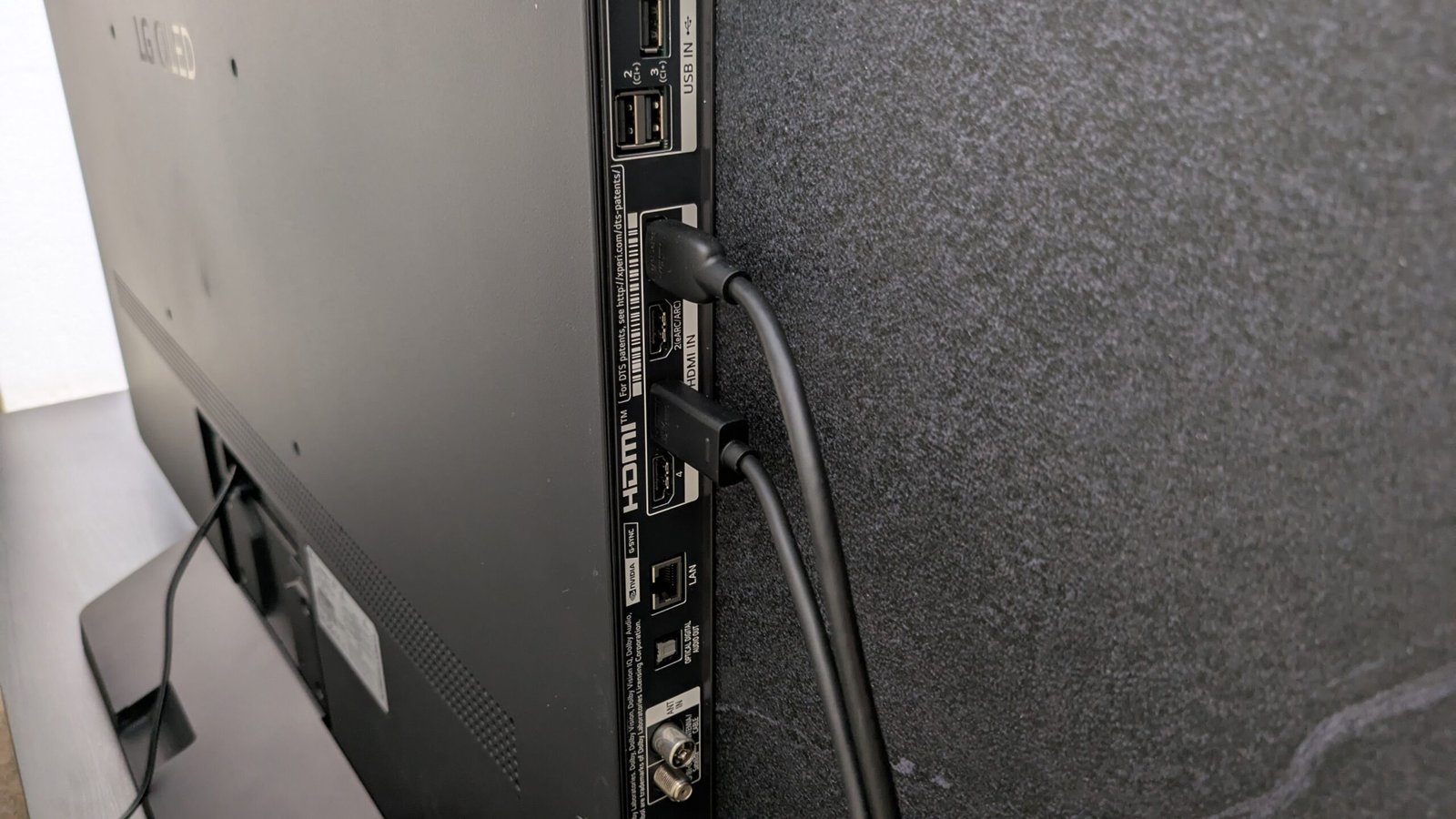
TVs may label HDMI ports with marketing shorthand like “HDMI 2.1”, “4K@120”, “eARC”, or “Game”. Those labels indicate factory-tested capabilities for that port but check the manual because:
- “HDMI 2.1” label usually indicates the port supports at least some HDMI 2.1 features; it doesn’t guarantee every optional feature is present.
- “eARC” label means the port supports the enhanced audio return channel for higher-quality audio from the TV to a soundbar/AVR. However, both the TV and the audio device must support eARC to use it.
- “4K@120” or “120Hz” labels indicate the port is intended for higher refresh rates at 4K, useful for newer game consoles.
If a port supports advanced modes, the TV may also provide a setting (often called “HDMI Enhanced Mode”, “Enable HDMI 2.1 features”, or similar) you must enable for full bandwidth.
Cable types and what to buy: practical 4k hdr cable recommendations
Rather than recommending specific brands, we recommend selecting cables by type and certification level.
For most 4K HDR streaming (up to 4K@60Hz, HDR10/HDR10+ and Dolby Vision passthrough in many setups): a certified Premium High Speed HDMI cable is typically sufficient for runs under a few meters.
For higher refresh rates, VRR, or for future-proofing on HDMI 2.1 features: choose a certified Ultra High Speed HDMI cable (the standard name used in industry guidance). These cables are specified to support the wider feature set that HDMI 2.1 exposes and are a safe choice for high-bandwidth applications.
For long runs (over ~3–5 meters) where you need high bandwidth: consider active copper HDMI cables, HDMI fiber cables, or professionally installed HDMI-over-fiber/HDMI extenders. Passive copper cables at long lengths often struggle to maintain the highest bandwidth.
For reliable audio return (eARC): eARC functionality is negotiated via the HDMI link. Use a cable that supports the necessary bandwidth (Ultra High Speed is a safe choice) and plug into the TV’s labeled eARC port and the AVR/soundbar eARC port.
General buying tips:
– Buy from reputable retailers and brands with clear certification claims. Avoid unmarked, low-cost cables of unknown origin when you need high-bandwidth performance.
– Keep cable lengths as short as practical. Shorter good-quality cables are less likely to have signal issues.
– If you need a long run but want to avoid active/fiber solutions, test before final installation and be ready to switch to an active/fiber option if you see dropped features.
Simple comparison: HDMI 2.0 vs HDMI 2.1 (features to watch)
| Feature | Typical HDMI 2.0 behavior | HDMI 2.1 capability to check for |
|---|---|---|
| 4K at 60Hz HDR | Commonly supported | Supported and backward compatible |
| 4K at 120Hz | Rare on HDMI 2.0 | Designed to support higher frame rates (may require Ultra High Speed cable) |
| VRR (variable refresh rate) | Generally not supported | Often available on HDMI 2.1-enabled devices |
| ALLM (auto low-latency mode) | Not standard | Often available with HDMI 2.1 support |
| eARC (enhanced audio return channel) | Not available | Designed to support higher bitrate audio formats (requires both ends to support eARC) |
Note: This table is a simplified summary. Implementation varies by manufacturer and model. Always check device-specific documentation.
Setup checklist: choosing port + cable and getting optimal picture and sound
- Identify the capabilities of your source (streaming stick, set-top box, console, gaming PC) — model manuals or spec pages will list supported HDMI features.
- Inspect your TV ports. Look for labels like “eARC”, “HDMI 2.1”, or “4K@120” and consult the TV manual to confirm which ports have which features.
- Choose a cable type that matches your use case: Premium High Speed for basic 4K HDR, Ultra High Speed for 4K@120/VRR/eARC-heavy setups, or active/fiber solutions for long runs.
- Use the TV’s recommended port for the feature you need (for example, plug your soundbar into the TV’s eARC port). Plug the source into a labeled HDMI port for gaming or high refresh-rate needs.
- Enable any TV settings required for full HDMI bandwidth (often labeled “Enhanced HDMI”, “HDMI Deep Color”, or similar).
- Update firmware on TV and streaming device if a feature is not working as expected — manufacturers occasionally add or fix HDMI behavior via updates.
- Test content that exercises the required features: play HDR content and verify HDR indicators, test high frame-rate modes with compatible content, and confirm audio formats over eARC if you have an AVR/soundbar.
If a feature is missing, swap cables and ports to isolate whether the cable, source, or TV is limiting the capability.
Troubleshooting common problems
- No HDR shown or “Not supported” message: check that the source is outputting HDR, the TV input is set to enhanced/HDMI 2.1 mode if required, and the cable is rated for the necessary bandwidth.
- Reduced resolution or dropped frames: try a higher-rated cable or a shorter cable; check for firmware updates and verify which HDMI port supports the required mode.
- No eARC audio or limited audio formats: ensure both TV and AVR/soundbar are eARC-compatible, and connect both ends to their eARC-labeled ports. An Ultra High Speed cable is recommended.
- Intermittent signal or flicker on long runs: try an active or fiber HDMI cable or an HDMI extender solution.
Buying checklist (quick)
- Confirm the features you need (resolution, refresh rate, HDR format, eARC).
- Select the cable certification/type that matches those needs (Premium High Speed for basic 4K HDR; Ultra High Speed for high frame rates and eARC-heavy setups).
- Keep cables as short as practical.
- Buy from a reputable seller and keep the receipt and packaging until you confirm everything works.
Frequently asked questions (FAQ)
Q: Do I need HDMI 2.1 for 4K HDR streaming from Netflix, Prime Video, or Apple TV?
A: For standard 4K HDR streaming at typical frame rates (up to 60Hz), HDMI 2.0-class ports and a good High Speed cable often suffice. HDMI 2.1 becomes more relevant if you want higher frame rates (e.g., 120Hz), VRR for gaming, or certain advanced audio passthrough workflows.
Q: Is any HDMI cable “best” for 4K HDR?
A: There’s no single universal “best” cable brand for every situation. Look for the cable type appropriate for your use case: certified Premium High Speed for everyday 4K HDR, certified Ultra High Speed for HDMI 2.1-level features, and active or fiber HDMI cables for long runs.
Q: My TV has an HDMI port labeled “HDMI 2.1” but my device still won’t show 4K@120 or VRR — what gives?
A: Manufacturers sometimes implement only a subset of HDMI 2.1 features or reserve features to certain ports. Also check for required TV settings (enable Enhanced Mode) and firmware updates. Verify both source and TV explicitly support the desired feature.
Q: Can cheap HDMI cables damage my TV or devices?
A: In practice, low-quality HDMI cables are unlikely to physically damage devices. The more common issue is unreliable performance: dropped signals, disabled HDR, or unstable picture. For critical setups, use certified cables from reputable suppliers.
Q: How long can my HDMI cable be before performance degrades?
A: Passive copper cable performance depends on quality and bandwidth requirement; very long runs at high bandwidth can fail. If you need long runs, consider active HDMI, HDMI fiber cables, or professional extenders.
Q: Should I enable any TV setting after connecting a new HDMI cable?
A: Many TVs offer settings to enable full input bandwidth (labeled variously). Check the TV input settings and the manual, and enable any “Enhanced HDMI/Deep Color/HDMI 2.1 features” options if required.
Additional resources and links
For more device- and setup-specific advice, consult the related guides in our site sections: Devices & Setup, Streaming Guides, and our general Blog. If you use apps that have specific output settings (for example, streaming apps with in-app HDR options), see Apps & Tools.
Conclusion
Choosing the best HDMI cable for 4K HDR streaming is mostly about matching the cable and TV port to the features you actually need. For everyday 4K HDR streaming a high-quality Premium High Speed cable often works well. If you want higher refresh rates, VRR, or the most reliable eARC audio path, plan on using Ultra High Speed cables and the HDMI ports on your TV and source device that are explicitly documented to support those features. Keep cable lengths reasonable, buy from reputable sellers, and verify device manuals and firmware for the final word on compatibility.
Disclosure: settings and compatibility can differ by TV, source device, operating system, region, and firmware version. Always verify the current manufacturer documentation for your specific devices and firmware.

Canzar
Ready to stream? Pick your plan
Live TV, movies, sports and 10,000+ channels on any device — Firestick, Android TV, Smart TV, phone.
View Subscription Plans Compare Pricing
Moderation: Comments are reviewed before publishing. Be respectful and on-topic.
Guidelines: Share streaming tips, device help, or content recommendations. No spam, no promotions, no off-topic links.