
Last updated August 24, 2026 · Editorially reviewed by CanzarTV
Setting Up an Accessible Smart TV Interface for Visually Impaired Viewers
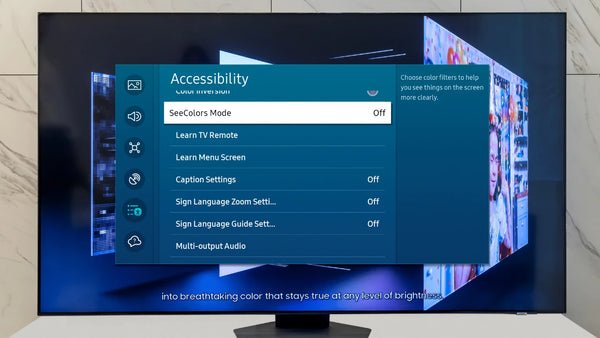
A smart TV should be enjoyable and usable by everyone. This guide explains how to configure a smart TV for low vision and other visual impairments: enabling large text, on-screen magnification, screen readers (voice guides), audio descriptions, and convenient remote or app controls. The steps are written to be broadly applicable across major TV platforms; because menus and terminology vary, check your TV or streaming device documentation for exact steps.
Why accessibility matters for smart TVs
Television and streaming are central to home entertainment and information. Accessible TVs let people with low vision navigate menus, read program guides, follow captions, and hear audio descriptions independently. Beyond convenience, accessibility supports inclusion and in many places aligns with accessibility standards and best practices.
This article focuses on practical settings and habits you can use today to make your viewing experience clearer and easier to control.
Key accessibility features to look for
- Large text / font scaling: increases the size of UI text (menu items, guides, app labels).
- High contrast or bold text modes: improves readability by increasing foreground/background contrast.
- Magnifier / screen zoom: lets you enlarge part of the screen for short-term reading.
- Screen reader / voice guide: reads menu items, app names, and on-screen text aloud.
- Audio descriptions (Descriptive Video Service): narrated descriptions of visual elements during playback when available.
- Customizable closed captions: adjust size, color, and background for legibility.
- Voice control and searchable speech: open apps, search, and control playback without relying on small on-screen targets.
- Physical-remote accessibility: tactile buttons, shortcut keys, or dedicated accessibility buttons.
Availability of these features varies by manufacturer, model, operating system, and firmware version; always verify with your TV maker or device support pages.
Preparing your TV and viewing environment
Before you start changing settings, take a moment to prepare:
- Update firmware and apps: accessibility improvements are often delivered in system updates. Check for and install any available updates.
- Place the TV and remote for consistent access: minimize glare and keep a reliable path between remote and TV sensor. If using a smartphone as a remote, ensure your phone and TV are on the same Wi‑Fi network, and that any companion apps are installed.
- Note your TV OS: Android TV/Google TV, Roku, Amazon Fire TV, Samsung Tizen, and LG webOS organize accessibility settings differently. Writing down the OS or model helps when you search support articles.
- Pair preferred accessories: connect a voice remote, Bluetooth headphones, or a soundbar for clearer audio.
Step-by-step: Common accessibility settings to enable
The following steps are written generically to apply to many TV platforms. Menu names differ—look for “Accessibility,” “Ease of Access,” or “Accessibility & Preferences.”
- Open Settings > Accessibility (or similar).
- Enable the screen reader / voice guidance:
– Look for “Voice Guide,” “TalkBack,” “Voice Guide,” or “Audio Guidance.” Turn it on to have menus read aloud.
– Many systems let you adjust speech rate and verbosity. - Increase text size and enable bold or high-contrast text:
– Find “Font Size,” “Display Size,” or “Text Scaling.” Choose a larger setting for menus and guides.
– Toggle “High contrast” or “Bold text” if available. - Enable magnification or zoom:
– Turn on “Magnification” or “Screen Zoom.” Learn the gesture or remote shortcut to temporarily zoom a screen area. - Turn on audio descriptions (when supported by content):
– Look under Playback > Audio or Accessibility > Audio Description and enable it. Note: program availability depends on the app and content provider. - Configure captions and subtitles:
– Open Closed Captions or Subtitles settings and increase font size, change font color, and enable background/opacity for clarity. - Set up quick-access shortcuts:
– Many TVs allow a shortcut (long press a remote key) to toggle magnification, voice guide, or captions quickly. - Pair and test assistive devices:
– Connect Bluetooth devices (headphones, hearing aids) and test audio description and voice guide audio.
If you use an external streaming stick or set-top box, check its accessibility menu too—some devices provide stronger or different accessibility options than the TV itself.
Platform comparison: how features commonly appear
The table below summarizes how accessibility features commonly map across popular smart TV platforms. This is a high-level guide; feature names and availability vary by model and firmware.
| Feature | Android TV / Google TV | Roku OS | Amazon Fire TV | Samsung (Tizen) / LG (webOS) |
|---|---|---|---|---|
| Screen reader / Voice guide | Common on many models | Available on many Roku devices | Available on many Fire TVs | Available on many TVs; check model |
| Large text / font scaling | Frequently available | Often available | Often available | Often available |
| Magnifier / zoom | Available on many devices | Varies by model | Available on many devices | Varies |
| Audio description (ADS) | App-dependent | App-dependent | App-dependent | App-dependent |
| Caption styling | Customizable | Customizable | Customizable | Customizable |
Always consult your specific TV or device support documentation for exact steps and availability.
Using remotes, voice assistants, and phones effectively
- Voice remotes: If your remote has a microphone, try voice commands to open apps, search shows, or control playback. Voice recognition quality varies—speak naturally and be specific.
- Smartphone remote apps: Many manufacturers provide mobile apps that replicate the remote and include larger on-screen buttons and voice input. These are helpful when physical remote buttons are small.
- Voice assistants: Integrating Google Assistant, Alexa, or Siri can let you control the TV hands-free and ask for playback controls by voice.
- Tactile labeling: Add tactile markers (bump dots) to frequently used remote buttons to help identify them by touch.
Consider placing an extra, labeled remote in an easy-to-reach spot for other household members.
Apps and external tools that improve accessibility
- Companion remote apps for Android and iOS can offer larger controls and voice input. These apps often work alongside the TV’s own accessibility features.
- Streaming apps that support audio description and robust caption customization will improve playback accessibility. Availability of audio description varies by app, region, and specific title.
- External audio devices (soundbars, Bluetooth headphones) can deliver clearer speech and separate sound channels. Always confirm compatibility with your TV.
For more device and app suggestions, see our guides in Devices & Setup and Apps & Tools.
Troubleshooting common issues
- Screen reader not speaking:
- Ensure the voice guidance setting is on.
- Check the audio output: if audio is routed to Bluetooth headphones or a soundbar, confirm that the TV’s audio settings allow accessibility speech through that output.
Restart the TV and try toggling the setting off and on.
Captions not appearing:
- Captions are set per app and per program. Open the app’s playback menu and enable captions there.
Verify style settings if captions are too small or faint.
Audio description not available for a title:
Audio description must be provided by the content producer and the app. If it isn’t present, try different titles or check the app’s accessibility options.
Lag or slow menus after enabling magnification or screen reader:
- Older TVs may have performance impacts when assistive features are active. Restart the TV, reduce animation settings, or check for firmware updates.
If problems persist, consult your TV manufacturer’s support pages or the support area of the streaming app.
Privacy and security considerations
Voice control and screen-read features may transmit voice data to cloud services for processing. Review privacy settings for voice assistants, limit what is shared, and be mindful of stored voice recordings if that is a concern. For security advice related to devices and accounts, visit our Tech & Security resources.
Accessibility checklist (quick)
- [ ] Update TV firmware and streaming apps
- [ ] Enable screen reader / voice guide and test speech rate
- [ ] Increase system font size and enable bold/high-contrast text
- [ ] Turn on magnifier and learn its shortcut
- [ ] Enable captions and customize caption styling
- [ ] Enable audio description when available
- [ ] Pair a voice remote and/or smartphone app
- [ ] Label frequently used remote buttons with tactile markers
- [ ] Test playback in your preferred streaming apps
Frequently asked questions (FAQ)
Q: How do I enable large text on my smart TV?
A: Look for Settings > Accessibility > Font Size or Text Scaling. Some TVs use “Display Size” to control UI scaling. If you cannot find it, search your TV’s support site for “font size” or “text size.”
Q: What is the difference between captions and audio descriptions?
A: Captions display spoken audio and sound effects as text; audio descriptions are narrated descriptions of important visual information inserted during natural pauses in dialogue. Captions help people who are deaf or hard of hearing; audio descriptions help people who are blind or have low vision.
Q: Are screen readers available on all smart TVs?
A: Many modern smart TV platforms include some form of screen reader or voice guidance, but availability and feature depth vary by brand and model. Check your manufacturer’s accessibility pages for specifics.
Q: Can I use my phone as an accessible remote control?
A: Yes. Manufacturer remote apps and some universal remote apps provide larger buttons and voice input. Make sure your phone and TV are on the same network and that any required companion apps are installed.
Q: Will older TVs support these features?
A: Older or basic smart TVs may have limited accessibility options. External streaming devices (Roku, Fire TV, Chromecast with Google TV, etc.) can sometimes add accessibility features when plugged into an HDMI port, but behavior varies by device and model.
Q: Do streaming apps always offer audio description?
A: No. Audio description availability depends on the content provider, the title, and the app. If audio description is essential, check the program’s availability details or the app’s accessibility settings.
Q: Where can I find more help and resources?
A: Manufacturer support pages, disability organizations, and official accessibility guidelines such as WCAG offer guidance. For more device-specific setup tips, see our Streaming Guides and Blog articles.
Conclusion
Configuring a smart TV for low vision is a mix of enabling built-in accessibility settings, choosing apps that support audio description and good caption styling, and pairing the right remotes or companion tools. With a few adjustments—larger text, a reliable voice guide, magnification, and caption customization—you can make menus and content far easier to navigate and enjoy.
Disclosure: Settings and compatibility can differ by TV model, streaming device, operating system, region, and firmware version. Check your manufacturer’s support pages and the documentation for the streaming app or device you use for exact steps and current availability.
For more step-by-step setup and device recommendations, see Devices & Setup and our app suggestions in Apps & Tools. To learn about media accessibility best practices and legal frameworks, explore our Blog.

Canzar
Ready to stream? Pick your plan
Live TV, movies, sports and 10,000+ channels on any device — Firestick, Android TV, Smart TV, phone.
View Subscription Plans Compare Pricing
Moderation: Comments are reviewed before publishing. Be respectful and on-topic.
Guidelines: Share streaming tips, device help, or content recommendations. No spam, no promotions, no off-topic links.