
Last updated August 25, 2026 · Editorially reviewed by CanzarTV
Organizing Many Streaming Apps: Folder and Launcher Strategies for Smart TV Home Screens
If your smart TV home screen feels like a library after a streaming binge, you’re not alone. With dozens of apps available — from subscription services to niche free channels and regional apps — navigation can become slow and cluttered. This guide explains practical, model‑agnostic strategies to organize streaming apps on smart TVs using folders, launchers, rows and sensible app management. The goal: faster access to what you watch most, less scrolling, and a cleaner home screen.
Note: menu names, available features and exact steps vary by TV manufacturer, device and firmware. Where behavior may differ we flag it and recommend checking your TV or device documentation.
Why organize your smart TV apps?
- Save time: fewer page flips to reach frequently used apps.
- Reduce cognitive load: group similar services together so you know where to look.
- Improve family use: pin favorites or create a kids row to avoid confusion.
- Maintain performance: tidy screens can make it easier to spot and remove unused apps.
This article covers planning your layout, practical folder and launcher approaches, platform‑specific notes, and maintenance tips. We’ll also include a decision table to help you choose the best approach for your setup.
Planning: start with an audit and priorities
Before moving icons or creating folders, do a quick audit:
- List or tap through every installed streaming app and ask:
– Do I use this weekly, monthly, or never?
– Is it signed in to a profile I need? (Some apps keep sessions active.)
– Is this app tied to a device/region I no longer use? - Decide top priorities for quick access (typically 6–12 apps): main subscriptions, live TV apps, or a preferred free channel.
- Choose grouping rules: by content type (Movies, TV, Kids), by usage (Daily, Occasionally), or by provider family (Studio apps, Sports apps).
Keep groups simple — 3–6 categories tend to be easiest to remember.
Folder strategies every user can apply
Many smart TV platforms allow grouping apps into folders or collections; others rely on rows or favorites instead. Here are practical folder strategies:
- Use functional groups: Movies, TV Shows, Sports, Kids, News, Free/Ad‑supported.
- Create a “Daily” or “Quick Access” folder for apps you open most often.
- Keep a “Try Later” folder for new apps you want to evaluate; clear it monthly.
- Use a “Guest / Shared” folder with family‑friendly apps and a separate “My Apps” or profile for adult content.
- Name folders with short labels and consider emoji if the platform supports it and you find it useful visually.
Practical tip: Keep folder counts balanced. A folder with 20 apps becomes as hard to scan as an unorganized home screen.
How to build folders (general guidance)
Exact steps differ by platform, but common patterns include:
- Long‑press an app tile and drag it on top of another tile to create a folder (typical on Android TV/Google TV and some manufacturer skins).
- Use a “Create folder” or “Group” option from a context menu on platforms that provide it.
- Use the TV’s settings or an “Edit Home” mode to select multiple apps and place them into a named collection.
If a platform does not support folders (for example, many Roku models do not support nested folders in the traditional sense), use rows, favorites or pinned channels to approximate grouping.
Launcher and home‑screen strategies
If your TV platform supports custom launchers, or if you use an external streaming device, you can reshape the home experience:
- Default launcher tweaks: Some manufacturers let you reorder rows, hide manufacturer content, or set favorite apps to the top. Look for “Edit Home” or “Customize” options in settings.
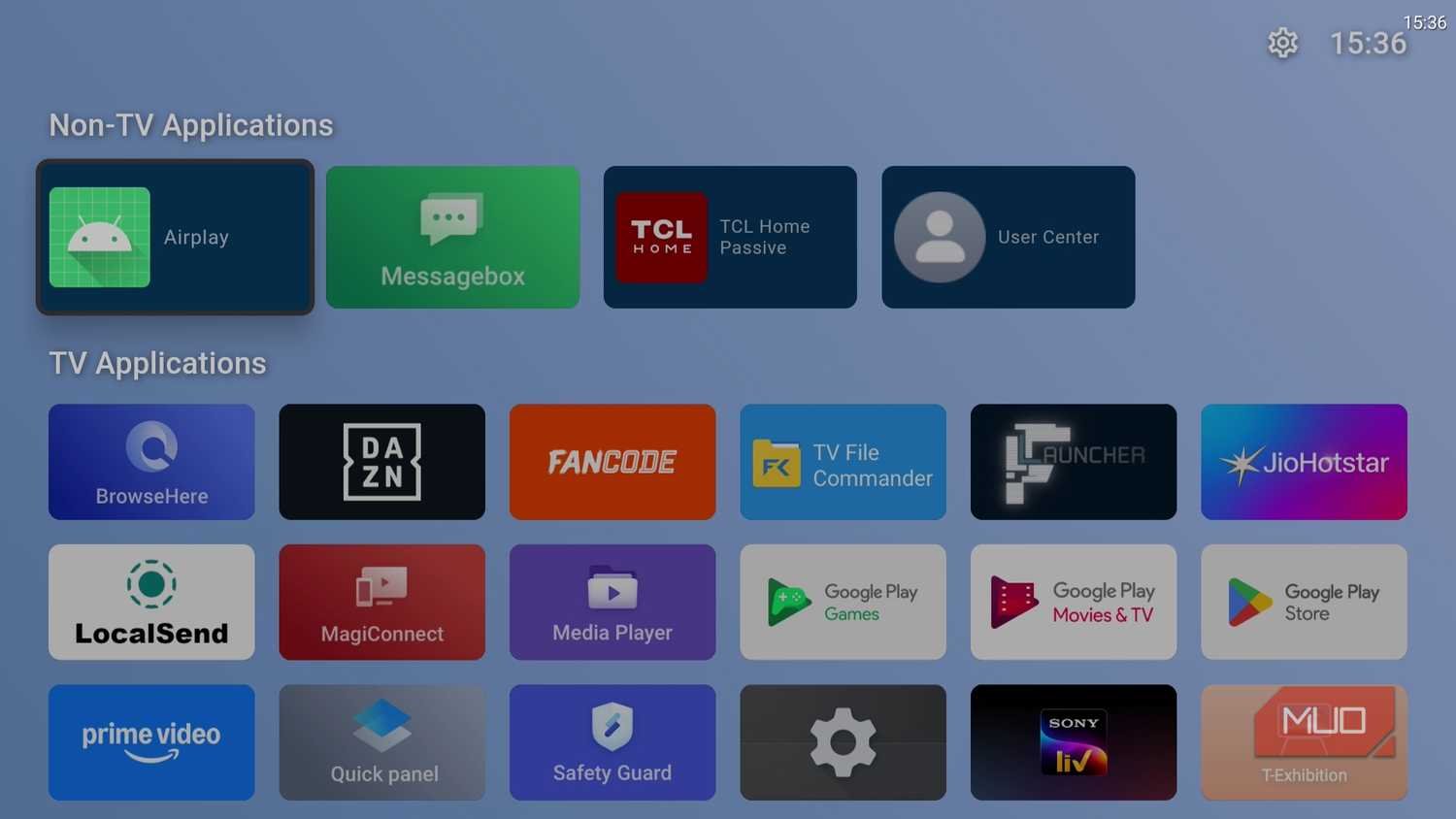
- Alternative launchers: On Android TV/Google TV devices or Android boxes, third‑party launchers let you create custom grids, folders and profiles. These can provide more control but may require learning a new layout and accepting third‑party software limitations.
- Use an external device as the primary interface: A dedicated streaming device (Apple TV, Chromecast with Google TV, Android TV box, or similar) can act as a cleaner launcher if your TV’s built‑in UI is cluttered. This is a hardware choice rather than a software hack; compatibility and behavior vary by device.
Caution: third‑party launchers, device behavior and available settings vary widely. Always verify compatibility and follow manufacturer guidance when installing alternative launchers.
Platform notes: common smart TV families
Features differ between major ecosystems. The following notes summarize typical behavior but may not match your exact model.
- Android TV / Google TV: Often supports drag‑and‑drop reordering and folder creation on supported devices. Third‑party launchers are commonly available for more customization.
- Samsung (Tizen): Many Samsung TVs offer flexible home rows and an “Edit” mode to pin or unpin apps; folder creation may be limited depending on model and software version.
- LG (webOS): webOS emphasizes curated rows and app cards; some models offer favorites and reordering, but folder features are limited.
- Roku: Roku organizes channels and recently used items, but traditional folders are not supported on many models. Use “My Channels” reordering and search shortcuts to reduce scrolling.
- Amazon Fire TV: Fire TV lets you move apps into a “Your Apps & Channels” area and pin favorites to the top; third‑party launchers are possible on some devices.
Because models and firmware differ, check your device documentation for exact steps and available features.
Decision table: which approach suits you?
| Goal | Best approach | Notes |
|---|---|---|
| Fastest access to few favorite apps | Pin/favorite or create a “Quick Access” folder | Keeps top row uncluttered; ideal for casual users |
| Large library to organize by type | Folders or categorized launchers | Use consistent naming and limit folder sizes |
| Want visual discovery and recommendations | Use curated home rows and personalized launcher | Manufacturer UIs sometimes surface suggestions; you can limit clutter by hiding what you don’t use |
| Share TV with family | Profiles, parental controls, separate folders | Keep kids apps grouped and use parental lock if needed |
| Avoid built‑in UI limitations | Use external streaming device or third‑party launcher | Requires additional hardware or software; verify compatibility |
Practical steps: a workflow to organize your home screen
- Audit and remove: Uninstall or disable apps you never use. This reduces visual noise and may free system resources.
- Mark your top 6–12 apps: Either pin these to the home row or place them in a “Quick Access” folder.
- Create 3–6 folders by content or use case: Keep folder sizes manageable (aim for fewer than 12 icons per folder where possible).
- Order folders logically: Put most used categories first (e.g., Daily, Movies, Kids, Sports, News).
- Use naming conventions and visuals: Short names, consistent emojis (if supported), and recognizable icons speed identification.
- Hide or disable manufacturer ads and unwanted content rows: Many TVs let you hide recommended content. Doing so reduces clutter — check settings under “Home” or “Recommendations”.
- Use search and voice: Teach family members to use the remote search or voice assistant when a single app is hard to locate.
- Test for a week: If a folder becomes a catch‑all, break it into smaller groups or remove low‑use apps.
- Schedule maintenance: Every 3 months, revisit and remove unused apps and reorganize as viewing habits change.
Tips for households and shared setups
- Create a shared “Family” folder and individual profiles where supported by the app. Not all apps support multiple profiles at the TV level.
- Use parental controls and a kids folder to keep age‑appropriate content front and center.
- For guests, consider a single “Guest” folder with a few streaming apps and a reusable PIN or guest mode if available.
Accessibility and remote control considerations
- Keep frequently used apps within easy reach of the directional pad or voice button — avoid burying favorites deep in subfolders for users who prefer the remote.
- On some TVs, voice search can be faster than navigation; ensure voice recognition is set up for everyone in the household.
Maintenance: keep the system tidy
- Trim apps you don’t use at least quarterly.
- Reorder based on seasonality (sports apps near the top during major seasons, for example).
- Reevaluate folder names — what made sense three months ago may not today.
FAQ
Q: Can I create folders on every smart TV?
A: No. Folder support varies by platform and model. Some Android TV/Google TV devices and manufacturer UIs support folders; others, like many Roku models, do not provide traditional folder creation. Check your TV or streaming device documentation for exact capabilities.
Q: Will using a third‑party launcher improve speed?
A: A launcher changes how apps are organized and presented but won’t necessarily speed app launch times. It can, however, reduce navigation time by surfacing favorites and offering cleaner layouts. Third‑party launchers may have trade‑offs in stability and updates.
Q: Is it better to use the TV’s built‑in UI or an external device?
A: That depends on priorities. Built‑in UIs integrate deeply with the TV and remote; external devices often offer more frequent updates, more consistent app availability and different customization options. Consider warranty, compatibility, and whether you want a single unified interface for live TV and streaming.
Q: How do I avoid seeing unwanted recommendations or ads on my TV home screen?
A: Many TVs allow you to disable personalized recommendations or hide certain content rows in the home settings. Exact options vary by manufacturer — look for settings labeled “Recommendations”, “Home screen”, or “Personalization”.
Q: Can organizing apps affect streaming quality?
A: No — home‑screen organization affects navigation and usability but not the streaming bitrate or quality, which depend on the app, source, internet connection, and device capabilities.
Example setups (use cases)
- Minimalist single‑user: Pin 8 favorites on the top row, remove unused apps, and leave search/voice for everything else.
- Family multi‑user: Create “Kids”, “Family”, and “Adults” folders; enable profiles where available and use a kids folder with parental controls.
- Power user: Use a customizable launcher or an external device to build category pages (Movies, Series, Live Sports), and keep a “Watch Now” page for in‑progress items.
When to consider external solutions
If your TV’s interface is very limited or cluttered with manufacturer content you can’t hide, an external streaming device or set‑top box can serve as the primary launcher and provide more consistent app management features. This does mean another remote and possibly an extra HDMI input, so weigh the usability gains against added complexity.
Conclusion
A tidy smart TV home screen saves time and makes finding content pleasant again. Start with a short audit, prioritize a handful of apps, use folders or pinned favorites, and maintain the setup quarterly. If your TV’s built‑in UI lacks the features you need, consider an external streaming device or a third‑party launcher with care and after verifying compatibility.
For device‑specific instructions and advanced options, check your TV or streaming device documentation. If you’d like guidance for a particular platform, see our device‑focused guides in Devices & Setup and tips on useful utilities in Apps & Tools.
Disclosure: Settings, menu names and compatibility vary by TV model, streaming device, operating system, region and firmware version. Verify exact steps with your manufacturer or device documentation.
Further reading: visit our Streaming Guides and Blog for related tips on improving home‑screen usability.

Canzar
Ready to stream? Pick your plan
Live TV, movies, sports and 10,000+ channels on any device — Firestick, Android TV, Smart TV, phone.
View Subscription Plans Compare Pricing
Moderation: Comments are reviewed before publishing. Be respectful and on-topic.
Guidelines: Share streaming tips, device help, or content recommendations. No spam, no promotions, no off-topic links.