
Last updated August 25, 2026 · Editorially reviewed by CanzarTV
Safely sideloading apps on Android TV and Fire TV: risks, protections, and a safe workflow
Many TV boxes and smart TVs running Android TV or Amazon’s Fire TV (Fire OS) let you install apps outside the official app stores — a process commonly called “sideloading.” It can be useful when an app you want isn’t available in your TV’s app store, but it introduces security, privacy, and compatibility risks.
This guide explains what sideloading is, the main risks, practical protections you can apply, and a step‑by‑step, conservative workflow to sideload safely on Android TV and Fire TV devices. The advice is intended for general informational use; settings and compatibility differ by device model, firmware, operating system version, and region — always verify with your device manufacturer’s documentation.
What is sideloading and why people do it
Sideloading means installing an app package (usually an APK) directly on a device instead of downloading it from that device’s official app store. Users sideload when:
- An app isn’t available in the TV’s regional app store.
- A developer distributes a version that hasn’t been submitted to the store yet.
- A third‑party app provides functionality not present in the store app.
Sideloading can expand your choices, but it also places more responsibility on you to manage security and compatibility.
Platforms: Android TV vs Fire TV (overview)
- Android TV is Google’s TV platform and typically uses the Google Play Store on certified devices.
- Fire TV runs Fire OS, a fork of Android maintained by Amazon, and uses the Amazon Appstore.
Both systems support sideloading, but the exact steps, settings names, and built‑in protections differ by model and firmware. Because Fire TV does not always ship with Google Play services, app behavior (including DRM or Google‑centric features) may differ. Always check the current manufacturer documentation for your specific device.
Key risks when you sideload apps
Malware and unwanted code
– APKs from untrusted sources can include malware, adware, or trackers.Excessive permissions and data access
– A sideloaded app may request or be granted permissions (storage, network, microphone) that expose private data.Security and software updates
– Apps installed outside the official store may not receive automatic security patches or updates.Compatibility and performance issues
– An app built for phones or other Android variants may behave oddly on a TV (UI scaling, remote navigation) or cause instability.DRM and streaming restrictions
– Sideloaded streaming apps may not support protected content (Widevine DRM levels) on every device.Privacy and network exposure
– An app with network access can exfiltrate data or open unwanted connections.Warranty and support
– While sideloading itself isn’t illegal, manufacturers or retailers may refuse support for problems caused by third‑party apps — check warranty terms.
Protections and best practices (high level)
- Source vetting: only download APKs from reputable developers or well‑known distribution channels. Avoid random file sharing sites.
- Scan APKs: use tools like VirusTotal to check uploads for known threats before installing.
- Use official app versions when available: prefer Play Store or Amazon Appstore packages built for TV.
- Minimal permissions: after installing, review and restrict permissions (camera, microphone, storage) to the minimum needed.
- Update policy: manually check developer sites for updates if the app won’t auto‑update.
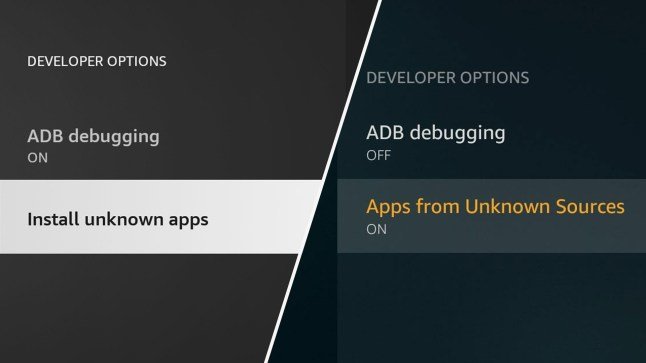
- Revoke developer options: disable ADB and “Unknown sources” after installation.
- Isolate the app: use separate user profiles or restricted accounts where the platform supports them.
- Network separation: consider running a guest network or VLAN for devices installed from non‑store sources to limit lateral network risk.
- Backup and test: try new apps on a secondary device or profile before adding them to your primary TV environment.
A conservative step‑by‑step sideloading workflow
This workflow assumes you want to minimize risk while sideloading a streaming or utility app. The exact menu names and steps may vary by device and firmware — verify in your device’s support pages.
Preparation
– Check the app: prefer APKs from the developer’s official website or a known repository. Read recent user feedback and look for an official dev signature.
– Confirm compatibility: check whether the app is designed for Android TV/Fire TV or a phone/tablet version.
– Update your device: install the latest OS and firmware updates.Turn on developer features only when needed
– Enable Developer Options and ADB debugging temporarily only if required for your chosen method. On Fire TV, you may need to allow “Apps from Unknown Sources” for the installer app.Scan the APK
– Before-side loading, upload the APK to a multi‑engine scanner like VirusTotal (or use local antivirus if available). No scan gives a full guarantee, but it helps catch known threats.Use a minimal, trusted sideloading method (choose one)
– Downloader/Browser app: apps like “Downloader” available in the store let you fetch and install APKs without connecting a PC. They are convenient and reduce ADB exposure.
– ADB install from PC: use ADB (Android Debug Bridge) over USB or network if you prefer installing from your computer. Keep ADB enabled only while installing and disable afterwards.
– File manager + USB: if your device supports USB OTG or has a file manager app, transfer the APK on a USB stick and install locally.Install and immediately review permissions
– After installation, go to Settings > Apps > [App] and review permissions. Revoke anything not necessary.Test in a restricted profile (if available)
– Create a separate user or restricted profile for sideloaded apps and test playback, UI, and behavior there first.Limit network access if necessary
– If your router supports it, place the device on a guest SSID or use network segmentation for testing.Disable developer options and unknown sources
– Once you’re done, turn off Developer Options and block installations from unknown sources where possible.Maintain the app
– Check the developer’s site for updates and repeat the scanning step before installing new APKs.Remove if suspicious
– If the app behaves oddly (unexpected network use, high CPU, popups), uninstall it immediately and factory reset the device if you suspect compromise.
Comparison: common sideloading methods
| Method | Ease | Security notes | When to use |
|---|---|---|---|
| Downloader/Browser app (TV) | High | Easier and keeps ADB off; still verify source and scan APK | Quick installs without a PC |
| ADB install (PC) | Medium | More control; avoid leaving network ADB enabled; verify ADB connections | Developers, advanced users |
| USB file transfer | Medium | Requires physical media; reduce remote attack surface | Devices with USB support |
Sandboxing and limiting sideloaded streaming apps
TV platforms use Android’s app sandboxing by default: each app runs with its own UID and cannot access other apps’ private storage without permission. But sandboxing doesn’t stop network access or limit granted permissions.
To add extra isolation:
- Use a restricted user profile: Android TV and some Fire TV devices support multiple users; create a test profile that has fewer privileges.
- Control permissions: explicitly deny microphone/camera and limit storage access where possible.
- Network controls: use router‑level rules or a local firewall appliance to limit the app’s network destinations.
Complete isolation (like running apps inside a VM) is generally not available on consumer TV devices, so focus on minimizing permissions and exposure.
Practical tips for streaming apps specifically
- Prefer official TV builds: TV-optimized APKs will provide remote navigation, proper video output, and better DRM support.
- Check DRM support: if watching paid or protected content, verify whether the app requires Widevine or other DRM features and whether your TV supports the required DRM level.
- Avoid credential sharing advice: never use or request shared subscriptions or credentials from unknown sources. This article does not endorse any method that violates service terms.
FAQs
Q: Is sideloading illegal?
A: No, sideloading itself is not illegal in most jurisdictions, but installing copyrighted content or using apps to access unauthorized streams can be illegal and violate service terms. Always use apps lawfully and follow service agreements.
Q: Can sideloading void my warranty?
A: Sideloading an app usually won’t void the hardware warranty, but manufacturers or vendors might refuse support for issues caused by third‑party software. Check your device’s warranty and support policy.
Q: How can I tell if an APK is safe?
A: There’s no perfect test; use multiple checks: source reputation, developer site verification, multi‑engine scans like VirusTotal, and user reviews. Be especially cautious if the APK is distributed via random links or file sharing.
Q: What about auto‑updates for sideloaded apps?
A: Apps from unknown sources usually won’t auto‑update through the official store. You’ll need to check the developer’s site for updates and re‑install scanned APKs when necessary.
Q: Can I sideload on any smart TV?
A: Only devices that run Android (Android TV, Fire OS) support APK installation. Smart TVs using proprietary OSes (Tizen, webOS, Roku OS) generally do not support Android APK sideloading.
When to avoid sideloading
- You need bank‑grade security or guaranteed DRM playback.
- The app requests invasive permissions unrelated to its function.
- The source is untrusted or lacks an official developer presence.
- You lack the technical ability to follow security steps (scanning, isolating, revoking permissions).
Conclusion
Sideloading opens options beyond the official app stores for Android TV and Fire TV, but it requires cautious behavior. Focus on source vetting, scanning APKs, minimizing permissions, testing in separate profiles, and disabling developer features when not in use. Use the conservative workflow above and prefer official TV‑specific builds whenever possible.
For more on device security and safe setup, see our guides in Tech & Security, device installation tips in Devices & Setup, and app recommendations in Apps & Tools. You may also find our streaming‑specific walkthroughs helpful at Streaming Guides.
Disclosure: device menus, setting names, and compatibility can differ by TV model, device, operating system version, firmware, and region. Always verify steps against your manufacturer’s current documentation.
References
- Google Android Security: https://developer.android.com/topic/security
- Android Debug Bridge (ADB) overview: https://developer.android.com/studio/command-line/adb
- Google Play Protect: https://support.google.com/accounts/answer/2812853
- Amazon Fire TV help (installing apps & sideloading basics): https://www.amazon.com/gp/help/customer/display.html
- VirusTotal: https://www.virustotal.com/

Canzar
Ready to stream? Pick your plan
Live TV, movies, sports and 10,000+ channels on any device — Firestick, Android TV, Smart TV, phone.
View Subscription Plans Compare Pricing
Moderation: Comments are reviewed before publishing. Be respectful and on-topic.
Guidelines: Share streaming tips, device help, or content recommendations. No spam, no promotions, no off-topic links.