
Last updated August 26, 2026 · Editorially reviewed by CanzarTV
How to Identify Wi‑Fi Interference From Neighbours and Appliances
If your streaming suddenly buffers, video quality drops, or online games lag, wireless interference could be the culprit. In crowded apartment blocks, shared houses and busy suburbs, radio signals from neighbours and everyday appliances compete with your Wi‑Fi. This guide explains common interference sources, symptoms to watch for, tools and step‑by‑step tests to identify problems, and practical fixes you can try today.
Quick overview
- Interference can come from neighbouring Wi‑Fi networks, Bluetooth devices, microwaves, cordless phones, baby monitors and other electronics. 2.4 GHz is most crowded; 5 GHz (and 6 GHz where available) offer more channels but have different range characteristics.
- Symptoms include slow speeds, buffering during streaming, high latency (ping), frequent disconnects and inconsistent speeds across rooms.
- Diagnosing requires both observation (when the problem happens) and measurement (a Wi‑Fi scanner or basic tests).
How Wi‑Fi interference works — the basics
Wi‑Fi works by sending radio signals over shared frequency bands. Devices and appliances that use the same bands can overlap or “collide,” causing retransmissions and slower effective speeds. Two important points:
- 2.4 GHz band: longer range and better wall penetration but far fewer non‑overlapping channels. It’s commonly used by older routers, smart home devices and many household appliances.
- 5 GHz (and 6 GHz where supported): more channels and generally less crowded, offering higher peak speeds at shorter ranges. However, signals attenuate faster through walls and obstacles.
Which band is best for you depends on building layout, device capabilities and which other signals are present. Always verify capabilities and exact channel lists with your router or device manufacturer.
Common interference sources to consider
- Neighbouring Wi‑Fi networks: In apartment blocks or densely populated areas, dozens of nearby routers can overlap channels.
- Microwaves: Many consumer microwaves emit spillover in the 2.4 GHz range while running and can briefly disrupt Wi‑Fi.
- Bluetooth devices: Headphones, speakers and keyboards use the same spectrum and can add noise.
- Cordless phones and baby monitors: Older DECT/analogue models can interfere, especially on 2.4 GHz.
- Smart home devices and Zigbee: Many smart bulbs and hubs share the band.
- Physical obstacles and electrical noise: Thick walls, metal, mirrors and faulty appliances (with poor shielding) can degrade signals.
- Electrical switches, dimmers and fluorescent/LED drivers: These can inject broadband noise into the environment.
Symptoms that point to interference (versus ISP or device issues)
- Buffering and drops that occur at predictable times (e.g., when a neighbour boils a kettle or when a microwave runs).
- Problems that affect wireless devices but not wired ones: if a wired Ethernet connection to the same router is stable, interference is more likely than ISP outages.
- Performance that varies by room: one part of your home is fine while another has continual problems, especially near appliances.
- Multiple devices affected at once: if different devices on Wi‑Fi simultaneously show slowdown, it’s likely a network-level (air interface) issue, not a single device fault.
Tools you’ll need (apps and simple equipment)
- A Wi‑Fi scanner app for your phone or laptop. Popular options include NetSpot, inSSIDer and various mobile Wi‑Fi analyzer apps (availability varies by platform and region).
- A laptop or phone with a working Wi‑Fi adapter to run tests.
- (Optional) An Ethernet cable to compare wired vs wireless performance.
- A simple stopwatch or notes app for time‑based observations.
If you want deeper network capture, tools such as Wireshark can inspect packets; these require more technical knowledge and are usually not necessary for home troubleshooting. For app suggestions and links, see our Apps & Tools hub.
Step‑by‑step diagnostic plan
Follow these steps in order to narrow down whether interference is the cause and identify the likely source.
1) Establish a baseline
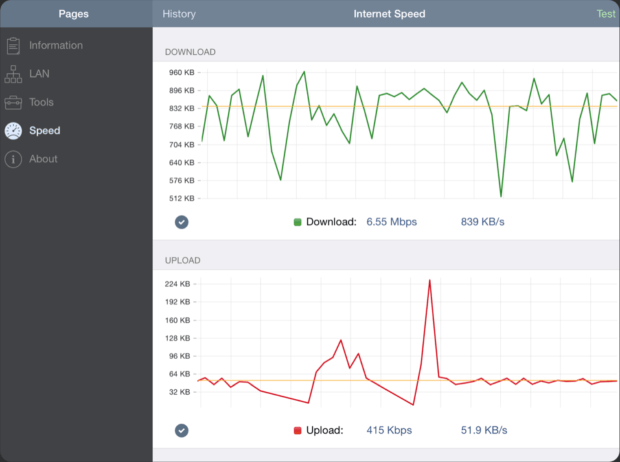
- Connect one device to your router via Ethernet and run a speed test (e.g., Speedtest.net). Note download, upload and ping.
- Repeat the test on the same device using Wi‑Fi from the same spot. Large differences point to wireless problems.
If the wired connection is also poor, contact your ISP — interference won’t fix an upstream bandwidth issue.
2) Identify timing and conditions
- Note when problems occur: time of day, when certain appliances are on, or when neighbours are active.
- If buffering happens during early evenings, neighbour Wi‑Fi congestion could be the cause. If it coincides with using the microwave or kettle, domestic appliances are suspect.
3) Scan the radio environment
- Use a Wi‑Fi analyzer to view SSIDs, their channels and signal strength. Look for many networks sharing the same channel on 2.4 GHz.
- On 2.4 GHz, aim to use a non‑overlapping channel (typically 1, 6 or 11 in many regions), but note that other regulatory areas and router settings may differ.
4) Perform simple isolation tests
- Move closer to the router and test streaming — if the problem improves, signal strength or obstacles are likely.
- Temporarily turn off or unplug suspect appliances (microwave, cordless phone, baby monitor) and see whether Wi‑Fi improves. Ask household members before powering devices down.
- If possible, ask a neighbour (politely) to switch off their Wi‑Fi briefly to test whether interference drops. Do not attempt any invasive monitoring or unauthorized access.
5) Change band/channel and retest
- Switch problematic devices to 5 GHz if they support it and re‑test streaming; 5 GHz often avoids crowded 2.4 GHz channels.
- Use your router’s admin interface to change the channel for 2.4 GHz to one with less overlap, and consider reducing channel width to 20 MHz to reduce interference susceptibility.
Always verify changes in your router’s documentation: menus and options vary by model and firmware.
6) Check for hardware faults and firmware updates
- Update router firmware and device drivers where available; some stability issues are resolved in updates.
- If signal is inconsistent in one area, try a different router position or replace a failing access point.
7) Use wired or alternate backhaul for critical devices
- For streaming devices and TVs, an Ethernet cable eliminates wireless variables. If wiring isn’t practical, consider Powerline adapters or a wired backhaul for mesh systems — results vary by building wiring and should be tested before purchase. See our Devices & Setup resources for guidance.
Practical tweaks and long‑term fixes
- Reposition your router: place it higher and centrally, away from metal cabinets and large appliances.
- Choose the right band per device: 5 GHz for bandwidth‑hungry devices close to the router, 2.4 GHz for long‑range devices.
- Reduce SSID overlap: use fewer overlapping channels on 2.4 GHz; on 5 GHz, pick a less populated channel if available.
- Lower channel width on 2.4 GHz to 20 MHz to reduce cross‑channel interference; on 5 GHz you can use wider widths but check for neighbouring traffic.
- Enable Quality of Service (QoS) on your router to prioritize video streaming traffic where supported (settings vary by model).
- Upgrade to a dual‑band or tri‑band router if many devices compete on a single radio, or add a mesh Wi‑Fi system with wired backhaul to spread clients across multiple radios.
If you want step‑by‑step streaming optimization beyond interference fixes, our Streaming Guides include tips for device settings and best practices.
When a neighbour is the likely source — polite steps
- Document the issue: note times and repeatable patterns.
- Try technical mitigations first (channel change, move to 5 GHz).
- If problems persist and you suspect a neighbour’s faulty device, raise the issue politely and share your timings — the neighbour may be unaware.
- In multi‑dwelling buildings, building management or an ISP can sometimes help mediate persistent radio issues.
Avoid confrontation and never attempt to interfere with another person’s network — tampering or unauthorized access is illegal.
Comparison at a glance: 2.4 GHz vs 5 GHz vs Wired
| Characteristic | 2.4 GHz | 5 GHz | Wired (Ethernet) |
|---|---|---|---|
| Range | Longer, better through walls | Shorter, less wall penetration | N/A (physically dependent on cable) |
| Typical congestion | High (many devices) | Lower (more channels) | None (no radio interference) |
| Best for | IoT, long‑range devices | High‑bandwidth close‑range streaming | Fixed high-reliability streaming and gaming |
Use this as a general guide only — exact behaviour depends on router model, antenna design and local environment. Check manufacturer documentation for specific device capabilities.
FAQ
Q: How can I tell if my microwave is causing Wi‑Fi problems?
A: Microwaves can emit noise in the 2.4 GHz band while operating. If streaming dips every time the microwave runs, or problems are most noticeable in the kitchen area, try turning the microwave off briefly and retest. If the pattern matches, consider using 5 GHz for nearby devices or relocating the router.
Q: Can a neighbour’s Wi‑Fi really slow my streaming?
A: Yes — in dense environments many routers on the same channels cause contention and retransmissions. Use a Wi‑Fi analyzer to identify crowded channels and move your network to a quieter one or to 5 GHz.
Q: Will a VPN help reduce interference?
A: No. A VPN encrypts and routes traffic but does not change the radio environment. Interference is a physical‑layer issue and must be addressed with radio, placement or wiring solutions.
Q: Should I change my SSID or password if I have interference?
A: Changing SSID/password won’t reduce interference, but securing your network is important to prevent unauthorized access which can consume bandwidth. Use WPA2/WPA3 security where supported. For interference specifically, focus on channels, bands and placement.
Q: When should I call my ISP?
A: If wired tests show poor speeds or your ISP’s equipment appears offline, contact them. If the wired connection is stable but Wi‑Fi is unreliable, you can try the diagnostic steps above before calling. If router hardware supplied by the ISP is old or flaky, the ISP may offer an upgrade.
When to consider professional help or equipment upgrades
- Persistent issues after tests and basic fixes may mean your location needs better coverage: consider a higher‑grade router, mesh system or professional site survey.
- For apartment buildings with many networks, a multi‑radio or tri‑band router with band steering or managed APs can help.
- If you rely on streaming for work or live events, a wired connection or redundant internet link can provide reliability that radios can’t guarantee.
Conclusion
Interference from neighbours and household appliances is a common and often solvable cause of streaming problems. A methodical approach — baseline wired tests, radio scans, timing observations and simple isolation tests — will usually reveal whether the issue is interference and point to practical mitigations. Start with low‑cost adjustments like changing channels and repositioning your router, then escalate to wired connections, upgraded hardware or professional help if needed.
Disclosure: Settings, regulatory channel availability and compatibility differ by TV, device, operating system, region and firmware version. Always check your router and device manufacturer documentation for model‑specific instructions and local regulatory constraints.
For related help on router setup and device recommendations, see our Devices & Setup, troubleshooting tips in Streaming Guides, and recommended utilities in Apps & Tools.

Canzar
Ready to stream? Pick your plan
Live TV, movies, sports and 10,000+ channels on any device — Firestick, Android TV, Smart TV, phone.
View Subscription Plans Compare Pricing
Moderation: Comments are reviewed before publishing. Be respectful and on-topic.
Guidelines: Share streaming tips, device help, or content recommendations. No spam, no promotions, no off-topic links.