
Last updated August 27, 2026 · Editorially reviewed by CanzarTV
Use Split Tunneling in VPNs to Prioritise Streaming Traffic
Streaming over a VPN can protect privacy and unlock content, but it can also add latency or reduce throughput when every packet is routed through a distant VPN server. Split tunneling gives you a middle ground: send only selected apps or destinations through the VPN while other traffic flows directly over your regular connection. That lets you prioritise streaming performance without completely abandoning the privacy or location benefits of a VPN.
This guide explains what split tunneling is, the trade-offs involved, practical setup approaches across platforms, troubleshooting and testing advice, and a FAQ addressing common concerns.
What is split tunneling and why it helps streaming
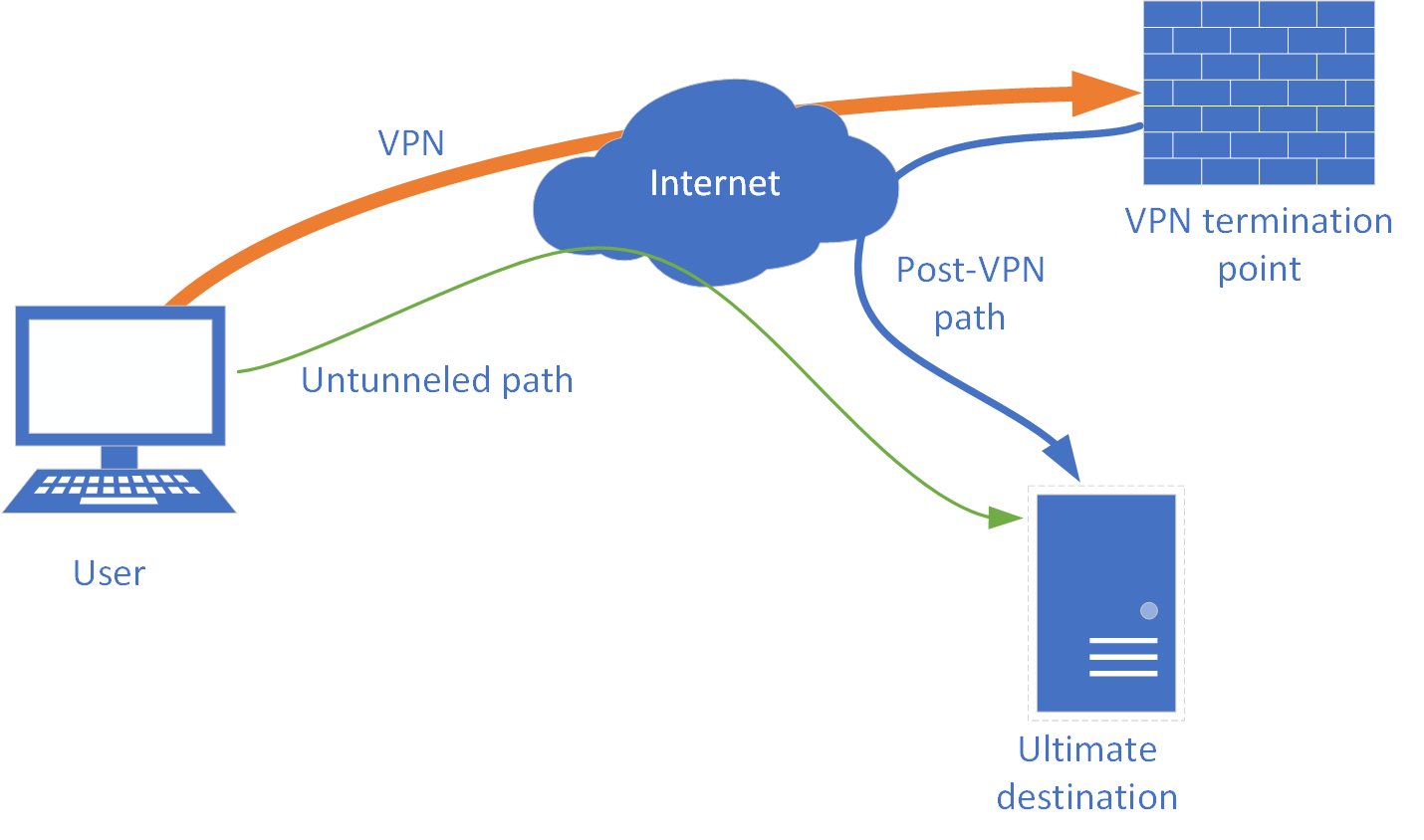
Split tunneling is a VPN configuration that divides traffic into two paths:
- Traffic sent over the encrypted VPN tunnel to the VPN server.
- Traffic sent directly to the internet via your regular ISP route.
There are two common patterns:
- App-based split tunneling: you choose which applications use the VPN and which bypass it.
- Network/route-based split tunneling: you specify IP addresses, subnets or domains that should (or should not) go through the VPN.
Benefits for streaming:
- Reduced latency and higher throughput for streaming apps that are excluded from the VPN.
- Lower load on the VPN connection so concurrently tunneled activities (like downloads or remote work) don’t steal all bandwidth.
- Flexibility to tunnel only sensitive apps (e.g., a browser or remote desktop) while keeping streaming local.
Trade-offs and cautions:
- Traffic that bypasses the VPN is visible to your ISP and local network — less privacy for those streams.
- Some methods (especially DNS or IP-based rules) can be complex to maintain because streaming services use dynamic IPs and CDNs.
- Streaming services may treat VPN and non-VPN connections differently; split tunneling won’t override a platform’s terms of use.
Split tunneling methods: overview and when to use them
| Method | How it works | Pros | Cons | Best for |
|---|---|---|---|---|
| App-based split tunneling | VPN client routes specific apps through (or around) VPN | Simple per-device setup, easy to target streaming apps | Requires VPN app support; doesn’t cover devices without apps (some smart TVs) | Laptops, phones, tablets |
| Route/IP-based split tunneling | VPN routes or excludes specific IP ranges or domains | Powerful control over destinations; works for apps that don’t support per-app rules | Requires knowing IPs/subnets; CDNs cause frequent changes | Routers, advanced users, device-wide control |
| Device-based (router policy routing) | Router decides which devices or traffic go via VPN | Covers smart TVs and devices without VPN apps | Router firmware must support it; setup can be technical | Whole-home setups, streaming on TV |
| DNS-based | Some DNS queries use VPN DNS or public DNS to influence routing | Can be simple for domain-level control | Less precise, DNS can be cached or spoofed; not a full traffic control | Basic domain exclusion, experimental setups |
Practical steps: planning before you change settings
- Define your goal: Do you want to prioritise streaming speed for a smart TV, keep a browser or downloads on VPN, or route only specific streaming services outside the tunnel?
- Inventory devices: Which devices need split tunneling? PCs and phones often run VPN apps; many smart TVs don’t.
- Check your VPN provider’s features: Not all VPN apps support split tunneling and the exact options vary by platform. Consult the provider’s documentation before you start.
- Consider privacy: Decide which traffic must stay private. Keep essentials (banking, remote work) in the tunnel; consider excluding streaming if you prioritise performance.
- Backup settings: If you change router firmware or advanced settings, save a configuration backup so you can revert.
How to set up split tunneling (general steps)
Because VPN apps and router interfaces vary, these are general steps you can adapt to your provider and device.
App-based split tunneling (Windows, macOS, Android where supported)
- Open your VPN client and sign in.
- Find “Settings”, “Preferences” or “Options” and look for “Split Tunneling”, “App Split Tunneling”, or similar.
- Choose the mode: either “Select apps to bypass VPN” or “Select apps to use VPN” (some clients use allowlist vs denylist behavior).
- Add the streaming app(s) you want to prioritise (for example, your desktop streaming app or web browser) to the exclude list if you want them to go direct.
- Save/apply and reconnect the VPN to activate the rule.
- Test streaming performance and verify IP route if needed (see testing section below).
Note: The UI and labels differ by provider. If your VPN app lacks a GUI option, check the provider’s support site for command-line or configuration file instructions.
Route-based split tunneling (advanced; useful for smart TVs or when you control the router)
- On the device that runs the VPN client (often a router or a dedicated gateway), open the VPN client or firmware page (OpenWrt, DD-WRT, Tomato or commercial router UI).
- Look for policy-based routing, route exclusions, or split tunneling options.
- Add rules that exclude the IP ranges or domains used by the streaming services or the specific device’s IP/MAC address.
- Save and restart routing services if required.
- Test on the target device (e.g., smart TV) to confirm streaming traffic uses the expected path.
Caveat: Many streaming platforms use distributed CDNs with changing IPs. Route-based rules can require periodic updates.
Router-level / device-level approach (for a whole home)
- If your router supports it, configure the VPN client directly on the router.
- Use policy routing to route only chosen internal IP addresses (for example, your NAS or a remote-work PC) through the VPN while the rest of the network connects directly.
- Assign static IP addresses on the LAN to avoid rule mismatches.
If your ISP or router doesn’t support advanced policies, a dual-router setup—one router with VPN and another for direct traffic—can achieve device-level separation.
Testing and validating your setup
A proper test confirms that the traffic you intended to exclude is not being tunneled and that your streaming performance improved.
- Check IP routing: With split tunneling active, visit an IP-check site from the device or app you expect to bypass the VPN. If it shows your ISP-assigned IP (not the VPN server IP), streaming is bypassing the VPN.
- Run a traceroute to the streaming service domain to see the network path. Traceroute output differs by OS and may be restricted by the service.
- Speed tests: Run speed tests for both tunneled and untunneled configurations. Compare real-world streaming — does video buffering reduce and quality increase?
- Monitor for DNS leaks: Use an online DNS leak test to confirm that DNS queries for the excluded traffic are resolving via the expected DNS server.
- Watch for intermittent routing: CDN infrastructure can shift, so re-test occasionally.
Security and privacy considerations
- DNS leaks: Excluded traffic may use ISP DNS. If privacy matters, configure DNS carefully or keep DNS-sensitive apps inside the tunnel.
- Kill switch: If your VPN provides a kill switch, understand how it interacts with split tunneling. Some kill switches block all traffic if the VPN fails; others only block tunneled apps.
- Mixed exposure: Excluding apps or devices exposes them to the local network and ISP. Avoid excluding apps that handle credentials or sensitive data.
- Platform limitations: iOS often has more restrictions on per-app split tunneling unless a device management profile or enterprise VPN is used.
Troubleshooting common problems
- Streaming still buffers: Verify which path the streaming traffic uses; CDN routing might be the bottleneck. Try excluding the browser vs the streaming app to test differences.
- Streaming service blocks playback: Some services block VPN connections or flag mixed routing. If playback fails after split tunneling, revert rules and test one change at a time.
- Rules not applying after a reboot: Ensure persistent static IPs for devices used in router-level policies and check that the VPN client starts on boot.
- DNS mismatches: If domain-based exclusions don’t work, try IP-based rules or configure DNS for the excluded devices.
Quick decision guide
- You want simple per-app control on a laptop or phone: Use app-based split tunneling in the VPN client.
- You need to prioritise a smart TV: Use router-level policy routing or a device-specific gateway.
- You’re comfortable with networking and need precise control: Use route/IP-based split tunneling.
- You need maximum privacy for everything: Avoid split tunneling and keep traffic tunnelled, accepting the potential performance trade-off.
FAQs
Q: Will split tunneling reduce streaming lag?
A: It can. By bypassing the VPN for streaming traffic, you remove the extra hop to the VPN server, which can lower latency and increase throughput. Results depend on your ISP, the VPN server’s location and load, and the streaming service’s CDN distribution.
Q: Is split tunneling safe?
A: It’s safe when used intentionally and with awareness of the trade-offs. Traffic excluded from the VPN is visible to your ISP and local network, so don’t exclude apps that handle sensitive data. Use strong passwords, HTTPS, and keep devices updated.
Q: Will streaming services block me if I use split tunneling?
A: Services may detect VPN use on some routes and block or limit access. Split tunneling can reduce the chance of detection for excluded traffic but won’t guarantee access if the service detects other tunneled connections from the same account. Always follow the streaming service’s terms of use.
Q: Can I use split tunneling on a smart TV?
A: Many smart TVs don’t run VPN clients, so split tunneling usually requires a router-level policy or a gateway device. Alternatively, some users run a VPN on a compatible router or a device connected to the TV (like an Android TV box) and apply split tunneling there.
Q: How often do I need to update route-based rules?
A: It depends. Streaming services use CDNs with frequently changing IPs. If you rely on IP lists, expect occasional updates or consider device-based rules instead.
Conclusion
Split tunneling is a practical tool for viewers who want better streaming performance without giving up all VPN benefits. App-based split tunneling is the easiest option for laptops and phones, while router or route-based policies are better for covering smart TVs and whole-home setups. Always weigh the privacy trade-offs: excluded traffic is visible to your ISP and local network, and DNS or IP-based exclusions can require ongoing maintenance.
If you’re unsure whether split tunneling is right for you, try it on a single device first and test streaming performance and routing. For device-specific instructions, consult your VPN provider’s documentation and the device or router manual.
For more detailed setup guides and related topics, check our Tech & Security hub and hands-on articles in Devices & Setup. If you use specific tools, our collection of utilities and how-tos in Apps & Tools may help. For ongoing tips and updates, see the Blog.
Disclosure: Settings, feature names and compatibility for split tunneling differ by VPN provider, TV or device model, operating system, firmware version and region. Always verify the current documentation from your VPN provider and device manufacturer before changing settings.

Canzar
Ready to stream? Pick your plan
Live TV, movies, sports and 10,000+ channels on any device — Firestick, Android TV, Smart TV, phone.
View Subscription Plans Compare Pricing
Moderation: Comments are reviewed before publishing. Be respectful and on-topic.
Guidelines: Share streaming tips, device help, or content recommendations. No spam, no promotions, no off-topic links.