
Last updated August 26, 2026 · Editorially reviewed by CanzarTV
Router Placement Rules That Matter for Streaming Reliability
Streaming frustration often starts with one small oversight: the router’s location. You can spend hours tweaking apps and services, but a poorly placed router will still cause buffering, pixelation, and dropouts. This guide focuses on practical, model‑agnostic router placement advice to improve streaming reliability for TVs, streaming sticks, set‑top boxes, game consoles, and mobile devices across typical homes.
Whether you’re using a smart TV in the living room, a streaming stick behind your TV, or multiple devices on the same network, applying a few straightforward rules can reduce Wi‑Fi dead zones and make streams more consistent.
Why placement matters (brief)
- Radio signals weaken with distance and obstacles. Positioning affects both signal strength and consistency.
- Interference from other electronics and structures (walls, floors, metal, pipes) changes how Wi‑Fi travels through a home.
- Many reliability problems are connectivity problems. Improving the physical signal path often yields bigger improvements than changing app settings.
This article explains placement basics, shows practical setups, offers a short comparison table, and provides step‑by‑step tips to test and improve performance.
Router placement basics for better streaming
Hitting reliable streaming begins with three fundamentals:
- Line of sight and proximity matter. The fewer walls and floors between router and streaming device, the better.
- Height helps. Elevating the router reduces obstruction from furniture and concentrates coverage across a floor rather than into the floor or ceiling.
- Avoid interference. Keep the router away from large appliances, cordless phones, baby monitors, and dense metal objects.
Keep these in mind while you use the practical checklist below.
Practical placement checklist (do these first)
- Centralize the router: Place it near the middle of the area you want to cover rather than tucked into an exterior wall or corner. This balances coverage across rooms used for streaming.
- Put the router high: On a shelf or mounted on a wall — not inside a closed cabinet or on the floor. Height reduces immediate obstructions.
- Keep it out in the open: If possible, avoid enclosed furniture or metal shelving. Cabinet doors and thick shelving damp Wi‑Fi signals.
- Distance from appliances: Keep at least 30–60 cm (about a foot or two) from microwaves, cordless phone bases, Bluetooth audio hubs, and baby monitors. These can interfere with 2.4 GHz signals, and sometimes 5 GHz channels.
- Antenna orientation: If your router has external antennas, orient them per the manufacturer’s guidance; often one vertical and one horizontal gives better multi‑device coverage.
- Avoid near windows for interior coverage: Placing a router directly beside an exterior window can waste signal outside the home and reduce in‑home performance.
Where to place a router for specific streaming setups
H2: Single‑floor apartment or house
- Best: Near the geographic center of the living area, elevated on a shelf or wall mount. This tends to reach living room TVs, bedrooms, and kitchen devices with balanced strength.
- Acceptable: Close to the primary streaming TV if that’s your main use case. Still aim for height and openness.
H2: Multi‑storey home
- Best: Place the router on the middle floor if most streaming happens on the ground or first floor. If streaming is concentrated on one floor, place it on that floor.
- For top‑down coverage: Mount the router on the ceiling of the upper floor or high on a wall near stairs; Wi‑Fi radiates down as well as horizontally.
- If coverage needs vary dramatically across floors, consider a mesh Wi‑Fi system or wired access points rather than forcing a single router to handle everything.
H2: Streaming device tucked behind a TV
- Don’t hide the router and the streaming stick in the same tight cabinet. If the streaming device is behind the TV and the router is on the opposite side of the room or in a cabinet, use a short HDMI extension or an external USB Wi‑Fi adapter (if supported) to move the receiver into clearer airspace.
H2: Shared apartments and small homes
- Place the router in a common area where occupants gather. Central hallway or living area shelves are usually better than bedrooms or closets.
Simple tests to find the best spot
- Use your phone: Most phones show Wi‑Fi signal bars. Walk while streaming video and note where buffering appears. Signal strength and real‑world streaming correlate, though apps may buffer differently.
- Speed tests: Run a quick speed test near each streaming device location. Consistently low speeds where you watch indicate placement or interference issues.
- Use a Wi‑Fi analyzer app: On Android and some desktop tools you can see channel congestion and signal strength. Use this to pick channels and avoid crowded frequencies.
- Swap and compare: Move the router to a new position for an hour and compare real‑use streaming. Short tests under real loads give the best sense of improvement.
Comparison: common placement options
| Placement option | Typical pros | Typical cons | Streaming reliability summary |
|---|---|---|---|
| Center of living area, elevated | Balanced coverage, fewer walls | May be less convenient for wiring | Good for single‑floor streaming reliability |
| Near primary TV | Strong signal to main device | Poor coverage to other rooms | Excellent for single‑TV households; less ideal for multi‑device homes |
| Inside cabinet | Clean look | Signal loss; heat buildup | Avoid if you stream often from devices in same room |
| Near window | Good outdoor range | Wastes signal outside, weak inside corners | Not recommended if indoor coverage is priority |
| High on wall/ceiling | Fewer obstructions | Harder to reach for resets | Very good vertical coverage; pair with mesh for wide homes |
Note: outcomes vary by building materials (concrete, brick, glass) and router model—verify specifics against your hardware.
When a better position isn’t enough: complementary fixes
If moving the router helps but doesn’t fully eliminate problems, try these next steps:
- Upgrade to 5 GHz or use dual‑band: Many streaming devices handle 5 GHz better for high‑bitrate streams. 5 GHz offers higher speeds with less interference but shorter range; use 2.4 GHz for long distance.
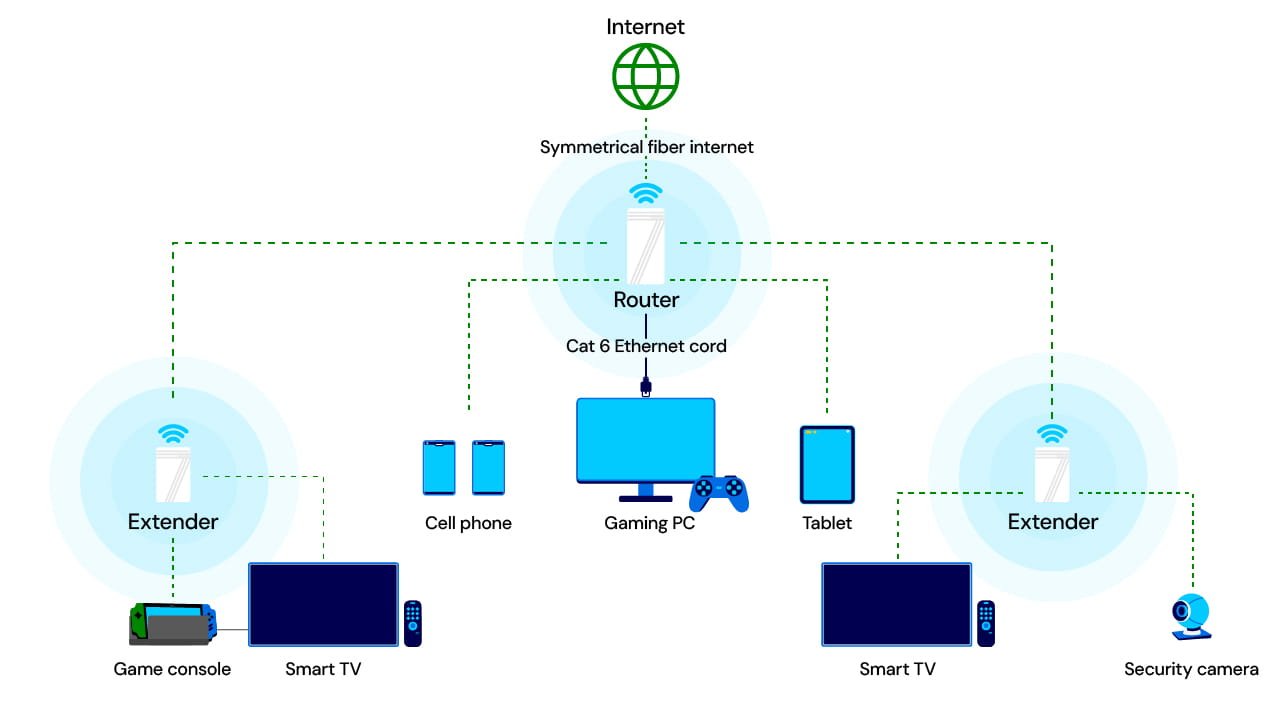
- Use wired connections where possible: A Gigabit Ethernet cable to your smart TV, game console, or streaming box is the most reliable option.
- Mesh Wi‑Fi or additional access points: For large or multi‑storey homes, a mesh system or wired access points spread coverage more evenly than a single router.
- Powerline adapters or MoCA: If running Ethernet isn’t practical, powerline or coax‑based adapters can provide a semi‑wired backbone for streaming boxes.
- Quality of Service (QoS) settings: Some routers let you prioritize streaming devices or video traffic. QoS can help under congested conditions but isn’t a substitute for poor signal strength.
Quick configuration tips for streaming reliability
- Put the router in a less congested channel (especially on 2.4 GHz). Use a Wi‑Fi analyzer to pick the clearest channel.
- Keep firmware up to date, but check release notes—settings and behaviors can change by model/region.
- Separate SSIDs for 2.4 GHz and 5 GHz only if your devices struggle to pick the best band automatically.
- Reboot the router periodically if you notice new latency or slowdowns; persistent issues may indicate hardware or ISP problems.
Step‑by‑step: a weekend checklist to improve streaming
- Identify the main streaming location(s).
- Move the router to the most central and elevated location you can manage.
- Remove it from enclosed spaces and away from major appliances.
- Test streaming on your TV and phone. Run a speed test at the TV location.
- If problems persist, try 5 GHz for the TV and check for channel congestion.
- If a single move doesn’t help, add an access point, mesh node, or run an Ethernet cable to the streaming device.
FAQ
Q: Will moving my router always fix buffering?
A: Not always. Placement often helps a lot, but buffering can also be caused by ISP congestion, streaming‑service issues, or overloaded local devices. Use placement together with other troubleshooting steps.
Q: Is it better to put the router in a closet to hide the wires?
A: No. Enclosed spaces reduce signal strength and trap heat. If you hide the router, leave vents and some open space, or choose a less restrictive location.
Q: My router has mesh capability. Should I still worry about placement?
A: Yes. Mesh nodes need good connectivity to each other and to the primary router. Place the primary node centrally and keep satellite nodes within good signal range.
Q: Does antenna orientation really matter?
A: It can. For many routers, mixing orientations (some vertical, some horizontal) helps coverage for devices used in different orientations (phones vs. laptops vs. TVs). Follow your manufacturer’s guidance if in doubt.
Q: Are wired connections always better than Wi‑Fi for streaming?
A: Generally yes—Ethernet is more stable and avoids radio interference. Where possible, use wired connections for high‑bitrate or latency‑sensitive streaming (4K, cloud gaming).
Q: How can I reduce Wi‑Fi dead zones without buying a new router?
A: Try elevated, central placement; move interfering devices; use a Wi‑Fi extender or a low‑cost mesh node; or try powerline/MoCA adapters for a near‑wired link to streaming boxes.
Conclusion
Small changes in router placement often produce outsized improvements in streaming reliability. Start by centralizing and elevating your router, keep it out of enclosed spaces, and test signal strength at the locations where you stream. If one router still can’t cover your home reliably, complement placement with wired connections, mesh nodes, or access points.
For more setup ideas and device recommendations, see our Devices & Setup hub and practical articles in Streaming Guides. You can also check background reading in our Blog for deeper troubleshooting stories.
Disclosure: Settings, features, and compatibility can differ by TV model, streaming device, operating system, region, and router firmware version. Always verify specific behavior and instructions against the current manufacturer documentation for your hardware and software.
References
- Federal Communications Commission (FCC) — Tips for improving Wi‑Fi performance: https://www.fcc.gov/what-we-do/topics/broadband
- Wi‑Fi Alliance — Best practices and general guidance: https://www.wi-fi.org/
- Ofcom — Home broadband research and advice (UK): https://www.ofcom.org.uk/
- European Commission — Digital infrastructure and broadband guidance: https://digital-strategy.ec.europa.eu/
- General troubleshooting resources: router manufacturer support pages (refer to your router’s official documentation)

Canzar
Ready to stream? Pick your plan
Live TV, movies, sports and 10,000+ channels on any device — Firestick, Android TV, Smart TV, phone.
View Subscription Plans Compare Pricing
Moderation: Comments are reviewed before publishing. Be respectful and on-topic.
Guidelines: Share streaming tips, device help, or content recommendations. No spam, no promotions, no off-topic links.