
Last updated August 26, 2026 · Editorially reviewed by CanzarTV
Understand ISP Congestion Times and Schedule Heavy Downloads
A few uninterrupted hours of downloading large files or updating multiple devices can be the difference between a smooth evening of streaming and a frustrated night of buffering. ISP congestion windows — periods when many customers use the network at once — can noticeably reduce throughput and raise latency. This guide explains how to identify your provider’s congestion times, schedule heavy downloads to avoid them, and take steps to reduce buffering and interruptions.
How ISP congestion affects streaming and downloads
ISP congestion happens when demand on the network exceeds the capacity available in certain parts of the provider’s infrastructure. The result is slower speeds, higher latency, and packet loss — symptoms that particularly affect real‑time uses like streaming live sports, video calls, and online gaming. For scheduled downloads (OS updates, game patches, large backups), congestion means longer completion times and a higher chance of interrupted transfers.
This article will help you:
- Detect likely congestion windows for your service.
- Schedule heavy downloads and updates to avoid those windows.
- Use router features and device settings to reduce the impact of congestion on streaming.
How to identify your ISP congestion times
Finding your own congestion pattern is more reliable than assuming a single “peak hour.” Congestion depends on your local network segment, the ISP’s architecture, and regional usage patterns. Use these methods to build a data‑driven picture.
1. Run speed tests at different times
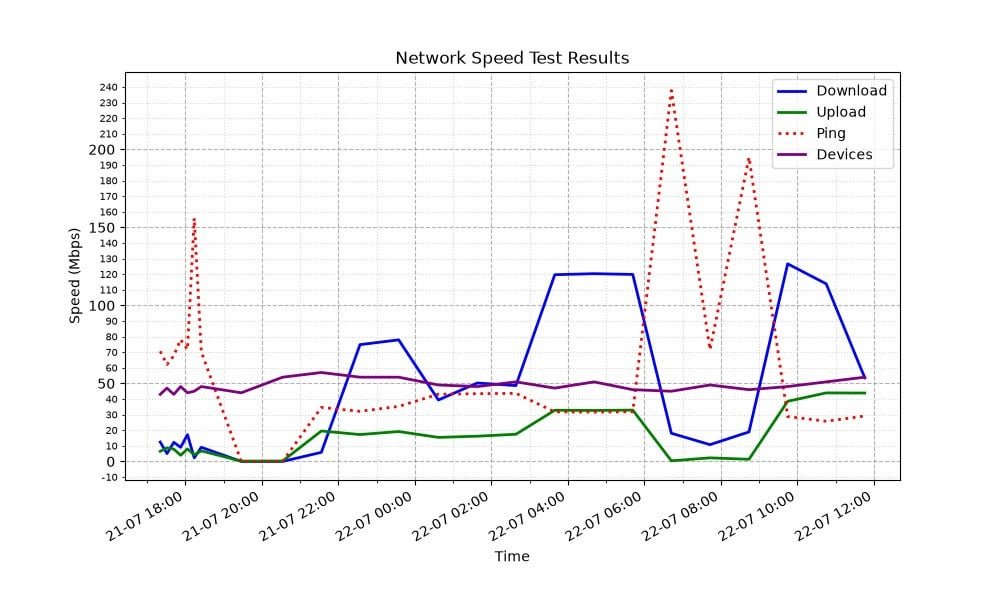
- Perform short tests (download, upload, latency) at regular intervals across several days and different times of day: early morning, mid‑day, early evening, and late night. Tools: speedtest websites or apps on phones and PCs.
- Note consistent drops in download throughput or spikes in latency. Repeated, time‑specific slowdowns often indicate congestion rather than an isolated outage.
Tip: Automate tests with a script or an app that logs results over time so you can see trends instead of single readings.
2. Check router and modem statistics
- Most routers and modems expose logs and interface statistics (packet loss, retransmits, signal levels for DOCSIS/cable or SNR for DSL/fibre ONT). Review those logs during suspected slow periods.
- Some modern routers let you run built‑in tests or export performance graphs you can review for patterns.
3. Use third‑party monitoring and historical data
- Public speed index services and ISP performance reports can give you a regional view. These won’t match your home exactly but can confirm whether a wider slow‑down is occurring.
- Mobile carrier and broadband regulators often publish performance insights for regions; these can validate broader patterns.
4. Watch for symptoms beyond speed numbers
- Increased buffering or picture quality drops on live streams, higher video bit‑rate switching, and increased rebuffering all point to network constraints.
- Latency‑sensitive apps (video calls, multiplayer games) showing poor performance at particular times also indicate possible congestion.
Practical steps to schedule heavy downloads
Once you know the typical congestion windows for your connection, schedule heavy traffic outside them. Below are step‑by‑step approaches for different platforms and levels of control.
A. Schedule on a PC or laptop
- Windows: Use Task Scheduler to run update tasks or scripts that initiate downloads at chosen times (late night or early morning). For example, you can schedule a large file transfer or a package manager update to run at 3:00 a.m.
- macOS: Use cron, launchd, or built‑in app scheduling (some apps like Steam and certain download managers have built‑in scheduling).
- Linux: Use cron jobs or systemd timers to run wget/curl/rsync tasks during off‑peak hours.
Many download clients and package managers also include built‑in scheduling (e.g., set times for peer‑to‑peer clients and torrent managers) — enable those features and verify they run when you expect.
B. Mobile devices and tablets
- Look for app settings that limit updates to Wi‑Fi and allow background downloads only during certain hours.
- Some devices let you defer automatic OS updates or install them manually when you’re on a preferred schedule.
C. Smart TVs and streaming devices
- Many smart TVs and streaming boxes have automatic update settings. Turn off automatic updates or set them to a time window when your ISP is typically quieter.
- Check specific apps (game streaming clients, set‑top boxes) for background update or download scheduling.
D. Use your router to schedule or limit traffic
- Many consumer routers support bandwidth scheduling, access schedules, or QoS time windows. You can create rules that limit large downloads to off‑peak schedules or deprioritize them during busy hours.
- If your router supports per‑device scheduling, assign heavy devices to a late‑night window so they only perform large transfers at those times.
E. Cloud services and remote downloading
- Offload heavy downloads to cloud services (for example, trigger a cloud instance or a NAS to pull data during off‑peak hours) and then copy locally when the network is quiet.
- Use “download to cloud” features some content providers or game services offer — verify they don’t violate terms of service.
F. Use a download manager or accelerator
- Many download managers allow you to queue and schedule downloads, retry automatically, and resume interrupted transfers. Schedule them for times you identified as low congestion.
Comparison: scheduling options at a glance
| Method | Ease | Granularity | Works during congestion? | Typical use case |
|---|---|---|---|---|
| Device OS scheduler (Windows/macOS/Linux) | Medium | High | No (schedules off‑peak) | System updates, large file transfers |
| Router scheduling/QoS | Medium | High (per device/time) | Can deprioritize heavy traffic during peak | Whole‑home control, automatic shaping |
| App/download manager scheduling | Easy | Medium | No (schedules off‑peak) | App updates, downloads, torrents |
| Cloud remote downloading | Hard | High | Yes (offloads to cloud) | Large media files, backups |
| Manual timing (user starts downloads) | Easy | Low | No | One‑off downloads |
Reduce buffering during known peak hours
If you can’t avoid using the network at peak times, these measures will help reduce buffering and improve experience.
- Prefer a wired Ethernet connection for streaming devices where possible — it avoids Wi‑Fi contention and interference.
- Enable QoS or traffic prioritization on your router to give streaming devices higher priority over background downloads.
- Limit background syncs and updates on phones and computers during peak times (pause cloud backups and software updates).
- Lower streaming resolution temporarily (e.g., from 4K to 1080p or 720p) when congestion peaks.
- Use less congested Wi‑Fi channels (2.4 GHz vs 5 GHz depends on interference) or mesh placements to reduce local wireless problems.
When to contact your ISP
If your logs and tests show consistent, significant slowdowns during times other customers in your area also report problems, reach out to your ISP with evidence:
- Provide timestamped speed test results showing reduced throughput and increased latency.
- Describe symptoms (buffering patterns, packet loss, outages) and list what troubleshooting you’ve already done (replaced cables, rebooted modem/router, tested wired vs Wi‑Fi).
Ask the ISP whether they can check local node load, maintenance schedules, or known congestion on your feeder. Be aware that in many regions providers manage traffic differently and capacity upgrades are planned at the neighborhood or aggregation level rather than per household.
Helpful monitoring and automation tools
- Speed test tools (apps/websites) that allow scheduled or repeated tests and export logs.
- Router firmware with scheduling and traffic monitoring (manufacturer firmware or third‑party options where supported).
- Download managers and torrent clients with built‑in scheduling and bandwidth caps.
- Automation scripts (PowerShell, cron) to trigger transfers at specific times.
Practical example: scheduling a nightly download
- Identify your off‑peak window: run speed tests for a week and find a 2–3 hour span with the fastest, most consistent speeds (often late night or early morning).
- Configure the download tool or OS scheduler to start the download at the beginning of that window.
- If you manage multiple devices, set router‑level rules to allow those devices unlimited bandwidth during that window and restrict them outside it.
- Monitor the first few runs to ensure the download completes and doesn’t interfere with other household traffic.
FAQ
Q: How long do congestion windows usually last?
A: There’s no universal length. Congestion depends on peak usage patterns in your area and the ISP’s network capacity. For many residential areas, the busiest times are in the evening after work, but patterns vary. Use local testing to determine your specific windows.
Q: Will a faster advertised plan avoid congestion?
A: A higher‑speed plan can reduce the impact of shared node limits in some cases, but if congestion is occurring at a local aggregation point or transit link, all customers using that point can be affected. Check with your ISP and use testing to confirm.
Q: Can I rely on mobile data as a backup during ISP congestion?
A: Mobile networks can be a useful fallback but may also be subject to congestion and data caps. Consider tethering a single device for emergency streaming rather than shifting all household traffic.
Q: Are VPNs a good way to avoid ISP congestion?
A: A VPN hides the destination of your traffic, but it doesn’t increase the raw capacity of your access link. In some situations a VPN may route traffic differently and avoid a congested transit link, but it also adds overhead and can reduce throughput. Use cautiously and test.
Q: Will changing ISPs fix congestion?
A: Possibly, if congestion is caused by the previous ISP’s local network. However, congestion can also occur on shared transit networks beyond the ISP’s control. Before switching, gather evidence and ask both providers about typical congestion and capacity in your area.
Disclosure
Settings, menus, and scheduling features vary by TV, streaming device, operating system, router model, region, and firmware version. Always check your device and manufacturer documentation for exact instructions and compatibility.
Conclusion
ISP congestion times are a common, manageable cause of slowed downloads and choppy streaming. The best approach is data‑driven: measure your connection over several days, identify consistent off‑peak windows, and use built‑in scheduling on devices or router‑level rules to put heavy transfers into those windows. Combined with QoS, wired connections, and sensible app settings, scheduling can keep your evenings smooth while letting large downloads run automatically when they won’t interfere.
For deeper tips on device setup and optimizing streaming performance, see our Streaming Guides and Devices & Setup. For wider context on network performance and regulation, check updates on our Blog or review subscription options that include managed support at /subscriptions/.

Canzar
Ready to stream? Pick your plan
Live TV, movies, sports and 10,000+ channels on any device — Firestick, Android TV, Smart TV, phone.
View Subscription Plans Compare Pricing
Moderation: Comments are reviewed before publishing. Be respectful and on-topic.
Guidelines: Share streaming tips, device help, or content recommendations. No spam, no promotions, no off-topic links.