
Last updated August 26, 2026 · Editorially reviewed by CanzarTV
Set Up a Wired Backhaul for Mesh Systems: A Practical Guide
A wired backhaul can turn a consumer mesh Wi‑Fi system into a higher‑reliability network that better supports 4K streaming, video calls, gaming, and dense device environments. This guide explains what a wired backhaul is, when it helps, what hardware and planning you’ll need, and step‑by‑step instructions to wire and verify a mesh network. Practical troubleshooting tips, an easy comparison table, and a short FAQ are included so you can make an informed setup and keep it stable.
Short introduction: If your mesh nodes are relying on wireless hops and you want lower latency and more consistent throughput for streaming and live TV, wiring the backhaul is often the most effective upgrade. Exact steps and menu names depend on your mesh model and firmware—always check the latest manufacturer documentation during setup.
What is a wired backhaul and why it matters
A backhaul connects mesh nodes to each other and to your main router or gateway. Most consumer mesh systems use a wireless backhaul by default: nodes forward traffic over Wi‑Fi. A wired backhaul replaces some or all of those wireless hops with Ethernet connections between nodes.
Key practical benefits:
- Improved and more consistent throughput, especially for high‑bitrate streaming and multiroom video.
- Lower latency for interactive uses such as cloud gaming and video conferencing.
- Reduced local wireless congestion because node‑to‑node traffic moves to Ethernet.
- Greater predictability in environments with many competing Wi‑Fi signals (apartments, dense neighborhoods).
Wired backhaul doesn’t magically increase each node’s wireless range — client devices still connect over Wi‑Fi — but it gives the radios more capacity for clients instead of relaying node traffic.
When to choose a wired backhaul
Consider wiring the backhaul if you have any of the following:
- Several mesh nodes and noticeable speed drops on nodes far from the primary unit.
- Multiple simultaneous 4K streams, media servers, or live TV sources in different rooms.
- High‑density device usage (smart home hubs, many phones/tablets) creating wireless contention.
- A house with existing Ethernet in walls, or the ability to run Ethernet or use powerline/adapters reliably.
If running cable is impractical, a wireless backhaul or quality powerline adapters may be acceptable. Performance varies by home layout, cable quality, and equipment—verify what works for your situation.
Required hardware and tools
You won’t need anything exotic; here’s a practical checklist:
- Mesh system that supports wired backhaul. Most modern mesh systems do, but check your model’s manual.
- Ethernet cable(s): Cat5e minimum, Cat6 recommended for best headroom and gigabit performance. Use outdoor‑rated or plenum cable where appropriate.
- A switch, if more than two wired links are needed. For gigabit performance, use a gigabit switch. If you need PoE for accessory devices, select a switch that supports PoE.
- Optional: wall plates, keystone jacks, punchdown tool, cable tester.
- Optional: high‑quality patch cables for visible runs.
If you cannot run Ethernet inside walls, alternatives include professional cable installation, structured cabling, or (less ideal) powerline or MoCA adapters. Performance for alternatives varies by building wiring—test before depending on it for critical streaming.
Plan your topology (simple rules)
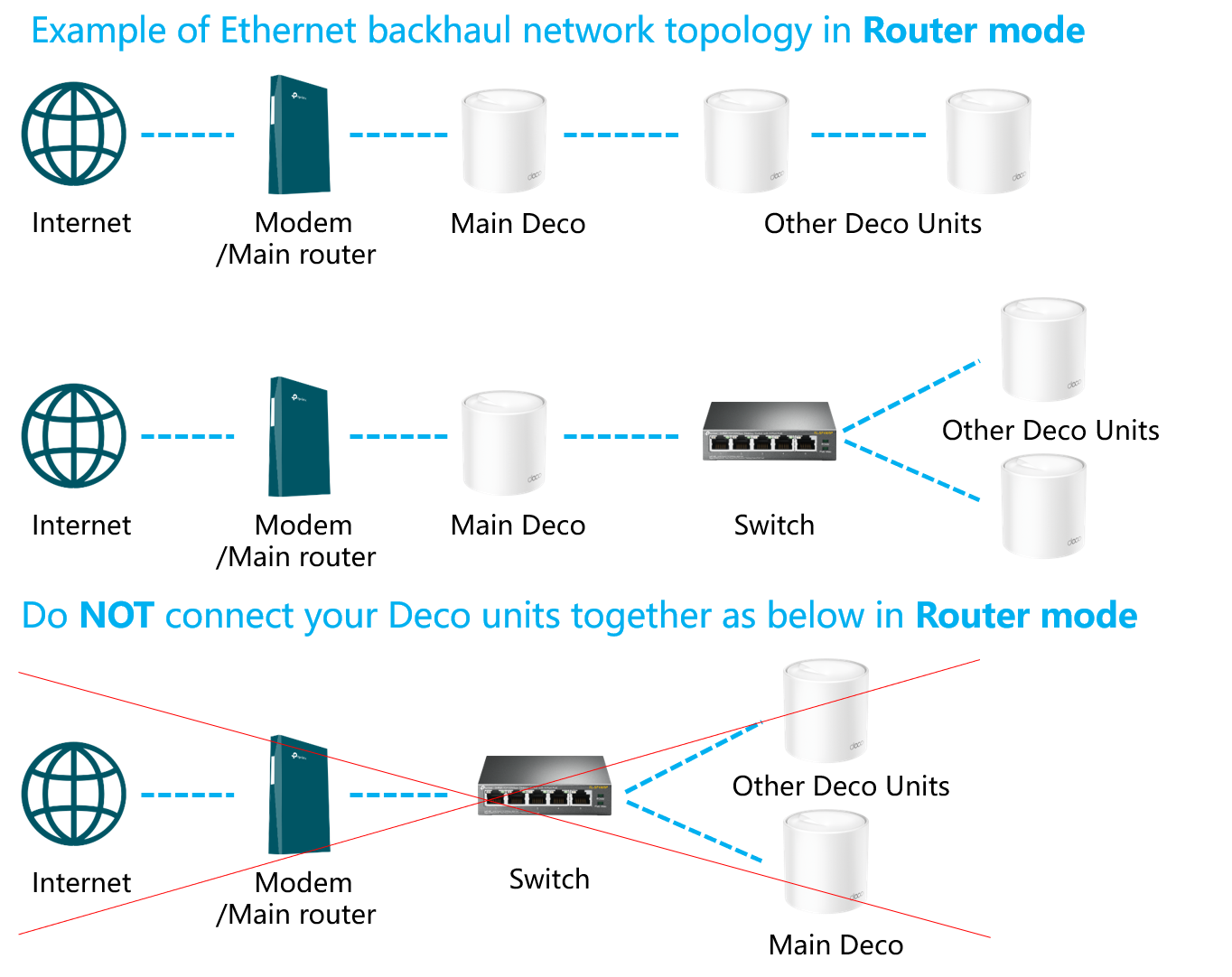
- Identify the primary node (the one connected to your ISP gateway or router). This becomes the “root.”
- Prefer star or tree topologies where nodes connect directly or via a switch to the primary node. This minimizes hops.
- If you must chain nodes, keep chains short (one or two hops) and use quality cables and switches.
- Use a single dedicated VLAN only if you know how your mesh handles tagged traffic. Many consumer mesh systems expect plain Ethernet; advanced VLAN setups can break auto‑provisioning—check vendor docs.
Sketch a floor plan and mark existing Ethernet runs, potential switch locations, and each node’s intended place for best Wi‑Fi coverage.
Step‑by‑step: Wiring a mesh backhaul
Prepare and test cables
– Use tested Ethernet cables. A cable tester or a simple laptop with an adapter can confirm link lights and gigabit speed.Power down devices if you plan to move nodes
– This reduces risk of accidental misconfiguration or DHCP issues while you rearrange connections.Connect the primary node
– Plug the primary mesh node’s WAN or designated LAN port into your ISP gateway or main router using Ethernet. Many mesh systems allow the primary node to sit behind an ISP gateway—consult your manual.Link secondary nodes via Ethernet
– Run Ethernet from the primary node or a nearby switch to each secondary node’s designated LAN/port. For many systems, any LAN port will work; some models have dedicated backhaul ports—refer to documentation.Use a switch for multiple wired nodes
– If you have more wired nodes than free ports on the primary node, connect a gigabit switch to the primary node and then run cables from the switch to the mesh nodes.Power and place nodes
– Power the nodes and place them where they provide the best Wi‑Fi coverage for clients. Because the backhaul is wired, you don’t need to worry about placing nodes to maintain wireless hops—focus on client coverage.Configure via the mesh app or web interface
– Many systems automatically detect wired backhaul. If an option exists for “use Ethernet backhaul” or similar, enable it. If the mesh app shows node status, confirm it reports the node as being connected via wired backhaul.Verify speeds and stability
– Use speed tests near each node and the main router. Compare to previous wireless‑backhaul results. Test with the types of workloads you care about (4K playback, large downloads, video calls).Finalize cable runs and labeling
– Secure cables, label jacks, and tidy up. A little organization saves troubleshooting time later.
Note: menu names and behaviors vary by manufacturer and firmware version; consult the maker’s setup guide for exact steps.
Quick comparison: Wired backhaul vs wireless backhaul
| Feature | Wired backhaul | Wireless backhaul |
|---|---|---|
| Consistent throughput | High | Moderate, variable by environment |
| Latency | Lower | Higher and more variable |
| Setup complexity | Higher (cabling) | Lower (plug‑and‑play) |
| Wireless channel congestion | Reduced | Increased (node traffic uses radio) |
| Best for | Multiple simultaneous streams, gaming | Small homes, no cabling options |
Advanced tips (VLANs, PoE, switches)
- VLANs: Some advanced setups use VLANs to segregate guest/IoT traffic. Many consumer mesh systems are not VLAN‑aware on the backhaul without specific settings—check documentation before tagging traffic.
- Link aggregation: Rarely supported for mesh backhaul; support depends on both mesh nodes and switches. Don’t assume aggregation is available—verify in specs.
- PoE: If a node supports PoE and you prefer neat installs, use a PoE switch or injectors. Confirm power requirements with the manufacturer.
When in doubt, keep the physical network simple: plain, untagged gigabit Ethernet between nodes and a standard switch.
Common issues and troubleshooting
- Node still shows wireless backhaul in app: Reboot the node and confirm the Ethernet cable is connected to the correct port and the switch port is active. Some systems prefer a restart to re‑detect physical links.
- One node has no internet after wiring: Check IP assignment and whether the primary node’s DHCP server is active or whether you’re running double NAT behind an ISP gateway. Reconnect temporarily using wireless to check settings if needed.
- Speeds not as expected: Test directly by plugging a laptop into the node’s LAN port. If local wired speeds are good, the issue is wireless client side. If wired speeds are slow, test the cable and switch.
- Intermittent drops: Swap cables, try a different switch port, and update firmware. If problems persist, test with a direct cable to the primary node to isolate the switch.
If you suspect firmware or model‑specific quirks, consult the manufacturer’s support pages.
Example wiring scenarios
- Single story home with Ethernet in each room: Use a central gigabit switch in the wiring closet. Run one cable from the switch to the primary node and individual cables to other nodes. This yields a near‑ideal star topology.
- Two‑story house with only a single run between floors: Run the primary node in the main living area and use a switch at the second floor landing to feed additional nodes there.
- No structured wiring: Consider discreet surface raceways or professional installers. As an alternative, MoCA or powerline adapters can be tested; results depend on in‑home wiring.
FAQ
Q: Will wiring the backhaul improve Wi‑Fi range?
A: Wiring the backhaul won’t extend the wireless range of each node. It improves throughput and reliability by moving node‑to‑node traffic off the air so radios can focus on client connections.
Q: Can any mesh system use a wired backhaul?
A: Most modern mesh systems support wired backhaul, but implementations and port assignments vary. Confirm in your mesh model’s documentation.
Q: Do I need a managed switch?
A: For small home setups, an unmanaged gigabit switch is usually sufficient. Managed switches are useful if you require VLANs, QoS, or advanced monitoring—but they add configuration complexity.
Q: Are powerline or MoCA adapters as good as Ethernet?
A: Performance varies widely with home wiring and adapter quality. MoCA (coax) often delivers very reliable results in homes with coax wiring. Powerline performance is more variable. Test before relying on these alternatives for critical streaming.
Q: Should I enable special settings in the mesh app for wired backhaul?
A: Many systems auto‑detect wired links. If there’s an explicit toggle or menu option, consult the user guide for your model before changing advanced options.
Conclusion
A wired backhaul can meaningfully improve a mesh network’s stability and performance for streaming, gaming, and other demanding tasks. The best results come from planning a simple topology, using quality gigabit cabling and switches, and verifying behavior through the mesh app and basic speed tests. If you’re unsure how a specific mesh model behaves or how to wire a particular home, checking the manufacturer’s support documentation and consulting a pro installer are good next steps.
For more on optimizing mesh placement and streaming performance, see our guides in Devices & Setup and Streaming Guides. If you want general news and tips, check the Blog.
Disclosure: Settings, menu names, and compatibility can differ by TV, mesh model, operating system, region, and firmware version. Always verify details with your device manufacturer’s current documentation.

Canzar
Ready to stream? Pick your plan
Live TV, movies, sports and 10,000+ channels on any device — Firestick, Android TV, Smart TV, phone.
View Subscription Plans Compare Pricing
Moderation: Comments are reviewed before publishing. Be respectful and on-topic.
Guidelines: Share streaming tips, device help, or content recommendations. No spam, no promotions, no off-topic links.