
Last updated August 27, 2026 · Editorially reviewed by CanzarTV
Checklist to Hand to an ISP Technician When Reporting Persistent Buffering
Introduction
Persistent buffering while streaming is one of the most frustrating connectivity problems. The faster you and the ISP technician can reproduce and narrow the cause, the quicker a fix is found. This guide gives a practical, technician-ready checklist: tests to run, information to collect, what to hand the technician during a support call or a home visit, and how to protect your account and devices during the process.
Why a technician-ready checklist matters
ISP technicians are trained to work methodically. They can diagnose much faster if you provide clear, time-stamped evidence and a short summary of the problem. Without that, troubleshooting can involve repeated basic steps and longer appointments. A prepared package reduces back-and-forth, limits wasted time, and improves the chance the issue is fixed on the first visit.
What to do before you call or schedule a visit
H2 Quick self-checks (10-20 minutes)
Run these basic checks before you contact support. They often solve or reveal the problem.
- Power cycle your modem and router: unplug both for 30 seconds, then plug in the modem first and wait until it is fully up, then the router.
- Test on a wired device: connect a laptop or desktop to the router with an Ethernet cable and try the same stream or a speed test. If wired performance is fine but Wi-Fi is poor, the issue may be local Wi-Fi interference or router placement.
- Run a speed test at different times: use a reliable test server from a workstation connected by Ethernet and save results. Prefer tools like Speedtest.net or Fast.com.
- Check multiple services and devices: confirm whether buffering affects only a specific streaming app or multiple services and more than one device.
- Note the time and frequency of buffering: continuous, intermittent, only at peak hours, or when certain devices are active.
H3 Tests and logs to collect
Collect simple evidence technicians can use right away. Keep timestamps and save screenshots where possible.
- Speed tests: run at least three tests over an hour, including at the moment of buffering. Save screenshots and the test server and location.
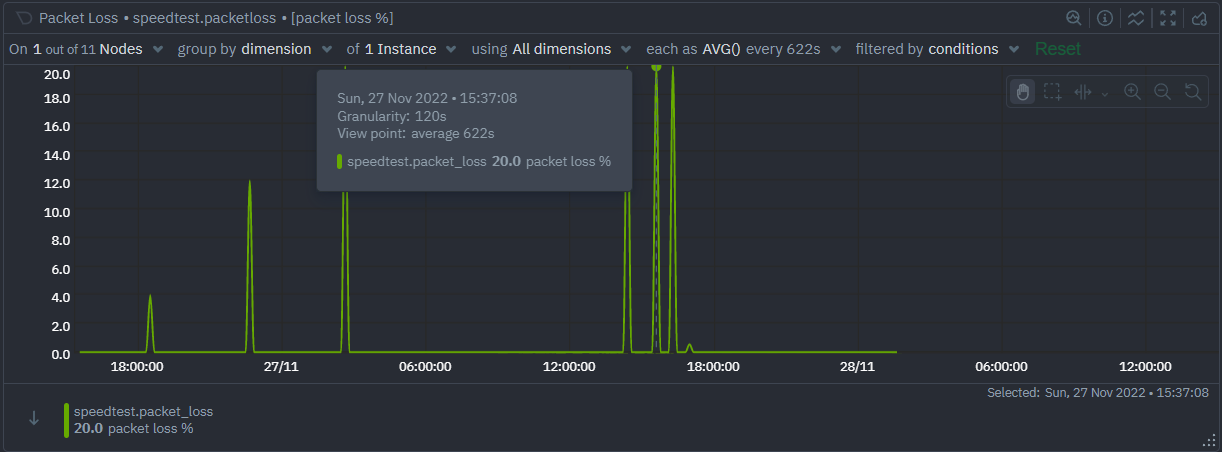
- Ping and jitter checks: run a 1-2 minute ping to a stable host (for example 8.8.8.8) to see packet loss and jitter. On Windows:
ping -n 30 8.8.8.8then review results. On macOS/Linux:ping -c 30 8.8.8.8. - Traceroute: capture a traceroute to the streaming server or a major public address. Windows:
tracert example.com; macOS/Linux:traceroute example.com. Note the time and copy the output. - App or device logs: some streaming apps and smart TVs have diagnostic pages or logs. Save error messages, codes, and the exact app version if visible.
- Router logs: access your router admin page and save system logs or event logs. Note firmware version and uptime.
- Photos of wiring and devices: take clear photos of the modem, router, coax/phone/ONT connections and any splitters, labels, and serial numbers.
A concise checklist to hand the technician
H2 Technician-ready packet (digital and physical)
Assemble a short packet that the technician can review on arrival or during a call. Put digital files in a single folder on your phone or a USB drive, and have printed copies or screenshots ready.
Essential items
- Contact summary: your name, account number, phone number, and best time to reach you.
- Short problem summary: one or two sentences describing what you see, e.g. “Intermittent buffering while streaming live sports on X app between 19:00–22:00 GMT, happening on Roku and Fire TV but not on mobile.” Keep it factual and time-stamped.
- Speed test screenshots with server, date, and time for each test.
- Ping/traceroute output files or screenshots (include command used and timestamp).
- Device list: make, model, OS/firmware version for streaming device(s), router, and modem. Include serial numbers for ISP-provided equipment.
- Photos of cable connections and any splitters, termination points, and the modem/router labels.
- App error codes or screenshots of buffering messages.
- A simple network diagram: home connection type (fiber/coax/DSL), modem, router, switches, and major wired devices.
Optional but helpful items
- A short activity log: note when buffering happened, what you were streaming, and what other devices were active.
- Speed test history from your router or a monitoring tool, if available.
- Temporary guest Wi‑Fi password or supervised access if the technician needs to connect a device to test wirelessly. Never give full account credentials; see the security note below.
H3 How to gather the items quickly
- Use your smartphone to photograph labels and screenshots.
- Copy text output from ping and traceroute into notes or a text file and timestamp it.
- If you use a router app, many provide unified diagnostics and logs you can export.
What to tell the ISP when you call
H2 A short script to keep the call effective
Start with a concise summary, then offer the packet and indicate you want a diagnostic appointment or escalation if needed.
Example script
“Hello, my name is [Name], account [X]. I have persistent buffering while streaming that started on [date]. It happens across multiple devices and I have speed tests, ping/traceroute logs, and photos of my setup ready. Can you run an account-level check and schedule a technician visit if required?”
Key points to insist on politely
- Ask the agent to note times and saved evidence.
- Request a ticket number and expected SLA for technician arrival.
- If the agent suggests an appointment, ask whether the tech can bring replacement modem/router equipment and any required cables.
What the technician will likely check and why
H2 Typical diagnostic steps from a technician
- Line and signal levels: for cable connections, technicians read modem signal levels; for fiber, they check ONT and optical power. Exact acceptable ranges vary by technology and hardware, so technicians use vendor references.
- Swap equipment: to isolate whether the ISP modem or your router is at fault, the tech may swap or bypass devices.
- Local wiring and splitters: loose or old splitters can degrade signal and cause buffering.
- Packet loss and latency: technicians can run longer tests from their diagnostic tools to see sustained packet loss or congestion inside or outside your network.
- In-home Wi‑Fi checks: signal strength, channel congestion, and interference sources. They may recommend re-positioning or a mesh system if Wi‑Fi is the bottleneck.
Privacy and account security while a technician is troubleshooting
- Do not share your account password. Use your ISP account portal to grant temporary access if available, or be present when the technician logs in.
- If you must share access for testing, set up a temporary guest Wi‑Fi network and monitor the visit.
- Ask the technician to log actions in the ticket so there is an audit trail.
Comparison: Minimal notes vs technician-ready package
| Item | Minimal notes | Technician-ready package |
|---|---|---|
| Speed test evidence | None or single test | Multiple timestamped tests with server info |
| Wired check | Not performed | Ethernet test results available |
| Ping/traceroute | Not collected | Full output saved and timestamped |
| Device info | General (“TV”) | Exact model, OS/firmware, serial numbers |
| Wiring photos | None | Photos of connections, splitters, labels |
| Router logs | Not checked | Exported logs and firmware info |
During the home visit: practical tips
- Be ready with the packet on your phone or USB drive.
- Show the technician where the entry point and splitters are; point out any recent changes to cabling or devices.
- If the technician needs to test streaming services, ask whether they will use their own device or yours, and remain present if credentials are required.
- Take notes or record the visit summary, including any part replacements, configuration changes, or next steps.
After the visit: follow-up actions
- Confirm ticket closure only after testing at times you previously had problems.
- Run the same speed and streaming tests at the same time of day you previously saw buffering to verify improvement.
- If buffering persists, escalate: ask for a specialist team or network engineering review and provide your collected evidence again.
When buffering is caused by external congestion
Not all buffering is caused by your home network. If the ISP confirms the last-mile is healthy, the issue can be transit congestion, peering problems, or CDN issues affecting a particular streaming service. In those cases:
- Provide examples of the affected service, timestamps, and traceroutes to the service hosts.
- Ask the ISP if they can escalate to network engineering or add temporary routing changes while the provider and streaming service investigate.
H2 FAQ
Q: Should I give the technician my account password so they can test streaming apps?
A: No. Never give your account password. Instead, remain present while the technician connects a test device, create a temporary guest Wi‑Fi password, or use a temporary supervised account if the streaming service supports it.
Q: My router shows a firmware update pending. Should I accept it before the visit?
A: Firmware updates can help but sometimes change behavior. You can update, but note the firmware version in your notes. If possible, ask the technician whether they prefer to apply updates themselves during the visit.
Q: What if buffering only happens at peak hours?
A: Packet loss and latency during peak times usually indicates congestion. Provide timestamped evidence and ask the ISP to check node congestion and traffic shaping policies. If the issue affects multiple households in your area, a local network problem may be to blame.
Q: How detailed should traceroute logs be?
A: Capture a traceroute that completes or shows where packets start failing. Include timestamps and repeat tests during buffering. Avoid sending traceroutes that include personal IP addresses in public posts; share them only with the ISP.
Q: My ISP-provided equipment is old. Can I ask for a replacement?
A: Yes. If the technician determines the modem or router is faulty or obsolete, request a replacement. Different ISPs have different replacement policies and fees.
Q: Can streaming services cause buffering even with good speeds?
A: Yes. Buffering can occur from server-side issues, CDN congestion, app-level bugs, or format/bitrate switching. Evidence across multiple services helps isolate whether the issue is local or remote.
H2 Conclusion
Preparing a compact, evidence-based packet for an ISP technician greatly reduces time to resolution for buffering issues. Run basic wired tests, save multiple speed tests, capture ping/traceroute output, and photograph your wiring and equipment. Present a short, factual summary and the technician will be able to focus on the right layer of the problem—last-mile, home network, or service provider chain.
For deeper help with device setup and optimizing Wi‑Fi in the home, see our guides in Devices & Setup and Streaming Guides, and for security considerations related to in‑home troubleshooting, visit Tech & Security. You can also browse practical tips and longer case studies on our Blog.
Disclosure
Settings, menus, and compatibility vary by TV, streaming device, router, operating system, region, and firmware version. Always verify specific commands and steps against manufacturer documentation or your ISP guidance.

Canzar
Ready to stream? Pick your plan
Live TV, movies, sports and 10,000+ channels on any device — Firestick, Android TV, Smart TV, phone.
View Subscription Plans Compare Pricing
Moderation: Comments are reviewed before publishing. Be respectful and on-topic.
Guidelines: Share streaming tips, device help, or content recommendations. No spam, no promotions, no off-topic links.