
Last updated August 27, 2026 · Editorially reviewed by CanzarTV
Understanding HDR Tone Mapping: Why Some Scenes Look Different Between TVs
Most modern TVs support some form of HDR (high dynamic range), but you may still notice the same HDR scene looking brighter, dimmer, or different in contrast from one TV to another. The reason is tone mapping — the way a TV translates an HDR signal (which can contain brightness and color information beyond the screen’s physical capabilities) into what the panel actually displays. This guide explains why tone mapping leads to visible differences, the technical and design choices that influence results, and practical steps you can take to get the most consistent picture across devices.
Quick overview
- What this article covers: what HDR tone mapping is, common causes of cross-TV differences, practical adjustments for better results, and an FAQ.
- Who it’s for: viewers curious why HDR content can look inconsistent between TVs and those who want to improve HDR playback quality.
What is HDR tone mapping? (tone mapping hdr explained)
HDR tone mapping is the process that converts the original brightness, contrast, and color information of an HDR source into values your TV can actually display. HDR content can include highlights that exceed a TV’s peak luminance and color volume that exceeds the panel’s gamut. Tone mapping applies algorithms and rules to squash, prioritize, or remap those values so the resulting image fits the TV’s capabilities while trying to preserve the creator’s intent.
Key ideas:
- Source metadata: HDR streams may include metadata (static or dynamic) that tells a display how the content was mastered.
- Mastering target vs. display capability: Content is often mastered on a display with much higher peak brightness than many consumer TVs. Tone mapping bridges that gap.
- Trade-offs: Tone mapping must decide what to preserve — highlight detail, midtone contrast, or overall brightness — and those choices affect the final look.
Why the same HDR scene looks different between TVs
Several factors combine to produce visible differences in HDR playback across TVs. Below are the most important ones.
1) Display peak brightness and black level
A TV’s maximum luminance (peak brightness) and its ability to produce deep blacks set the dynamic range the panel can reproduce. Two TVs with very different peak brightness or contrast ratios will handle the same HDR highlights and shadows differently. Brighter displays can preserve more specular highlight detail without clipping, while dimmer displays must compress highlights aggressively.
2) The EOTF and HDR format used
Different HDR systems use different transfer functions (how signal levels map to screen brightness). Common ones include PQ (Perceptual Quantizer) and HLG (Hybrid Log-Gamma). A TV’s interpretation of these curves and how it applies tone mapping can vary by manufacturer and model.
3) Static vs. dynamic metadata
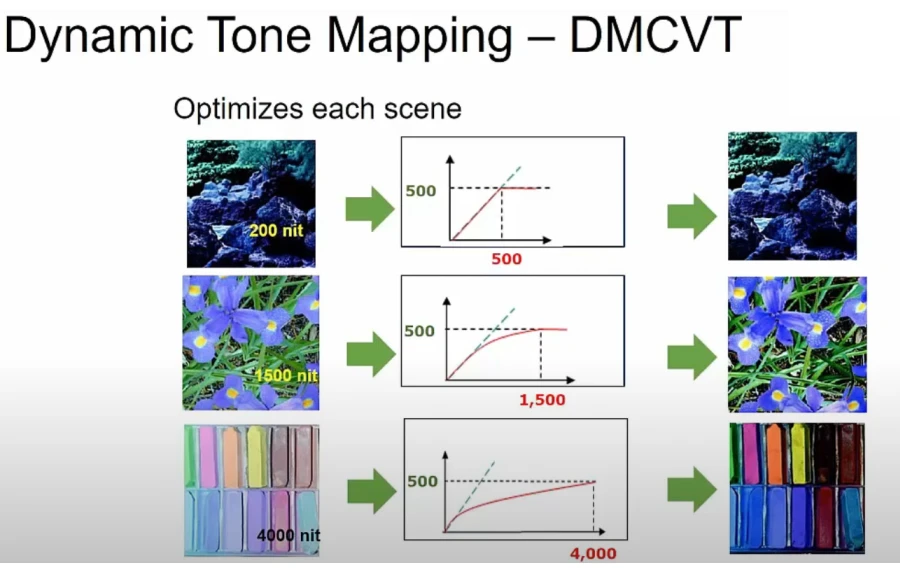
- Static metadata (used by formats like HDR10) provides a single set of mastering values for the entire title. If your TV has to map a wide range of scenes to a lower-capability display, it uses a single tone mapping strategy across the whole content.
- Dynamic metadata (used by some Dolby Vision and HDR10+ content) provides scene- or frame-level guidance. TVs that support and correctly implement the dynamic metadata can often preserve more scene-specific detail. Support and implementation quality vary by TV and source device.
4) Manufacturer tone-mapping strategies and picture processing
TV makers implement tone mapping and picture processing differently. Some prioritize bright, punchy highlights and more visible detail; others prioritize preserving shadow detail or natural skin tones. Additional image processing (local contrast enhancement, color saturation boosts, noise reduction, and edge processing) also changes appearance.
5) Local dimming and backlight architecture
The way a TV controls local backlight zones or uses an emissive panel (OLED, microLED) affects how it handles bright highlights near dark regions. Aggressive local dimming can increase perceived contrast but may also introduce halos or crush detail if not handled well.
6) Source device and HDMI settings
Set-top boxes, streaming sticks, game consoles, and media players can change how HDR metadata and color information are passed to the TV. Some devices allow you to choose output formats and chroma subsampling, and incorrect settings can alter the image before tone mapping even occurs.
7) Content mastering decisions
Creators choose a mastering display target (for example, 1,000 nits or 4,000 nits) and artistic intent. Content mastered for very bright displays will rely on tone mapping more heavily on modest consumer screens. Different titles and even different scenes within a title can be mastered to different targets.
At-a-glance comparison: causes vs. visible effects
| Cause | Typical visible effect | Viewer takeaway |
|---|---|---|
| Low peak brightness | Clipped highlights, dim overall image | May need more aggressive tone mapping or brightness boost |
| Strong local dimming | High contrast, possible halos | Adjust local dimming or backlight settings |
| Static metadata only | Inconsistent per-scene rendering | Dynamic metadata support helps when available |
| Manufacturer strategy | Color or highlight emphasis | Try different picture modes |
| Source device settings | Wrong color or reduced dynamic range | Check device HDR/output options |
Practical steps to reduce unwanted differences
You can’t make every TV match exactly, but the following steps help get more predictable HDR playback.
- Enable the TV’s HDR and ‘dynamic tone mapping’ features
- Many modern TVs include an option for dynamic tone mapping or dynamic contrast specifically for HDR. Turning this on often improves scene-by-scene handling, but performance varies. If you see odd brightness shifts, try toggling it and comparing.
- Use the TV’s accurate picture mode for HDR
- Look for picture modes named “Movie,” “Cinema,” “Filmmaker,” or a dedicated “HDR” profile. These modes typically favor accuracy over dramatic enhancement. Avoid aggressive “Vivid” or “Dynamic” modes when you want faithful HDR reproduction.
- Check your source device HDR settings
- On streaming boxes, consoles, or smart TV apps, ensure the device is set to pass full HDR and the correct color/bit depth. Some devices offer options for HDR format selection; when in doubt, use automatic or the highest-quality output supported by your TV.
- Update firmware on TV and source devices
- Manufacturers occasionally improve tone mapping through firmware updates. Keep both TV and source devices updated and check release notes if you’re troubleshooting differences.
- Calibrate basic luminance and contrast
- If you’re comfortable, use a calibration disc or app-guided procedure to set brightness, contrast, and OLED/LED-specific options. Calibration helps the TV render HDR more consistently with the mastering intent.
- Try different HDMI ports/modes
- Some TVs have HDMI ports with enhanced or game modes optimized for higher bandwidth and HDR passthrough. If colors or brightness look off, switch ports and make sure the TV’s settings for HDR input are enabled.
- Compare on the same content and source
- To evaluate differences objectively, play the same HDR file or stream from the same source (or identical settings) on each TV. Differences due to the content provider’s encoding or app behaviors can sometimes be mistaken for TV tone mapping differences.
- Consider room lighting
- Perceived brightness and contrast change with ambient lighting. A TV that looks punchier in a bright room may look harsher in a dim room. Use consistent viewing conditions when comparing tone mapping.
For additional setup and device guidance, see our general setup and troubleshooting resources in Devices & Setup and HDR-specific coverage in Streaming Guides.
When to accept differences and when to act
- Accept differences if they are minor: Slight variations in highlight roll-off, color tint, or contrast are normal and often unavoidable given hardware differences.
- Act when you see clipping or crushed detail: If highlights are uniformly blown out or shadows are crushed and you can’t recover them using the steps above, check source settings and firmware; consult your TV manufacturer documentation for model-specific tone mapping controls.
Tips for content creators and enthusiasts
If you create or master HDR video, you can reduce the risk of undesirable tone-mapping results by:
- Delivering clear metadata: Use formats that provide scene- or frame-level metadata when possible.
- Testing on multiple display targets: Preview masters on displays with different peak brightness and black levels.
- Communicating intent: Include notes in deliverables about critical scenes where preserving highlight or shadow detail is essential.
These steps help displays make more appropriate tone-mapping choices, but playback depends on the end user’s hardware and settings.
FAQ
Q: Why do some TVs make HDR content look brighter than SDR?
A: HDR content encodes a wider range of brightness and color than SDR. When a TV tone maps HDR, it may boost perceived brightness to emphasize highlights and contrast. Some TVs are tuned to deliver a brighter, more eye-catching image, while others aim for accuracy.
Q: Does dynamic metadata (Dolby Vision, HDR10+) always make things look better?
A: Dynamic metadata gives the TV more precise guidance for each scene or frame, which can preserve more detail. Whether it looks “better” depends on the TV’s implementation and your viewing preferences. Support and performance vary, so results differ across models and source devices.
Q: Will a firmware update fix tone mapping issues?
A: Sometimes. Manufacturers may refine tone-mapping algorithms via firmware updates, but not all TVs receive significant improvements. Check the TV maker’s release notes and support pages for details relevant to your model.
Q: Should I use the TV’s gaming or enhanced HDMI mode for HDR movies?
A: HDMI enhanced or game modes can enable the necessary bandwidth for HDR signals. Some game modes also reduce post-processing (input lag). For movies, use the mode that allows full HDR passthrough and the picture-processing options you prefer (often found in “Movie” or “Filmmaker” modes).
Q: Can individual apps on the TV change HDR appearance?
A: Yes. Different streaming apps may implement HDR handling differently or use different encodes. If two apps show the same title with different appearance, the app or service could be influencing the output.
Quick troubleshooting checklist
- Verify the source is actually sending HDR (many players show HDR icons).
- Use a dedicated HDR picture mode (Cinema/Movie/Filmmaker) and toggle dynamic tone mapping options.
- Update firmware on TV and source device.
- Try a different HDMI port or cable rated for the required bandwidth.
- Test the same file/stream from the same source across TVs to isolate the variable.
Conclusion
HDR tone mapping differences are an expected result of mapping content mastered for very bright or wide-gamut displays to the actual capabilities of consumer TVs. Differences stem from panel hardware (peak brightness, blacks), HDR format and metadata, manufacturer tone-mapping choices, local dimming, and source device behavior. While you can’t force all TVs to match perfectly, understanding the causes and using the practical steps above will help you get more consistent, accurate HDR playback.
For more background on HDR technology and setup tips, check our related coverage in Streaming Guides and Devices & Setup. If you’re concerned about security or firmware behavior when updating devices, our Tech & Security resources may help.
Disclosure: Settings, options, and compatibility for HDR tone mapping can differ by TV model, source device, operating system, region, and firmware version. Always verify controls and behavior with the latest manufacturer documentation for your specific hardware.
Have more questions? See the FAQ above or consult your TV maker’s support documents for model-specific tone-mapping controls.

Canzar
Ready to stream? Pick your plan
Live TV, movies, sports and 10,000+ channels on any device — Firestick, Android TV, Smart TV, phone.
View Subscription Plans Compare Pricing
Moderation: Comments are reviewed before publishing. Be respectful and on-topic.
Guidelines: Share streaming tips, device help, or content recommendations. No spam, no promotions, no off-topic links.