
Last updated August 27, 2026 · Editorially reviewed by CanzarTV
How to Configure a Soundbar for Clear Dialogue in HDR Movies
Watching HDR movies should feel more immersive, not make speech harder to understand. Many modern HDR mixes use wide dynamic range, deep low end, and object-based effects that can push dialogue off-center or under bass and reverb. This guide walks you through practical, model-agnostic steps to get clearer dialogue from your soundbar with HDR content — from connections and signal flow to modes, EQ tips, and troubleshooting.
Whether you use a compact 3.1 soundbar or a more advanced object-enabled system, the same principles apply. Settings and menu names vary by brand and firmware, so treat the steps below as a checklist and check your manufacturer documentation when something looks different.
Why HDR mixes can make dialogue less intelligible
- HDR video widens the dynamic range to preserve subtle details and louder peaks. Audio mixes made to match that dynamic contrast may place dialogue at a lower relative level or keep ambient effects very quiet, then let explosions and music jump up.
- Object-based mixes (Dolby Atmos, DTS:X) spread sounds around and over the listener. If a film routes too much midrange energy into side or height channels, the centered voice can feel distant or diffused — especially on virtualized soundbars.
- Strong low-frequency content and room acoustics can mask the midrange frequencies where human voices live (roughly 200 Hz–4 kHz). A heavy subwoofer output or boosted bass can make dialog sound muddy.
Because of manufacturer differences and varying content masters, there’s no single “best” setting for every situation. The goal is to give you reliable steps to test and tune your system for better clarity.
Before you start: firmware, manuals and expectations
- Update your soundbar and source device firmware if updates are available — manufacturers sometimes fix audio bugs in updates.
- Read the quick-start and audio sections of your soundbar and TV manuals to learn menu names (e.g., “Voice”, “ClearVoice”, “Movie”, “Night” or “Dialogue Enhancer”).
- Understand your listening goals: maximum dialogue clarity vs. immersive realism. You may sacrifice some immersion to make speech clearer — which is perfectly reasonable for many viewers.
Connection and signal-chain best practices
A correct and simple signal chain is the foundation for reliable audio behavior.
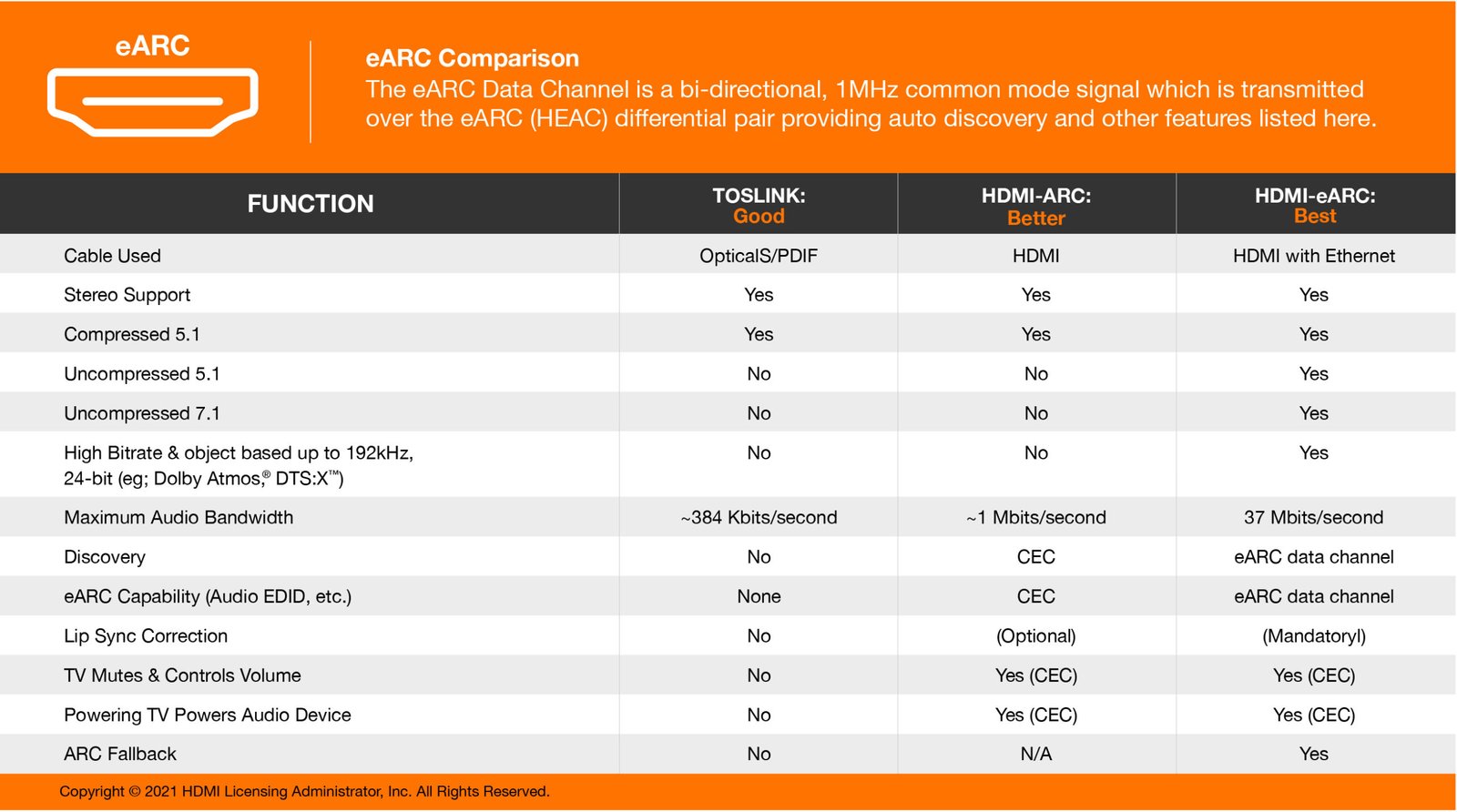
- Prefer HDMI eARC/ARC or HDMI input on the soundbar when possible. HDMI carries lossless paths and object-based audio when supported, and eARC supports higher-bandwidth formats.
- Typical chains:
- Best when available: Source device -> soundbar HDMI input -> TV (if you need TV apps). This keeps the soundbar in full control of decoding.
- Alternatively: Source -> TV -> soundbar via eARC. This is fine, but check that your TV passes through the original audio format and doesn’t downmix or apply processing.
- If your soundbar only has optical or if a device forces optical, you may be limited to compressed or downmixed formats. That can still be made clear, but options (like object-based passthrough) may be unavailable.
Always verify which audio formats your soundbar and TV support and confirm the TV’s audio output mode (often called “Passthrough”, “Bitstream”, or “Audio System”). Manufacturer documentation will have the exact menu names.
Step-by-step: tune your soundbar for clearer dialogue
Firmware & source checks
– Update firmware on soundbar, TV, and streaming/blu‑ray player.
– Choose the simplest chain that supports the audio format you want. If unsure, connect the source directly to the soundbar if it has HDMI inputs.Set the TV audio to passthrough/bitstream (if using TV as a hub)
– Disable TV internal processing like “Virtual Surround” or “TV Sound Mode” when routing to a soundbar — those can re-process and smear voices.Choose format: PCM vs Bitstream
– If your soundbar supports Dolby Atmos/DTS:X and you want the immersive mix, use bitstream passthrough.
– If you find dialogue getting lost in object-based mixes, test sending stereo PCM from the source (some discs/apps provide a “Stereo” or “2.0” option) — stereo downmixes can sometimes center dialogue more clearly.
– Recommendation: try both bitstream (native) and PCM (stereo) and choose which sounds clearer for each title.Select the soundbar audio mode
– Many soundbars offer modes labeled “Dialogue”, “Voice”, or “Speech” — start there for immediate improvements.
– If you don’t have a dedicated dialog mode, try “Movie/Cinema” with center/channel focus, or “Standard” with reduced surround virtualization.
– Avoid highly processed surround modes if they push center information away from the center virtual source.Adjust channel or dialogue level
– If your soundbar allows center-channel level adjustment (or a “Dialog Level” control), increase it gradually (+1 to +4 dB) until speech is comfortably clear without sounding unnaturally forward.Manage dynamics: Night mode and DRC
– Dynamic Range Compression (DRC) or Night Mode reduces the gap between quiet dialogue and loud effects. This helps listening at low volumes but can reduce impact.
– Try enabling DRC if movie peaks are drowning dialog at comfortable listening levels, but use it sparingly — it can change the intended mix.EQ adjustments for clarity
– If your soundbar has a parametric or graphic EQ, cautious tweaks help:- Slightly raise frequencies in the 1.5–4 kHz range for presence and intelligibility (+1 to +3 dB).
- Reduce muddiness around 200–500 Hz (−1 to −3 dB) if voices sound boomy.
- Be conservative: over-boosting high frequencies makes speech sound thin or sibilant.
Subwoofer and crossover settings
– If a subwoofer is present, set its crossover low enough to avoid pulling midrange energy from the main channels. Typical crossover ranges for small soundbars are around 80–120 Hz, but consult your manual and experiment.Use automatic room calibration carefully
– Systems with Audyssey, Dirac, or proprietary calibration help correct room issues. Run calibration and then review the center-channel level and EQ results — you may want to manually bring the center up if voices remain soft.Fix lip-sync and delay
– If dialogue is delayed relative to on-screen lips, enable lip-sync or audio delay on the TV or soundbar and adjust until synchronized.
Quick-mode comparison table
| Typical Mode Name | When to use | Pros | Cons |
|---|---|---|---|
| Dialogue / Voice | Films or shows where speech is weak | Increases vocal presence, often centers voice | Can reduce ambience, may sound artificial |
| Movie / Cinema | Most theatrical HDR films | Preserves original mix and dynamics | Some mixes keep dialogue low by design |
| Standard / Auto | General viewing and TV shows | Balanced, stable behavior | May not prioritize dialogue |
| Night / DRC | Late-night listening or low-volume | Reduces loud peaks; raises quiet sounds | Compresses dynamics, reduces punch |
| Surround / 3D / Virtual | When you want immersion with height effects | Adds spaciousness and directionality | Can smear or move center vocals on virtual setups |
Mode names and behaviors vary by manufacturer. Use names above as general guidance.
Troubleshooting common problems
- Dialogue is inconsistent between titles: Mastering varies widely. Try switching to a stereo PCM track or enabling DRC for that title.
- Dialogue is present but hollow or distant: Check center-channel level (increase slightly) and reduce excessive reverb settings or surround virtualization.
- Bass masks voices: Lower subwoofer volume or lower crossover frequency so midrange isn’t being sent to the sub.
- Lip-sync issues between voice and picture: Adjust audio delay on the TV or soundbar until lips and audio match.
- Streaming app audio sounds different than disc: Streaming services may use different encoders or loudness normalization. Test with local Blu‑ray or known samples to isolate whether the app is the cause.
Practical tips for different viewing scenarios
- Streaming HDR movies: Start with the source app set to original audio (Dolby/Dolby Atmos when available), then compare with stereo PCM if dialogue is weak. Also check the streaming app’s volume-leveling settings.
- Blu‑ray / UHD discs: These often include multiple audio tracks—try the stereo or “2.0” track if the 5.1/Atmos mix hides dialogue.
- Live sports or broadcasts: Use “Sports” or “Standard” modes that prioritize clarity and center imaging.
When to accept the mix and when to change it
Some films deliberately bury or alter dialogue for artistic reasons. If the creative intent is to obscure speech, you can still prioritize understanding by using a dialogue or stereo mode, but recognize you’re altering the director’s mix. For day-to-day viewing, many viewers prefer intelligibility over strict fidelity.
FAQ
Q: Should I always use the soundbar’s Dialogue or Voice mode for HDR movies?
A: Not always. Dialogue/Voice modes help in many mixes, but they can make sound feel unnatural or flatten spatial effects. Try Dialogue mode first for difficult titles, then switch back to Movie or Cinema mode if you want the original balance.
Q: Is HDMI eARC required for good dialogue clarity?
A: No — eARC is not strictly required for clarity, but it preserves higher-bandwidth audio formats and native decodes. If your soundbar and TV are limited to optical or standard ARC, you can still achieve clear dialogue with EQ, center-level adjustments, and the right mode.
Q: Will automatic room calibration always improve dialogue?
A: It often helps by correcting room resonances, but automatic systems can sometimes lower center-channel level or apply an overall target curve that changes perceived dialogue. Review calibration results and make small manual adjustments as needed.
Q: Can EQ fix all dialogue issues?
A: EQ helps address frequency masking and presence, but it won’t fix poor encoding, intentionally buried dialogue, or cases where the center channel is missing. Use EQ as one tool among mode selection, level balance, and signal path corrections.
Q: My soundbar uses virtualization and height effects — should I turn them off?
A: If virtualization spreads or blurs the center position and reduces clarity, try turning those features off. For many listeners, a stable center image gives the best dialogue intelligibility.
Q: How much should I boost voice frequencies on an EQ?
A: Small boosts (1–3 dB) in the 1.5–4 kHz range can improve clarity. Larger boosts risk making vocals harsh. Make changes in small steps and listen critically across different scenes.
Conclusion
Clear dialogue in HDR movies is a balance between respecting the original mix and using soundbar controls to improve intelligibility. Start with a clean signal chain (prefer HDMI/eARC or direct HDMI to the soundbar), try a Dialogue or Center-focused mode, run room calibration, then use conservative EQ and center-level tweaks. If an object-based mix makes speech less clear, compare it to a stereo or PCM downmix and choose what works best for your listening preferences.
For step-by-step device walkthroughs and deeper setup guides, see our Devices & Setup and browse related tips on the Blog and Streaming Guides.
Disclosure: Settings, menu names, and compatibility can differ by TV model, soundbar, source device, operating system, region, and firmware version. Always verify current manufacturer documentation for your equipment.

Canzar
Ready to stream? Pick your plan
Live TV, movies, sports and 10,000+ channels on any device — Firestick, Android TV, Smart TV, phone.
View Subscription Plans Compare Pricing
Moderation: Comments are reviewed before publishing. Be respectful and on-topic.
Guidelines: Share streaming tips, device help, or content recommendations. No spam, no promotions, no off-topic links.