
Last updated August 27, 2026 · Editorially reviewed by CanzarTV
Practical Guide to Using HDMI Switches and Splitters with HDR Sources
Having multiple 4K HDR devices (streaming boxes, game consoles, Blu-ray players) with a single TV or multiple TVs is increasingly common. HDMI switches and splitters can help route signals without unplugging cables — but HDR adds another layer of complexity. This guide explains the differences between switching and splitting, what to look for to preserve HDR, practical setup steps, troubleshooting tips, and when to consider a matrix or EDID/HDCP-aware device.
Quick overview: switch vs splitter vs matrix
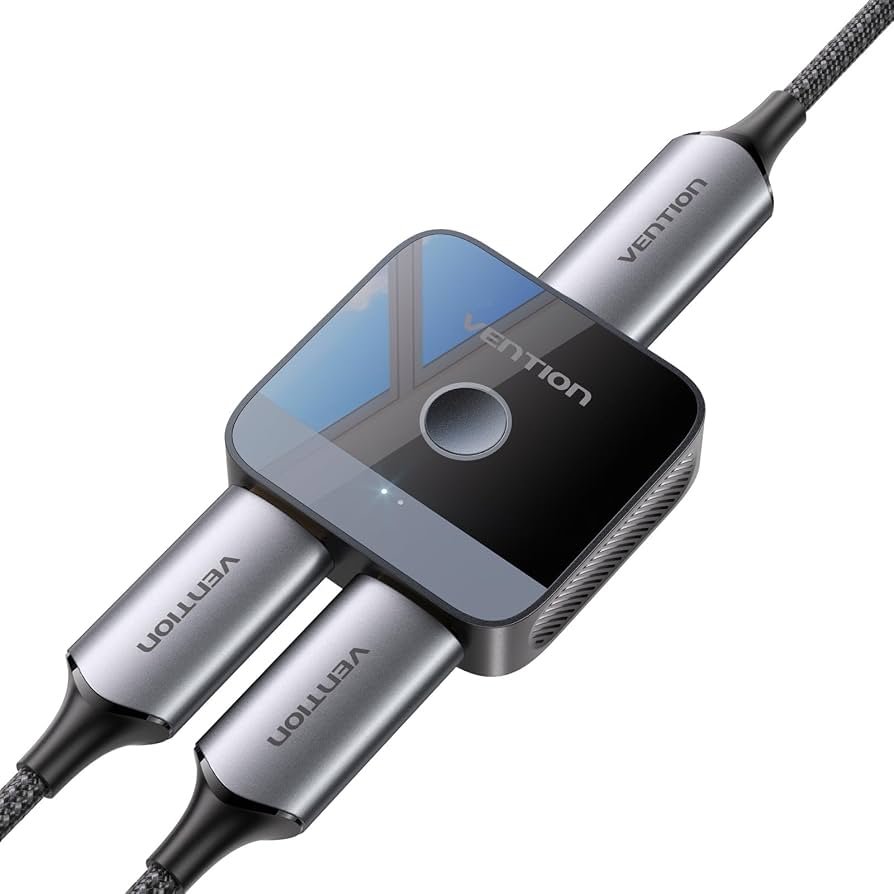
- HDMI switch: multiple inputs, single output. Useful when several sources must feed one display.
- HDMI splitter (repeater/distribution amplifier): single input, multiple outputs. Useful to send the same source to more than one display.
- HDMI matrix: multiple inputs and multiple outputs (each output can show a different input). Best for flexible routing across rooms.
All three devices must properly handle HDR metadata, HDCP, EDID and the required bandwidth. Model capabilities vary, so verify the manufacturer documentation for the unit you plan to buy.
Why HDR makes routing harder
HDR (High Dynamic Range) is a collection of formats and metadata standards (HDR10, HDR10+, Dolby Vision, HLG, etc.). When a source and display negotiate capabilities, they exchange EDID and may require particular HDCP versions. Problems usually stem from one or more of these issues:
- Bandwidth: HDR with high resolutions and frame rates needs more HDMI bandwidth. Cables and hardware must support the rate.
- EDID handling: Switchers/splitters must pass or manage EDID so the source outputs the correct HDR format.
- HDCP: Copy protection mismatches (HDCP 2.x vs older) can block video.
- HDR metadata passthrough: Some less capable units strip or alter HDR metadata, resulting in a loss of HDR or washed-out picture.
Because manufacturers implement these behaviors differently, always check current specs before purchase.
What to look for when buying
When shopping for a switch, splitter or matrix to use with HDR sources, prioritize these features:
- Explicit HDR passthrough support
– Look for language like “HDR10”, “Dolby Vision passthrough” or “HDR passthrough” in the spec sheet, but also verify what exact HDR formats are supported. - Bandwidth and HDMI version notes
– Higher bandwidth (18 Gbps or 48 Gbps) is required for 4K HDR at higher frame rates or chroma subsampling. Manufacturers will list maximum supported resolutions/Hz. - HDCP compatibility
– Ensure the device supports the HDCP version(s) used by your sources and displays. HDCP mismatches are a common cause of blank screens. - EDID management
– Devices with configurable or smart EDID are more likely to negotiate the correct HDR output to sources. - Power and active signal handling
– Active, powered units often handle handshakes more reliably than passive dongles, especially when multiple devices are connected. - CEC and audio support
– If you rely on HDMI-CEC for remote control or need multichannel audio passthrough (Dolby Atmos, DTS:X), confirm these are supported. - Firmware update path and support
– The ability to update firmware can resolve handshake and compatibility problems over time.
If a particular spec is critical (e.g., Dolby Vision passthrough or Dolby Atmos over eARC), check the current manufacturer documentation rather than relying on a brief product blurb.
Recommended setup steps for common scenarios
Below are step-by-step procedures you can follow for typical home setups. These are general guidelines; consult device manuals for specific menu locations and terminology.
Scenario A — Multiple HDR sources to one HDR TV (use an HDMI switch)
- Verify device capabilities: check switch supports HDR formats you need and adequate bandwidth.
- Use high-quality HDMI cables rated for your target resolution and frame rate; label them to avoid confusion.
- Power the switch (many require external power for reliable handshakes).
- Connect each source to a separate input on the switch. Connect the switch output to your TV’s HDMI input.
- Boot sequence: turn on the TV first, then the switch (if it has a power button), then sources, then change inputs — this can help EDID handshakes.
- If a source does not enable HDR, try:
– Cycling power (turning source and TV off/on).
– Selecting a different EDID mode on the switch (if available).
– Ensuring the source’s display settings are set to allow HDR output. - Verify audio: if you use an AVR or soundbar, consider routing audio through it (see eARC/ARC considerations below).
Scenario B — One HDR source to multiple displays (use an HDMI splitter)
- Confirm splitter supports HDR passthrough to all outputs simultaneously and matches cable length considerations.
- Use powered splitters where possible — they maintain signal strength to multiple outputs.
- Connect the source to the splitter input and the splitter outputs to each TV or display.
- Turn on all displays before the source to encourage correct handshakes.
- If one display is limiting HDR on all outputs (due to EDID or HDCP), try EDID management modes or use an EDID emulator to present the source with the desired capabilities.
Scenario C — Multiple sources to multiple TVs (use a matrix)
- Choose a matrix with sufficient inputs/outputs and explicit HDR/HDCP/EDID support.
- Use short, quality cables for long runs and a powered matrix.
- Configure EDID per output if the matrix supports it — this lets each TV declare its capabilities individually.
- Test routes individually and then concurrently to confirm stable performance.
Common features and settings explained
- EDID (Extended Display Identification Data): a data block that tells the source what the display supports. Good switchers/splitters will either pass the EDID transparently or provide editable EDID options.
- HDCP (High-bandwidth Digital Content Protection): a content protection system enforced by many streaming services and Blu-ray players. A mismatch can prevent playback entirely.
- eARC/ARC: Audio Return Channel and Enhanced ARC allow audio to travel back from TV to AVR/soundbar. Many switches/splitters do not pass eARC; if you rely on eARC, check compatibility or route audio differently.
- CEC: Consumer Electronics Control can be blocked or modified by some routing devices. If you rely on one-remote convenience, verify CEC passthrough.
Troubleshooting checklist
If HDR isn’t working after connecting through a switch or splitter, try these steps in order:
- Confirm cables meet the required spec and are seated properly.
- Power-cycle all devices in this order: displays, switch/splitter/matrix, source(s).
- Swap the cable and/or directly connect the source to the TV to isolate the problem.
- Check the source’s display settings and force the output to the expected resolution/HDR mode if possible.
- If the switch/splitter has EDID options, try selecting an EDID that matches the main display’s HDR capability.
- Verify that HDCP versions match between source, routing device, and display; try a different source or display to test.
- Check for firmware updates for the switch/splitter and apply them following the manufacturer’s instructions.
- If only one display is limiting HDR for all others (when using a splitter), disconnect that display and see whether the other displays negotiate HDR correctly.
Comparison table: which device for which need
| Use case | Device to choose | Why | Practical advice |
|---|---|---|---|
| Several consoles feeding one TV | HDMI switch | Simplest, lowest cost | Ensure HDR passthrough and sufficient bandwidth; use powered switch for reliability |
| One streaming player to two TVs | HDMI splitter | Distributes the same feed to both TVs | Use a powered splitter and check EDID handling if TVs differ in capabilities |
| Different sources to different rooms | Matrix switch | Flexible routing (independent outputs) | Look for EDID per output and HDCP compatibility; matrices are more complex and pricier |
| Long cable runs or signal loss | Active splitter or HDBaseT extender | Maintains signal integrity over distance | Choose solutions rated for required resolution/HDR and test runs before final installation |
Practical tips for cable and bandwidth
- Use cables that explicitly state support for the bandwidth you require (many manufacturers note “Premium High Speed HDMI” or “Ultra High Speed HDMI”).
- For 4K HDR at higher frame rates or deep color/chroma settings, aim for the highest-rated HDMI cable you can reasonably use.
- Avoid long passive HDMI runs without signal boosting; in-wall or long-run installs often benefit from active cables or extenders.
Audio routing and eARC/ARC considerations
Many people route HDMI through an AVR or soundbar. If you want to use the TV as a hub (for built-in apps) and send audio back to a receiver, eARC is the modern solution. However:
- Not all switches/splitters will pass eARC/ARC signals. Some will break audio return functionality when inserted between TV and AVR.
- Consider routing sources directly to the AVR and connecting the AVR to the TV for display, or choose a matrix that explicitly supports eARC passthrough.
- If you need surround formats (Dolby Atmos, DTS:X), confirm whether the routing device and TV/AVR combination support bitstream or passthrough of those formats.
When to consider an EDID emulator or professional help
If you have a complex system with mixed displays (some HDR-capable, some not) or persistent handshake issues, an EDID emulator (device that presents a fixed EDID to a source) can force the source to output a desired format. This is a more advanced solution; consider it if simple configuration and firmware updates haven’t fixed the issue.
For whole-home distribution or commercial installs, a qualified AV installer can recommend cabling, matrix sizes, and products that meet performance expectations.
FAQ
Q: Will any HDMI switch/splitter work with HDR?
A: No. Some cheaper or older devices may not pass HDR metadata, have insufficient bandwidth, or mishandle HDCP and EDID. Look for explicit HDR and bandwidth support and verify with the manufacturer documentation.
Q: My splitter prevents my TV from showing HDR — what gives?
A: Often an EDID or HDCP handshake issue. Try a powered splitter, change EDID mode if available, power-cycle devices, or test with a direct connection to isolate the cause.
Q: Do I need HDMI 2.1 for HDR?
A: Not necessarily. HDR itself is supported by earlier HDMI versions — but advanced HDR at higher frame rates, wider color, or features like VRR and certain metadata transport benefit from higher HDMI bandwidth. Check what resolution/fps/feature set you actually need.
Q: Will a switch/splitter affect HDR picture quality?
A: If the device passes HDR metadata and provides sufficient bandwidth, picture quality should be preserved. If the device strips metadata or limits bandwidth, you may see loss of HDR, color depth, or resolution.
Q: Should I use powered or unpowered devices?
A: Powered (active) devices are generally more reliable for HDR and multi-output setups because they maintain stronger signal levels and are better at handling EDID/HDCP handshakes.
Conclusion
HDMI switches, splitters and matrices are valuable tools for managing multiple HDR sources and displays, but HDR adds complexity around bandwidth, EDID and HDCP. Choose devices that explicitly state HDR support, adequate bandwidth, and EDID/HDCP handling — and prefer powered units for reliability. When problems arise, use methodical troubleshooting: confirm cables, power-cycle devices, test direct connections, and verify firmware. For complex or whole-home installs, EDID emulators or professional AV help can save time.
Disclosure: settings and compatibility can differ by TV, device, operating system, region, and firmware version. Always verify current manufacturer documentation for specific compatibility and setup instructions.
Further reading and related resources: see Devices & Setup, Tech & Security, and the Blog for additional tips on home entertainment setup.

Canzar
Ready to stream? Pick your plan
Live TV, movies, sports and 10,000+ channels on any device — Firestick, Android TV, Smart TV, phone.
View Subscription Plans Compare Pricing
Moderation: Comments are reviewed before publishing. Be respectful and on-topic.
Guidelines: Share streaming tips, device help, or content recommendations. No spam, no promotions, no off-topic links.