
Last updated August 25, 2026 · Editorially reviewed by CanzarTV
How to Use a TV as a Second Monitor for a Laptop Without Sacrificing Video Sync
Using a TV as a second monitor can be an efficient way to gain screen real estate for multitasking, presentations, light gaming, or media playback. However, TVs are designed with different priorities than desktop monitors — picture processing, motion smoothing, and wireless streaming can introduce latency and sync problems if you don’t configure things carefully.
This guide shows practical, model-agnostic steps to connect a laptop to a TV as an extended display while minimizing display lag and audio/video sync issues. It covers wired and wireless options, OS-specific settings, GPU tweaks, a comparison table, troubleshooting checklists, and an FAQ to help you verify and refine your setup.
Disclosure: Settings and compatibility can differ by TV, device, operating system, region, and firmware version. Check your TV and laptop manufacturer documentation for the most current instructions.
Why TVs can introduce sync and lag issues
TVs often apply image processing (deinterlacing, noise reduction, motion interpolation) and may prioritize smoothness for video playback over low input latency. Wireless casting adds compression and buffering. Those behaviors can cause:
- Input lag (delay between laptop output and TV display)
- Audio/video desynchronization when the sound path differs from the video path
- Frame-doubling or judder if the TV and laptop refresh rates or frame rates don’t match
Knowing the likely causes helps you pick the right connection type and settings.
Wired vs wireless: pros, cons, and when to choose each
| Connection type | Typical pros | Typical cons | Best uses |
|---|---|---|---|
| HDMI (direct wired) | Lowest latency, reliable, carries audio | Needs cable and suitable ports; cable quality matters | Productivity, gaming, video editing, presentations |
| USB-C / DisplayPort (via direct cable or adapter) | Low latency, high bandwidth, may support high refresh rates | Requires compatible port or adapter | High-res/refresh extended displays, professional work |
| Wireless Mirroring (Chromecast, Miracast, AirPlay) | No cable; convenient for quick sharing | Higher latency, potential compression/artifacts, depends on Wi‑Fi | Media playback, casual browsing, presentations where latency is less critical |
| Wireless Extended Display (third‑party apps) | Can provide extended desktop wirelessly | Often higher lag and depends on PC/TV/Wi‑Fi performance | Occasional extension; not ideal for fast interaction |
For a second monitor with the goal to “use tv as second monitor without sync issues,” wired connections are usually the safest starting point. If you need the convenience of wireless, plan for some trade-offs and use the steps below to minimize them.
Required hardware and quick checklist
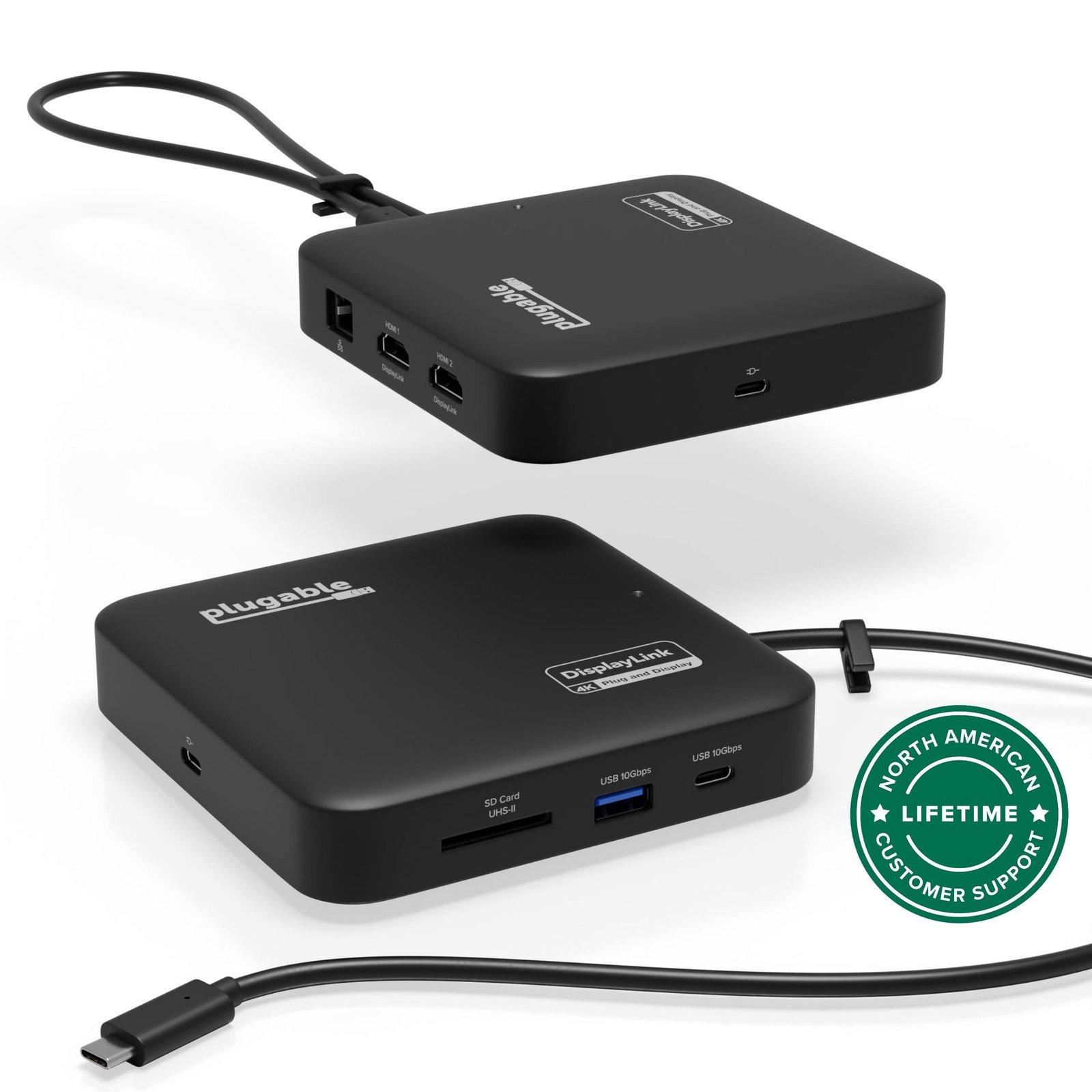
- Laptop with a video output (HDMI, USB-C with DisplayPort Alt Mode, or Thunderbolt). If your laptop lacks a native video port, use a reputable active adapter.
- TV with an HDMI input (or a compatible wireless receiver for AirPlay/Miracast/Chromecast). Check which HDMI inputs on the TV are labeled for low-latency modes (some TVs mark gaming or PC ports).
- High-quality HDMI cable rated for your target resolution and refresh (verify cable version compatibility with manufacturer documentation).
- Optional: USB-C to HDMI / DisplayPort adapter (active adapters are recommended for multi-resolution support).
- Latest graphics drivers on your laptop and up-to-date TV firmware where possible.
Step-by-step: Best wired configuration for minimal lag
Identify the right port and cable
– Use a direct HDMI connection where available. Prefer the HDMI port designated by the TV as “PC” or “Game” if labeled.
– If using USB-C or Thunderbolt, use a USB-C to HDMI (or DisplayPort) adapter that supports the resolution and refresh rate you need. Active adapters are more reliable across different laptops.Set the TV to the correct input and mode
– Select the HDMI input on the TV and look in the picture or input settings for modes named “Game,” “PC,” or “Input Label → PC.” These modes often disable motion processing and reduce input lag.
– Disable picture-enhancement features: motion smoothing, noise reduction, dynamic contrast, and other post-processing options. Names vary by manufacturer, so check your manual.Configure the laptop display settings
– Windows: Right-click the desktop → Display settings → Detect/Identify → Choose “Extend desktop” (not duplicate) unless you want identical displays. In Advanced display settings, set the TV’s resolution and refresh rate to match common standards. Use GPU control panel (NVIDIA Control Panel or AMD Radeon Settings) to ensure the TV is recognized correctly.
– macOS: Apple menu → System Settings (or System Preferences) → Displays → Arrangement tab → uncheck “Mirror Displays” to extend. Select scaled resolution options if needed.
– Linux: Use the display manager or xrandr to set resolution and refresh rate. Many desktop environments expose graphical display tools.Match refresh rate and resolution where practical
– Aim to use the TV’s native resolution at a refresh rate your laptop and cable support. Avoid forcing unsupported combinations; mismatches can cause frame-doubling or judder.Route audio appropriately
– If you want audio through the TV, select the TV as the audio output device in your OS sound settings. If you experience A/V sync issues, try using the laptop’s speakers or a directly connected speaker as an alternative while troubleshooting.Update drivers and firmware
– Update your laptop’s GPU drivers (NVIDIA/AMD/Intel) and apply any TV firmware updates per the manufacturer’s instructions. Driver updates often improve multi-display handling.
Tuning the TV for low latency and accurate sync
- Enable “Game Mode” or “PC Mode” when connected — it typically bypasses frame processing.
- Disable motion interpolation and any post‑processing features.
- If the TV has multiple HDMI versions across inputs, prefer the port that supports the highest bandwidth required by your desired resolution/refresh — check your TV manual.
- Turn off any power-saving modes that might downsample the signal when idle.
Wireless setup tips (AirPlay, Miracast, Chromecast)
Wireless casting is convenient but introduces more variables. To reduce lag:
- Prefer 5 GHz Wi‑Fi where possible and ensure both devices are on the same network.
- Use a wired Ethernet backhaul for the host device (TV or casting device) when available to reduce wireless hops.
- Use the latest protocol supported by your devices (AirPlay 2, Miracast, or Chromecast) and update firmware.
- For streaming video, use direct casting of the media app (e.g., casting YouTube or Netflix) instead of screen mirroring — app-level casting often uses optimized paths and sync.
- If you need an extended desktop wirelessly, accept that latency will be higher than a wired connection and test responsiveness before relying on it for interactive tasks.
GPU and OS-specific tweaks to reduce sync issues
- NVIDIA Control Panel: Set the preferred refresh rate and configure “Adjust desktop size and position” to avoid scaling artifacts. If you see stuttering, try enabling or disabling V‑Sync to find the best behavior for your workflow (note: V‑Sync can add input latency in some cases).
- AMD Radeon Settings: Check display scaling and pixel format options. Radeon drivers may offer frame pacing options to improve smoothness.
- Intel Graphics: Use Intel Graphics Command Center to select resolution and refresh rate and to disable unnecessary scaling.
- If you encounter judder when video frame rates don’t match your TV refresh, try using apps that support adaptive frame rates or set the player to match the content frame rate when possible.
Always test changes incrementally and remember to reboot or reinitialize the display when switching ports or adapters.
Troubleshooting checklist: common problems and fixes
- Problem: Image is delayed or controls feel sluggish.
Fix: Use a wired HDMI or DisplayPort connection and enable the TV’s Game/PC mode.
Problem: Audio plays before or after video.
Fix: Check the OS audio output device. Try switching output to TV or back to laptop, or use a direct audio connection to isolate the issue.
Problem: Screen flicker or blank screen when connecting.
Fix: Try a different HDMI cable or an active adapter. Verify the TV’s input supports the selected resolution/refresh.
Problem: Text looks fuzzy or overscaled.
Fix: Use the TV’s native resolution and set scaling in your OS. On Windows, try 100% or a system-recommended scaling level; on macOS, choose a scaled option that lists the TV’s native size.
Problem: Wireless mirroring has choppy motion.
- Fix: Move closer to the router, switch to 5 GHz, reduce network traffic, or use a wired connection.
If a problem persists, consult your TV and laptop manufacturer support pages as hardware-specific behavior can vary.
Sample quick checklist before a meeting or stream
- Confirm HDMI cable or adapter is connected and secure.
- Set TV to Game/PC mode and disable motion processing.
- Verify OS display shows the TV as “Extended” and correct resolution/refresh are selected.
- Confirm audio output target (TV or laptop) in OS sound settings.
- Run a five-minute test of the exact app or content you’ll use.
FAQ
Q: Can I use a 4K TV as a second monitor at 60Hz or higher?
A: Many modern laptops and TVs support 4K at 60Hz or higher, but capability depends on your laptop’s GPU, the output port (HDMI vs. USB‑C/DisplayPort), and the HDMI cable or adapter. Verify your laptop’s video output specifications and the TV’s input capabilities. If unsure, consult the documentation for both devices.
Q: Why does the image look good for movies but control input lags during typing or gaming?
A: Movies may be processed with buffering and adjusted for smooth playback, while interactive use exposes input latency. Enabling Game/PC mode and using a wired connection typically improves interactive responsiveness.
Q: Is wireless casting always worse for responsiveness?
A: Wireless casting usually adds more latency than wired connections because of encoding, transmission, and decoding time. However, for non-interactive media playback, the convenience of wireless often outweighs the trade-off. For interactive tasks, wired is recommended.
Q: Should I extend or mirror the display when using a TV as a second monitor?
A: Extend if you want separate workspaces — it avoids duplicate rendering and lets the TV display different content. Mirror (duplicate) if multiple viewers need to see the same content, like during a presentation. Mirroring can sometimes introduce additional scaling or frame-rate matches, so test both.
Q: My TV has multiple HDMI ports; which one should I use?
A: Use the port labeled for PC or Game if available. Some TVs reserve higher-bandwidth or low-latency features for specific HDMI inputs. Check the TV manual to confirm.
When to call manufacturer support
If you’ve tried the recommended steps and still see unexplained synchronization problems, or if the TV does not support the resolution/refresh you need despite using recommended cables and adapters, contact your TV or laptop manufacturer support. Provide them details about the laptop model, OS, GPU, TV model, HDMI port used, and the cable/adapter model.
Conclusion
Using a TV as a second monitor can work well for productivity, media, and light gaming — but it requires attention to connection type, TV modes, and OS/GPU settings to avoid lag and sync problems. For the most consistent, low-latency experience, prefer a wired HDMI or DisplayPort-capable connection and enable Game/PC modes on the TV. When wireless is the only option, optimize Wi‑Fi, use app-level casting where possible, and expect some trade-offs in responsiveness.
For more device-specific tips and security considerations when connecting external displays, see our Devices & Setup and Tech & Security sections. If you want quick how-tos and software tools for screen sharing, take a look at our Blog.
References:
– HDMI official site: https://www.hdmi.org/
– Microsoft Support: https://support.microsoft.com/
– Apple Support: https://support.apple.com/
– NVIDIA Support: https://www.nvidia.com/en-us/support/
– AMD Support: https://www.amd.com/en/support
– Google Chromecast Help: https://support.google.com/chromecast

Canzar
Ready to stream? Pick your plan
Live TV, movies, sports and 10,000+ channels on any device — Firestick, Android TV, Smart TV, phone.
View Subscription Plans Compare Pricing
Moderation: Comments are reviewed before publishing. Be respectful and on-topic.
Guidelines: Share streaming tips, device help, or content recommendations. No spam, no promotions, no off-topic links.