
Last updated August 27, 2026 · Editorially reviewed by CanzarTV
How Color Gamut Affects Streaming HDR and What Gamut Targets Mean
Introduction
High dynamic range (HDR) promises brighter highlights, deeper blacks, and richer color — but the colors you see on-screen still depend on the underlying color gamut and how your TV, streaming device, and the content itself handle it. This guide explains the core ideas behind color gamut and HDR, why titles can look different between TVs and apps, and practical steps you can take to reduce surprises and get more consistent color from streaming HDR sources.
What is color gamut (in plain language)?
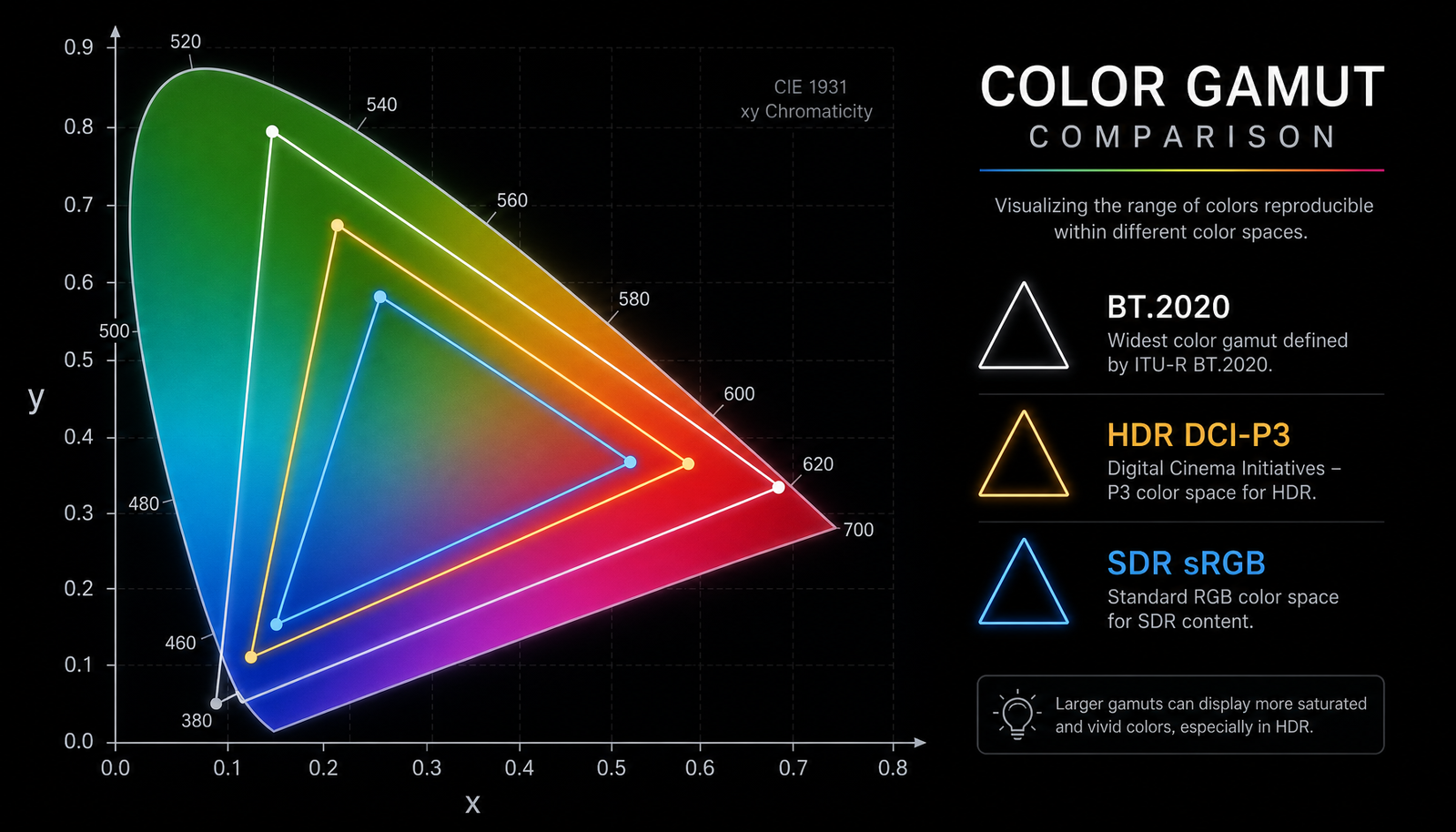
A color gamut is the range of colors a device or content system can represent. Think of it as the palette available to create all the colors you see on a screen. Standards like Rec.709, DCI‑P3, and BT.2020 define different gamuts. Generally:
- Rec.709 (often used for standard HD) covers a modest range of colors familiar from many HDTV broadcasts and older video.
- DCI‑P3 (often called “P3”) is wider than Rec.709 and is commonly used in digital cinema and many modern displays for richer, more saturated color.
- BT.2020 (also called Rec.2020) is a very large gamut created for ultra‑high‑definition systems and HDR workflows — it covers more color than most current consumer displays can fully reproduce.
A device’s color volume combines gamut (hue and saturation) with luminance (brightness). HDR increases the luminance dimension, so having a wide gamut plus greater brightness is what unlocks the more vivid HDR look.
How color gamut and HDR interact in streaming
HDR content is encoded not only with luminance/tone information but usually with a color space tag indicating the intended gamut. Streaming HDR workflows typically use modern transfer functions (PQ or HLG) and reference color spaces (often tied to BT.2020 or P3) to describe how content should appear. However, several practical realities affect the final image:
- Mastering vs. delivery: Content is graded (mastered) for a particular target color volume in post‑production. The mastering target may be DCI‑P3 or a BT.2020 container, but masters and encodes aren’t always identical across titles or services.
- Container vs. actual color points: Some HDR standards use BT.2020 as a container for metadata even when the creative grade uses P3 or a smaller gamut. That means a stream may be labeled BT.2020 while the creative material actually occupies a subset such as P3.
- Display limitations: Most consumer TVs cannot reproduce the full BT.2020 gamut. When the display’s physical gamut is smaller than the content’s target, the TV must perform gamut mapping or gamut clipping to bring colors into its capabilities.
- Tone mapping and color volume mapping: HDR playback requires mapping a content’s brightness and color volume to the TV’s capabilities. This mapping affects saturation, hue, and brightness and is often performed differently between brands and models.
Because of these factors, two HDR‑capable TVs can present the same title with noticeable differences in color and intensity even when both are receiving the same stream.
Gamut targets explained: Rec.709, DCI‑P3 and BT.2020 (comparative overview)
Below is a high‑level comparison to help you understand typical use cases and how each target behaves in streaming HDR workflows.
| Gamut | Typical use | How it appears in streaming HDR |
|---|---|---|
| Rec.709 | Legacy HD TV and many SDR sources | Narrower palette; HDR content done for Rec.709 will look less saturated than P3/BT.2020 masters. TV will not need aggressive gamut compression but may still tone‑map luminance. |
| DCI‑P3 | Digital cinema and many HDR grades | A wider, more cinematic palette. Many HDR titles are graded for P3; if your TV supports P3 well, you’ll see richer color than Rec.709. |
| BT.2020 (Rec.2020) | UHD/HDR reference container; very wide theoretical gamut | Often used as the reference container for HDR streams. Many displays cannot fully reproduce BT.2020, so mapping to the TV’s native gamut is required. The final look depends on the display’s color volume handling. |
Note: Implementation details vary by title, service, and device. Some titles may be graded inside a P3 color volume but delivered in a BT.2020‑flagged stream. Check manufacturer documentation and streaming app metadata if you need certainty for a specific title.
Why colors sometimes look wrong with HDR streaming
When colors appear off, it’s typically because of one (or a combination) of these issues:
- Gamut clipping: Colors outside the display’s native gamut are clipped to the nearest reproducible color, producing oversaturated or crushed hues.
- Gamut compression: The TV compresses the incoming gamut into its smaller gamut, which can reduce saturation and change hue relationships.
- Inconsistent mapping algorithms: Different TVs apply different color volume mapping and tone mapping methods, producing variations in saturation, highlight color, or shadow hue.
- Incorrect settings: If a TV or source is forced into the wrong color space (for example, forcing Rec.709 on a P3 signal) you can see muted or shifted color.
- Compression and encoding choices: Streaming encodes balance bitrate, chroma subsampling and color depth; lower bitrates or aggressive encodes can reduce color fidelity and introduce banding, especially in saturated areas.
Practical checklist: what to check on your setup
Use this quick checklist to identify and reduce gamut‑related color issues when streaming HDR.
- Content: Confirm the title is actually HDR (look for HDR/HDR10/Dolby Vision/HLG indicators in the app). Some “HDR” tags may vary by region or catalog.
- Streaming device and app: Confirm your streaming stick/box and app support HDR formats and wide color. Some older streaming devices only output SDR or limited color even when your TV is HDR‑capable.
- HDMI and ports: Use the HDMI input and cable recommended by your TV maker for HDR (often labeled HDMI 2.0/2.1 or with a specific input name), and enable any “HDMI Deep Color” or “Enhanced Format” mode if required. Check the TV manual.
- Picture mode: Switch to a picture mode that preserves color accuracy (often “Cinema,” “Movie,” or a “Calibrated” mode). Some bright or vivid modes oversaturate colors.
- Color gamut setting: Look for a setting called “Color Gamut,” “Wide Color,” or “Color Space” and try “Auto” first. Manufacturers sometimes let you force P3, Rec.709, or BT.2020; use those only if you know what your content requires.
- Firmware: Update TV firmware and the streaming app firmware. Manufacturers frequently refine tone mapping and gamut handling.
- Test content: Use a well‑known HDR trailer or title with clear HDR metadata to test. If in doubt, check multiple titles from the same app — some titles are mastered differently.
- Calibration: If you need precision, consult professional calibration resources or use validated test patterns/tools. Home calibration apps and services can help but results vary by device.
Useful internal links: check our Streaming Guides for general HDR basics, Streaming Guides, setup tips in Devices & Setup, and advice on secure streaming devices in Tech & Security.
A simple troubleshooting table
| Symptom | Likely cause | Quick fix |
|---|---|---|
| Dull or washed out HDR color | TV in a constrained color mode (Rec.709) or picture mode is incorrect | Change picture mode to Cinema/Movie, enable wide color or Auto color space, check app shows HDR active |
| Oversaturated or unnatural hues | Aggressive TV color processing or forced wide gamut | Turn off “vivid” or “dynamic” modes, disable extra color processing, try Calibrated mode |
| Color banding or posterization in saturated scenes | Low bitrate or chroma subsampling limitations | Test with a known high‑quality HDR trailer; if only occurs in low‑bitrate streams, try a higher quality stream or different app/device |
| Highlight colors look clipped or too bright | Tone mapping limits or gamut clipping in highlights | Check TV HDR tone mapping or highlight settings; update firmware; try a different picture mode |
How manufacturers and apps typically handle gamut mapping (brief)
TVs and source devices use different strategies to handle content whose color volume exceeds the display’s capabilities:
- Clip to gamut boundaries: Colors outside the display’s gamut are clipped to the closest reproducible color. This preserves hue relationships for in‑gamut colors but can make some colors look unnatural.
- Compress or scale: The incoming gamut is compressed into the display’s gamut so relative saturation relationships remain more consistent, though the whole image may look less saturated.
- Perceptual mapping: More advanced systems map color and luminance in a way that aims to preserve perceived color relationships and detail, but algorithms vary and results differ between manufacturers.
Because these methods prioritize different visual goals, brand‑to‑brand variation is common.
Should you force a specific color space on your TV?
Unless you have calibration tools or a specific reason (for example, professional reference work), the safest approach is:
- Set color space to Auto if available. That lets the TV or source negotiate the correct space with the stream.
- Use a calibrated picture mode (Cinema/Movie) for accuracy, and avoid exaggerated “Vivid” or “Dynamic” presets.
- If you observe clear mismatch (e.g., your TV forces a Rec.709 look on HDR content), consult your TV manual and manufacturer support. Some TVs let advanced users force P3 or BT.2020, but forcing settings without a test bench can produce worse results.
If you’re doing color‑critical work, professional calibration by a certified calibrator is recommended. Consumer adjustments can help casual viewing but won’t replace a proper calibration for grading or content creation.
FAQ
Q: My TV says it supports BT.2020 — does that mean it can show every color in BT.2020?
A: Not necessarily. A specification claiming BT.2020 support often means the TV accepts BT.2020‑flagged streams and can process them. The set’s physical panel may not reproduce the entire BT.2020 gamut. Check the manufacturer’s color coverage charts and independent reviews, and verify with updated documentation.
Q: Why do some streaming titles look more colorful on one TV and muted on another?
A: Different mastering targets, encoding choices, the streaming device, and the TV’s tone/gamut mapping algorithms all influence the final look. Brands tune color reproduction differently; firmware updates can also change results over time.
Q: Is Dolby Vision or HDR10 better for color?
A: Dolby Vision adds dynamic metadata that can help the TV adapt tone mapping scene‑by‑scene or frame‑by‑frame, which can improve how color and brightness are preserved on displays with limited capabilities. HDR10 uses static metadata. Both formats can carry wide color information, but the TV’s mapping still matters.
Q: Can I test color gamut at home without specialist tools?
A: You can compare how different titles look, use HDR trailers and test clips, and try different picture modes. For precise measurement you need colorimeters and calibration software, or a professional calibrator.
Q: Do streaming services all use the same color targets?
A: No. Services and studios may master content to different targets based on artistic intent. Some titles are graded for P3 while others may aim wider. Always assume variation and verify specific titles if accuracy matters.
Conclusion
Color gamut is a fundamental part of how HDR streaming looks, but it’s one piece of a system that includes the content master, encoder, streaming app, source device and the display itself. Differences in gamut targets (Rec.709, DCI‑P3, BT.2020) and the way TVs perform gamut and tone mapping explain why the same HDR title can look different across setups.
For most viewers, ensuring your streaming device and TV are HDR‑capable, using Auto color space and a calibrated or Cinema/Movie picture mode, keeping firmware updated, and testing with well‑known HDR content will deliver the best balance between accuracy and convenience. If you need professional‑grade color, seek calibration services and verify manufacturer specifications.
Disclosure: Settings and compatibility can differ by TV, streaming device, operating system, region, and firmware version. Check the current manufacturer documentation and your streaming app’s details for the latest behavior.

Canzar
Ready to stream? Pick your plan
Live TV, movies, sports and 10,000+ channels on any device — Firestick, Android TV, Smart TV, phone.
View Subscription Plans Compare Pricing
Moderation: Comments are reviewed before publishing. Be respectful and on-topic.
Guidelines: Share streaming tips, device help, or content recommendations. No spam, no promotions, no off-topic links.