
Last updated August 24, 2026 · Editorially reviewed by CanzarTV
Configuring an AV Receiver for a Modern Streaming Setup (HDMI, Atmos, and eARC Considerations)
Streaming boxes, sticks, smart TVs and game consoles have become the primary sources for movies, shows and games. If you’re keeping an existing AV receiver (AVR) for surround sound, or you’re building a new home theater, the HDMI path, Atmos handling and eARC settings are the areas that most commonly cause confusion. This guide walks through practical connection options, receiver and TV settings, and troubleshooting tips so you can get reliable Dolby Atmos and multichannel audio from streaming devices.
Target audience: home theater owners in North America and Europe who want to pair streaming sources with an AVR. Avoid assumptions about specific models — always check the manufacturer documentation for your devices.
Quick overview: the main choices
- Connect streaming devices directly to the AVR (recommended for many setups): the AVR handles audio decoding and delivers video to the TV via HDMI OUT.
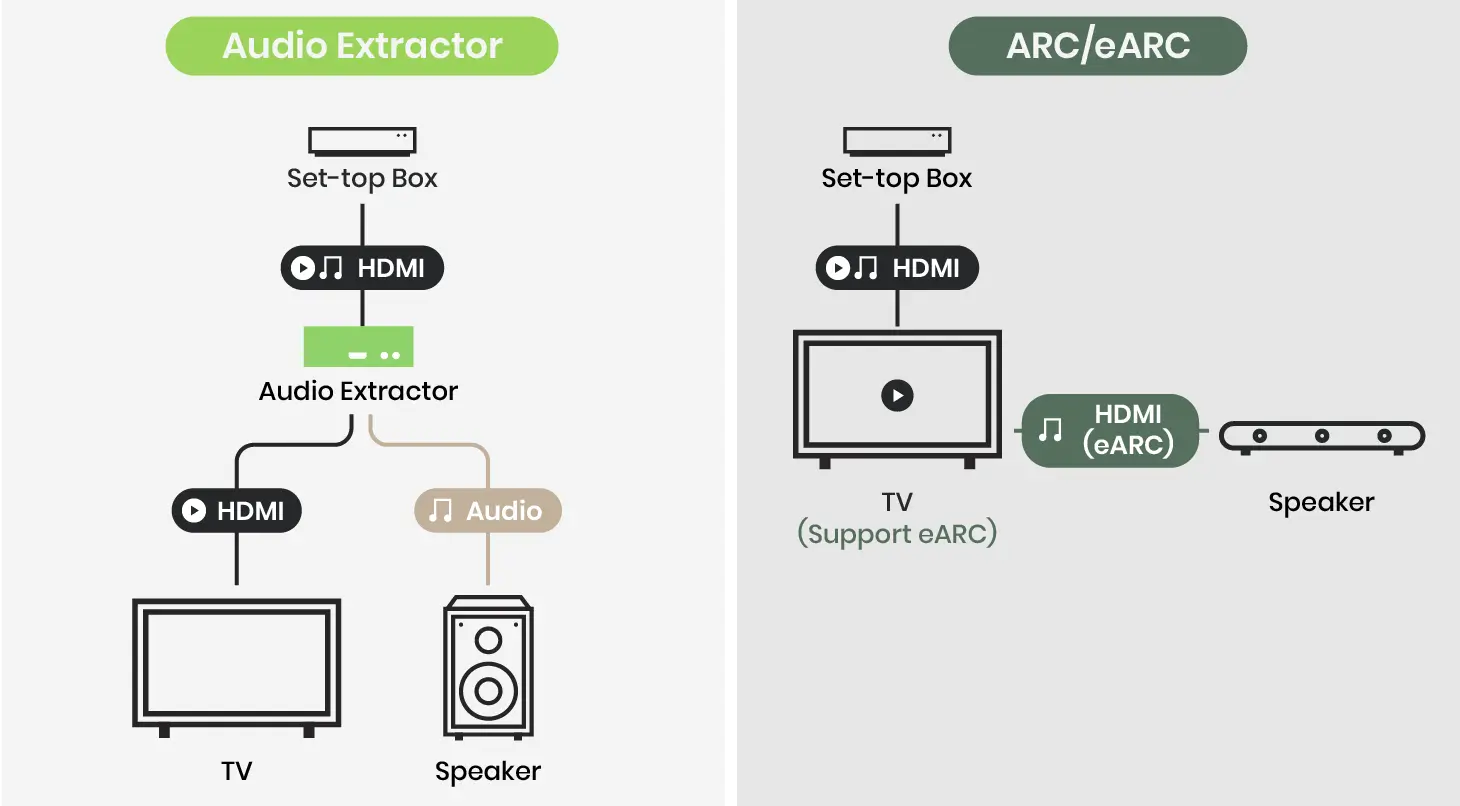
- Connect streaming devices to the TV (TV as hub) and use eARC/ARC to send audio to the AVR: useful if you want to use the TV’s smart apps or have limited AVR HDMI inputs.
- Hybrid: some sources to AVR, others to TV — but be careful with audio format compatibility and HDMI handshakes.
Which is best depends on the number of HDMI inputs on your AVR, the TV’s eARC support, and whether you use the TV’s apps. The sections below show how to set up each approach and what to check in your AVR and TV menus.
Key concepts you should know
- HDMI passthrough: sending audio/video through the AVR to the TV. Most modern AVRs support passthrough even when the AVR is in standby, but not all models behave identically.
- eARC vs ARC: eARC (Enhanced Audio Return Channel) supports higher bandwidth audio and formats like Dolby TrueHD and multichannel PCM where ARC may be limited to compressed formats. eARC availability is dependent on both TV and AVR supporting the HDMI eARC standard and sometimes on firmware versions.
- Dolby Atmos delivery: Atmos over HDMI can be carried as a Dolby Digital Plus (DD+) object stream from many streaming apps, or as TrueHD+Atmos on Ultra HD Blu-ray and some sources. The AVR must accept/recognize the incoming format and either decode it or pass it through.
- CEC (Consumer Electronics Control): lets devices control power and input selection over HDMI. It’s handy but can create unexpected input switching; it’s often labeled differently by manufacturers.
Recommended connection topologies (comparison)
| Topology | Pros | Cons | Best when… |
|---|---|---|---|
| Streamers → AVR → TV | AVR decodes audio, simple audio settings | Uses AVR HDMI inputs, extra cables | You have spare AVR HDMI inputs and want the AVR handling all audio |
| Streamers → TV → AVR (eARC) | Use TV apps & inputs, fewer AVR HDMI inputs used | Requires TV+AVR eARC compatibility; some formats might be limited | You prefer TV apps or have limited AVR inputs |
| Mix (some to AVR, some to TV) | Flexible | Can complicate format handling and lip-sync | You have many sources and can manage settings per device |
Step-by-step: connecting a streaming device to an AVR (HDMI method)
Plan your HDMI routing. Decide which sources will connect directly to the AVR and which (if any) will connect to the TV. If possible, give high-bandwidth sources (4K HDR, game consoles) to HDMI 2.0/2.1 inputs on the AVR.
Use high-quality HDMI cables. For 4K HDR and Atmos-capable setups, choose HDMI cables rated for the bandwidth you need (High Speed with Ethernet or Premium/Ultra High Speed depending on resolution/frame rate). Don’t assume all cables behave the same; if you see dropout, try a different cable.
Connect the streaming device HDMI OUT to an AVR HDMI input. Label the input if your AVR menu allows it so it’s easier to identify.
Connect AVR HDMI OUT (sometimes labeled HDMI OUT eARC/ARC) to the TV HDMI ARC/eARC input. If your AVR has a dedicated eARC HDMI output, use that to ensure maximum compatibility for return audio from the TV.
Power on devices and set the AVR input to the streamer’s HDMI input. On first connection, the AVR should detect the audio format reported by the streaming device.
In the streaming device’s audio settings, select the desired output format. For Dolby Atmos from apps, choose ‘Passthrough’ or ‘Bitstream’ if available and enable Atmos where the app offers it. If the streamer lacks an Atmos option, it may output DD+ automatically for Atmos-enabled content.
On the AVR, check the audio input information or status display. It should show the incoming audio format (Dolby Atmos, Dolby Digital Plus, Dolby TrueHD, DTS:X, PCM). If it shows PCM 2.0 when you expect Atmos, change the streamer’s audio setting to bitstream/passthrough and confirm the app is set to output original audio.
Setting your AVR for Atmos passthrough and decoding
- Audio Mode: Many receivers offer a mode called ‘‘Direct’’, ‘‘Direct”+’’ or ‘‘Pure Direct’’ that minimizes processing. For Atmos object streams, you usually want normal stereo downmixing off and let the AVR decode multichannel.
- Bitstream vs PCM: If the streaming device can output raw bitstream (passthrough), set it to bitstream so the AVR can decode Dolby Atmos or DTS:X. If the source can only output PCM, it’ll likely downmix to PCM and may lose object metadata.
- HDMI Input Assignments: Ensure the HDMI input used for your streamer on the AVR is set to the correct input label type (e.g., Media Player) so the receiver applies the right audio profile.
Note: Different AVR models present settings differently. If unsure, consult the AVR manual — settings and menu names vary by manufacturer and firmware.
Setting up eARC when the TV is the hub
Confirm both TV and AVR support eARC. Some devices support only ARC (lower bandwidth) while others list eARC explicitly. Also check for firmware updates as eARC support has been added to devices via updates in the past.
Connect the TV’s HDMI eARC/ARC port to the AVR HDMI OUT (use the cable in the AVR’s eARC-capable output if labeled).
Enable eARC/ARC and HDMI CEC on both the TV and AVR (CEC might be called Anynet+, Bravia Sync, Simplink, or similar). Some TVs enable eARC automatically when CEC is on; others need manual activation.
On the TV, set the audio output to ‘External Speaker (HDMI eARC)’ or equivalent. On the AVR, set the input for the TV/eARC port.
For streaming apps on the TV, check the app’s audio options. Many smart TV apps output Atmos as Dolby Digital Plus for streaming services. If the AVR does not recognize Atmos over eARC, check the TV’s eARC/format compatibility notes in the manual and look for firmware updates.
Caveat: eARC carries higher-bandwidth audio, but the exact formats supported can vary by TV and AVR. Always verify with your specific models’ documentation.
Practical troubleshooting checklist
- No audio or downmixed stereo only:
- Check HDMI cables and swap to a verified high-speed cable.
- Switch the streaming device to Bitstream/Passthrough.
- Confirm AVR audio input shows the expected format.
- Atmos not detected, only Dolby Digital Plus shown:
- Many streaming apps deliver Atmos as DD+; AVR may report DD+ Atmos or just DD+. Verify playback on a title known to support Atmos and check the app’s info overlay.
- Use a direct streaming device → AVR connection if the TV path is limiting.
- Lip sync issues (audio delayed vs video):
- Use the AVR’s lip sync/audio delay setting to align sound and picture.
- Try disabling TV motion processing or letting the AVR handle audio instead of the TV.
- CEC/HDMI-CEC controlling inputs unexpectedly:
- Disable CEC on the device that’s misbehaving, or selectively disable features in the TV/AVR menu.
- Firmware-related oddities:
- Check for firmware updates on AVR, TV and streaming device. Manufacturers sometimes fix HDMI/eARC bugs via updates.
Useful AVR menu settings to review
- Audio Input Display/Info: shows the detected format.
- HDMI Control/CEC: enables automatic input changes and some remote control functions.
- HDMI Passthrough in Standby: whether video/audio passes through when AVR is off.
- Dynamic Range Compression / Night Mode: may affect how Atmos metadata is handled.
- Speaker Configuration / Height/Atmos speaker settings: ensure the speaker layout matches your physical setup so the AVR decodes properly.
Practical examples (non-model-specific)
If your AVR has only two HDMI inputs and you have three streamers plus a game console: connect the most demanding devices (console and primary streamer) to the AVR, the rest to the TV, and use eARC for the TV apps. Label inputs and maintain a consistent naming convention in menus.
If you want to use smart TV apps but keep the AVR decoding audio: connect high-quality sources to the AVR directly and consider a dedicated streaming device for Atmos-capable titles connected to the AVR rather than the TV.
FAQ
Q: Will Atmos work over ARC?
A: Traditional ARC has limited bandwidth compared with eARC. Some TVs and AVRs allow Atmos via compressed formats (like Dolby Digital Plus) over ARC, but eARC is the more reliable route for higher-bandwidth formats and full-resolution audio. Verify your specific TV and AVR documentation for supported audio formats.
Q: My AVR shows PCM 2.0 — why and how do I get multichannel sound?
A: PCM 2.0 often means the source is downmixing or the streamer is set to PCM output. Change the streamer audio to bitstream/passthrough and enable surround/bitstream options in the app if available. If the TV is the source, ensure the TV sends the original audio via eARC to the AVR.
Q: Do I need HDMI 2.1 for Atmos?
A: HDMI version matters mainly for resolution, refresh rates and bandwidth-rich features like VRR. Atmos object audio itself doesn’t require HDMI 2.1; reliable HDMI bandwidth, correct ARC/eARC support, and compatible device firmware are more important.
Q: Can I use optical or coax S/PDIF instead?
A: Optical/coax S/PDIF is limited to compressed multichannel formats (Dolby Digital, DTS) and cannot carry high-definition multichannel audio or many Atmos configurations. For Atmos and high-bitrate formats, use HDMI/eARC.
Q: Why do some streaming apps not show Atmos even when the title supports it?
A: App audio options, subscription tier, device capability and regional availability can affect whether Atmos is delivered. Some apps require an updated app, a compatible device, or a premium subscription tier. Check the app’s support pages and device compatibility list.
Final checklist before you sit down to watch
- Use the AVR for sources whenever possible if you want consistent surround decoding.
- If using the TV as a hub, confirm eARC support on both ends and enable it.
- Set streamers to bitstream/passthrough for Atmos-capable titles.
- Keep HDMI cables and firmware up-to-date.
- Confirm speaker configuration and AVR decode mode match your physical system.
Disclosure
Settings and compatibility can differ by TV, AVR model, streaming device, operating system, region, and firmware version. Always consult the current manufacturer documentation for your specific devices.
For more setup tips and troubleshooting guides, see our Devices & Setup and Streaming Guides sections, or visit the Blog for related articles.
Conclusion
Modern streaming sources and AV receivers can deliver immersive audio like Dolby Atmos when you route HDMI and configure settings with care. Whether you connect streamers directly to the AVR or use the TV with eARC, the keys are understanding the audio path, using bitstream/passthrough where appropriate, and keeping firmware and HDMI cables up to the task. Start with a clear plan for which devices plug into the AVR, verify eARC/ARC support if you rely on the TV, and use the troubleshooting checklist above when formats aren’t detected as expected. With a few adjustments you should be able to enjoy reliable multichannel sound and immersive audio from your streaming sources.

Canzar
Ready to stream? Pick your plan
Live TV, movies, sports and 10,000+ channels on any device — Firestick, Android TV, Smart TV, phone.
View Subscription Plans Compare Pricing
Moderation: Comments are reviewed before publishing. Be respectful and on-topic.
Guidelines: Share streaming tips, device help, or content recommendations. No spam, no promotions, no off-topic links.