
Last updated August 25, 2026 · Editorially reviewed by CanzarTV
Evaluating parental controls in media players and individual apps
Families use more streaming devices and apps than ever, and parental controls are spread across multiple places: the smart TV or media player, the streaming apps themselves, the account used to sign in, and sometimes the home network. This guide helps you evaluate how well parental controls work for your household, compare device-level and app-level protections, and apply practical steps to set up a layered approach that fits young children through teens.
A quick note: manufacturers, app features and regional availability change. Always check the current support pages for your device and services before relying on any single setting.
Why evaluate both players and apps?
Media players (smart TVs, streaming boxes, set-top devices) control access to apps and often to purchases, but they rarely match the fine-grained content controls inside apps. Conversely, streaming apps usually offer profiles, age filters, and watch history controls that follow the service account — but those protections don’t prevent someone from opening a different app on the same device.
Evaluating both levels lets you:
- Reduce the chance a child can open an unintended app or make purchases.
- Keep viewing appropriate by applying app-specific filters (age ratings, kids profiles).
- Create flexible arrangements for different-age children and shared devices.
What to compare: a practical checklist
Use this checklist when you review a device or an app. Note that availability varies by model, firmware and region; verify each item for your equipment and services.
Device-level (media player / smart TV)
- PIN or passcode to restrict app installation/uninstallation and purchases
- Ability to block or hide specific apps or inputs
- Dedicated guest or restricted account modes
- System-wide content ratings enforcement based on region (PEGI, TV Parental Guidelines, etc.)
- Purchase controls for the device store and in-app purchases
- Ability to require a PIN for app launch or profile changes
App-level (Netflix, Disney+, YouTube, etc.)
- Multiple profiles with separate maturity levels and watch histories
- PIN-lock for profiles or content above a set rating
- Kids mode or curated kid profiles with simplified navigation
- Filter by content type (TV, movies, user uploads) and maturity
- Autoplay off option and viewing reports or parental controls dashboard
Network- and router-level
- Time limits (device or profile schedules)
- DNS or content-filtering options (block categories like adult content)
- Logging and reporting for devices on the network
Third-party parental-control apps and services
- App-level content filtering and app blocking
- Cross-device schedules and screen-time allowances
- Remote monitoring and alerting
Comparison table: device-level vs app-level vs network controls
| Control type | Typical strengths | Common limitations |
|---|---|---|
| Device-level (TV, streaming stick) | Blocks whole apps and purchases; good for shared living-room devices | Varies by manufacturer; less granular by content rating inside an app |
| App-level (streaming service profiles) | Granular age filters, kids modes, viewing history | Applies only when signed into that service; does not block access to other apps |
| Router / network tools | Sits between all devices; can schedule internet time and block categories | Setup can be technical; may not distinguish apps on the same device |
| Third-party parental apps | Centralized management across platforms and devices | May need subscriptions; compatibility varies by OS and device |
Use a combination — device controls to limit apps and purchases, app controls for content filtering, and network rules for schedules and backup blocking.
Step-by-step: how to evaluate parental controls in your home
- Make an inventory
- List every device children use for streaming: smart TV, streaming stick/box, game console, tablets and phones.
- List the streaming apps and services signed in on each device. Don’t forget web browsers and casting options.
- Prioritize by risk and use
- Start with the devices and apps children use most.
- Focus first on shared living-room hardware where you want to block unapproved apps and purchases.
- Review device settings
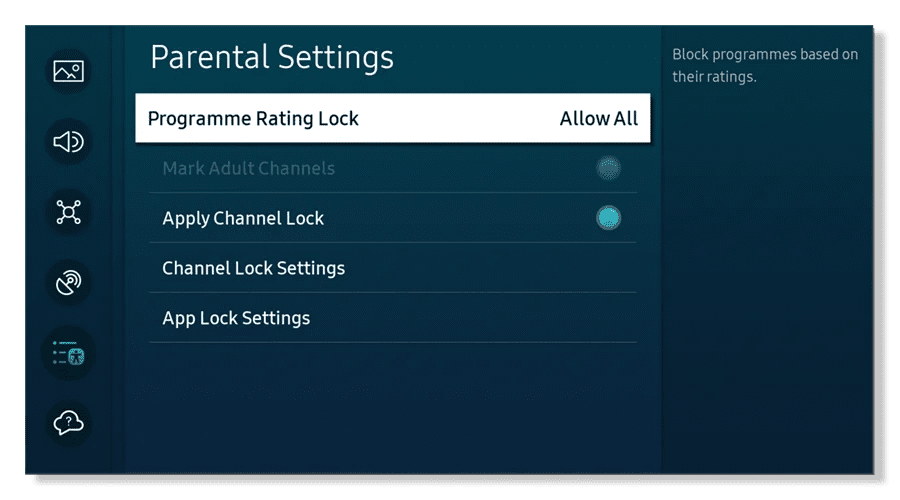
- Look for a PIN/passcode and options for app installation or store purchases.
- Check whether the device supports user profiles or a restricted mode.
- If the device lists content ratings, check whether the device can enforce them and whether the rating system matches your region’s standards.
- Review app settings
- Sign into each streaming service and create a parental or kid profile where available.
- Set the maturity level and enable profile PINs where possible.
- Turn off autoplay and enable any viewing limits or reporting features.
- Test your settings
- Try to open blocked apps, play restricted content, and make a purchase while signed out or as a kid profile.
- If something still works, note whether the bypass is an app, a casting method, or a device-level permission.
- Add network protections (optional but useful)
- If you want daypart limits or site-category blocking, explore your router’s parental controls or a dedicated home filtering solution.
- Some routers and mesh systems offer per-device time schedules and content category filters; others require a subscription.
- Create a family plan and document
- Decide on rules for different ages and devices (what apps are allowed, when screens are allowed, purchase rules).
- Keep a short written plan and share it with older children.
Practical examples of settings to look for (no brand claims)
- Require a PIN to access the device’s app store and to approve purchases.
- Create separate kid profiles inside streaming apps and set a maturity level for each.
- Turn off features that encourage continuous viewing, such as autoplay and trailers for mature titles.
- Use the device’s input or HDMI lock to prevent a child from switching to a gaming console without permission.
- In web browsers, enable safe search and consider a child-safe browser or app instead.
Layered strategy: sample configurations by age group
- Preschool (2–5): Device-level restrictions to only allow a kids profile or a single kids app. App-level kids profiles enforced. No purchasing ability.
- Young children (6–11): App profiles with age filters, device PIN for the app store and purchases, limited daily viewing schedule.
- Teens (12–17): App profiles that allow mature content by default depending on household rules, combined with negotiated time limits and purchase approvals for added independence.
Keep negotiations and clear rules part of the approach — parental controls are tools but not a substitute for conversations about media choices.
When a single control isn’t enough
Relying on only one layer — for example, only the device PIN or only app profiles — can leave gaps. Children who are comfortable with technology may find alternate routes (switching devices, using casting, signing into a different account). Use multiple layers and test them regularly.
Troubleshooting checklist
- If a blocked app still opens, check whether the device has multiple user accounts and whether the restriction is set for every account.
- If purchases still go through, verify that store PINs are active and that payment methods are removed or require explicit approval.
- If content in an app ignores the rating rules, confirm the app-level profile is selected and not automatically switching to a different profile.
- If streaming works while the network is blocked, the device may have offline content or a separate cellular connection; check each device’s connectivity sources.
Third-party parental controls: when to consider them
Third-party solutions can be useful if you want centralized control across many device types (phones, tablets, consoles) and if your router or devices lack strong built-in options. They often offer scheduling, app blocking and reporting. Before subscribing, confirm compatibility with your specific devices and operating systems, and consider privacy and data-handling policies.
FAQs
Q: Should I rely on the media player or the app for blocking content?
A: Use both. Device-level controls are best for preventing access to apps and purchases; app-level controls are best for content filtering and profiles. A layered approach provides the most reliable protection.
Q: Can parental controls be bypassed?
A: No security is 100% bypass-proof. Controls can sometimes be worked around by tech-savvy children or via alternate accounts and devices. Regular testing, conversations with kids and multiple control layers reduce the risk.
Q: How do I block just one app (for example, a browser) on a smart TV?
A: Many devices let you hide or disable apps or set up a restricted mode that blocks app installation. If the device lacks that feature, consider router-level blocking or creating a device-level account that does not have access to that app.
Q: Are built-in parental controls enough, or do I need a paid service?
A: Built-in controls can be sufficient for many households. Consider paid or third-party services if you need cross-platform management, advanced reports, or more granular scheduling that device or app settings don’t provide.
Q: What about voice assistants and casting — do parental controls cover them?
A: Some devices allow you to limit voice purchases and restrict casting, but support varies. Check both the media player’s settings and the assistant’s account controls.
Communication and digital literacy
Parental controls are technical solutions, but talking about expectations, media literacy and privacy is equally important. Set clear rules about app use, explain why certain apps are restricted, and periodically review rules together as children get older.
Conclusion
Evaluating parental controls means looking at the whole picture — device, app and network — and choosing a layered approach that fits your family. Start by inventorying devices and apps, compare the capabilities against the checklist in this article, then apply and test settings. Keep conversations with children ongoing and re-evaluate settings as they age or as you add new devices.
Disclosure: settings and compatibility can differ by TV, device, operating system, region, and firmware version. Verify current manufacturer and service documentation for exact instructions.
Further reading and resources: see our guides for device setup and app-specific walkthroughs at Devices & Setup, Apps & Tools, and general tips in Tech & Security. For step-by-step streaming advice, check Streaming Guides.

Canzar
Ready to stream? Pick your plan
Live TV, movies, sports and 10,000+ channels on any device — Firestick, Android TV, Smart TV, phone.
View Subscription Plans Compare Pricing
Moderation: Comments are reviewed before publishing. Be respectful and on-topic.
Guidelines: Share streaming tips, device help, or content recommendations. No spam, no promotions, no off-topic links.