
Last updated August 25, 2026 · Editorially reviewed by CanzarTV
Privacy differences: granting location access to streaming apps — is it necessary?
Streaming apps on phones, tablets, smart TVs and streaming sticks often ask for permission to access your location. That prompt can feel routine, but location data is sensitive: it can reveal where you live, work and travel, and it can be combined with other signals to create a detailed profile.
This article explains why streaming services ask for location, when you actually need to grant it, the privacy and security trade-offs, and practical steps to control permissions across devices. It targets everyday users in North America and Europe and aims to help you make informed decisions without technical jargon.
Why do streaming apps ask for location?
Streaming apps request location for several legitimate and technical reasons. Not every app needs precise location — sometimes a coarse region is sufficient — but services ask to cover business, legal and personalization needs:
- Content rights and regional libraries: Licensing agreements often limit where a show or live event can be streamed. Apps check location to enforce these geographic restrictions.
- Live sports and blackout rules: Many sports rights include local blackout rules for broadcasts. Location checks help the app apply those restrictions.
- Local services and discovery: Apps may use location to suggest local channels, local-language programming or city-specific features (for example, local news or weather feeds).
- Geotargeted advertising and personalization: Advertisers and recommendation systems use location signals to deliver regionally relevant ads and content suggestions.
- Fraud prevention and billing: Location can be one signal among many used to detect account abuse, unusual activity, or to present region-appropriate pricing and payment options.
- Performance: In some cases apps route users to nearby servers or CDN nodes and may use broad location data to improve performance.
If an app asks for location and the reason doesn’t match any of the above (or seems excessive), treat that as a red flag and investigate before granting permission.
Is granting location necessary? A practical rule of thumb
Short answer: sometimes, but not always. Consider these questions before you allow location access:
- Is the app providing live sports or region-restricted content? If yes, location may be required to confirm rights and apply local rules.
- Is the app asking for precise, continuous location in the background? That level is rarely needed for streaming playback.
- Are the app’s features tied to your local area (local news, regional guides)? If so, you can usually allow a less precise or only-while-using-app permission.
- Could I get the same experience by manually selecting my region in settings or via my account profile? Some apps let you set a region without sharing device location.
If the answer to the first or third question is yes, granting location (often set to “while using the app” or a coarse region) may be reasonable. If not, it’s safer to deny access or give limited permission.
Benefits vs risks: a quick comparison
| Benefit | Risk | Mitigation |
|---|---|---|
| Access to region-restricted content and correct local feeds | Location data can be combined with other signals to create detailed user profiles | Grant “while using” or coarse location, not “always”; review app privacy policy |
| Accurate local recommendations and ads | Targeted advertising and potential data sharing with third parties | Opt out of personalized ads where available; use app and system privacy controls |
| Reduced playback problems from region-based routing | Potential for unwanted background tracking if “always” access is allowed | Deny background location; limit to foreground use only |
How location data is commonly handled (and what to watch for)
- Precise vs. coarse location: Operating systems often distinguish between exact GPS coordinates (precise) and a less specific area (coarse). Precise location is rarely necessary for streaming playback. Allow coarse location if the app needs regional info.
- Foreground-only vs. background access: Many apps request background access so they can check location even when not active. For streaming, this is typically unnecessary — avoid granting background access unless the app explicitly needs it for a legitimate feature and you trust the provider.
- Local device vs. account attributes: Some services use the IP address, billing address, or the home region set in your account instead of device location. Check the app’s settings or account preferences to see if you can set a region manually.
Practical steps: reviewing and setting location permissions
Below are general steps you can follow on common platforms. Exact menu names and flows may vary by device, OS version and manufacturer — check current documentation for your specific hardware.
iOS / iPadOS (iPhone/iPad): Open Settings > Privacy & Security > Location Services. Find the streaming app and choose “Never,” “Ask Next Time,” “While Using the App,” or “Always.” You can also toggle Precise Location on or off for each app.
Android: Open Settings > Privacy > Permission manager (or Apps & notifications > App permissions). Select Location, then the app, and choose from options like “Allow only while using the app,” “Ask every time,” or “Deny.” Some Android versions also let you choose approximate location.
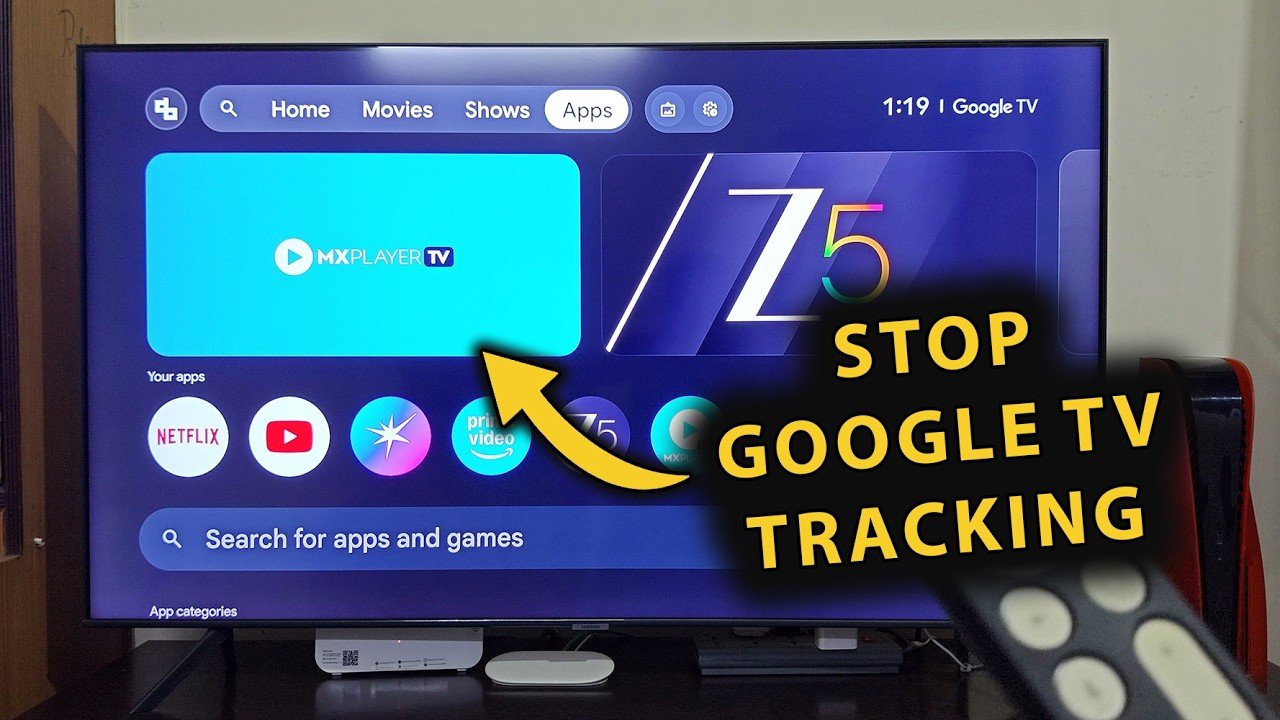
Smart TVs, streaming sticks and set-top boxes (Roku, Fire TV, Android TV, Tizen, webOS): These devices may prompt for location during setup or within an app. Look for location permissions in the device’s main Settings or within the app’s account/consent settings. Some platforms use IP-based location rather than a dedicated location toggle.
Web browsers: When using a streaming site in a browser, permission dialogs come from the browser. You can view and manage site permissions in browser settings (e.g., Chrome Settings > Privacy and security > Site settings > Location).
If you’re unsure what a specific option does on your device, consult the manufacturer or operating system support pages.
Decision flow: when to allow, limit, or deny
- Identify the feature: Is location required for streaming a specific show, joining a live sports feed, or discovering local channels?
- Check app settings: Can you manually choose a region or language in your account instead of sharing device location?
- Choose the least-permissive option that enables the needed feature: prefer “while using the app” and coarse/approximate location over “always” and precise coordinates.
- Revisit permissions: If you rarely use the location-dependent feature, revoke access until you need it.
Example settings (recommended)
- Live sports blackout check: Allow “while using the app” and disable precise location if available. Revoke when not watching local sports.
- Standard streaming library: Deny or choose “Ask every time”. Use account region settings if available.
- Local channel discovery or weather/news integration: Allow coarse location or set city manually in app settings.
Managing ad tracking and third-party sharing
Location is often one of several data points used for targeted advertising. To reduce ad-based profiling:
- Turn off ad personalization in system and app settings where available.
- Use the app’s privacy settings to opt out of data sharing, if the option exists.
- Consider using a separate profile for children or guest profiles that limit data collection.
Keep in mind that disabling location does not eliminate all tracking: IP addresses, device fingerprints, account data and viewing habits can still be used to target or analyze behavior.
FAQ
Q: Will denying location stop apps from knowing my country?
A: Not necessarily. Apps and servers can infer a rough location from your IP address, which provides country and often region information. Denying device location reduces precision but doesn’t make you anonymous.
Q: Do streaming apps need my precise GPS coordinates?
A: Rarely for playback. Precise coordinates are typically unnecessary for licensing checks or regional libraries. Coarse or IP-based location is often sufficient.
Q: Will turning off location affect playback quality?
A: Usually no. Playback is typically managed via content delivery networks (CDNs) and network conditions; limiting device location should not degrade video quality in most cases.
Q: Can apps collect location in the background without permission?
A: Background access requires explicit permission on modern operating systems, but some platforms or older firmware may behave differently. Regularly review permissions and check app updates.
Q: Are there legal protections for location data?
A: Yes. Data protection laws such as the GDPR in the EU, the UK GDPR, and privacy laws in Canada and the U.S. place obligations on how companies collect and process personal data, including location. Enforcement and specifics vary by jurisdiction.
Q: Should I use a VPN to hide location from streaming services?
A: A VPN changes the IP address and can alter the perceived region. Using a VPN to circumvent geographic restrictions may violate a service’s Terms of Service and is not a recommended privacy-first substitute. Use account settings or consult the service documentation instead.
Quick checklist before granting location access
- Do I understand why the app needs location? Check the app’s permission prompt and privacy policy.
- Can the feature work with coarse or account-set location instead? Choose the less precise option.
- Is background or always-on access requested? Only grant this for trusted apps with a clear need.
- Can I revoke permission later? Yes — monitor and change settings as needed.
Where to learn more and manage privacy
For platform-specific guidance, consult operating system and device support pages and the app’s privacy policy. Use system privacy dashboards to monitor which apps access location and how often.
For general privacy best practices, visit our Tech & Security and check device-specific advice in Devices & Setup. If you use a particular streaming app frequently, some of our Streaming Guides explain how to configure accounts and permissions for common services. For tools that help manage app permissions and privacy, see Apps & Tools.
Disclosure
Settings, menu names and compatibility can differ by TV, streaming device, operating system, region and firmware version. Check your device manufacturer and service documentation for the most current instructions.
Conclusion
Location permissions for streaming apps are a pragmatic trade-off. In some situations — especially live sports and rights-managed content — sharing regional location is necessary to access the intended service. In many other cases, precise or always-on location is unnecessary and exposes you to greater profiling and tracking.
When deciding, prefer the least-permissive option that still delivers the feature you need: “while using the app” and coarse/approximate location over “always” and precise coordinates. Review app privacy settings, opt out of ad personalization where available, and revisit permissions periodically. With a few simple steps you can balance functionality and privacy across phones, TVs and streaming devices.

Canzar
Ready to stream? Pick your plan
Live TV, movies, sports and 10,000+ channels on any device — Firestick, Android TV, Smart TV, phone.
View Subscription Plans Compare Pricing
Moderation: Comments are reviewed before publishing. Be respectful and on-topic.
Guidelines: Share streaming tips, device help, or content recommendations. No spam, no promotions, no off-topic links.