
Last updated August 25, 2026 · Editorially reviewed by CanzarTV
How media players prioritize hardware decoding vs software decoding
Playing a video on a streaming device or smart TV involves more than network speed and file format: the media player must decode compressed video and audio. That decoding can happen in two broad ways — using dedicated hardware accelerators on the device (hardware decoding) or using the device’s general-purpose CPU with software libraries (software decoding). Each approach has trade-offs for performance, battery, heat, compatibility and picture processing.
This article explains how players choose between hardware and software decoding, the benefits and limits of each method, how to tell which is active, and practical troubleshooting steps for better playback. Wherever details vary by device, model or firmware, we note that you should check your manufacturer or app documentation for current specifics.
What do we mean by hardware and software decoding?
- Hardware decoding: The device includes a dedicated video decoder block (often in the SoC or GPU) optimized for formats such as H.264, H.265/HEVC, VP9, AV1 and others. The media player hands compressed frames to that block, which returns decompressed frames with minimal CPU overhead. Hardware decoders are usually more power-efficient and produce less heat than software processing.
- Software decoding: The device CPU (or GPU running general-purpose code) runs a codec implementation in software (for example, x264, libvpx or FFmpeg’s decoders). This is more flexible—software can support unusual formats or apply custom filters—but consumes more CPU cycles and power.
Both approaches ultimately produce frames for display; the difference is where and how the core codec work happens.
How players decide which decoding mode to use
Most modern media players and streaming apps use a decision process that considers capability, content, user settings and DRM requirements. Typical factors include:
- Device capability: If the device reports a hardware codec for the required format and profile (e.g., H.265 Main/Main10), the player will usually prefer hardware decoding.
- Codec and profile support: Hardware decoders support a defined set of codecs, profiles and maximum resolutions/bitrates. If the stream uses an unsupported codec, profile, or contains features the hardware lacks, the player falls back to software.
- Encrypted streams and DRM: Some DRM systems require a secure hardware decoding path (Trusted Execution Environment/secure video path). Conversely, some DRM workflows can prevent hardware acceleration if the device or app lacks the required secure frameworks.
- User preferences and developer choices: Apps often provide settings to force software decoding (for debugging or filters) or to disable hardware acceleration that causes artifacts on certain devices.
- Performance and thermals: On devices with weak or buggy hardware decoders, an app may choose software decoding for stability. Likewise, if a device is thermal-limited, an app could prefer a different path depending on user settings.
- Container-level concerns: The media container (MKV, MP4, TS) may include subtitles, attachments or codec arrangements that are easier to handle in software.
Because the final behavior depends on the media player, device firmware, and the stream, players often implement a sequence: attempt hardware decode, monitor for errors or dropped frames, then fall back to software if necessary.
Benefits and trade-offs: hardware vs software (at a glance)
| Area | Hardware decoding | Software decoding |
|---|---|---|
| Power efficiency | Lower CPU use, better battery life on portable devices | Higher CPU use, drains battery faster on mobile devices |
| Heat and thermals | Lower heat output in most cases | Can raise temperature and throttle performance |
| Performance (high-res) | Better for 4K/8K and high-bitrate streams on supported codecs | May struggle on limited-CPU devices; good on high-core desktop CPUs |
| Codec flexibility | Limited to supported codecs/profiles per hardware | Very flexible; can support obscure or experimental formats |
| Updatability | Tied to firmware/SoC drivers; slow to add new codecs | Easier to update via software/ app updates |
| DRM/security | Can offer secure pipelines required by some DRM schemes | May be incompatible with secure DRM requirements |
| Picture customization | Limited post-processing in hardware path; vendor-specific features | Easier to add filters, custom scaling and color processing |
Note: exact behavior and support lists vary by device model and manufacturer. Always verify compatibility in your device documentation.
Common situations where software decoding is used
- The stream uses a codec or profile not supported by the device hardware decoder (for example, a newer or less common codec on older hardware).
- The container or stream requires features (e.g., special subtitle rendering, attachments or unusual codec parameters) that the hardware path doesn’t expose.
- The app or user has enabled a setting to force software decoding to enable custom filters or to work around hardware bugs.
- During playback failures: many players automatically fall back to software decoding after hardware decoder crashes, stalls or produces artifacts.
- Development or testing: app developers may use software decoding to debug format handling.
How to tell whether a player is using hardware or software decoding
Different players expose status in different ways. Here are practical steps you can try in common scenarios:
- Player statistics or overlays
– Many apps and players have an on-screen stats overlay (e.g., show debug info, playback stats, or GUI options named “Stats for nerds”). Look for labels such as “hardware”, “hw”, “hwdec”, “mediacodec”, “vdec”, “VideoToolbox” (macOS/iOS), or “VAAPI”/”VDPAU” (Linux) vs “SW” or “software”. - App settings
– Check the player’s video or advanced settings. Options often include “Enable hardware acceleration”, “Use MediaCodec”, or “Force software decoder”. - Logs and debug output
– On Android, logcat can show whether MediaCodec is used. On desktops, debug logs from VLC, MPV, Kodi or the app may state whether a hwaccel backend is in use. Enable verbose logging if available. - System monitoring
– If CPU usage spikes dramatically during playback while GPU/decoder usage remains low, that suggests software decoding. Conversely, low CPU and modest power draw often indicate hardware acceleration. - Third-party documentation
– For closed platforms, check the manufacturer’s or app developer’s documentation to see which decoders and features are supported in hardware.
Always remember that labels and log messages vary by platform and app; if unsure, consult the app or device documentation.
Practical steps to influence decoding mode (safe, consumer-facing)
These steps are general guidance. Menu names and availability vary by device, operating system and app.
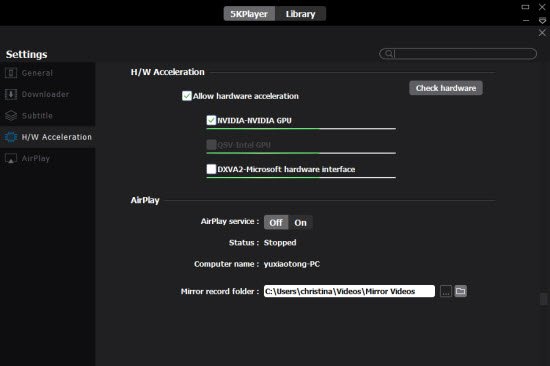
- Check in-app settings: Look for “hardware acceleration”, “use hardware decoder”, “enable MediaCodec/VideoToolbox/VAAPI”. Toggle the setting and restart playback.
- Try an alternative app: Different apps ship different decoders and settings. If one app struggles with a stream, test the same stream in another player.
- Update apps and firmware: Codec support and hardware integration can improve with app updates and device firmware; verify current documentation before relying on a new feature.
- Use lower resolutions/profiles: If hardware does not support a high-resolution profile, switching to a lower-resolution stream may allow hardware decoding.
- Enable debug overlays: Activating a player’s stats overlay can show whether hardware decode is active and whether frames are being dropped.
- Contact support: If a specific device shows artifacts or crashes only with hardware acceleration, report it to the app or device vendor with logs and reproduction steps.
Do not attempt unsupported firmware modifications or DRM circumventions; those can violate terms of service and damage devices.
Troubleshooting common playback issues related to decoding
- Choppy playback or dropped frames
- Check if the player fell back to software decoding (see method above). If software decoding is active on a low-powered device, try enabling hardware acceleration or selecting a lower-resolution stream.
- Artifacts or corruption visible only with hardware acceleration
- Disable hardware acceleration in the app to see if the issue disappears. If so, report the issue to the app and device maker; the hardware decoder may have a bug or the driver may need an update.
- High device temperature or battery drain
- Software decoding can increase CPU load and heat; prefer hardware decoding on portable devices for better battery life. Verify behavior using the player’s stats overlay and the device’s power monitoring tools.
- DRM playback fails when hardware decoding is forced
- Some DRM systems require a secure hardware path. If playback fails only with hardware decode enabled, verify DRM and device compatibility in official documentation.
When developers choose the decoding path
App developers typically use platform APIs to query available codecs and choose the best path. On Android, MediaCodec and MediaExtractor or higher-level libraries expose hardware capabilities. On Apple platforms, VideoToolbox is the hardware interface while software fallbacks are common when VideoToolbox can’t handle the stream. Desktop players rely on system libraries (VAAPI, VDPAU, DXVA, Video Acceleration APIs) and cross-platform libraries like FFmpeg that can use hardware backends.
Developers often implement a graceful fallback: attempt hardware decode first, monitor performance and error states, then switch to software if needed. This approach balances efficiency and compatibility across diverse devices.
Quick comparison: when to prefer one over the other
- Prefer hardware decoding when:
- You’re on a mobile device or streaming box and want longer battery life and lower heat.
- You’re playing high-resolution or high-bitrate streams and the device lists support for the codec/profile.
DRM requires a secure hardware path.
Prefer software decoding when:
- The stream uses an uncommon codec/profile or contains unusual features not supported by device hardware.
- You need advanced filters, custom color processing or subtitle rendering that the hardware path doesn’t support.
- The hardware decoder is buggy or produces artifacts on your device.
FAQ
Q: How do I know if my smart TV supports a particular codec in hardware?
A: Consult the TV’s specifications or the manufacturer’s support pages. Support can vary by model, firmware and region, so check the latest documentation for your exact model.
Q: Will enabling hardware decoding always improve battery life?
A: On most portable devices, yes—hardware decoders are typically more power-efficient. However, behavior can vary by device and firmware; verify using device power/thermal monitoring. If you see unexpected battery drain, check whether the player fell back to software decoding or if a firmware update is available.
Q: Can hardware decoding be updated via app updates?
A: Hardware decoder implementations live in the device SoC and firmware. Apps can change how they use decoders, but adding support for a completely new hardware-accelerated codec usually requires firmware or driver updates from the device maker.
Q: Is software decoding always slower than hardware decoding?
A: Not always. On powerful desktop CPUs, software decoding can be perfectly smooth and allow advanced post-processing. On low-power devices, software decoding may struggle. The relative speed depends on device CPU/GPU capability and codec complexity.
Q: Are there security implications to forcing software decoding?
A: Forcing software decoding may bypass secure hardware pipelines required by DRM, potentially blocking access to protected content. It also changes the attack surface. Always follow app and content provider guidance for DRM-protected streams.
Conclusion
Hardware and software decoding are both essential tools in modern media playback. Hardware decoding offers efficiency, lower heat, and better battery life on supported codecs and devices, while software decoding provides flexibility and faster updates for unusual formats or custom processing. Media players typically choose the most suitable path based on device capabilities, content properties, DRM requirements and user or developer preferences, and they often fall back between modes to preserve playback.
If you encounter playback issues, check the player’s stats overlay and settings, try toggling hardware acceleration, and consult your device or app documentation for codec and DRM support. When in doubt, updating apps and device firmware and reporting reproducible issues to vendors helps the ecosystem improve.
Disclosure: Decoding behavior, available codecs and menu names can differ by TV, streaming device, operating system, region and firmware version. Always verify current compatibility and settings in your device or app documentation.
For related tips on device setup and troubleshooting, see our guides in Devices & Setup and app-specific tools in Apps & Tools. For security considerations with streaming, check our Tech & Security coverage and walkthroughs on adaptive streaming in Streaming Guides.

Canzar
Ready to stream? Pick your plan
Live TV, movies, sports and 10,000+ channels on any device — Firestick, Android TV, Smart TV, phone.
View Subscription Plans Compare Pricing
Moderation: Comments are reviewed before publishing. Be respectful and on-topic.
Guidelines: Share streaming tips, device help, or content recommendations. No spam, no promotions, no off-topic links.