
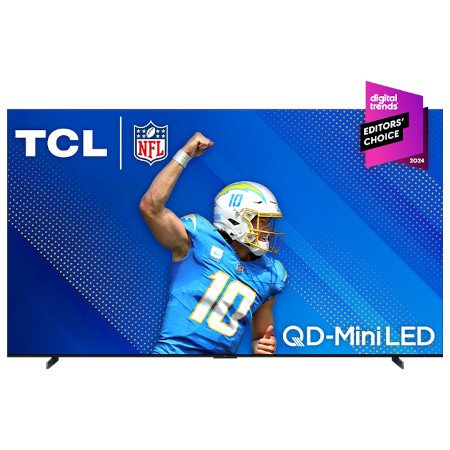
Last updated August 27, 2026 · Editorially reviewed by CanzarTV
Mini-LED TVs: Practical Use Cases for Bright HDR Content
Introduction
Mini-LED TVs are increasingly common in the marketplace, and many viewers are asking how they change the HDR experience. This article explains the practical mini-led hdr benefits, when to prefer mini‑LED over other panel types, and how to get the most from bright HDR content in real homes. The guidance is model-agnostic and focuses on everyday use cases, setup tips, and trade-offs you should consider.
What mini‑LED brings to HDR viewing
Mini‑LED is a backlighting approach that uses many smaller LEDs to illuminate an LCD panel. Compared with traditional full‑array LED backlights, mini‑LED allows finer local dimming — more precisely dimming or boosting light in different screen areas — which can improve peak brightness and contrast for HDR highlights.
Key practical benefits (model-dependent):
- Stronger HDR highlights: Mini‑LED sets often achieve higher localized peak brightness, making specular highlights (sun flares, reflections, bright text on dark backgrounds) look more impactful.
- Improved contrast in bright scenes: With more dimming zones, bright elements can stand out against darker backgrounds without raising overall screen brightness.
- Better performance in bright rooms: Higher peak output and controlled blooming can make HDR content more visible in daytime or well‑lit environments.
Be cautious: peak brightness, local dimming effectiveness, and color performance vary by manufacturer and model. Always check the current manufacturer documentation or independent reviews for a specific TV.
Practical use cases for mini‑LED HDR benefits
Below are common viewing scenarios where mini‑LED’s strengths often matter.
1) Living-room TV for daytime and mixed lighting
If your TV sits in a bright living room or near windows, mini‑LED’s ability to produce strong HDR highlights helps preserve highlight detail when ambient light washes the image. In practice this means bright HDR cues (e.g., sunlight reflecting off water, bright signage) stay visible without driving the whole panel to uncomfortable brightness.
Recommendations:
- Position the TV to minimize direct sunlight on the screen. Even with a bright panel, reflections reduce perceived contrast.
- Use room lighting control (dimming curtains, adjustable lamps) combined with TV picture modes to avoid eye strain.
2) HDR movies and TV series with mixed dark and bright scenes
Cinematic HDR often uses dramatic contrast: small, intense highlights in otherwise dark frames. Mini‑LED’s local dimming can keep deep blacks while letting highlights push higher, enhancing perceived dynamic range for HDR mastering that relies on bright accents.
What to watch for:
- Blooming or halos: With many dimming zones the effect is reduced compared to older full‑array panels, but zone boundaries can still cause slight blooming around bright objects on some models.
- Calibration: Using a properly tuned picture mode (or professional calibration) helps balance peak brightness and shadow detail.
3) Sports and live events in bright rooms
Fast‑moving sports can benefit from higher sustained brightness, especially when watching during daytime. Mini‑LED TVs often maintain better highlight visibility and more consistent brightness across the screen compared with edge‑lit displays.
Practical tips:
- Use a game or sports picture mode that reduces motion blur and preserves detail.
- Verify motion smoothing and interpolation settings based on personal taste.
4) Gaming: HDR highlights and competitive visibility
Modern consoles and gaming PCs output HDR content and use metadata formats like HDR10 or Dolby Vision (if supported). For competitive and immersive gaming, mini‑LED’s HDR highlights can improve visibility of small bright cues (e.g., muzzle flashes, UI elements) without washing out darker areas.
When to prioritize mini‑LED for gaming:
- You want strong HDR highlights and consistent brightness in well‑lit rooms.
- You care about local dimming benefits while retaining low input lag (check model specifications).
Note: Input lag, variable refresh support, and motion interpolation are separate factors from backlight technology — verify these in each TV’s specs.
5) Multi-purpose family TV
If the set must perform well for movies, gaming, sports, and day‑to‑day streaming, mini‑LED can be a strong all‑rounder. It tends to offer a balance between brightness and contrast that fits mixed usage.
Mini‑LED vs OLED for HDR: a practical comparison
The best choice depends on which HDR traits you prioritize. Below is a model‑agnostic comparison of typical strengths and trade‑offs.
| Feature | Mini‑LED (typical) | OLED (typical) |
|---|---|---|
| Peak HDR highlights | Often higher peak brightness for specular highlights | Lower peak brightness but excellent tone in mid highlights |
| Black level and infinite contrast | Deep blacks but dependent on dimming zones; small blooming possible | True pixel‑level blackout — excellent blacks without blooming |
| Blooming around bright objects | Possible, but reduced vs older full‑array designs | None (per‑pixel control) |
| Performance in bright rooms | Stronger (less affected by ambient light) | Can be impacted by bright ambient light, though anti‑reflection helps |
| Off‑axis viewing | Typically better than some OLEDs, depending on panel | Some color/contrast shift off‑axis, varies by model |
| Burn‑in risk | No inherent burn‑in risk from static content | Potential for burn‑in with extreme static elements over long periods (manufacturer guidance varies) |
| Price and availability | Wide range of sizes and price points | Competitive but often higher at top sizes; varies by brand |
Keep in mind these are general tendencies. Implementation varies across models and manufacturers; check specs and independent tests for the specific TV you consider.
How to get the best HDR picture from a mini‑LED TV: practical steps
- Confirm your source is delivering HDR
- Use native HDR content (Netflix, Disney+, Prime Video, UHD Blu‑ray) and check the streaming app or player for HDR badges (HDR10, Dolby Vision, HLG). On consoles or PCs, confirm HDR is enabled in system settings.
- Use the right picture mode
- Many TVs offer dedicated HDR picture modes. Start with the manufacturer’s HDR movie or cinema mode and tweak from there.
- Turn off unnecessary contrast-boosting features
- Some TVs include aggressive dynamic contrast, auto‑brightness, or AI enhancement settings that may clip shadow detail or pump highlights unnaturally. Try turning those off during critical HDR viewing and compare.
- Adjust backlight and peak brightness controls
- If available, adjust the backlight (or OLED/brightness equivalent) and peak brightness/tone mapping settings to match your room lighting. For very bright rooms, a slightly higher peak setting can help; for dark rooms reduce overall output to avoid eye strain.
- Check motion and interpolation settings for sports and gaming
- For fast action, enable appropriate motion processing or game modes; for cinematic content, consider turning motion interpolation off.
- Verify HDMI and device compatibility
- HDR over HDMI depends on the source device, HDMI cable bandwidth, and TV input settings. Make sure your streaming box, console, or player is set for HDR output and that the TV input is configured to accept HDR (often an HDMI input setting or enhanced mode). Manufacturer documentation will confirm exact steps for each device.
- Consider professional calibration for critical viewing
- If you’re building a home cinema or need the most accurate HDR, a professional calibration provides the best balance between highlights and shadow detail across diverse HDR material.
Common caveats and things to check before buying
- Specification variability: Peak brightness, number of local dimming zones, color volume, and anti‑reflection coatings differ between models. Don’t assume every mini‑LED TV will match the highest‑end examples you’ve seen in reviews.
- Blooming: Even with mini‑LED, some TVs exhibit slight halos around very bright objects on dark backgrounds. This is often less pronounced on higher‑zone models but still worth checking in tests.
- Firmware and feature updates: HDR performance and features (tone mapping, game modes) can improve with firmware updates. Verify the manufacturer’s update policy and how features are enabled.
- Room and viewing habits: A very bright panel isn’t always better for a dark home cinema; OLED’s deep blacks are often preferable there. Think about where and how you’ll watch.
Quick decision guide: when to choose mini‑LED
- Choose mini‑LED if:
- You watch a lot of HDR content in rooms with moderate to high ambient light.
- You want strong HDR highlights and a bright, punchy image for sports, daytime TV, or mixed-purpose use.
You prefer a balance between high brightness and improved local contrast compared with standard LED LCD sets.
Consider OLED instead if:
- You prioritize absolute black levels and minimal blooming for dedicated dark‑room cinema viewing.
- You primarily watch in a dark environment and value per‑pixel contrast over extreme peak brightness.
Remember: many factors beyond panel type — such as tone mapping, color calibration, and anti‑reflective coatings — shape the final picture. Check up‑to‑date manufacturer specs and independent reviews for the specific models you’re comparing.
Practical buying checklist
- Confirm HDR formats supported (HDR10, Dolby Vision, HLG) by both TV and your primary sources.
- Check claimed peak brightness and look for independent measurements where possible.
- Review the number or description of local dimming zones (manufacturers describe this differently); more zones generally help but aren’t the sole determinant of image quality.
- Verify input features important to you: HDMI 2.1 features, VRR, low‑latency game modes, and the number of HDMI ports.
- Inspect the TV in person if possible, or review video samples and unbiased tests to judge blooming and off‑axis performance.
Frequently Asked Questions (FAQ)
Q: Do all mini‑LED TVs have better HDR than traditional LED models?
A: Not automatically. Mini‑LED backlights provide technical advantages, but HDR performance depends on implementation — number of dimming zones, panel quality, color processing, and tone mapping all matter. Check model‑specific information before buying.
Q: Will mini‑LED solve glare and reflections in bright rooms?
A: Mini‑LED improves peak brightness and local contrast, which helps in bright rooms, but it does not eliminate reflections. Anti‑reflective screen coatings and room lighting control remain important.
Q: Is burn‑in a concern with mini‑LED TVs?
A: No — mini‑LED TVs are LCD‑based and do not have the same pixel‑level burn‑in risk that can affect OLED. However, follow manufacturer guidance around static UI elements for long sessions to preserve image quality.
Q: Which HDR format should I look for?
A: HDR10 is a common baseline; Dolby Vision and other dynamic‑metadata formats can offer scene‑by‑scene tone mapping when supported by both the TV and content source. Check that your TV supports the formats used by your streaming services and devices.
Q: Can firmware updates improve HDR performance?
A: Yes. Manufacturers sometimes refine tone mapping, dimming algorithms, and feature compatibility through firmware updates. Check update history and support policies for the brand and model you choose.
Conclusion
Mini‑LED TVs offer meaningful, practical mini-led hdr benefits for many viewers — especially those who watch HDR content in brighter rooms, enjoy sports and daytime viewing, or want strong specular highlights while maintaining good contrast. They are not a universal upgrade over other panel types in every situation: OLED still leads for perfect blacks and absence of blooming in dim viewing environments. The best choice depends on your room, viewing habits, and priorities.
When comparing sets, focus on model‑specific measurements and trusted reviews rather than marketing claims. Use the setup steps above to tune HDR content for your lighting and source devices, and remember to verify features and compatibility in the manufacturer documentation for the exact TV and devices you own.
Disclosure: Settings, supported HDR formats, HDMI features, and compatibility can differ by TV model, connected device, operating system, region, and firmware version. Verify the current manufacturer documentation and device manuals for specifics before purchasing or adjusting settings.
Further reading and resources
- See our device setup guides for connecting streaming boxes and consoles: Devices & Setup.
- For broader streaming and content options, check related posts on our Blog and Streaming Guides.
- If you use apps and calibration tools, visit Apps & Tools for recommended workflows.

Canzar
Ready to stream? Pick your plan
Live TV, movies, sports and 10,000+ channels on any device — Firestick, Android TV, Smart TV, phone.
View Subscription Plans Compare Pricing
Moderation: Comments are reviewed before publishing. Be respectful and on-topic.
Guidelines: Share streaming tips, device help, or content recommendations. No spam, no promotions, no off-topic links.