
Last updated August 26, 2026 · Editorially reviewed by CanzarTV
Minimize Buffering When Multiple Household Members Stream
Streaming together is one of the great conveniences of modern home internet — until the video freezes, audio stutters, or your live match drops into pixel mode. This guide walks through practical, model-agnostic ways to minimize buffering when multiple household members stream at once. You’ll learn how to measure what’s available, choose the right connections, prioritize traffic, and use settings that reduce interruptions without sacrificing viewing choices.
Quick overview
Buffering happens when your network can’t deliver data fast enough to meet the streaming app’s playback requirements. With several devices active, the bottleneck may be your internet plan, Wi‑Fi coverage, router configuration, or simply competing apps on the same device. The steps below help you diagnose the cause and apply fixes that work across TVs, streaming boxes, phones, and laptops.
Understand bandwidth, concurrency, and realistic expectations
- Bandwidth is the total capacity of your internet connection (measured in Mbps). Each active stream uses a portion of that capacity. Higher-resolution streams (4K, HDR) use more bandwidth than SD or 720p.
- Concurrency describes how many streams run at the same time. Services often publish the number of simultaneous streams allowed on one account; that is different from what your home network can support.
- Latency and packet loss affect live streams and interactive apps more than on‑demand video.
Tip: If you want multiple 4K streams, plan for substantially more bandwidth than for a handful of mobile or HD streams. Check each streaming service’s support pages for their recommended speeds, and then give yourself headroom for other household traffic.
Measure your network first
- Run a speed test on a device near your router (use a trusted test like Speedtest by Ookla or Fast.com). Note download/upload speeds and latency.
- Test from farther rooms where people watch TV to check Wi‑Fi coverage and throughput.
- Check during normal high-usage hours — evening tests are most realistic.
If your measured download speeds are consistently much lower than your plan, contact your ISP and verify modem/router compatibility and line quality before buying new gear.
Quick fixes that often help immediately
- Close background apps and automatic downloads on streaming devices (updates, cloud backups, game downloads).
- Temporarily lower video quality in apps (e.g., switch 4K to 1080p or 720p while everyone watches).
- Pause large file transfers and cloud-sync jobs during peak viewing times.
- Reboot modem and router if they’ve been running for weeks — a restart can clear transient issues.
These are low-cost steps you can try in minutes and often reduce instances of buffering during shared viewing.
Router and Wi‑Fi improvements
A lot of multi-device buffering stems from Wi‑Fi limits rather than your internet plan. Consider these changes:
- Position your router centrally and elevated, away from thick walls and metal objects.
- Use 5 GHz for devices in the same room as the router — it supports higher speeds and less interference, though 2.4 GHz has longer range.
- Select a less crowded Wi‑Fi channel (especially on 2.4 GHz); many routers can scan for the clearest channel automatically.
- Enable band steering if your router supports it; it helps devices move to the best frequency.
- Make sure your router firmware is up to date. Firmware affects stability and performance and varies by model — check the manufacturer for details.
If your home is large or has signal dead zones, look at these options:
- Mesh Wi‑Fi systems: multiple access points work as a single network and improve coverage for multiple simultaneous streams.
- Wi‑Fi extenders: cheaper but sometimes slower than mesh; performance varies with placement and model.
- Powerline adapters or MoCA (coax) adapters: turn your home wiring into a network path where Wi‑Fi is weak. Effectiveness depends on house wiring and ISP setup.
Comparison: common connection options
| Option | Typical benefits | Typical limitations |
|---|---|---|
| Ethernet (wired) | Most reliable, lowest latency, best consistent throughput for TVs and consoles | Requires cabling; less flexible for mobile devices |
| Mesh Wi‑Fi | Good whole-home coverage, simplifies management | More expensive; performance varies by model and placement |
| Wi‑Fi extender | Low-cost coverage boost | Can halve throughput if poorly implemented; may create multiple networks |
| Powerline adapters | Uses home electrical wiring, easy setup | Performance depends on wiring; less effective across circuits |
| MoCA (coax) | Usually fast and stable where coax is available | Requires coax infrastructure and sometimes filters; not available in all homes |
For the most consistent multi-stream performance, hardwire the primary streaming devices (TV, set-top box, game console) where possible.
Prioritize traffic: QoS, traffic shaping, and network segmentation
- Quality of Service (QoS) features let you prioritize video and real‑time traffic over bulk file transfers. Many modern routers offer simple QoS presets (e.g., “streaming” or “gaming”).
- If your router supports application- or device-based QoS, prioritize the TVs and streaming boxes by MAC address or device name.
- Network segmentation: create a separate SSID for IoT devices and leave media devices on a higher‑priority network. This reduces contention between low-bandwidth smart devices and high-bandwidth streams.
Caveat: QoS implementations vary by brand and firmware. Consult your router’s documentation for details and recommended settings.
Device-side settings and household habits
- Streaming apps typically let you choose playback quality. Use lower quality on secondary devices when multiple people stream simultaneously.
- Disable automatic app updates and background syncing on TVs and mobile devices during high-use hours.
- Where available, use offline downloads (many apps let you download episodes) for devices that will be watched at the same time.
- Schedule large downloads, backups, and system updates for overnight when the house is less active.
Managing expectations helps too — coordinate big simultaneous events (major sports, premiere nights) to avoid everyone defaulting to the highest quality streams at once.
ISP plan and modem considerations
- Check your plan’s upload/download rates and compare them to the number and type of streams you expect to run at the same time.
- Remember that other household uses (gaming, video calls, cloud backups) also consume bandwidth.
- If you’re near the edge of your plan’s capacity, upgrading to a higher-tier plan can ease congestion. Contact your ISP to discuss realistic speed needs.
- Modem/router combos supplied by ISPs can be convenient but sometimes limit advanced configuration. If you need advanced features (better QoS, mesh compatibility), consider using your own router behind the ISP modem; verify compatibility first.
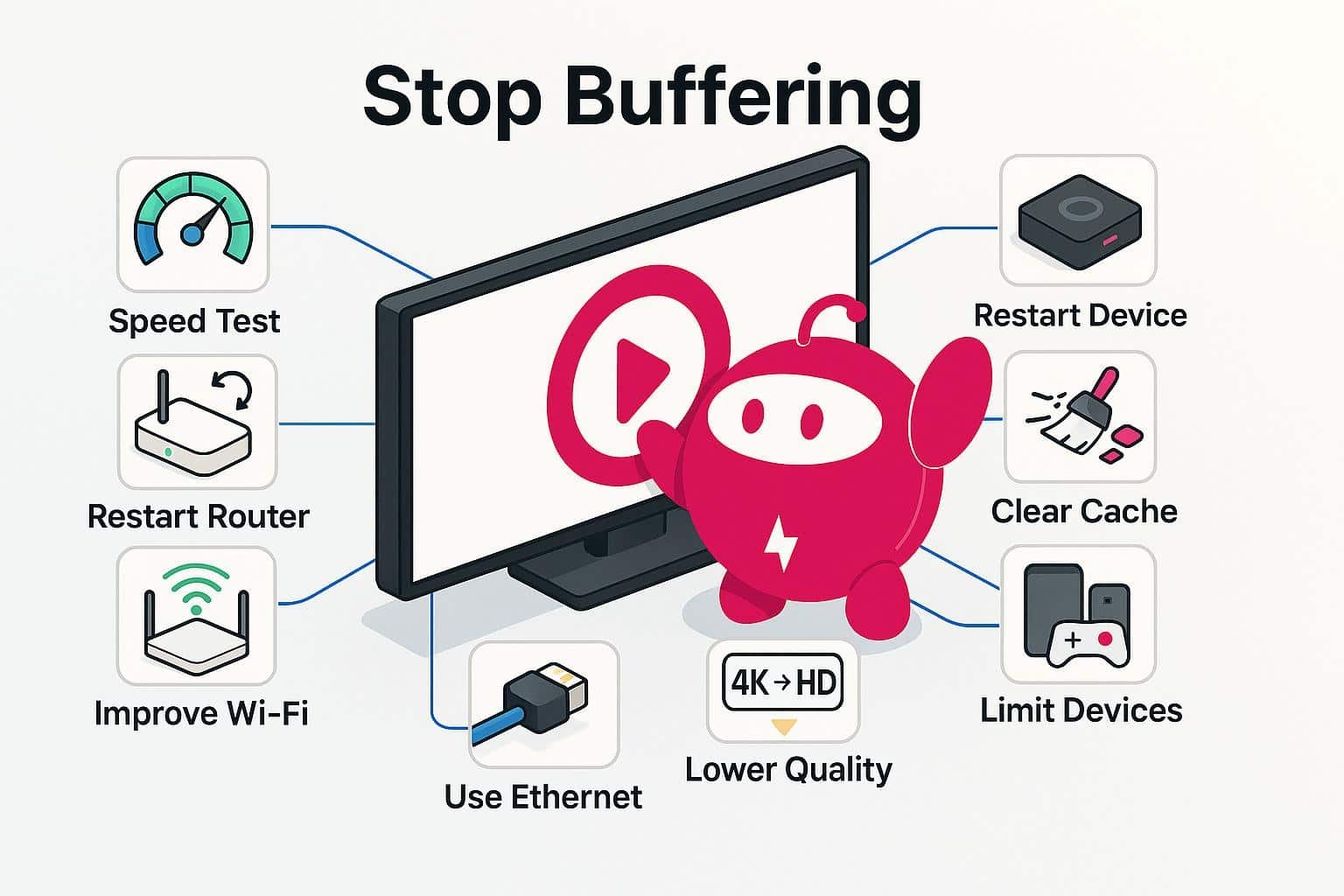
A practical step-by-step checklist (start here)
- Run evening speed tests in rooms where people watch.
- Identify which devices stream most often and whether they can be wired.
- Apply quick fixes: reboot router, pause backups, lower stream quality where practical.
- If Wi‑Fi is weak, reposition router or add a mesh node; prefer Ethernet for main TVs.
- Enable QoS or device prioritization on your router for TVs and set-top boxes.
- Schedule updates and large downloads for off-peak hours.
- If problems persist and speeds match your plan, contact your ISP to check line quality or consider a plan upgrade.
When to consider new hardware or upgrades
- Frequent buffering across multiple rooms despite adequate plan speeds suggests Wi‑Fi coverage or router capability is the issue.
- Older routers may not manage many modern devices efficiently. Look for routers that support modern Wi‑Fi standards and multi-device management features if your home has many simultaneous users.
- Mesh systems are an appropriate upgrade for homes with multiple floors or dead zones.
Avoid brand-specific claims: models and features vary widely. Check manufacturer documentation for compatibility and features.
FAQ
Q: How much bandwidth do I need for multiple simultaneous streams?
A: It depends on stream quality. As a rule of thumb, HD streams typically need less than 10–8 Mbps each; 4K streams require significantly more. Add the bandwidth of all concurrent streams plus headroom for other household uses and overhead. Check each streaming service’s guidance and measure real-world performance.
Q: Will upgrading my ISP plan always stop buffering?
A: Not always. If buffering is caused by weak Wi‑Fi, interference, or congested router hardware, simply increasing ISP speed may not fix the problem. Diagnose Wi‑Fi coverage and router capacity first.
Q: Is Ethernet necessary for good multi-device streaming?
A: Not strictly necessary, but Ethernet offers the most consistent performance for devices that remain in one place (TVs, game consoles). Use wired connections for at least the primary streaming devices if possible.
Q: Are mesh systems worth the cost?
A: Mesh systems are effective for improving coverage and simplifying network management in medium to large homes or places with many dead zones. Their impact varies by model and home layout.
Q: Can QoS slow down my whole network?
A: If misconfigured, QoS can restrict some types of traffic and create unexpected slowdowns. Use conservative or recommended settings and consult your router’s documentation.
Q: Do streaming services limit the number of simultaneous streams?
A: Yes — services publish simultaneous-stream allowances on their support pages. That’s a different restriction from what your home network can handle.
Conclusion
Minimizing buffering when multiple household members stream is a mix of measuring what you have, prioritizing the right traffic, improving Wi‑Fi or wiring when necessary, and using sensible device settings. Start with measurements and simple fixes, then move to router QoS, targeted hardware upgrades (mesh, Ethernet, or MoCA), and ISP plan evaluations only as needed. These steps help deliver a smoother experience without guessing or overpaying for hardware or bandwidth you don’t need.
Disclosure: Settings, feature names, and compatibility vary by TV, streaming device, router model, operating system, region, and firmware version. Verify the current manufacturer documentation for device-specific steps and capabilities.
For more on device setup and troubleshooting, see our detailed walkthroughs in Devices & Setup and practical tips in Streaming Guides. Tools that can help you monitor your network are discussed in Apps & Tools, and for broader security considerations visit Tech & Security.

Canzar
Ready to stream? Pick your plan
Live TV, movies, sports and 10,000+ channels on any device — Firestick, Android TV, Smart TV, phone.
View Subscription Plans Compare Pricing
Moderation: Comments are reviewed before publishing. Be respectful and on-topic.
Guidelines: Share streaming tips, device help, or content recommendations. No spam, no promotions, no off-topic links.