
Last updated August 26, 2026 · Editorially reviewed by CanzarTV
Use VLANs and Guest Networks to Protect Streaming Quality
A steady, high‑quality stream is the result of good internet bandwidth, stable wireless performance, and smart network design. As homes fill up with smart speakers, cameras, IoT devices and multiple streaming boxes, background traffic on the same local network can cause buffering, stutters, and poor picture quality. Logical separation—using VLANs (Virtual LANs) and guest networks—lets you segregate traffic, apply rules, and reduce the chance that one device or group of devices harms your media playback.
This guide explains why VLANs and guest networks help streaming, how they differ, practical configuration steps for typical home and small‑office setups, tips for QoS and firewall rules, troubleshooting, and an FAQ. Manufacturer interfaces and feature sets vary, so always verify details in your router, access point, or switch documentation.
Why segment your network for streaming?
- Reduce contention: Devices that frequently upload or perform many connections (security cameras, cloud backups, torrenting PCs) can saturate upstream or downstream links. Segmenting keeps those flows away from your media devices.
- Apply appropriate controls: You can restrict internet access, set limits, or schedule connectivity for IoT devices without touching your main streaming devices.
- Improve security: Isolating untrusted devices reduces the chance that an exploited device can reach media servers or private devices.
- Make troubleshooting easier: When streaming problems occur, a segmented network helps you narrow whether the issue is device‑level, network‑level, or an ISP issue.
Note: VLANs and guest SSIDs are logical constructs. They do not magically increase raw bandwidth. They do, however, help keep local traffic predictable and allow you to apply prioritization rules.
VLANs vs. Guest Networks: What’s the difference?
- VLANs (Virtual LANs)
- Operate at the network layer to create separate broadcast domains over the same physical infrastructure.
- Work across wired and wireless devices when your switches and access points support VLAN tagging (802.1Q).
Are flexible: you can define multiple VLANs (e.g., ‘Media’, ‘IoT’, ‘Office’) and route or firewall between them as needed.
Guest networks (guest SSIDs)
- Frequently provided as an easy way to isolate visitor wireless clients from your main LAN.
- Often implemented as an individual VLAN behind the scenes, but not always—check your device’s implementation.
- Usually limited to wireless isolation and may offer simplified captive portal or access restrictions.
In short: a guest network can be a convenient VLAN implementation for wireless-only devices, while VLANs are a broader tool for comprehensive segmentation across wired and wireless gear.
Planning your segmentation strategy
Inventory devices and traffic patterns
– Make a list of always‑on or high‑bandwidth devices (security cameras, NAS backups, cloud sync, PCs used for large uploads).
– Note which devices require low latency and reliable downstream (TV streaming boxes, game consoles, Chromecast/Apple TV, smart TVs).Define VLANs logically
– Example layout:- VLAN 10 — Media (TVs, streaming boxes, consoles)
- VLAN 20 — Primary LAN (work PCs, laptops, trusted devices)
- VLAN 30 — IoT (smart bulbs, thermostats, sensors)
- VLAN 40 — Guest Wi‑Fi (visitors and BYOD)
- Keep the number of VLANs manageable. Too many can make debugging harder in smaller setups.
Decide on inter‑VLAN rules
– Typical rule: Media VLAN can access the internet and streaming service servers; IoT VLAN is blocked from talking directly to the Media and Primary VLANs, but allowed out to the internet.
– Allow management access from an admin VLAN or a single management device, not from IoT or guest networks.Consider QoS and bandwidth shaping
– Prioritize streaming protocols and known device MAC addresses or IP ranges for media devices, or give the Media VLAN higher priority where supported.
– Put heavy upload devices on their own VLAN so you can limit or shape their upstream usage during peak viewing hours.
Practical setup: step-by-step overview
The exact steps depend on your hardware and firmware. Below is a high‑level workflow you can adapt.
Verify your hardware supports VLANs
– Many consumer routers now offer VLAN and guest SSID features, but some inexpensive models do not. Managed switches and business/ prosumer access points offer better support.
– If you use a mesh kit, check whether the mesh system exposes VLANs or only provides basic guest networks. Consult the manufacturer docs.Configure VLANs on the router/firewall
– Create separate VLAN interfaces (e.g., VLAN10, VLAN20) and assign them unique subnets (for example, 192.168.10.0/24 for Media).
– Set up DHCP services so devices on each VLAN receive addresses appropriate to that subnet.Tag/untag ports on your switch
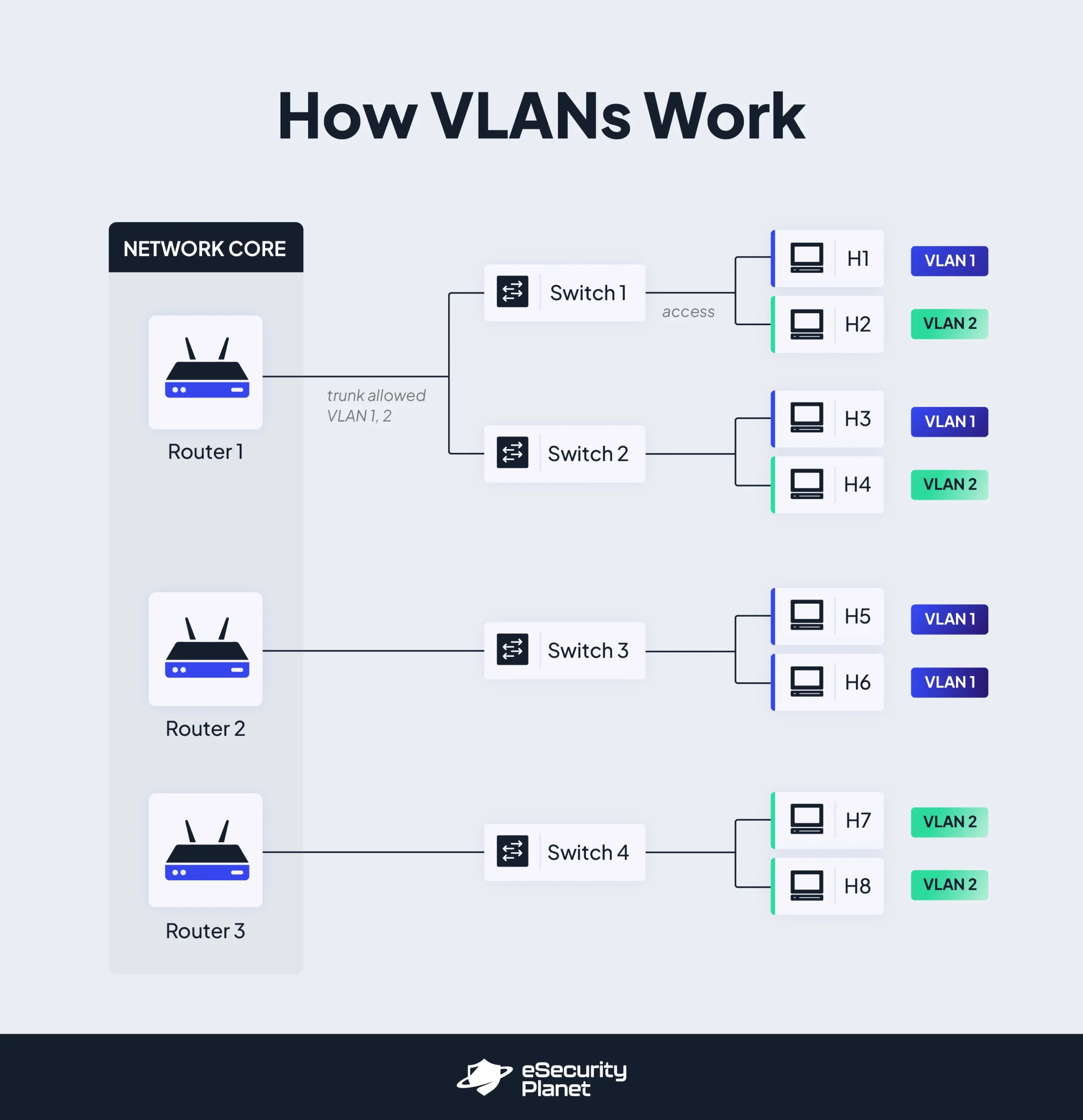
– For wired connections that need to carry multiple VLANs (access point uplink), mark the port as ‘trunk’ or ‘tagged’ for those VLANs.
– For ports connected to single VLAN devices (a TV or NAS), set the port to ‘access’ or ‘untagged’ on the corresponding VLAN.Map SSIDs to VLANs on your access points
– Create SSIDs like “Home Media” and “Guest” and bind them to the Media VLAN and Guest VLAN respectively. This ensures wireless clients land on the correct subnet.Implement firewall rules
– Default deny between VLANs and then open necessary paths. For example, block IoT → Media, block Guest → Primary, allow Media → Internet.
– Add management rules allowing trusted admin devices to reach network infrastructure for updates and monitoring.Set QoS or traffic prioritization
– Where your router supports it, prioritize the Media VLAN or set DSCP markings for upstream QoS.
– Prefer device‑level prioritization for key streaming devices when possible (e.g., prioritize a specific TV’s MAC address).Test and iterate
– Connect a streaming device and run test playback. While streaming, check whether other VLANs (uploading backups, camera streams) impact quality.
– Adjust firewall and QoS rules as needed.
Important: exact UI labels and options vary by product and firmware. Always cross‑check with your router, switch, or access point vendor documentation.
Typical setups: small home, advanced home, and small office
- Small home (single router, basic switch)
Use the router’s guest network for visitors and a single additional VLAN for Media if the router supports it. Use a managed switch only if you need wired VLANs.
Advanced home (mesh or prosumer gear)
Use VLANs across wired and wireless infrastructure. Tag the uplink from the router to access points and switches. Map separate SSIDs for Media and IoT.
Small office / power user
- Use a dedicated firewall or router supporting inter‑VLAN routing. Implement stricter rules, per‑VLAN logging, and consider bandwidth shaping for devices like backup servers.
QoS and prioritization: what actually helps streaming?
- Prioritization, not absolute speed: QoS is most useful when your uplink is the bottleneck. Giving streaming traffic higher priority helps prevent upstream saturation from causing packet delay or loss for interactive streams.
- Types of QoS to consider:
- Priority queues for the Media VLAN.
- Limiters or traffic‑shaping for known high‑use VLANs (IoT backups, NAS replication) during prime viewing times.
- Application‑aware QoS that recognizes streaming protocols (available on some routers), but vendor implementations vary—verify how your router identifies and treats traffic.
Caveat: QoS cannot compensate for an ISP outage or insufficient overall bandwidth. It improves fairness and responsiveness when the link is constrained.
Common pitfalls and how to avoid them
- Assuming guest SSID = full VLAN control: Some consumer systems implement a guest SSID with limited isolation. If you need robust segmentation across wired devices, confirm whether the guest network maps to an actual VLAN.
- Misconfigured trunk/access ports: If you tag endpoints that don’t understand VLAN tags (many TVs and simple devices), they may fail to connect. Use untagged/access ports for single‑VLAN devices.
- Overly permissive rules: Allowing broad inter‑VLAN traffic defeats the purpose of segmentation. Start restrictive and only open necessary ports and services.
- Forgetting management access: Make sure you maintain a secure management path to switches and access points—prefer a dedicated admin VLAN or allow access from a fixed management IP.
Monitoring and maintenance
- Use basic monitoring tools in your router or SNMP on managed switches to watch per‑VLAN usage.
- Log inter‑VLAN denials to detect legitimate devices being blocked by rules and refine policies.
- Periodically review connected devices and their VLAN membership; firmware updates and new devices can change behavior.
Comparison: VLAN approach vs. consumer guest network
| Feature | VLAN (full) | Consumer guest SSID |
|---|---|---|
| Works across wired & wireless | Yes | Often no (wireless only) |
| Fine‑grained firewall control | Yes | Limited |
| Requires managed switch/AP or prosumer router | Often | No |
| Best for isolating IoT + prioritizing media | Yes | Partial |
Use the full VLAN approach when you need consistent policy across wired and wireless devices and when you want to apply QoS/shaping by group. Use a consumer guest SSID when you only need a simple, isolated wireless option for visitors.
Troubleshooting checklist
- No internet on a VLAN: Check DHCP on that VLAN, ensure the gateway interface is up, and verify trunk ports carry the VLAN tag.
- Devices on wrong subnet: Verify SSID→VLAN mapping and switch port tagging configuration.
- Streaming still stutters: Check upstream utilization during playback (backups, camera uploads), confirm QoS settings, and test using a wired connection to isolate Wi‑Fi issues.
- Device can’t reach another device it should: Inspect firewall rules; enable temporary logging to see what is being blocked.
FAQ
Q: Will VLANs increase my download speed?
A: No. VLANs do not increase ISP speed. They improve network predictability and allow prioritization so that streaming devices get preferred treatment when the link is congested.
Q: Do all consumer routers support VLANs?
A: Not all. Many modern prosumer and business routers do, and some consumer mesh systems provide VLAN or guest SSID mapping. Check your device documentation or firmware options.
Q: Can I set a priority for a single TV on the network?
A: Yes. You can prioritize by IP address, MAC address, or by placing the TV on a high‑priority VLAN. Options depend on router firmware.
Q: Will setting up VLANs break smart home device communication?
A: It can if devices expect to find each other on the same subnet (for example, some casting protocols). Use firewall rules or mDNS/Bonjour relays where necessary, and only allow the minimum cross‑VLAN traffic required.
Q: What about mesh Wi‑Fi systems?
A: Some mesh systems support VLAN tagging and multiple SSIDs; others only offer a basic guest network. If uniform VLAN handling is important, verify support before purchase.
Conclusion
VLANs and guest networks are practical, relatively low‑risk tools to protect streaming quality as home networks become busier. By grouping devices, enforcing sensible firewall rules, and applying QoS or traffic shaping, you can reduce the chance that a backup, camera stream, or misbehaving IoT device disrupts movie night.
Start by auditing devices and traffic, design a simple VLAN plan (Media, Primary, IoT, Guest), and test incrementally. Keep configurations well documented and rely on manufacturer documentation for specific steps and UI labels.
Disclosure: Settings, features and compatibility vary by TV, streaming device, router, access point, operating system, region, and firmware version. Verify details in your product manuals and vendor support resources.
For more networking and setup advice, see our Tech & Security and Devices & Setup sections, and browse related posts on the Blog.

Canzar
Ready to stream? Pick your plan
Live TV, movies, sports and 10,000+ channels on any device — Firestick, Android TV, Smart TV, phone.
View Subscription Plans Compare Pricing
Moderation: Comments are reviewed before publishing. Be respectful and on-topic.
Guidelines: Share streaming tips, device help, or content recommendations. No spam, no promotions, no off-topic links.