
Last updated August 25, 2026 · Editorially reviewed by CanzarTV
When an app requests excessive permissions: steps to respond and report
Introduction
Apps often need permissions to work — access to your camera, microphone, contacts, or location can enable useful features. But sometimes an app asks for permissions that aren’t relevant to its purpose or that seem excessive. Knowing how to respond to excessive app permissions and how to report suspected abuse can protect your privacy and security. This guide explains clear, practical steps for Android and iOS users, what to do before and after uninstalling an app, how to report permission abuse, and how to prevent similar issues in future.
How to tell when permissions are excessive
Not every long permission list is malicious. Many legitimate apps request multiple permissions to offer features (e.g., a messaging app will need contacts, microphone, and storage). But permissions are excessive when:
- Permissions don’t match the app’s stated function (a calculator requesting microphone and contacts, for example).
- The app requests background access or persistent location tracking without clear need.
- Permission requests appear immediately on first launch without explanation.
- The app’s privacy policy is missing, unclear, or contradicts the permissions requested.
If you see any of these signs, exercise caution and follow the steps below.
Immediate steps: quick actions when an app asks for too many permissions
- Pause and don’t grant permissions right away. Many permissions can be granted later when the feature is needed.
- Take a screenshot of the permission prompts and the app’s Play/App Store listing (developer name, number of installs, and permissions shown). Screenshots help if you report the app.
- Check the app’s reviews and developer responses in the store for similar complaints.
- Review the app’s privacy policy and developer contact information in the store listing.
- If you already granted permissions, revoke any that seem unnecessary (see device-specific steps below).
- If the app exhibits suspicious behavior (unexpected messages, pop-ups, new icons, or battery drain), disconnect from sensitive accounts and consider removing the app immediately.
Revoking or limiting permissions (Android and iOS — general guidance)
Note: exact steps vary by device model, OS version, and manufacturer. Check your device documentation if the menus below don’t match exactly.
Android (modern versions)
- Open Settings > Apps > [App name] > Permissions.
- Toggle off permissions you don’t want it to have. For location, choose “Allow only while using the app” or “Deny.”
- Use the special app access list (Settings > Privacy or Special app access) to control background location, battery optimization, and drawing over other apps.
iOS (iPhone, iPad)
- Open Settings > [App name] or Settings > Privacy > choose a category (Microphone, Camera, Location, Contacts), then deny or set to “While Using the App.”
- For background app refresh: Settings > General > Background App Refresh to limit background activity.
If you cannot find a given setting, consult the device or OS documentation — manufacturer menus and wording can vary.
How to remove an app with excessive access (safe uninstall steps)
- Backup any important data the app manages (but be cautious: backups can preserve bad data if the app is malicious).
- Sign out of accounts inside the app if possible.
- Revoke any linked third-party permissions (for example, permissions granted via Google or Apple sign-in) by visiting your account’s connected apps page.
- Uninstall the app through Settings > Apps or by long-pressing the app icon and choosing uninstall/remove.
- Restart your device.
- After uninstalling, check for lingering profiles, device administrator access (Android: Settings > Security > Device admin apps), or MDM configuration (especially for corporate devices) and remove any suspicious entries.
- Change passwords and enable two-factor authentication (2FA) for any accounts the app accessed.
Practical checklist: step-by-step after you suspect permission abuse
- Step 1: Take screenshots of the app listing, permission prompts, and any suspicious behavior.
- Step 2: Revoke unnecessary permissions immediately.
- Step 3: Disconnect or sign out of any accounts linked to the app.
- Step 4: Uninstall the app and restart your device.
- Step 5: Change passwords for accounts potentially affected and enable 2FA.
- Step 6: Report the app to the app store and to the developer (instructions below).
- Step 7: If you suspect financial fraud or identity theft, contact your bank and consider credit monitoring.
Reporting app permission abuse: where and how to report
Report quickly and include evidence (screenshots and links to the app store listing). Below are the usual channels:
Report to the app store
- Google Play: Open the app listing in Google Play, scroll down and choose “Flag as inappropriate” or use Google Play Help’s report tools. You can also report from the Play Store website. Attach screenshots and explain why permissions look abusive.
- Apple App Store: Use Apple’s “Report a Problem” page or open the app listing and use the report tool. Provide clear details about the mismatch between permissions and the app’s purpose.
Contact the developer
App listings include developer contact information. Email the developer asking for clarification about why the app needs the permissions and request removal of unnecessary access. Keep a copy of your correspondence.
Report to platform and security vendors
- If the app appears to be malware, report it to major antivirus vendors. Many vendors have submission forms for suspicious apps.
- For serious personal data exposure or fraud, you may wish to notify your national data protection authority (e.g., ICO in the UK) or local consumer protection agency. Law enforcement should be contacted for criminal activity.
Document everything: date/time, steps taken, and responses from the store or developer.
Comparison: permission risk levels (at-a-glance)
| Permission type | Typical legitimate uses | Risk level | What to watch for |
|---|---|---|---|
| Camera | Photos, video calls | Medium | Camera access for a flashlight app or wallpaper app is suspicious |
| Microphone | Voice messages, calls | High | Always-on microphone or background recording is high risk |
| Contacts | Messaging, social features | Medium | Exporting contacts without consent is risky |
| Location (foreground) | Navigation, local services | Low–Medium | “Always” or background tracking for simple utilities is concerning |
| Location (background) | Geofencing, fitness tracking | High | Persistent tracking without benefit is intrusive |
| Storage/files | Saving files, uploads | Medium | Excessive read/write beyond its function is risky |
| SMS & Call logs | Messaging and verification | High | Rarely needed by non-messaging apps; treat as high risk |
This table is a guide; context matters. A navigation app needing background location is legitimate, while a wallpaper app requiring the same is suspicious.
Preventive habits to avoid excessive permissions in future
- Install apps only from official stores and reputable developers. Check ratings and read recent reviews for permission complaints.
- Prefer apps that offer granular permission choices and clear explanations for each requested permission.
- Avoid granting “Always” or background access unless the feature genuinely requires it.
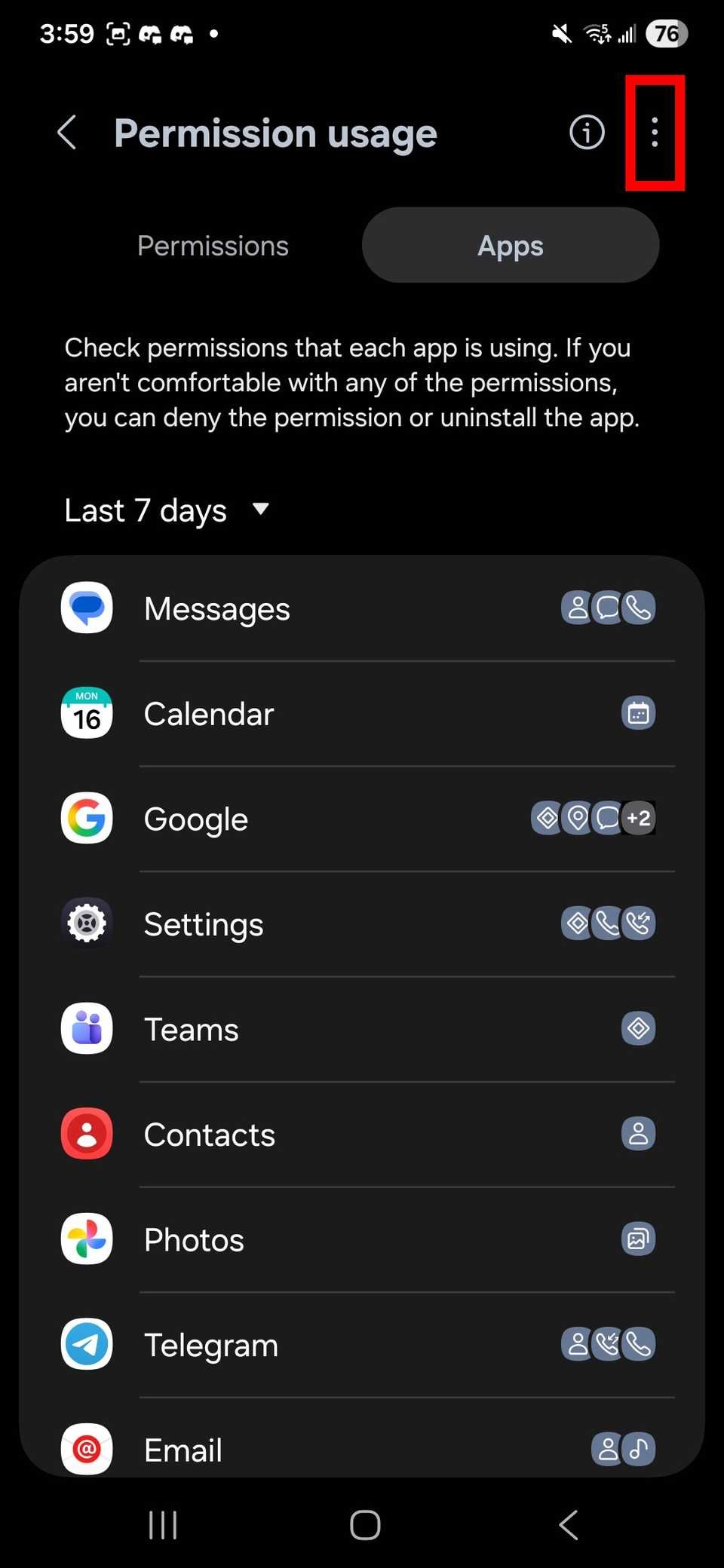
- Use platform permission dashboards periodically to review and revoke unused permissions.
- Use a separate account or limited-permission user profile for less-trusted apps (available on some Android devices).
- Keep OS and apps updated — security patches reduce the risk of abuse.
For more device setup tips and secure app choices, see our guides on Devices & Setup and recommended utilities in Apps & Tools.
When to involve authorities or your bank
- If you see financial transactions you didn’t authorize after installing an app, contact your bank immediately.
- If personally identifying information (social security number, government ID, or financial account numbers) was exposed, consider filing a report with your local data protection authority or consumer protection agency.
- If you’re in doubt whether to escalate, collect evidence and consult official consumer protection guidance or your bank’s fraud department.
FAQ
Q: Is it always a sign of malware if an app asks for many permissions?
A: No. Many legitimate apps need multiple permissions to operate. Excessive permissions are a red flag when they don’t match the app’s function, the developer can’t explain why they’re needed, or users report suspicious behavior.
Q: Can I remove permissions after granting them?
A: Yes. Both Android and iOS let you revoke permissions after granting them. Check Settings > Apps (Android) or Settings > Privacy (iOS). If you can’t revoke a permission, uninstall the app.
Q: How quickly will an app store respond to my report?
A: Response times vary by platform and region. Stores typically acknowledge reports, investigate, and may remove or restrict apps if they violate policies. Keep records of your report and screenshots.
Q: Should I change passwords after uninstalling a suspicious app?
A: Yes. If the app had access to accounts or personal data, change passwords for affected accounts and enable 2FA where available.
Q: Can parental controls help prevent excessive permissions on a child’s device?
A: Yes. Use device-level parental controls and restricted profiles (where available) to limit app installs and manage permissions.
Conclusion
Excessive app permissions are a common and fixable risk. Pause before granting access, document suspicious prompts, revoke unnecessary permissions, and uninstall apps that overreach. Reporting suspect apps to the app store and developer helps protect others. Combine these reactive steps with preventive habits — review permissions regularly, install from trusted sources, and keep software updated — to reduce the chance of permission abuse.
Disclosure: Settings and compatibility can differ by TV, mobile device, operating system version, region, and firmware. Always verify steps against your device manufacturer or OS documentation.
For more on protecting your devices and choosing safer apps, explore our Tech & Security resources and check our Blog for related articles.

Canzar
Ready to stream? Pick your plan
Live TV, movies, sports and 10,000+ channels on any device — Firestick, Android TV, Smart TV, phone.
View Subscription Plans Compare Pricing
Moderation: Comments are reviewed before publishing. Be respectful and on-topic.
Guidelines: Share streaming tips, device help, or content recommendations. No spam, no promotions, no off-topic links.