
Last updated August 25, 2026 · Editorially reviewed by CanzarTV
What to check before granting microphone or camera permissions to streaming apps
Streaming apps increasingly ask for microphone and camera access to support voice search, live chat, clips, and casting features. Those permissions can improve convenience — but they are also powerful. This guide explains what to check before you grant a streaming app microphone or camera access, how to limit exposure if you do, and practical steps to review and revoke permissions across common devices.
Why this matters
- Microphone and camera access can enable features like voice search, live reactions, and guest broadcasts.
- The same access can, if misused or poorly secured, expose private audio and video or increase the data surface available to third parties.
- Regulations and platform behavior vary by region, device, and firmware. Always verify settings and privacy controls for the specific device and app you use.
Table of contents
- Why apps ask for microphone and camera access
- Risks to consider
- A practical permission checklist before you tap “Allow”
- How to grant, limit, and revoke permissions (general steps and tips)
- Comparison: when granting makes sense vs when to refuse
- Streaming-specific settings to watch
- FAQ
- Conclusion and disclosure
Why streaming apps ask for microphone and camera access
Streaming apps request these permissions for legitimate reasons, including:
- Voice commands and search (speak-to-search or voice assistant integration).
- Live streaming, video chat with guests, or spectator reactions.
- Creating short clips, camera overlays, or picture-in-picture features.
- Accessibility features (speech-to-text, captions) and remote support.
Legitimate requests will normally match the advertised feature set of the app. If an app asks for mic or camera access and you don’t see a clear feature that needs it, that’s a red flag.
Risks to consider
Understanding potential harms helps you make an informed choice:
- Unauthorized recording: A compromised or malicious app could record audio or video when you don’t expect it.
- Data collection and sharing: Even legitimate features can collect usage data that is shared with analytics or advertising partners.
- Background access: Some platforms allow limited background access; check whether the app can access mic/camera when not actively in use.
- Security vulnerabilities: Poorly coded apps or third-party libraries can introduce vulnerabilities that expose streams or recordings.
Always consider the minimum access an app needs to deliver the features you want.
Permission checklist: what to check before you tap “Allow”
Use this practical checklist whenever a streaming app requests mic or camera access.
- Intent and feature match
– Does the app clearly state why it needs the mic/camera? Is the feature described in the app store listing or in-app help? - Source and reputation
– Is the app from a reputable developer or well-known platform? Check reviews, the developer site, and official store listings. - Granularity of permission
– Can you grant access only while the app is in use (foreground) or must you give persistent access? Prefer time-limited or “while using” access. - Visible indicators
– Does your device show a clear, ongoing indicator when the mic or camera is active (LED light, icon, or status bar)? - Local vs cloud processing
– Which data is processed locally (e.g., offline voice recognition) and which is uploaded to servers? Prefer local processing where privacy is a priority. - Data retention and sharing
– Does the app’s privacy policy say how long audio/video is stored and whether it’s shared with partners? If not stated, assume broader sharing. - Update and permission history
– Check when the app was last updated and whether permission requests align with recent new features. - Alternative interaction options
– Can you use a remote control, keyboard, or on-screen controls instead of mic/camera for the same task? - Network protections
– Does the app use encrypted connections (HTTPS/TLS) when sending media? Most reputable streaming apps do, but confirm in privacy or technical docs when available. - Ability to revoke
– Can you easily revoke access later from OS settings? Confirm you can disable mic/camera without uninstalling the app.
If multiple checklist items fail or remain unclear, delay granting permission until you can verify.
How to grant, limit, and revoke permissions (general steps and tips)
Below are platform-agnostic steps and safe practices. Exact menus and labels vary by operating system, device, and firmware — always check the current documentation for your device.
- Grant only while using the app whenever possible. Many mobile OSes let you choose “Allow only while using the app” rather than “Always allow.”
- Use the app’s own privacy settings first. Some streaming apps include toggles for voice features or camera-enabled social features — keep those off unless you need them.
- Disable background access. If an OS allows background microphone or camera use, prefer to keep that off for streaming apps.
- Turn off automatic uploads or cloud clipping unless you trust the service and understand retention.
- Revoke permissions immediately if the app behaves unexpectedly or indicators show activity you didn’t start.
Platform notes (verify on your device):
- iOS/iPadOS: App privacy controls for camera and microphone are in Settings > Privacy & Security. You can usually grant “While Using the App” access and see indicators when hardware is active.
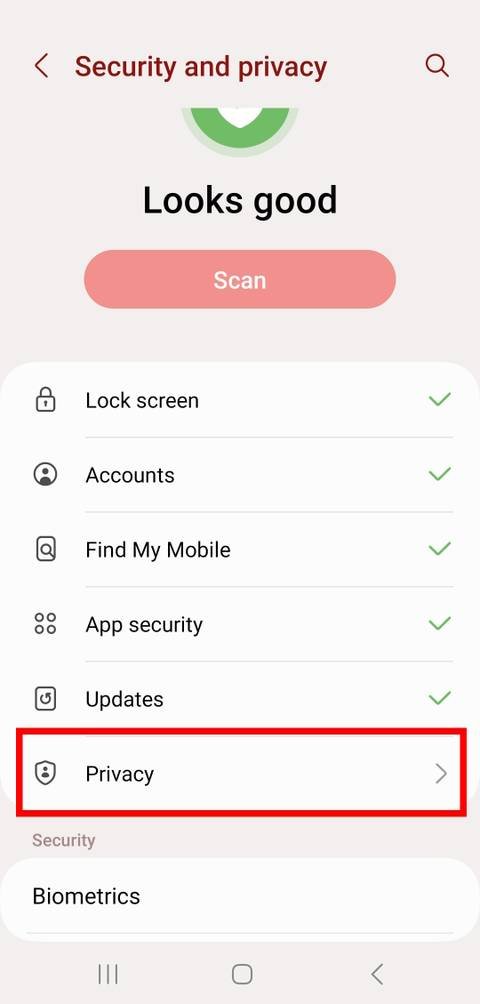
- Android: App permissions are under Settings > Apps & notifications > App permissions (or similar). Many Android versions support “Allow only while the app is in use.” Developers must declare background microphone access separately on modern Android versions.
- Smart TVs / Streaming dongles: Platforms differ widely. Many smart TVs require granting camera/mic access during initial setup or per app. Check menus in the TV settings and the app’s options. Some TVs have physical camera covers or hardware indicators.
- Desktop apps (Windows/macOS): Modern desktop OSes have per-app mic and camera controls. On macOS, look under System Settings > Privacy & Security > Camera/Microphone. On Windows, check Settings > Privacy & security > Camera/Microphone.
Always verify labels and paths on your specific OS and keep firmware and apps updated.
Comparison: when granting makes sense vs when to refuse
| When to consider granting | When to refuse or delay |
|---|---|
| You need voice search or voice assistant and trust the developer | The app requests mic/camera for no clear feature match |
| App is from a reputable source with clear privacy policy | The app asks for persistent background access without explanation |
| You want to join a live video or guest stream and the app shows active indicators | Privacy policy doesn’t explain retention or third-party sharing |
| The app provides local processing options (e.g., on-device voice commands) | You’re unable to revoke access easily through your OS |
If in doubt, start with limited access (while-in-use) and enable additional permissions only after verifying behavior.
Streaming-specific settings to watch
- Voice search and assistants: These often only need momentary mic access. Disable always-on listening features if you prefer tighter privacy.
- Live chat / reaction cams: If you enable a camera for reactions, be mindful of framing and background — you may expose personal surroundings.
- Clip creation and automatic highlights: Some apps create highlights that may upload short video segments. Check whether those are stored locally or uploaded automatically.
- Casting and remote control: Casting a stream to another device can sometimes trigger additional permissions on the receiving device — review both ends of the connection.
For device setup tips, see Devices & Setup and for apps that include these features, check Apps & Tools.
Practical examples: quick actions you can take now
- Before granting: Open the app’s store page and read the description and recent reviews for privacy complaints.
- While granting: Choose “Allow only while using the app” where available.
- After granting: Watch for system indicators (LED, icon) the first few times the app activates mic/camera.
- Regular maintenance: Every few months, review app permissions in your OS settings and remove access for apps you rarely use.
For more general safety and streaming best practices, consult our broader guides on streaming setup and privacy on the Blog.
FAQ
Q: Should streaming apps use my mic for voice search?
A: Yes — if voice search is a clearly advertised feature. Prefer apps that process voice commands on-device or that clearly document server-side processing and retention. If voice search isn’t essential for you, deny mic access and use manual search.
Q: Will an indicator always show when my camera or mic is active?
A: Modern platforms typically show a visible indicator (LED, icon, or status indicator) when hardware is active, but behavior and visibility can vary by device and OS. Verify the indicator behavior on your particular device.
Q: Can a streaming app access my mic or camera in the background?
A: Some platforms allow limited background access. Many modern OSes restrict always-on background mic/camera use or require explicit user permission for background access. When in doubt, deny persistent access and only allow while-in-use.
Q: How do I know if an app is uploading recordings?
A: Check the app’s privacy policy and settings for cloud upload or clipping features. Network traffic inspection is the most accurate way to verify uploads, but it requires technical tools. If the policy is unclear, assume the app may upload content.
Q: What if I’m using a smart TV or set-top box?
A: Smart TVs and streaming devices vary widely. Check the device manufacturer’s support resources and the app’s settings. Consider using physical camera covers for onboard cameras and verify that the TV shows an indicator when the camera or mic is active.
Conclusion
Granting microphone or camera permissions to streaming apps can unlock useful features, but you should balance convenience with privacy and security. Use the checklist above: verify purpose, prefer time-limited access, inspect indicators, and review retention and sharing policies. If anything seems unclear or unnecessary, deny permission until you can confirm how the app will use your data.
Short disclosure: Settings, menu names, and compatibility can differ by TV, device, operating system, region, and firmware version. Verify the latest manufacturer and platform documentation for your specific device.
References
- Apple — Privacy: https://www.apple.com/privacy/
- Google Support — Manage app permissions: https://support.google.com/android/answer/9431959
- Android Developer — Permissions overview: https://developer.android.com/guide/topics/permissions/overview
- Electronic Frontier Foundation — Privacy resources: https://www.eff.org/issues/privacy
- ICO (UK) — Your data matters and guidance: https://ico.org.uk/your-data-matters/
- European Commission — Data protection: https://ec.europa.eu/info/law/law-topic/data-protection_en
- Office of the Privacy Commissioner of Canada: https://www.priv.gc.ca/en/

Canzar
Ready to stream? Pick your plan
Live TV, movies, sports and 10,000+ channels on any device — Firestick, Android TV, Smart TV, phone.
View Subscription Plans Compare Pricing
Moderation: Comments are reviewed before publishing. Be respectful and on-topic.
Guidelines: Share streaming tips, device help, or content recommendations. No spam, no promotions, no off-topic links.