
Last updated August 25, 2026 · Editorially reviewed by CanzarTV
Practical Tips for Getting the Best Wi‑Fi Signal to a Wall‑Mounted TV
Wall-mounted TVs look great, but the wall they’re mounted on — the distance from your router, and the materials inside that wall — can hurt streaming performance. Whether you watch 4K movies, live sports, or use a TV for video calls, a weak Wi‑Fi connection causes buffering, stutters, and poor picture quality.
This guide helps you improve wifi signal to wall mounted tv with practical, model-agnostic steps: how to place or tune your router, when to choose wired options, how mesh and extenders compare, and tips for devices and mounting. If a detail can vary by model, region, or firmware, the article tells you to verify with the manufacturer.
Quick checklist (before you start)
- Identify how the TV connects now (built-in Wi‑Fi, streaming stick, or set-top box).
- Check signal strength and a stream test from the TV.
- Note router location and any walls or metal near the TV.
- Decide whether you prefer a wired solution (best reliability) or improved wireless.
Why wall-mounted TVs often suffer weak signal
Walls, floors, and building materials block or reflect Wi‑Fi. Common culprits:
– Solid brick, concrete, or metal studs and foil-backed insulation.
– Long distance from the router or an unfavorable line of sight.
– Interference from other electronics (microwaves, cordless phones) and neighboring Wi‑Fi networks.
Also remember that 2.4 GHz Wi‑Fi penetrates structures better than 5 GHz, but 5 GHz usually offers faster speeds and lower latency at short range. Which band is best can depend on the router, the TV’s Wi‑Fi radio, and how far apart they are.
Start with measurement: how to diagnose the problem
- On the TV, find a network or status page that shows signal strength or link speed. Many smart TVs show connection details in settings.
- Run a simple streaming test: try a high-bitrate stream (e.g., 4K preview or a speed check app) and note buffering or quality drops.
- Use a phone or laptop as a Wi‑Fi probe near the TV location and at the router location. Free Wi‑Fi analyzer apps are helpful to check signal (RSSI) and channel congestion — verify app compatibility and privacy before installing.
- If possible, run a temporary Ethernet cable for a direct speed test; this confirms whether the limitation is wireless.
Document what you learn: weak RSSI, slow throughput, or high packet loss each point to different fixes.
Best router placement for TV: general rules
- Put the router higher rather than low on the floor; elevation helps coverage.
- Avoid metal closets and thick brick or concrete partitions between router and TV.
- Keep the router in a central location relative to devices you use most — if the TV sits on an external wall, try to move the router closer if practical.
- Antennas: orient external antennas according to manufacturer guidance (usually one vertical, one horizontal for mixed devices).
If you can’t move the router, consider changing its orientation, replacing short-range antennas with higher-gain options if supported, or improving the pathway with other devices.
Wireless fixes: channels, bands, and QoS
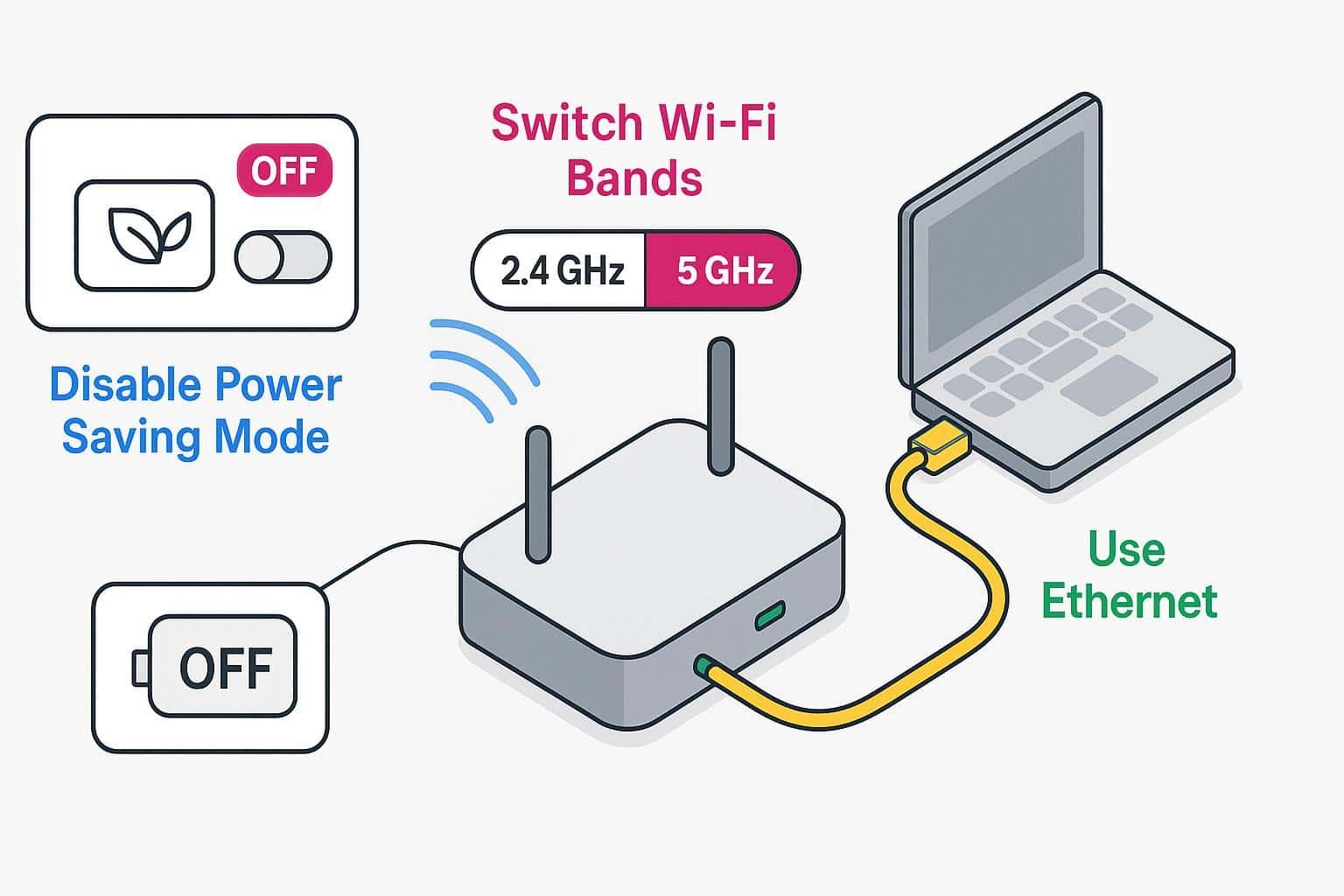
- Choose the right band: try 5 GHz for higher throughput if the TV is within reasonable range and line of sight; switch to 2.4 GHz if signals drop through walls.
- Use less-crowded channels: 2.4 GHz channels 1, 6, and 11 avoid overlap; 5 GHz has many non-overlapping channels but check local regulations for allowed channels and DFS restrictions.
- Enable QoS (Quality of Service) on the router to prioritize streaming traffic if your router supports it. Some routers offer simple “streaming” or “media” priorities.
- Ensure the router firmware is up to date; updates can improve stability and compatibility, but check the release notes from the manufacturer.
Mesh, extenders, or access points — choosing the right approach
Short comparisons to help decide which to use for a wall-mounted TV:
| Option | Pros | Cons | Best when |
|---|---|---|---|
| Mesh Wi‑Fi (single vendor) | Seamless roaming, often good coverage, easy setup | Can be more expensive; performance varies by model | You have multiple devices around the home and want consistent coverage |
| Wi‑Fi extender / repeater | Affordable; quick coverage boost | Can cut bandwidth if working as a simple repeater; placement is critical | TV is near a good mid-point between router and extender |
| Dedicated access point (wired) | Full-speed coverage, flexible placement | Requires Ethernet backhaul | You can run Ethernet or already have wired infrastructure |
| Powerline adapters | Uses home electrical wiring, easier than fishing cable | Performance depends on wiring and distance between outlets | You want a wired-like connection without new cabling |
| MoCA (coax) adapters | Very reliable and high throughput over coax | Requires coax wiring and compatible splitters | Home has coax outlets (cable TV) near TV and router |
Mesh systems often provide the easiest overall experience for large homes. Extenders are useful when you need a low-cost boost near the TV, but avoid placing extenders too close to the router or TV — they need clear signal to the router and to the TV simultaneously. If you need the best reliability, aim for a wired backhaul.
Ethernet: the most reliable option (and how to get it to a wall‑mounted TV)
A wired Ethernet connection is nearly always the most reliable and lowest-latency option. If you can run a cable from your router or switch to the TV location, do so; even a single Cat5e or Cat6 cable will typically outperform Wi‑Fi for streaming.
If running new cable is difficult, consider these alternatives:
- Ethernet over powerline adapters: plug one adapter near the router, another near the TV (then an Ethernet adapter connects to the TV). Performance depends on house wiring and is not guaranteed; older homes can be less reliable.
- MoCA adapters: use existing coax cable (common in homes with cable TV or satellite). MoCA often provides higher throughput and lower latency than powerline where coax is present.
- Ethernet adapter for wall TV: many TVs and streaming sticks support USB-to-Ethernet adapters. Check your TV or device documentation for compatibility and supported speeds.
If you use a streaming stick (e.g., a dongle) that only has Wi‑Fi, some manufacturers offer an Ethernet adapter accessory, or you can use a powered USB Ethernet adapter that’s compatible with that model — always verify compatibility with the device maker.
Wi‑Fi extender TV wall mount: placement and mount suggestions
If you choose a Wi‑Fi extender near a wall-mounted TV, follow these tips:
– Mount the extender where it has a strong signal from the main router (not sitting in a dead zone).
– Keep at least some distance from the TV’s metal bracket or other electronics that could shield the radio.
– Use a short USB extension to reduce heat if the extender is near the TV’s heat source, and avoid blocking vents.
– Test both 2.4 GHz and 5 GHz performance from the TV after installing the extender.
Extenders work best when they have a clear pathway to both router and TV. If you see limited improvement, a wired access point or MoCA may be more consistent.
Practical step‑by‑step: getting better Wi‑Fi to the wall TV (workflow)
- Measure current performance: get signal strength from the TV and run a speed test.
- Try quick adjustments: reposition the router, rotate antennas, update firmware, and reboot router/TV.
- Test band selection: try switching the TV to 5 GHz if close enough; otherwise use 2.4 GHz.
- If still poor, add a temporary Ethernet cable to confirm wired is better.
- Decide between an extender, mesh node, powerline, or MoCA based on wiring and budget.
- Install the chosen device with careful placement and test repeatedly during setup.
- If you have a streaming stick, consider an official Ethernet adapter or a compatible USB‑Ethernet adapter.
- Use QoS only if you observe congestion during simultaneous heavy traffic (gaming, downloads).
Tools and apps for troubleshooting
- Router admin page: check connected devices, bandwidth, and logs.
- Speed test apps: run tests from devices near the TV and at the router.
- Wi‑Fi analyzer apps: show signal strength, channel overlap, and noise. Verify app privacy and permissions.
- Ping/latency checks (from laptops or network tools) to detect packet loss.
Always cross-check results: a phone may show better signal than the TV because phones have stronger radios or different antenna placements.
When to call a pro
Consider professional help if:
– You plan to run Ethernet or coax wall plates through finished walls and prefer neat cable routing.
– Your home has complex wiring or you want a multi-room wired backbone (switches, patch panels).
– You need help choosing between MoCA, powerline, or full rewire for best long-term results.
A qualified installer can also test coax and electrical wiring for optimal adapter placement.
FAQ
Q: Should my TV use 2.4 GHz or 5 GHz?
A: Use 5 GHz for higher speeds if the TV is close enough and the signal is stable. Use 2.4 GHz if the TV is far away or separated by thick walls. Test both and choose whichever gives better consistent throughput.
Q: Can I use a streaming stick with an Ethernet adapter on a wall‑mounted TV?
A: Many streaming devices support USB-to-Ethernet adapters or vendor-specific Ethernet dongles. Check the device or manufacturer documentation before buying; compatibility and supported speeds vary by model.
Q: Are powerline adapters reliable?
A: Powerline performance depends heavily on the home’s electrical wiring, distance, and circuit connections. In some homes they work well; in others, performance suffers. MoCA over coax is typically more consistent where available.
Q: Will a Wi‑Fi extender halve my speed?
A: A simple single-radio repeater can reduce throughput because it receives and retransmits on the same radio. Dual-band extenders, mesh systems, and devices with wired backhaul avoid or reduce this issue. Performance varies widely by product.
Q: How do I choose between mesh and extenders?
A: Mesh systems are best for seamless coverage and multiple devices across a home. Extenders can be a lower-cost fix for one problem area. If you care about maximum reliability for a wall TV, prefer wired backhaul or MoCA when possible.
Conclusion
Improving Wi‑Fi signal to wall mounted TV starts with measurement and understanding whether the limitation is wireless range, interference, or the TV’s own hardware. If possible, wired Ethernet (or MoCA over coax) gives the most reliable, lowest-latency connection. If running cable isn’t feasible, a well-placed mesh node, a quality extender, or powerline adapters can work — but placement and testing matter.
Make small, iterative changes: measure, try a fix, and retest. If a device-specific compatibility question arises (for example, which USB-to-Ethernet adapter works with a particular streaming stick or TV), verify with the manufacturer’s documentation for that exact model and firmware.
For more setup tips and device guides, see our related coverage in Tech & Security, Devices & Setup, and Streaming Guides. You can also find practical how‑tos in our Blog.
Disclosure: Settings and compatibility can differ by TV model, streaming device, operating system, region, and firmware version. Verify details with your device and router manufacturer documentation before buying hardware or changing advanced settings.

Canzar
Ready to stream? Pick your plan
Live TV, movies, sports and 10,000+ channels on any device — Firestick, Android TV, Smart TV, phone.
View Subscription Plans Compare Pricing
Moderation: Comments are reviewed before publishing. Be respectful and on-topic.
Guidelines: Share streaming tips, device help, or content recommendations. No spam, no promotions, no off-topic links.