
Last updated August 25, 2026 · Editorially reviewed by CanzarTV
Subtitle encoding and character sets: avoiding garbled letters for non-Latin scripts
Introduction
If you watch content in languages that use non-Latin scripts — Arabic, Cyrillic, Chinese, Devanagari, Greek, Hebrew, and others — you may have seen subtitles turn into question marks, boxes, or mojibake (garbled text). That usually means the subtitle file and the player don’t agree on the character set or that the display lacks the right font/shaping support. This guide explains why that happens, how encodings and character sets work, and practical steps to diagnose and fix garbled subtitles on PCs, phones, set‑top boxes and smart TVs.
Why subtitle encoding matters (short primer)
- Text is stored as numbers. A character encoding maps numbers (bytes) to characters.
- Modern practice favors Unicode (UTF‑8 and UTF‑16), which covers virtually all scripts. Legacy encodings (Windows‑1252, ISO‑8859‑1, Shift_JIS, etc.) cover limited character sets and can cause errors when the wrong one is assumed.
- Some subtitle formats (WebVTT, SRT, ASS/SSA) don’t explicitly declare encoding, and players or platforms may guess or assume a default. That guessing can lead to garbled letters for non‑Latin scripts.
Common subtitle formats and encoding behavior
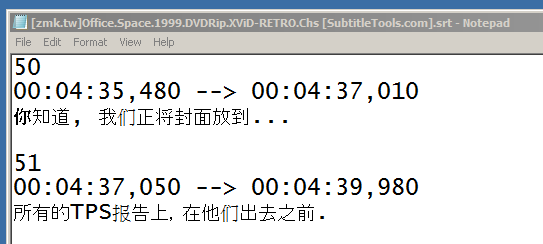
- SubRip (.srt): simple, widely used. Historically many .srt files use local single‑byte encodings; UTF‑8 is preferred today. Some players assume a single‑byte legacy encoding unless a UTF‑8 BOM is present or the player explicitly supports UTF‑8.
- WebVTT (.vtt): designed for the web and HTML5 players; UTF‑8 is the expected encoding. WebVTT files should start with the line “WEBVTT”.
- ASS/SSA: advanced format with styling and explicit support for fonts; typically works best when saved as UTF‑8 or with an explicitly supported code page. Some players perform shaping for complex scripts if they support ASS rendering.
Comparison: encodings at a glance
| Encoding | Coverage | Common issues | When to use |
|---|---|---|---|
| UTF‑8 | All scripts (variable length) | BOM may confuse some older players; ensures widest compatibility when supported | Preferred for web and modern players (WebVTT, SRT) |
| UTF‑16 | All scripts (variable endianness) | Requires byte order mark (BOM) to indicate endianness; uncommon for simple subtitle files | Rare; use only if player explicitly supports it |
| Legacy single‑byte (e.g., Windows‑1251, ISO‑8859‑5, Shift_JIS) | Specific language groups | Garbling if wrong encoding assumed; limited characters | Only when dealing with legacy files tied to a specific locale |
Signs your subtitles use the wrong encoding
- Boxes, question marks or strange characters in place of letters.
- Appearance of sequences like é where é should be (classic UTF‑8 interpreted as Latin‑1).
- Subtitles render correctly in one player but not another.
Practical checklist to diagnose and fix garbled subtitles
1) Confirm the subtitle format and basic integrity
– Open the file in a plain text editor (Notepad on Windows, TextEdit on macOS in plain text mode, or a code editor). If you see “WEBVTT” at the top, it’s WebVTT. If it looks like numbered blocks with timecodes, it’s likely SRT.
– If the file contains unusual control characters or is mostly binary, it might be embedded in a container. Use a tool like MKVToolNix GUI to inspect MKV containers for embedded subtitle streams.
2) Check the current encoding
– In many editors you can view or change the file encoding: Notepad++ (Encoding menu), VS Code (status bar), Sublime Text, or the “file” and “iconv” utilities on Linux.
– Look for a UTF‑8 BOM (bytes EF BB BF). A BOM can tell some players the file is UTF‑8, but some players misread BOMs — many prefer UTF‑8 without BOM.
3) Convert to UTF‑8 without BOM (recommended default)
– Command line (Linux/macOS with iconv):
iconv -f WINDOWS-1252 -t UTF-8 infile.srt -o outfile.srt
Replace WINDOWS-1252 with the source encoding if known (for Cyrillic, Windows‑1251; for Japanese, Shift_JIS).
- Windows (Notepad++): open file → Encoding → Convert to UTF‑8 (not “UTF‑8 BOM”) → Save.
- macOS (TextEdit): Use “Make Plain Text”, then File → Save As, ensure encoding is UTF‑8.
Why UTF‑8 without BOM is usually best
- UTF‑8 is the de facto standard on the web and is widely supported by modern players and streaming services.
- Removing the BOM avoids confusion on platforms that don’t expect it.
4) Test the converted file in different players
– Try VLC (desktop), MPV, the device or app you normally use, and a web browser (for WebVTT). If the file displays correctly in VLC but not on your TV, the issue may be the TV’s font or player.
5) Address font and rendering issues
– Non‑Latin scripts sometimes require shaping engines and fonts. If subtitle text still looks wrong or characters are replaced with empty squares, the device may lack a font for that script.
– On PCs and phones you can install additional fonts. On smart TVs and streaming sticks, font support varies by manufacturer and firmware; consult the device documentation.
– For complex scripts (Arabic, Indic languages), SSA/ASS subtitle rendering may be needed because these formats allow advanced shaping and positioning; some platforms don’t support ASS rendering.
6) Embedded subtitles and re‑muxing
– If subtitles are embedded in a container (MKV, MP4), re‑muxing while forcing the right encoding or extracting and converting the subtitle file then re‑embedding can resolve issues. Tools: MKVToolNix (MKV), MP4Box (MP4), ffmpeg for conversion and re‑multiplexing.
– Example FFmpeg command to extract subtitles from an MKV (desktop):
ffmpeg -i input.mkv -map 0:s:0 subs.srt
Then convert subs.srt to UTF‑8 and re‑embed if needed.
7) For streaming platforms and remote uploads
– Many streaming and cloud services prefer UTF‑8 encoded subtitles; WebVTT is often recommended for HTML5 video and online players. Check the platform’s documentation for subtitle encoding requirements before uploading.
– If content is delivered to a third‑party streaming service (aggregator, VOD platform), they may require specific formats, encodings, and style constraints — verify with the supplier.
8) Right‑to‑left languages and directionality
– For RTL scripts (Arabic, Hebrew), ensure that the player supports right‑to‑left rendering and that your subtitle file uses Unicode characters correctly. If your subtitle format supports direction tags, follow the format spec. If not, consider WebVTT or ASS which have broader support for directionality in many players.
Tools and examples (quick reference)
- Notepad++ (Windows): view/change encoding, search/replace, convenient for quick fixes.
- iconv (Linux/macOS): robust command‑line conversion between encodings.
- ffmpeg: extract and re‑embed subtitles, transcode containers.
- MKVToolNix: inspect and re‑mux MKV subtitle tracks; specify track language and encoding.
- VS Code / Sublime / Atom: modern editors that show encoding and can save as UTF‑8.
When to keep a legacy encoding
You might keep a legacy encoding if the subtitle file is tied to an older device or software that requires a particular code page. In that case, note the requirement and keep a converted UTF‑8 copy for modern players.
Practical examples
- Example 1 — classic mojibake (é instead of é): This happens when a file saved as UTF‑8 is read as ISO‑8859‑1 or Windows‑1252. Re‑save the file explicitly as UTF‑8.
- Example 2 — Chinese characters appear as boxes: Likely a missing font on the device. Check the player/device font support or burn subtitles into the video with a known font if distribution requires it (see legal and distribution guidelines for your platform).
Best practices for creators and localizers
- Deliver subtitles in UTF‑8 without BOM whenever possible.
- Prefer WebVTT for web delivery and SRT in UTF‑8 for general distribution (unless the platform asks otherwise).
- Provide separate subtitle files per language; include language tags when embedding (e.g., in MKV or HTML track elements).
- Test subtitles on representative target devices and apps, because rendering and font support vary.
Helpful checklist before publishing or distributing
- Is the subtitle file valid (not corrupted)?
- Is it saved in UTF‑8 without BOM? If not, convert and test.
- Does the player or target device support the script and shaping? Test on at least one target device.
- For streaming platforms, have you checked their subtitle upload/format documentation?
FAQ
Q: How do I know which encoding a subtitle file uses?
A: Use a capable text editor (Notepad++, VS Code) to view the declared or detected encoding. On Unix systems, the file and enca utilities can help. If detection fails, compare what characters are garbled to infer the wrong decode (e.g., UTF‑8 interpreted as Latin‑1 creates recognizable patterns like é).
Q: Will adding a BOM always fix the problem?
A: No. A BOM can help some players detect UTF‑8, but other players may misinterpret a BOM. The most robust approach is UTF‑8 without BOM and ensuring the player explicitly supports UTF‑8.
Q: My TV still shows boxes after converting to UTF‑8. What now?
A: That’s likely a missing font or lack of shaping support on the TV. Check device specs and documentation; try another app on the TV (some apps have better font support). If you control the video file, consider burning subtitles into the video with an embedded font, but be aware burning is permanent and may not be acceptable for some distribution scenarios.
Q: How do I handle right‑to‑left (RTL) languages?
A: Use Unicode (UTF‑8) and test on players that support RTL. WebVTT and ASS may provide broader support for directionality. Where possible, provide separate tracks and test rendering.
Q: Are there subtitle formats that guarantee correct display across all devices?
A: No single format guarantees universal correctness because device font support and player rendering differ. Using UTF‑8 and widely supported formats (WebVTT for web, UTF‑8 SRT for general use) and testing across devices gives the best coverage.
Resources and next steps
- When troubleshooting, start by converting to UTF‑8 without BOM and testing in VLC or a browser for WebVTT.
- If you need advanced styling or shaping, consider ASS/SSA but confirm target player support.
- For distribution, check platform documentation for encoding and format requirements well before publishing.
For more general streaming and setup advice, see our guides in Streaming Guides and tools you can use in Apps & Tools. If you want deeper background or examples, check Blog for related posts and case studies.
Disclosure
Settings and compatibility can differ by TV, device, operating system, region, and firmware version. Always verify the current manufacturer documentation and platform guidance when preparing subtitles for a specific device or streaming service.
Conclusion
Garbled non‑Latin subtitles are usually an encoding or font issue. Using Unicode (UTF‑8 without BOM), choosing the right subtitle format for your platform, testing across target devices, and ensuring appropriate fonts/shaping support are the most effective ways to prevent and fix problems. With a few diagnostic steps and the right tools, most subtitle encoding issues can be resolved quickly, restoring accessibility and a correct viewing experience for non‑Latin languages.

Canzar
Ready to stream? Pick your plan
Live TV, movies, sports and 10,000+ channels on any device — Firestick, Android TV, Smart TV, phone.
View Subscription Plans Compare Pricing
Moderation: Comments are reviewed before publishing. Be respectful and on-topic.
Guidelines: Share streaming tips, device help, or content recommendations. No spam, no promotions, no off-topic links.